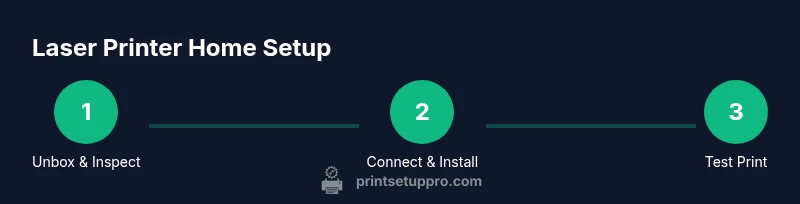
Laser Printer Home: Step-by-Step Setup and Troubleshooting
Learn how to set up and troubleshoot a laser printer at home. From unboxing to driver installation and maintenance, this step-by-step guide covers connection options, media handling, common issues, and energy-saving tips for a productive home office.


In this guide you will learn how to set up a laser printer at home and optimize it for quality, speed, and reliability. You’ll need a power source, a data connection (USB or Ethernet/Wi‑Fi), printer drivers, and a computer or mobile device. The steps cover unboxing, installation, network setup, driver configuration, and common troubleshooting tasks.
What makes a laser printer suitable for home use
Laser printers use toner and a photoconductor drum to produce text with high precision. For a home office focused on documents, a laser printer often delivers fast first-page-out times, crisp text, and lower cost per page compared with color inkjets. They excel at dense text, reports, and mail merges, and they can handle large print runs with reliable performance. The Print Setup Pro team notes that when home users prioritize legibility and speed over photo realism, a laser printer typically offers the best balance of reliability and ease of use. Modern units are compact enough for small desks and commonly include duplex printing, secure wake features, and straightforward maintenance guidance, making them a practical core device for a productive home workspace.
How to pick a laser printer for a home office
When shopping for a home setup, differentiate monochrome from color. Monochrome laser printers are usually cheaper to operate and faster per page, ideal for document-centric tasks. Color lasers add cost and can be slower, but they’re valuable for visuals, marketing handouts, or school projects. Consider your expected monthly workload in terms of pages (without relying on exact numbers, just gauge the volume). Check for paper-size support (Letter or A4), tray capacity, and available security features for shared spaces. Connectivity is critical: USB is simple and fast for a single-device setup, Ethernet suits a small wired network, and built‑in Wi‑Fi enables printing from laptops, tablets, and smartphones. Look for toner yields, availability of genuine cartridges, energy efficiency, and a clear warranty path. Aligning your choice with your actual use case helps avoid waste and ensures long-term satisfaction.
Unboxing and initial setup steps
Carefully remove the printer from its box and verify all components are present, including the power cable, starter toner, user manuals, and setup guides. Inspect for transit damage before you discard packaging. Place the printer on a stable surface with adequate clearance for airflow and future maintenance. Connect the power cord to a grounded outlet not controlled by a wall switch, power on, and allow the printer to complete its initial calibration. During this phase you may be prompted to insert the starter toner and run a basic alignment; completing these steps now helps prevent print defects later.
Placement, ventilation, and paper path guidance
Position the device on a sturdy desk or stand near a power outlet and network connection if you plan to use network printing. Avoid dusty shelves, direct sunlight, and environments with high humidity. Clean the inside and outside of the paper path before loading. Use the recommended paper type (usually plain white printer paper) and adjust tray guides to fit the paper width. Do not exceed the tray capacity, and keep a small stock of tested media for daily use. Proper placement reduces jams and supports consistent print quality across long sessions.
Connecting options: USB, Ethernet, and Wi‑Fi
USB offers a simple, reliable direct connection for single-computer use. For households or small offices shared across devices, Ethernet or Wi‑Fi is preferable. If using Wi‑Fi, connect to your home router’s 2.4 GHz band for compatibility, or 5 GHz for potentially better performance depending on your layout. Write down the network SSID and password, and consider enabling a secure printing option if your printer supports it. Some models include native support for mobile printing standards like AirPrint or Mopria, which simplifies printing from phones and tablets.
Installing drivers and software on multiple devices
Download the latest official drivers from the manufacturer’s site for each operating system you use (Windows, macOS, Linux). Run the installer and follow on-screen prompts to complete the setup. After installation, power cycle the printer if required and verify it appears in the OS's printer list. On mobile devices, install any companion apps to enable wireless printing and remote management. Keeping drivers updated helps avoid compatibility issues and improves feature support.
Paper loading, orientation, and tray management
Load paper into the main tray with the print side facing up and the short edge toward the printer, aligning guides to the paper size. Fan the stack to prevent sheets sticking together and avoid overfilling the tray. If you print a variety of media, designate a separate tray for special paper to minimize jams. Regularly inspect the rollers for wear and clean them according to the manual’s recommendations. Proper loading and handling contribute to consistent page alignment, fewer misfeeds, and a smoother overall workflow.
Toner handling, storage, and replacement
Handle toner cartridges with care to avoid spills; keep them in their sealed packaging until installation. Store in a cool, dry place away from direct sunlight to preserve print quality and toner life. When replacing, power down the printer and follow the step-by-step prompts to install the new cartridge. After replacement, run the printer’s calibration or alignment routine to ensure optimal density and uniformity across pages. Keep spare toners on hand to minimize downtime.
Print quality calibration and routine maintenance
Regular maintenance preserves print quality and extends the printer’s life. Run automated or manual calibrations when you install a new toner or change media type. Clean the interior surfaces and digital rollers according to the product manual, using only recommended cleaning tools and solutions. Periodic checks of fuser temperature, transfer belt wear, and paper path cleanliness reduce the risk of ghosting, banding, or smudges. Establish a simple maintenance routine: quick wipe-down weekly, depth cleaning monthly, and firmware checks quarterly to stay current with security and compatibility improvements.
Troubleshooting common issues: jams, banding, ghosting
Jams often result from misfed media, dirty rollers, or overfilled trays. Resolve by powering down, removing jammed sheets gently, and reloading with the guides snug to the paper. Banding can indicate misalignment or toner distribution problems, so run a calibration and verify the toner is genuine and properly seated. Ghosting occurs when toner isn’t fused correctly; check fuser status and ensure toner quality. For persistent issues, consult the manufacturer’s support resources and verify firmware is up to date.
Mobile printing and cloud printing options
Many laser printers support mobile printing standards like AirPrint (iOS) and Mopria (Android), enabling direct printing from mobile devices without installing full drivers. Ensure the printer is on the same network as your mobile device and that the feature is enabled in the printer settings. If you frequently print from the cloud, verify cloud printing compatibility and security settings. Regularly updating the printer’s firmware helps maintain compatibility with new devices and apps.
Energy efficiency, safety, and warranty considerations
Laser printers typically consume more power during operation but can be energy-efficient in standby modes. Place the unit away from heat sources and ensure adequate ventilation to avoid overheating during extended print runs. Always follow safety warnings in the user manual, particularly around toner handling and fuser temperatures. Verify the warranty terms and service options, and register your device if required to access updates and support. A well-maintained laser printer remains reliable and cost-effective for home use over time.
Authority sources and further reading
To deepen your understanding, consult reputable sources such as government and major publications. For energy efficiency and product labeling, you can reference ENERGY STAR's printer guidance. For an overview of laser printer technology and history, Britannica offers a concise explanation. If you want formal standards and testing context, NIST resources provide general information on print technologies and measurements.
Tools & Materials
- Power outlet(Dedicated outlet recommended for stability)
- USB cable or Ethernet cable(Use shielded cable if possible)
- Wi‑Fi network(Wireless setup is optional if using USB)
- Printer drivers/software(Download from manufacturer site)
- Printer paper(Standard 20 lb, plain white for test pages)
- Toner cartridges(New compatible cartridges recommended)
- Measuring tool or ruler(For alignment checks)
Steps
Estimated time: 45-75 minutes
- 1
Unbox and inspect
Carefully remove the printer from its packaging. Check for transit damage, all accessories, and confirm model on the label. If something is missing, contact support before continuing.
Tip: Take photos of the packaging for warranty claims. - 2
Place and connect power
Place the printer on a stable surface near a power outlet and connect the power cord. Avoid outlets controlled by wall switches during setup.
Tip: Use a surge protector to guard against spikes. - 3
Load media and set tray guides
Load a ream of plain white paper and adjust tray guides to fit the paper size. Ensure the media stack is within the recommended page limit indicated in the manual.
Tip: Fan the paper before loading to prevent sticking. - 4
Connect data cable or setup wireless
Choose USB or network connection. If Wi‑Fi, follow the on-screen prompts to join the home network. For Ethernet, plug into a router port.
Tip: Write down the network name (SSID) and password. - 5
Install drivers and software
From the manufacturer’s site, install the recommended drivers for your OS. Reboot if prompted and ensure the printer appears in your devices list.
Tip: Install companion apps if you plan mobile printing. - 6
Print a test page
From the printer settings, print a test page to verify alignment, density, and quality. Adjust printer preferences if needed.
Tip: Check for uniform density across the page. - 7
Update firmware
If prompted, update the printer firmware to improve compatibility and security. Do not interrupt the update.
Tip: Only update firmware over a stable connection. - 8
Set up default print preferences
Configure default settings (duplex, black-and-white vs color, scaling) to optimize efficiency and reduce waste.
Tip: Enable duplex printing by default if your documents don’t require color.
People Also Ask
Is a laser printer a good choice for home use?
Yes. For document-heavy printing, laser printers offer fast throughput, sharp text, and lower per-page costs compared with color inkjets. They’re less ideal for photos or glossy color graphics, where inkjets may excel.
Yes. If you print a lot of documents, a laser printer is usually fast and cost-efficient. For photos, an inkjet might be better.
Do I need a dedicated network to use a wireless laser printer at home?
No, you can connect directly via USB for a single device. A wireless setup is convenient for households with multiple devices.
You can use USB directly or connect over Wi‑Fi to share the printer with multiple devices.
How often should I replace toner in a laser printer?
Toner replacement depends on usage and cartridge yield. Monitor page counts and print a test page to gauge when density or coverage drops, then replace to maintain quality.
It depends on how much you print; watch print quality and page counts, then replace toner before quality drops.
Why are pages ghosting or showing faint images?
Ghosting typically indicates suboptimal fuser fusion or toner distribution. Check the toner, run calibration, and ensure the printer is properly warmed up before heavy prints.
Ghosting usually means toner isn’t fused well; calibrate and ensure toner seats correctly.
Can I print photos with a laser printer?
Color lasers can print photos, but the quality may not match dedicated photo printers. For best results, use appropriate photo paper and expect slightly different color rendering.
Color lasers can print photos, but dedicated photo printers often yield better results.
What basic maintenance keeps a laser printer reliable?
Perform regular cleaning of accessible components, replace toner cartridges as needed, run calibration, and update firmware when available to maintain reliability and print quality.
Keep the printer clean, change toner, and update firmware to stay reliable.
Watch Video
Quick Summary
- Prepare a dedicated setup space to minimize vibrations.
- Connect via the most stable method (USB or Ethernet) for reliability.
- Install official drivers and run a test page.
- Maintain the printer with regular cleaning and calibration.