Library Printer Setup: A Practical How-To Guide for Libraries
A practical, end-to-end guide to setting up, securing, and maintaining a library printer that serves patrons efficiently, with network setup, quotas, troubleshooting, and maintenance tips.


According to Print Setup Pro, a library printer guide helps IT staff and campus users set up and troubleshoot shared printers in schools, universities, or public libraries. It emphasizes reliability, network setup, and secure access. The guide covers common needs like connecting to Wi-Fi, installing drivers, and enabling print quotas. It also highlights safe maintenance practices, budgeting, and efficient troubleshooting to keep devices available during peak hours.
What is a library printer and why it matters
In a library setting, a library printer is more than a standalone device. It is a shared resource designed to serve many users with varying levels of access, from casual readers to student researchers. A reliable printer minimizes downtime during peak hours, reduces user frustration, and enforces institution policies such as print quotas and secure release. The most effective library printers are those that combine straightforward setup with robust access controls, clear job accounting, and adaptable paper handling. When deployed properly, a library printer supports learning, research, and outreach by delivering consistent color and black-and-white output, handling multiple media types, and integrating with campus authentication. The device should be easy to locate, simple to use from multiple platforms (Windows, macOS, and mobile), and compatible with a central print server or cloud-based print service. In short, a well-chosen library printer reduces support tickets and improves the library’s ability to serve diverse patrons.
Typical use cases in libraries and educational settings
Public and academic libraries rely on library printers to provide access to printing for patrons who may not own devices or want to print from mobile. Typical use cases include printing research papers from library computers, printing course materials for study groups, and turning in assignments from student laptops. In many libraries, printers are integrated with a pay or quota system to balance demand and preserve resources. Staff often configure permissions to restrict color printing to certain users or to limit the number of prints per day. In university libraries, printers may be grouped by floors or zones to minimize walk time and reduce congestion. In public libraries, self-serve stations are common but staff often assist with larger print jobs, such as scanning, duplex printing, or printing on special media like labels or cardstock. A well-designed workflow also considers accessibility, offering large font prompts, tactile feedback, and multi-language on-screen instructions to serve diverse patrons.
Key features to look for in library printers
When selecting a library printer, prioritize reliability, ease of maintenance, and strong security features. Look for models with robust paper handling (multi-page feeders, borderless printing options), clear user prompts, and straightforward driver support across Windows, macOS, and mobile OS. Pay attention to print speed in pages per minute for typical peak-hour loads, plus first-page-out-time for low wait times. Energy efficiency matters in campus buildings, so choose ENERGY STAR-rated devices. Security features such as secure print release, user authentication, and audit trails help protect patron data and enforce policies. Media versatility is helpful for libraries that handle forms, flyers, and outreach materials. Finally, consider support and warranty options, including on-site service and parts availability in your region. A good library printer should integrate with your existing print server or cloud-based print service, and provide a simple administration portal for staff.
Setup and network configuration for library printers
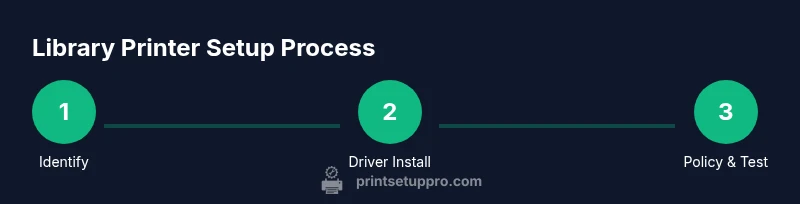
The setup process begins with identifying the printer's network address and ensuring it has a stable connection to the library’s network. Install the correct drivers on a test workstation, and verify that the printer appears in the devices list across supported platforms. Configure basic settings: default paper size, duplexing, color vs monochrome, and quotas if you use them. If you manage a print server, register the device there so user devices can discover it automatically, and consider a centralized pull-print workflow to minimize waste. For wireless environments, ensure the access point supports the printer’s wireless standards and that security credentials are stored securely. Document every step for staff, and test from multiple user accounts and devices to catch permission gaps. Finally, set up monitoring alerts for paper jams, low-toner, and offline status so you can respond quickly.
Troubleshooting common issues in a library environment
Common problems include offline status, driver conflicts, paper jams, and network path changes that break the print queue. Start by verifying physical connections and power, then confirm the printer is online and reachable from client devices. Check the queue for stuck jobs and clear errors; ensure ink or toner is adequate, and replace a jammed sheet if necessary. If a user reports inconsistent output, compare driver versions across devices and align the default printer settings across platforms. In shared environments, contradictions between different operating systems can cause driver mismatch; ensure you provide universal print drivers or platform-specific installers. If the printer goes offline, check the network gateway or print server status, and re-establish the connection. Always consult the manufacturer’s knowledge base for model-specific fixes and maintain a log of recurring issues to plan upgrades or replacements.
Maintenance and best practices to keep printers running
Regular maintenance reduces downtime and extends device life. Schedule monthly cleaning of exposed rollers, check for paper dust buildup, and update firmware on a controlled maintenance window. Keep spare parts like fuser pads, belts, and toner refills on hand to minimize disruption. Establish a routine for calibrating color accuracy and checking alignment, especially after media changes or firmware updates. Maintain accurate usage logs to track toner consumption and paper waste, which helps in budgeting and forecasting. Train library staff to perform basic troubleshooting, such as clearing jams and resetting the device, so the central IT team can focus on complex issues. By documenting each service event and refreshing policies, you ensure consistent operation and faster recovery from faults. This approach also reduces user frustration and improves overall satisfaction with the library’s printing services.
Security and access considerations in shared environments
Shared printers can expose patron data if not properly secured. Enforce authentication for release printing, so users pick up jobs with a PIN or campus ID. Enable encrypted transmission if your printer supports it and disable unnecessary features that could expose attack surfaces. Use print quotas to discourage waste and implement per-user accounting so staff can audit usage. Manage permissions carefully, granting higher privileges only to authorized staff. If you run a bring-your-own-device (BYOD) program, require approved apps or driver packages to minimize compatibility issues. Regularly review access lists and perform security patches when updates are released. Finally, communicate clearly about who has access to the printer and how sensitive documents should be handled in accordance with library privacy policies.
Budgeting and total cost of ownership for library printers
Estimating total cost of ownership (TCO) for a library printer includes upfront purchase price, ongoing supply costs (toner, paper), maintenance contracts, energy use, and potential replacement cycles. While the sticker price matters, the long-term cost of consumables can dwarf the initial price, so choose printers with affordable toners and efficient drums. Consider service levels—on-site repairs may reduce downtime during critical hours, but can be pricier than depot service. Energy-efficient models save ongoing costs and may qualify for institutional rebates. Don’t forget to factor in software costs, such as driver licenses or queue-management software, if needed. Finally, plan for phased upgrades rather than a single refresh to keep your fleet current with evolving policies and technology.
Getting help and training resources for library printers
Access official documentation from manufacturers, which typically includes setup guides, troubleshooting tips, and firmware notes. Look for library-specific best practices from education technology associations and trusted university IT departments. Consider staff training sessions that cover print policies, queue management, and basic maintenance techniques, supplemented by online tutorials and community forums. Create an internal knowledge base with steps for common tasks, a contact list for escalation, and a change-log for firmware updates. Encourage staff to share tips and solutions, which reduces dependency on a single expert and speeds up problem resolution. If you encounter a unique issue, contact your vendor’s support channel and seek a professional assessment when necessary. The goal is to empower library staff to manage printing services confidently and sustainably.
Tools & Materials
- Printer model or access to print server(Identify exact model and shareable network path; confirm compatibility with policies)
- Admin account with privileged access(Needed to configure settings, quotas, and security options)
- Computer or device with network access(For driver installation and testing print jobs)
- Printer drivers for supported OS(Windows, macOS, and Linux as applicable)
- Ethernet cable or reliable Wi-Fi access(For initial setup and testing; ensure network stability)
- Library print policy and quotas document(Useful for aligning configuration with policy)
- Basic maintenance tools(Lint-free cloth, compressed air for rollers, gloves)
Steps
Estimated time: 60-90 minutes
- 1
Identify printer and network path
Locate the printer’s IP address or network name and verify it’s reachable from the library network. Document the path for staff reference and ensure the device is within the same subnet as user devices.
Tip: Double-check that the device is on the correct VLAN/subnet to avoid routing issues. - 2
Install the correct drivers
Download the latest drivers for the target OS and install them on a test workstation. Verify that the printer appears in the devices list on Windows, macOS, and mobile platforms as appropriate.
Tip: If possible, use a universal print driver to minimize cross-OS compatibility problems. - 3
Configure print policies
Set default paper size, duplex options, color vs monochrome, and quotas. Enable authentication for secure pull printing if available.
Tip: Document default policies and publish them for staff and patrons. - 4
Add the printer to client devices
Add via OS printer settings or a central print server so users can discover the device automatically. Validate discovery on multiple devices.
Tip: Test with Windows, macOS, iOS, and Android where applicable. - 5
Run initial tests
Print sample pages from different user accounts and media types to verify color accuracy, margins, and duplexing. Confirm policies are enforced.
Tip: Check for queue delays and ensure the test pages are properly released. - 6
Document and train staff
Create a quick-start guide for library staff and student workers. Include steps for common tasks and escalation paths.
Tip: Schedule a short training session and store the guide in a shared knowledge base.
People Also Ask
What is a library printer?
A library printer is a shared device that serves patrons across devices and platforms, typically integrated with a print policy and authentication to manage access and usage.
A library printer is a shared device that serves many users and is controlled by library print policies.
How do I connect a library printer to the network?
Connect the printer to the library network via Ethernet or Wi-Fi, install the proper drivers on a test machine, and ensure it appears on all supported devices. Use a central print server if available.
Connect via Ethernet or Wi-Fi, install drivers, and verify the printer is visible on all devices.
Why might a library printer go offline?
Common causes include network changes, power issues, or a faulty print server. Check network connectivity, verify the device status, and restart the printer and server as needed.
Check network, power, and server status; restart components if necessary.
How can I enforce printing quotas and secure releases?
Enable per-user quotas in the print server or device settings and use secure release printing with PIN or campus credentials to protect sensitive documents.
Set quotas and require authentication to release prints.
What maintenance tasks should be scheduled regularly?
Regular cleaning, firmware updates, and part inspections should be scheduled monthly or quarterly, depending on usage. Maintain an inventory of consumables.
Schedule routine cleaning, updates, and part checks.
Where can I find official printer documentation?
Refer to manufacturer-provided setup guides and your library's IT portal for policy-based configurations and troubleshooting steps.
Check manufacturer guides and your library's IT portal.
Watch Video
Quick Summary
- Choose a printer with strong security and reliable media handling.
- Implement a centralized, pull-based workflow to minimize waste.
- Regular maintenance reduces downtime and extend device life.
- Document processes and train staff for quick issue resolution.
- Monitor usage to optimize budget and future upgrades.