Mini Printer for Photos: The Complete Setup and Guide
Discover how to choose, set up, and use a mini printer for photos. Learn about print tech, paper, connectivity, and troubleshooting for home offices, classrooms, and DIY projects.


By the end of this guide, you’ll know how to pick a compact photo printer, connect it to your phone or computer, and produce high-quality prints on the go. You’ll understand paper types, color management, and practical workflows for home offices, classrooms, and small studios. This quick answer aims to get you printing memories quickly while avoiding common setup pitfalls.
Why a mini printer for photos matters
In an era of digital memories, a mini printer for photos lets you transform screens into tangible keepsakes anywhere. The compact footprint fits a busy home office, classroom desk, or craft corner, so you can print on demand without schlepping to a lab or waiting for shipments. For many users, the payoff is not just convenience but the creative joy of scrapbooks, gift tags, and quick photo journaling. According to Print Setup Pro, these portable devices are increasingly popular among home users who want immediate results without compromising on print quality. They’re also ideal for spontaneous projects, travel journaling, and keeping kids engaged with hands-on memories. When you print locally, you control the color look, paper type, and finish, which reduces the mismatch between screen previews and final prints. Whether you’re documenting a school project, a family trip, or a DIY wedding favor, a mini printer makes it easy to print right away, adjust on the fly, and share physical copies with friends and colleagues.
This section sets the stage for practical decision-making by clarifying how mini photo printers differ from larger, traditional setups, and why their portability matters in real-world scenarios. The goal is to help you choose a model that fits your lifestyle and budget while delivering dependable print quality that lasts. Print Setup Pro’s guidance emphasizes balancing size, cost per print, and color accuracy to maximize your satisfaction over time.
How mini photo printers differ from traditional printers
Mini photo printers are specialized devices designed to produce small, high-quality photos with an emphasis on portability and ease of use. Unlike bulky desktop photo printers, mini models rely on compact print technologies such as zero-ink (ZINK) or dye-sub variants that reduce heat, time, and maintenance. This means you can print something tangible in minutes, not hours, and you can do so from a smartphone or tablet without needing a full computer setup. Traditional photo printers often use larger paper formats (4x6, 5x7, or A4+) and require more ink cartridges, larger paper trays, and more robust drivers. They’re great for studio or office workflows where speed and consistency across dozens of prints matter, but they aren’t as portable or beginner-friendly. In contrast, mini printers excel in spontaneity: instant captions, on-the-go memorials, and classroom activities where students print miniature versions of assignments or artwork. The trade-off is typically print size, color control, and durability in exchange for portability and lower upfront cost. Print Setup Pro notes that understanding your primary use case—travel, gifts, or classroom activities—helps you select the right technology and paper ecosystem without overpaying for features you won’t use.
Key features to look for in a mini photo printer
When evaluating mini photo printers, prioritize a mix of core technology, usability, and compatibility with your devices. Key features include print resolution (measured in dpi), print technology (ZINK, dye-sub, or thermal-dye), and color accuracy controls within the companion app. A small but important factor is connectivity: Bluetooth and Wi‑Fi enable seamless printing from mobile devices, while USB-C or USB-A can simplify laptop use. Battery life varies widely; consider models that match your typical sessions—short school projects, weekend crafts, or travel days. Paper handling also matters: how many sheets fit in the tray, and whether the printer supports different sizes like truly pocket 2x3 photos or standard 4x6 keepsakes. A robust app that offers color correction, borders, and templates adds significant value, reducing reliance on external editors. Print Setup Pro recommends choosing a model with reliable wireless connectivity, an intuitive app, and access to consistently available photo papers and compatible inks to ensure smooth long-term use. This helps you avoid frequent reprints or paper scarcity, keeping projects flowing.
Photo paper and ink options for mini printers
Photo printers rely on specialized media to achieve vivid colors and sharp details. ZINK-based printers use no ink cartridges; instead, the paper carries embedded color crystals that activate with heat, producing clean, borderless prints. Dye-sub systems transfer dye from a ribbon to paper through heat, yielding durable images with smooth gradients and water resistance. Each technology has trade-offs: ZINK papers are convenient and mess-free but may have less dynamic range than dye-sub; dye-sub prints tend to be more resilient and vibrant but require more maintenance and media availability. When selecting photo paper, consider finish (glossy, semi-gloss, or matte), the weight or thickness, and the adhesive option if you plan to place prints on walls or scrapbooks. Ink supplies for cartridge-based mini printers should be checked for availability and cost-per-print. Always store media in a cool, dry place to preserve color accuracy and prevent jams or curling. Print Setup Pro emphasizes buying official media branded for your printer to preserve print quality and avoid color shifts.
Connectivity and app integration for smooth workflows
Modern mini printers thrive when they work seamlessly with your mobile devices. Bluetooth makes quick one-off prints easy, while Wi-Fi keeps your printer accessible from multiple devices at home or in small offices. AirPrint, Google Cloud Print (where supported), and manufacturer-specific apps can simplify the print flow, enabling direct printing from photos in your camera roll. A well-designed app should offer basic color correction, border options, and template layouts for albums or gifts. If you plan to print from a laptop, ensure the printer provides USB connectivity or a reliable wireless setup, as some models have limited driver support for desktop OS. Regular firmware updates from the manufacturer help maintain compatibility with new OS versions and apps. Print Setup Pro’s analysis indicates that users prioritize devices with straightforward app experiences and stable wireless performance, since these reduce setup time and prevent frustration during creative sessions.
How to pick the right size and portability for your needs
Portability comes in several flavors: pocket-sized models that slide into a bag, mid-range compact printers for desks and classrooms, and slightly larger units that stay on a shelf but remain relatively portable. Consider where you’ll print most often: if you travel, look for models with robust battery life and physical durability; if you’ll print a lot in a shared space, favor quiet operation and reliable wireless connectivity. Weight and dimensions influence how easily you can carry the printer in a backpack or briefcase, while battery type and charging options affect daily usability. Also evaluate print speed and the media capacity per refill; a higher-capacity media tray reduces refill interruptions during larger projects. The ideal choice balances size, weight, print quality, and total cost per print, ensuring the device fits your workflow and budget. Print Setup Pro notes that many users now choose a model that pairs with a robust mobile ecosystem and compatible media selections for flexible daily use.
Step-by-step workflow overview for quick-start printing
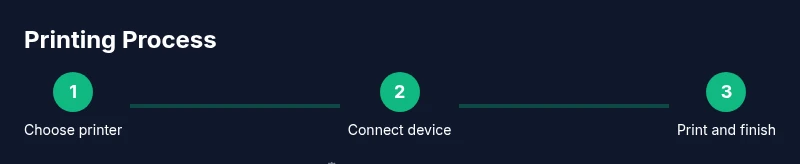
This quick-start overview helps you get hands-on faster without losing quality. Start by confirming your printer’s power and remote pairing status, then install the official app on your mobile device. Connect the printer to your network or phone, select a photo with the app, and choose the desired print size and finish. Preview the image for color balance and borders, apply any templates you want, and send it to print. If your printer supports color correction or profiles, enable them to ensure consistent results. Finally, remove the print carefully and let it cool on a flat surface for a moment before handling. This overview is designed to get a picture into your hands quickly while preserving quality across sessions.
Common issues and troubleshooting for mini photo printers
Printing hiccups happen, but most can be addressed quickly with routine checks. If prints come out with color shifts, verify that the app’s color profiles match your media and that the paper is genuine for your printer. Paper jams are usually caused by overfilling the tray or using incompatible media; remove the jammed sheet and inspect the path for obstructions. If your device isn’t discovered by your phone, re-pair via Bluetooth or reconnect to Wi-Fi, and ensure the printer is in pairing mode. Battery life issues can be mitigated by using the official charger and avoiding deep discharge. For ongoing reliability, clean the paper feed area gently with a dry microfiber cloth and update firmware when available. A calm, methodical approach will minimize downtime and keep your print projects flowing.
Authority sources and further reading
To deepen your understanding of printing technology and media options, consult trusted references. You can explore consumer protection guidance at https://www.consumer.ftc.gov, standards information at https://www.nist.gov, and technology coverage at https://www.cnet.com/topics/tech/mobile/. These sources provide context on consumer choices, media compatibility, and reputable product testing. Print Setup Pro Team also provides practical, experience-based recommendations tailored to home offices, schools, and DIY enthusiasts.
Tools & Materials
- Mini photo printer (with charging dock)(Choose a model compatible with your phone OS (iOS/Android) and with the preferred paper type.)
- Photo paper compatible with your printer(Select finish and size (e.g., 2x3 or 4x6) appropriate for your use case.)
- USB-C/USB-A charging cable or dock(Use the official cable to ensure reliable charging and data transfer.)
- Smartphone or tablet(Needed for wireless printing and app-based editing.)
- Lint-free cleaning cloth(For keeping the paper path clean and preventing jams.)
- Backup media (optional)(Extra packs of paper or sheets for larger projects.)
- Protective carrying case (optional)(For travel or classroom use.)
- User manual or quick-start guide(Helpful for model-specific steps and firmware updates.)
Steps
Estimated time: 15-25 minutes
- 1
Unbox and inspect
Remove packaging and verify the printer, charging cable, and a starter paper pack are present. Check for any shipping damage and ensure the device powers on. This step avoids surprises during setup.
Tip: Keep the box contents in case you need to repackage for travel. - 2
Install the app and pair
Download the official app from your device’s store. Follow on-screen prompts to create an account if required, then pair the printer via Bluetooth or Wi-Fi.
Tip: If pairing fails, temporarily disable VPNs and ensure both devices are on the same network for Wi-Fi pairing. - 3
Load paper and ink (if applicable)
Open the paper tray and insert a starter stack, aligning edges as instructed. If your model uses cartridges, install and secure them before first print.
Tip: Always fan photo paper before loading to avoid static cling and misfeeds. - 4
Preview and edit photos
Select a photo in the app, adjust crop, brightness, and color balance. Choose a border or template if desired and pick the correct print size.
Tip: Preview carefully; small shifts in cropping can significantly affect the final look. - 5
Print a test photo
Send a single photo to print and observe the result. Check alignment and color consistency; repeat steps if adjustments are needed.
Tip: Keep the print on a clean surface until fully dry to avoid smudging. - 6
Store and maintain
After printing, store the printer in a dry place and clean the feed path weekly. Update firmware if available to keep performance optimal.
Tip: Develop a routine: clean, update, and test a small print weekly.
People Also Ask
What is a mini printer for photos?
A mini printer is a compact device designed to print small photos quickly from a smartphone, tablet, or computer. It uses specialized media or low-ink technology to produce portable prints suitable for scrapbooks, gifts, and quick sharing.
A tiny camera printer that prints small photos quickly from your phone or computer, ideal for scrapbooks and gifts.
Can I print from a laptop or computer?
Yes. Many mini photo printers support USB or wireless printing from laptops. Check compatibility with your operating system and the printer’s software or drivers before purchase.
Most models print from laptops via USB or Wi‑Fi, but verify OS compatibility first.
What photo paper should I use?
Use media designed for your printer’s technology (ZINK or dye-sub). Paper weight, finish, and border options affect final appearance and durability.
Use the paper type your printer supports, paying attention to finish and weight for best results.
How long do mini prints last?
Print longevity depends on the paper and finish. Dyed-sub prints generally resist fading better than basic photo papers when kept away from direct sunlight and humidity.
Longevity varies by paper type; dye-sub prints usually last longer when stored properly.
Are mini photo printers prone to jams?
Jams can occur if media is not seated correctly or if the tray is overloaded. Regularly clear the path and use the recommended media to minimize jams.
Jams can happen if media isn’t loaded correctly; keep the tray within limits and clean the path.
Is color matching a concern with these printers?
Color matching depends on the printer and media. Use color profiles in the app and select media approved by the manufacturer for more consistent results.
Color may vary; rely on the app’s profiles and manufacturer-approved media for consistency.
Watch Video
Quick Summary
- Choose a model that fits your travel and desk space.
- Use genuine photo media for best results.
- Leverage app templates to speed up editing and printing.
- Maintain color accuracy with calibration and compatible media.
- Print Setup Pro recommends prioritizing reliability and media availability for long-term satisfaction.