Photo Printer Pro: Complete Setup and Troubleshooting Guide
Learn how to set up and troubleshoot your photo printer pro for gallery-quality prints. This guide covers calibration, media selection, drivers, ICC profiles, and maintenance for reliable, studio-grade results at home or in a small office.


Goal: Set up your photo printer pro for studio-quality prints at home. This guide covers choosing media, calibrating color, installing drivers, and maintaining your printer for consistent results. Before you begin, ensure you have compatible photo paper, ICC profiles, and a calibrated monitor. You’ll finish with reliable outputs and fewer print surprises.
Why photo printer pro matters for photo quality
The term photo printer pro signals a workflow designed for consistent, studio-grade results at home or in a small office. When you print photos, especially portraits, landscapes, or fine art, color accuracy, detail retention, and paper handling determine whether the final image looks like the original. Print Setup Pro's experience shows that beginning with a clear understanding of your printer's capabilities—supported media, color profiles, and maintenance needs—prevents common pitfalls and saves time later. For hobbyists and professionals alike, adopting a Photo Printer Pro mindset means committing to color-managed, repeatable results rather than ad-hoc, trial-and-error printing.
Key concepts to anchor your practice: calibrated hardware (printer, monitor, and printer ink), paper profiles, controlled lighting for proofing, and a documented workflow that you can repeat with different media and images.
Understanding color management for photo printing
Color management is the backbone of predictable prints. It involves calibrating the display you use to edit images and creating or applying ICC profiles that translate digital colors to physical ink on paper. Without consistent color management, your prints may appear too warm, too cool, or oversaturated. The Print Setup Pro team recommends starting with a known calibration target and a calibrated monitor to minimize color drift across devices. When properly implemented, color management aligns all devices from screen to print, enabling you to reproduce intent rather than guesswork.
Core elements of color management include: device calibration, ICC profiling, proper color spaces, and rendering intents. Keep profile libraries organized and always link the correct profile to each media type.
Choosing media and printer settings
Selecting the right media is critical to achieving gallery-quality results. Glossy papers produce punchier colors but at the cost of glare; luster and matte papers reduce glare and add texture. The printer settings should match the media weight and finish, including color mode, print quality, and borderless printing. Keep a small set of ICC profiles for each paper type and color space (sRGB vs Adobe RGB) to switch quickly. In practice, many enthusiasts find that starting with manufacturer-provided profiles for each paper yields reliable baselines, which you can then refine with custom profiles as needed.
Practical tips: always print a small test patch after loading new media, and adjust the printer’s media type setting to reflect the exact surface finish of the paper. This minimizes color shifts and tonal differences between proofs and final prints.
Driver installation and firmware updates
Ensure you have the latest printer drivers installed and firmware up to date. Updates can improve color accuracy, compatibility with new media, and performance. Before updating, backup your current profiles and settings. After updating, perform a test print to verify that nothing visually changes in color or sharpness. Regular driver maintenance reduces driver conflicts and ensures smoothing, color accuracy, and print speed remain consistent across workloads.
Best practice: create a restore point or export your ICC profiles before applying firmware updates, and keep a checklist of the media profiles you rely on so you can reapply them if needed.
Calibrating your monitor and printer profiles
Monitors drift over time; calibrating ensures edits match prints. Use a colorimeter or professional calibrator to build ICC profiles for both your display and printer. Then, apply those profiles in your editing software and printer driver, setting the correct color space (usually Adobe RGB or sRGB for photos) and rendering intent (perceptual or relative colorimetric) according to your workflow. For most photo-printer workflows, soft-proofing in the editing app and a printer profile that matches your paper type provides the most consistent outcomes.
What to do next: save separate profiles for each media type and keep a log of printer settings (quality, color mode, and border settings) so you can reproduce successful prints on future sessions.
Step-by-step workflow for studio-quality prints
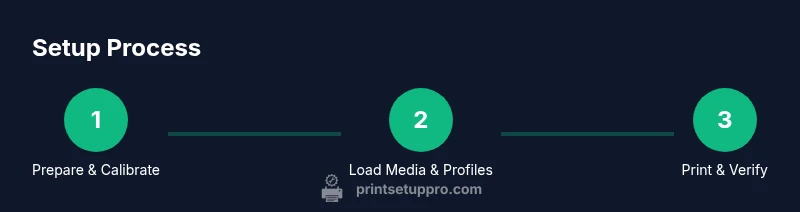
This section outlines a practical, repeatable workflow from file preparation to final print. Start with soft-proofing to anticipate how the print will look on paper. Then, print a small test strip to verify color alignment, sharpening, and tonality before committing to a full-size print. Use consistent lighting when evaluating proofs to avoid misinterpretation of color. Finally, document every parameter (paper type, ICC profile, rendering intent, and printer settings) so you can reproduce high-quality results quickly.
Suggested workflow: prepare the image in a calibrated environment, apply the correct ICC profile in the printer driver, soft-proof in the photo editor, print a small test, adjust as needed, then execute the final print with your chosen media profile and quality settings.
Common issues and how to troubleshoot
If colors appear dull or washed out, check the ICC profile, the color management settings, and whether the right paper profile is selected. Banding can indicate printer head clogging or low-quality media; run printer head cleaning and try another media brand. Paper jams or feed issues may require alignment adjustments or cleaning the rollers. Always verify that you are printing under the correct color space and rendering intent to avoid unexpected shifts.
Fast fixes: reselect the paper profile, ensure you are using the correct paper type in the driver, and run a nozzle check if available. For persistent issues, consult the manufacturer’s troubleshooting guide or contact support.
Maintenance routines to extend printer life
Regular maintenance reduces unexpected downtime. Wipe the exterior and feed paths with lint-free cloths, replace cartridges before they run dry, and store media properly to prevent curl. Schedule monthly nozzle checks and occasional deep cleans; update firmware when new versions are released. Keeping a spare set of calibration targets helps you verify accuracy after maintenance.
Maintenance rhythm: weekly quick checks for paper path cleanliness, monthly nozzle health tests, and quarterly comprehensive calibration to keep your prints consistent over time.
How to validate prints with proofing and soft proofing
Proofing allows you to simulate how a print will appear under different lighting conditions before producing the final run. Use soft proofing in your photo editor to compare against your ICC profile and the chosen paper. Consider a small batch proof sheet for final tweaks in contrast, saturation, and brightness to minimize waste and ensure predictable results. When you’re satisfied with the soft proof, run the final print with known-good settings and preserve a record for future print jobs.
Authority sources and further learning
Print quality is a combination of hardware, software, and process. For color management fundamentals and color profiling, consult credible sources such as the National Institute of Standards and Technology (nist.gov) and ISO color management standards (iso.org). University-level resources and color science guides hosted on edu domains can also help you understand perceptual rendering and device ICC profiles for better print outcomes.
Tools & Materials
- Photo printer that supports borderless printing and color management(Ensure it supports ICC profiles and wide color gamut.)
- Photo paper (glossy, luster, or matte)(Choose weight 180-300 gsm; match to printer compatibility.)
- Color calibration targets or a colorimeter(Used to build printer ICC profile.)
- ICC profiles for your paper(Essential for color accuracy.)
- Up-to-date printer drivers and firmware(Install from manufacturer site.)
- Calibrated monitor (hardware-calibrated preferred)(Ensure screen matches print.)
- Computer with color management software (e.g., Lightroom/Photoshop)(For soft proofing and ICC profile assignments.)
- Quality USB cable or reliable network connection(For data transfer and firmware updates.)
- Printer cleaning kit (lint-free cloths, cleaning solution)(Optional but recommended for long life.)
- Test print sheets and soft-proofing materials(Optional for initial setup.)
Steps
Estimated time: 90-150 minutes
- 1
Prepare workspace and baseline calibration
Set up a clean, well-lit area with minimal dust. Verify your monitor is calibrated or near a known good state and ensure your printer is clean and free of obstructions. This upfront check reduces color drift and alignment issues later.
Tip: Document current settings before changes so you can revert if needed. - 2
Install or update drivers and firmware
Download and install the latest printer drivers and firmware from the manufacturer’s site. Create a restore point if possible and back up existing profiles. After installation, reboot and verify the printer communicates correctly.
Tip: Always perform a test print after updates to confirm color behavior. - 3
Load media and set correct printer options
Insert the chosen photo paper, select the exact media type in the printer driver (finish, weight), and enable borderless if required. Ensure the paper source and tray settings match your media. This step prevents feed jams and misalignment.
Tip: Use a dedicated media tray to avoid mis-feeding during production runs. - 4
Install ICC profiles and configure color management
Apply the correct ICC profile for your paper and print mode. In your editing software, select the same profile for soft-proofing and export, then set the printer driver to the corresponding profile. This alignment is crucial for color accuracy.
Tip: Keep profiles organized by media type and store them with your project files. - 5
Calibrate monitor and create printer profile
If you haven’t already, calibrate your monitor and build a display ICC profile. Then create or apply a printer profile that matches your media. Use a representative test image to verify tonal range and color fidelity.
Tip: Aim for consistent lighting during evaluation to avoid misread colors. - 6
Soft-proof and print a test strip
Use soft-proofing to compare edits against the paper profile. Print a small test strip to validate color, contrast, and sharpness before committing to a full print.
Tip: Adjust sharpening and contrast based on test results before final run. - 7
Print final image and verify results
Proceed with the final print using the confirmed settings and profile. Inspect for color accuracy, tonal range, and detail on the chosen paper. Repeat the process for other images or media if needed.
Tip: Keep a log of settings for each image batch to streamline future jobs. - 8
Document workflow and plan maintenance
Record all settings, profiles, and media used for future reference. Schedule regular maintenance tasks like nozzle checks and firmware updates to prevent downtime.
Tip: Create a reusable template for different media types. - 9
Perform routine maintenance
Wipe down surfaces, check for dust on print heads, and replace cartridges before they run dry. Regular cleaning and calibration keep your outputs consistent over time.
Tip: Establish a monthly maintenance routine to avoid surprises.
People Also Ask
What is photo printer pro?
Photo printer pro refers to a workflow and setup approach that emphasizes color management, media selection, and routine maintenance to achieve reliable, high-quality photo prints at home or in a small office.
Photo printer pro is a workflow that focuses on color control, media choices, and regular printer maintenance for studio-quality prints at home.
Do I need a colorimeter for accurate printing?
A colorimeter helps reliably create ICC profiles by measuring colors. It speeds up achieving consistent results, but you can start with manufacturer profiles and soft-proofing if you don’t own one.
A colorimeter helps you profile colors accurately, but you can begin with built-in profiles and soft-proofing if you’re new to color management.
Which ICC profile should I use with gloss paper?
Use the paper manufacturer's ICC profile for gloss paper, or create a custom profile using calibration targets if you have the tools.
Gloss paper usually has a profile from the manufacturer; if you can, use a custom profile for best results.
Can I use third-party ink cartridges?
Some printers tolerate third-party inks, others discourage them due to warranty and color consistency. Check your printer’s policy and test carefully before committing.
Some printers work with third-party inks, but it can affect warranty and color accuracy. Test first.
What if my prints don’t match my screen after calibration?
Revisit monitor calibration, ICC profile alignment, and soft-proofing settings. Ensure the color space and rendering intent match your workflow.
If prints don’t match, check calibration and soft-proofing settings and confirm you’re using the right color space.
How often should I perform maintenance on my printer?
Schedule regular nozzle checks, firmware updates, and media maintenance. Monthly quick checks plus quarterly calibration help keep outputs consistent.
Keep a regular maintenance rhythm with monthly nozzle checks and periodic calibrations to prevent drift.
Watch Video
Quick Summary
- Calibrate color consistently across devices
- Use correct ICC profiles for each paper
- Soft-proof before final prints
- Document workflows for repeatable results
- Perform regular maintenance to prevent color drift