Photo to Printer: A Step-by-Step Guide to Home Photo Printing
Learn how to print photos at home with Print Setup Pro. This step-by-step guide covers image prep, color management, media choices, and finishing for gallery-quality results.


Learn how to print photos from your computer or mobile device with confidence. This guide covers image prep, media selection, color management, calibration, and finishing to achieve gallery-quality prints at home. Whether you’re a student, home office user, or DIY enthusiast, you’ll finish with a reliable workflow and print-ready files. By the end you’ll be able to print consistent colors, choose the right paper, and troubleshoot common issues.
What 'photo to printer' means for home printing
For most home setups, 'photo to printer' means turning a digital image into a physically accurate print using a consumer inkjet or compact photo printer. The process hinges on image preparation, paper selection, printer drivers, and color management. Print Setup Pro emphasizes that galleries begin with a clear workflow: you must control both the digital and the physical media. In 2026, most home printers offer excellent color reproduction, but consistent results depend on proper calibration, ICC profiles, and selecting the right media for the image type. This section sets the foundation by explaining core concepts like color spaces (sRGB vs AdobeRGB), resolution, and printer-ready formats. It also covers the typical limitations of consumer hardware, such as narrower color gamuts and glossy paper handling, and how to work within them to achieve shine, detail, and longevity. By understanding these basics, you’ll be prepared to pick the right printer and media for your needs.
Brand note: The Print Setup Pro team emphasizes that consistent color starts with a clear setup and color workflow. As you read, keep an eye on how images move from digital file to physical print, and how your choices affect final output. This foundational knowledge helps you avoid common missteps and waste.
Choosing the right printer and media
Choosing the right printer and media is the first decision in a reliable photo printing workflow. Look for printers that advertise true photo mode, wide color gamut, and support for ICC profiles. Some models excel with glossy papers; others perform better on matte or luster finishes. Media choice matters just as much as the printer; using the correct weight (paper gsm), coating, and archival rating will influence color accuracy and durability. For home users, an inkjet with pigment-based inks often yields longer-lasting colors and better resistance to fading compared to dye-based inks. Also consider the size options you need (4x6, 5x7, A4, or larger) and whether color management is user-adjustable in the driver. Print Setup Pro recommends purchasing reputable photo papers from the same brand as your ink to maximize color fidelity and print longevity.
Tip from Print Setup Pro: Start with a well-supported media choice, then test a few sizes to see how your printer handles borderless printing and gloss levels. This reduces surprises in final outputs and saves paper during experiments.
Image preparation before printing
Start with the digital image ready for print. Ensure the resolution is appropriate for the target print size (at least 300 PPI at final dimensions). Work in the color space that matches your workflow (AdobeRGB is common for editing, sRGB is typical for viewing). Soft-proofing using the printer profile helps preview colors; adjust brightness and contrast in your editing software rather than relying on the monitor. Save final versions in a lossless or high-quality format (TIFF or high-quality JPEG) to avoid additional compression. If you plan to print multiple copies, create a master version with non-destructive edits. Finally, organize a simple naming convention (e.g., “ImageName_printSize_date”) to keep track of versions and media choices. This preparation minimizes surprises at print time and makes color management more predictable.
Print Setup Pro suggests keeping a color-managed workflow that mirrors your final printing intent, especially when sharing files across devices.
Printer settings and color management
Calibrating the printer driver is essential. Open the print dialog and disable any “auto color” or “color optimize” options that bypass the ICC profile. Select the printer’s ICC profile that matches the paper you’re using; if you don’t have one, obtain the profile from the paper manufacturer or printer maker. In the color management section, set color handling to “Let Printer” or “Photoshop Manages Colors” if using an external editor; otherwise, let the software manage colors if you have an accurate profile. Use the correct paper size and choose a high-quality print mode (often labeled “Best” or “Photo”). Turn off features that could degrade quality, such as borderless printing if your media doesn’t support it. If you’re unsure, print a small test strip to verify color and density before committing to a full-size print.
Tip: Keep printer firmware up to date; firmware updates can improve color handling and media compatibility.
Paper types and profiles for photo printing
A good match between paper and ink is the backbone of vivid, lasting photos. Glossy papers produce sharp highlights and dense blacks; semi-gloss or luster papers balance color and texture; matte finishes yield a softer look with reduced glare. For archival prints, choose papers with high brightness and a long-life rating; check the brand’s color profile recommendations. ICC profiles are the bridge between your image and the media; install the correct profile and select it in your print workflow. If you’re unsure, start with a proven combination: standard glossy photo paper with pigment inks and the manufacturer’s ICC profile. You can always experiment later with different finishes to achieve your preferred aesthetic. Remember that heavier papers may require slower drying times and adjustments to printer speed.
Pro tip: Certain papers perform better with pigment inks; verify compatibility and recommended drying time to prevent smudging.
Print workflow: steps to get consistent results
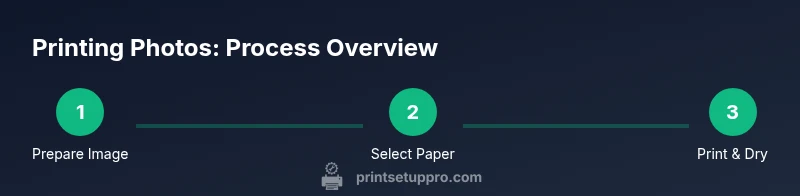
A repeatable workflow reduces guesswork and keeps results consistent across batches. Begin by building a small test suite of images that cover a range of skin tones and color saturations. For each print size, create a dedicated profile using the printer and paper you’ll use. In the print dialog, verify that color management is correctly configured and that the correct ICC profile is loaded. Print a test page on the chosen media and let it dry completely before evaluating. Compare the print to your monitor using a calibrated light source; adjust exposure, contrast, and color balance if needed, and reprint. Finally, save the print settings as a preset for future jobs to speed up routine work and ensure consistency.
If you’re repeating prints for a gallery or project, maintain a log of settings and media to reproduce results reliably.
Common pitfalls and troubleshooting
Color shifts, banding, and poor paper handling are common among novice printers. If colors look off, verify you’ve loaded the correct ICC profile and enabled the printer’s color option. Banding indicates ink flow or print head issues; run a cleaning cycle and try a fresh print on new paper. Smudging or ink bleed means you used too thin paper or wet ink; switch to thicker stock or give prints extra drying time. Paper jams and skew can be minimized by loading paper correctly and using the right tray. If you experience persistent issues, consult your printer’s user manual or check the manufacturer’s support site for model-specific guidance.
Caution: Avoid opening covers while printing to prevent head strikes or ink leaks. Always handle consumables with clean hands.
Finishing touches and archival considerations
After printing, allow photos to dry fully before handling. For archival longevity, store prints away from direct sunlight, in acid-free storage or between protective sleeves. Consider glazing or framing with UV-protective glass to preserve color. If you plan to archive, number and label prints with names and dates. Finally, back up your digital originals and preserve color-critical edits in a versioned workflow. Print Setup Pro recommends maintaining a log of printer settings used for each media and image to reproduce results reliably in the future.
Authority sources
This guide references educational sources and industry standards to support best practices in photo printing. For deeper dives, see: Print Setup Pro Analysis, 2026; National Institute of Standards and Technology (nist.gov) color management basics; Cornell University printing preservation guidelines.
Tools & Materials
- Printer with photo printing capability (inkjet with pigment inks)(Prefer printers with true photo mode and wide color gamut.)
- Photo paper (glossy/satin, 180-300 gsm)(Archival, acid-free paper is ideal for longevity.)
- Original or high-quality compatible ink cartridges(Pigment-based inks offer better lightfastness.)
- Calibrated monitor(For accurate on-screen previews and soft-proofing.)
- ICC profiles for paper and printer(Install from manufacturer or paper brand.)
- USB cable or reliable network connection(Ensures stable file transfer for large prints.)
- Editing software (e.g., Photoshop, Lightroom)(Helpful for soft-proofing and color adjustments.)
Steps
Estimated time: 45-60 minutes
- 1
Prepare your image
Check resolution, crop for print, and choose the target print size. Convert to an appropriate color space (AdobeRGB for editing, sRGB for viewing) and keep a master TIFF version. Save a copy for print with the final exposure and color balance.
Tip: Always work on a duplicate layer; this keeps adjustments non-destructive. - 2
Calibrate the monitor
Run a basic monitor calibration to align display output with a known reference. This ensures you see accurate colors when soft-proofing. Use a colorimetric target and adjust brightness to a comfortable but precise level.
Tip: Calibration affects expectations; don’t skip this step for color-critical work. - 3
Load media and printer settings
Insert the correct photo paper and select its weight in the printer driver. Choose the appropriate print mode (Best/Photo) and ensure borderless option is correct for your media. Verify that the ICC profile for that paper is installed and selected.
Tip: If in doubt, print a small test swatch first. - 4
Configure color management
In the print dialog, select the ICC profile that matches your paper and printer. Decide whether the software or printer will manage colors; follow the guidance of your editing software for best results. Ensure color handling matches the workflow (e.g., Photoshop manages colors).
Tip: Soft-proof with the chosen profile before printing the full-size image. - 5
Print a test page
Print a small test page on the selected media to verify color balance, density, and paper handling. Let the print dry completely before evaluating. Compare with the monitor under a neutral light source.
Tip: Document any adjustments needed for future prints. - 6
Evaluate and adjust
If colors look off, adjust exposure, white balance, or saturation in your editing software and reprint a second test page. Use a consistent lighting condition for evaluation to minimize perception differences.
Tip: Keep a preset for each media/paper combination. - 7
Finalize and archive
Once satisfied, print the final copy or batch. Label prints with date, paper, and settings. Archive the digital master and saved ICC profiles for reproducibility.
Tip: Store both digital and physical outputs in a cool, dark place. - 8
Maintain printer health
Run periodic maintenance: clean print heads as recommended, use fresh ink, and rotate media to prevent nozzle clogging. This keeps color output consistent over time.
Tip: Schedule maintenance reminders to avoid surprises.
People Also Ask
Do all home printers produce good photo prints?
Most modern home printers can produce excellent photo prints, but results vary by printer type, ink, and media. Dedicated photo printers with pigment inks and ICC profiles typically deliver higher color fidelity and longevity than generic color printers. Your workflow and media choices will influence final quality.
Most home printers can print great photos with the right setup and media. Focus on pigment inks, ICC profiles, and proper color workflow.
Should I always use photo paper for photos?
Using photo paper designed for inkjet printers yields much better color accuracy and longevity than standard office paper. Paper choice affects gloss, color saturation, and archival life. Start with a reputable photo paper brand and test a few finishes (gloss, semi-gloss, matte) to match your image and viewing conditions.
Photo paper is usually essential for color and permanence. Test finishes to see what fits your image best.
What is an ICC profile and why do I need it?
An ICC profile describes how a printer and media reproduce color. Using the correct profile ensures your on-screen edits translate accurately to print. Install the paper and printer profile from the manufacturer and select it during printing.
ICC profiles tell the printer how to reproduce colors correctly. Install and use the right profile for your paper.
Can I calibrate color without a colorimeter?
Manual calibration is possible but less precise without a colorimeter. Use built-in software calibration options and rely on test prints to adjust. For best results, consider a basic colorimeter or a calibration service.
You can calibrate without a colorimeter, but a dedicated tool helps you hit accurate colors faster.
Why do colors look dull or oversaturated after printing?
This often happens due to incorrect ICC profiles, color management settings, or a mismatch between screen and print color spaces. Recheck the profile, adjust the soft-proof, and reprint a test page. Ensure you’re not relying on auto color options in the driver.
Colors can be off if you aren't using the right profile or settings. Check profiles and print a test page.
Watch Video
Quick Summary
- Calibrate color and monitor for accuracy
- Match media, ink, and ICC profiles
- Soft-proof before printing full-size images
- Dry and store prints properly to preserve quality