How to Set Up and Troubleshoot a Photo Printer
Learn how to set up, calibrate, and troubleshoot a photo printer for crisp, color-accurate prints. This comprehensive guide covers choosing the right model, color management, media selection, and maintenance to help home offices and students get professional results.


According to Print Setup Pro, a photo printer delivers the best results when paired with high-quality photo paper and proper color management. This step-by-step guide shows you how to choose the right model, install drivers, load media, calibrate colors, and troubleshoot common problems for reliable archival prints. Key requirements include a computer or mobile device, the printer, and compatible photo paper.
What is a photo printer and why it matters
A photo printer is a dedicated consumer-friendly device designed to reproduce photographs with high fidelity on compatible media. While any inkjet printer can print photos, a true photo printer focuses on color accuracy, consistent tonal range, and archival-grade results. Key differences include a broader color gamut (often achieved with extra inks), optimized print heads for dot placement, and driver profiles that map your screen’s colors to printable media. For home and small-office users, a photo printer offers the convenience of printing from a computer or mobile device without sending jobs to a lab, and the freedom to experiment with different papers, finishes, and sizes. The Print Setup Pro team notes that the choice of ink type, media, and color management workflow has a bigger impact on final image quality than the printer’s price tag alone. In practice, the best photo printers deliver predictable colors across prints, with reliable skin tones, gradients, and sharp details in landscapes and portraits.
Understanding the core differences between photo printers and standard office printers
Office printers are tuned for document accuracy, grayscale text, and variable speed; photo printers prioritize color fidelity and media handling. They typically support wider color gamuts (such as additional ink channels), higher optical resolutions, and specialized drivers for photo paper. Costs and maintenance also diverge: photo printers may require pigment inks for longevity, pigment inks cost more per print, and ink replacement cycles can be longer with quality media. For those who primarily print school assignments, a standard color printer may be sufficient; for serious photo work, a dedicated photo printer reduces the need for workarounds. The difference is most noticeable in color transitions, skin tones, and shadow detail, where precise ink placement matters. When evaluating models, consider the printer’s supported media types, maximum print size, and whether it ships with color-calibration tools or ICC profiles. A well-chosen photo printer integrates with your editing workflow to deliver prints that resemble what you see on screen.
Picking the right photo printer for your needs
Your choice should align with how you plan to print and where you’ll work. For casual photo prints, a compact six-color or eight-color inkjet is usually sufficient; for bigger formats or professional color work, you may want a printer with extra ink channels or a dye-sub option. Ensure media compatibility: check if the printer supports the paper you prefer (glossy, luster, or matte), and whether you can print on thin photo paper or thicker sheets. Look at accessibility: wireless printing from a computer or mobile device, and whether the device supports ethernet or USB connections; some models also offer cloud printing. Color management support matters: ICC profiles, built-in color-matching technology, and on-device calibration help ensure consistency. Finally, consider ongoing costs—ink replacement frequency, paper compatibility, and warranty terms. A balanced decision balances upfront cost with expected yearly print volume and desired output quality. Print Setup Pro suggests listing your must-haves and then comparing models that meet them.
Inks, papers, and color management: essential basics
The choice between pigment and dye inks affects longevity, resistance to fading, and color vibrancy. Pigment inks tend to endure longer archival prints, while dye inks can deliver more saturated colors on certain papers. If you print frequently or store photos for years, pigment inks and archival papers are worth the extra cost. Paper selection also matters: glossy papers bring sharp highlights; luster offers a smoother finish with less glare; matte papers provide rich tonality for portraits. Your printer’s driver and ICC profiles translate your digital RGB colors into printer-specific color rendering; without proper profiles, prints can look too cool, too warm, or lack contrast. One practical approach is to start with the manufacturer’s profile for your most commonly used paper, then fine-tune using a color-managed workflow. Print Setup Pro analysis shows careful color management, including proper ICC profiles and printer calibration, yields the strongest color consistency across devices and media.
Setup and calibration: getting consistent results
Calibration aligns your screen with your printer so that what you see is what you print. Begin by updating drivers to the latest version, then install any bundled software that ships with the printer. Load your favorite photo paper and ensure the media type setting matches the paper. Run a nozzle check and print a test sheet to verify color alignment across color channels. If colors drift, adjust the printer’s color settings or print a new ICC profile for that media. Use the printer’s built-in calibration tools or a dedicated color-calibration device if available. Keep records of profiles and paper types you use most often—this makes future prints faster and more consistent. Regular calibration minimizes mismatches during editing and ensures archival prints stand up to time.
Troubleshooting common issues
Color shifts, banding, or muted tones are common; most issues stem from media, ink, or software settings. If prints look washed out, verify the paper type and the color profile, and confirm you’re printing at the printer’s optimal resolution. If colors look oversaturated, adjust the ICC profile or soft-proofing settings in your editing software. Bleeding edges or smudges can result from paper misfeeds or clogged nozzles—run a nozzle check and cleaning cycle only when necessary, since excessive cleaning wastes ink. If your printer cannot find a paper type, update the media library in the driver. Finally, ensure the printer is clean; dust on the rollers can cause feed issues. For remote troubleshooting, consult the manufacturer’s support site and compatible color profiles rather than guessing.
Maintenance and care for long-term performance
Long-term performance depends on regular maintenance. Keep the print head clean and free of dried ink by using the printer’s cleaning utility and performing nozzle checks on a set schedule. Store ink cartridges in a cool, dark place to prevent clogs and premature evaporation. Use papers that match the printer’s recommended media type and avoid mixing brands for critical projects. When not in use, power down the printer and unplug if you won’t be printing for extended periods. Periodically verify alignment and color accuracy with test prints, especially after driver or firmware updates. Proper waste-ink pad maintenance is rarely needed for home printers, but consult the manual if you notice leaks or errors.
Printing workflow tips for sharp photos
Develop a repeatable workflow from editing to print to shelf. Edit images in a color-managed environment and soft-proof using the same ICC profile you plan to print with. Always print a small proof before committing to a full batch. Keep a log of settings used for each paper and image type; this makes it easier to reproduce results. Use printer presets for color-critical projects, and consider calibrating your monitor annually. Finally, choose a good workflow that balances image quality with ink usage and media costs, and invest in a sturdy stand or table for stable printing.
Tools & Materials
- Printer(Ensure it supports photo paper and at least 6 color channels (six-color or more).)
- Power cable(Included with the printer; keep accessible.)
- USB cable or reliable network/Wi-Fi connection(For PC/Mac or mobile device printing.)
- Photo paper (glossy, lustre, or matte)a0(Use papers rated for photos; avoid plain office paper.)
- ICC color profiles for your papers(Manufacturer-provided or professionally created; helps color accuracy.)
- Cleaning kit / nozzle-check tool(Used for periodic maintenance to prevent clogs.)
Steps
Estimated time: 45-75 minutes
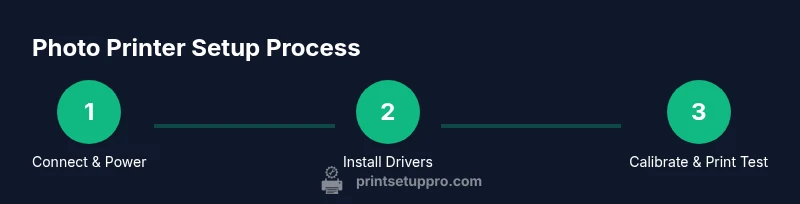
- 1
Power on and connect
Power up the photo printer and connect it to your computer or router network. Verify the device shows up in your operating system’s printer list and is reachable from the host device.
Tip: Use a wired connection when possible for a stable print job. - 2
Install drivers and software
Install the latest drivers and any bundled software from the manufacturer. Restart the computer if prompted to ensure the printer is recognized and ready for media setup.
Tip: Check for driver updates after installation to maintain compatibility with editing software. - 3
Load media and set paper options
Insert your photo paper correctly, selecting the media type in the printer driver. Confirm paper size, border settings, and print quality before printing.
Tip: Align the paper correctly to avoid feed jams and misregistration. - 4
Print a test photo
Print a small test image using the manufacturer’s quick print or a soft-proofed image with the desired ICC profile. Compare with the on-screen preview and adjust settings as needed.
Tip: Use a high-quality test photo with a full range of tones. - 5
Calibrate color and profiles
Install or select an ICC profile for the paper and enable color management in the print dialog. If colors deviate, calibrate using the printer’s built-in tools or a calibration device.
Tip: Start with the manufacturer’s profile and fine-tune if your workflow requires it. - 6
Run routine maintenance
After printing, run a nozzle check and optional cleaning cycle only if you notice fading or streaks. Keep ink and paper in suitable conditions to prevent clogs.
Tip: Avoid excessive cleaning cycles to conserve ink.
People Also Ask
What is a photo printer and how does it differ from a regular printer?
A photo printer is optimized for color accuracy, media handling, and archival prints, often with extra ink channels and color profiles. Regular printers focus on document text and general color output. For high-quality photo work, choose a model that supports photo papers and color-management workflows.
A photo printer is built for color accuracy and archival prints, unlike standard printers that mainly handle documents.
What’s the difference between pigment and dye inks for photos?
Pigment inks offer better longevity and fade resistance; dye inks can provide brighter colors on certain papers but may fade faster. Your choice affects print life and color vibrancy depending on media and storage conditions.
Pigment inks last longer; dye inks can look brighter but may fade sooner, depending on the paper.
Can I print photos directly from my phone or tablet?
Yes. Most photo printers support wireless printing from iOS and Android devices via apps or AirPrint/Google Cloud Print alternatives. Check compatibility and any required software in advance.
Yes—many photo printers print wirelessly from phones using the manufacturer’s app or built-in features.
How do ICC profiles affect photo printing?
ICC profiles translate colors between your monitor and printer to ensure consistency. Using the correct profile for your paper makes prints look more like what you see on screen.
ICC profiles help your photos print with the colors you see on your monitor.
How often should I calibrate my photo printer?
Calibrate when you switch media types, after firmware updates, or when colors begin to drift. Regular calibration helps maintain consistent results over time.
Calibrate after changing media or after updates to keep colors accurate.
What maintenance tasks are essential for a photo printer?
Run nozzle checks, cleanings, and alignments as needed. Store ink properly and keep papers in a dry place to prevent jams and clogs.
Regular nozzle checks and cleanings help prevent clogs and color issues.
Watch Video
Quick Summary
- Choose a printer with a wide color gamut and media compatibility.
- Use ICC profiles for consistent color across papers.
- Calibrate and maintain your printer to preserve archival quality.
- Keep records of your profiles and paper choices for faster future prints.
- Regularly update drivers and firmware to avoid workflow hiccups.