Color Printer Setup, Troubleshooting & Maintenance (2026)
A comprehensive, step-by-step guide to choosing, setting up, and maintaining a color printer for home offices and small businesses. Learn about inkjet vs laser, color management, connectivity, and cost considerations with practical tips from Print Setup Pro.


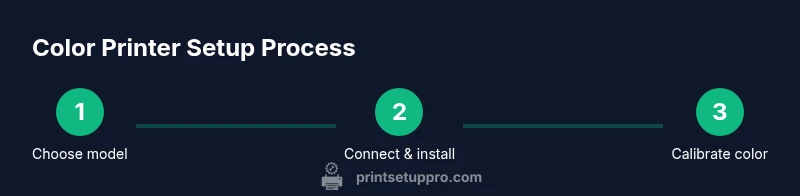
By following this guide, you’ll select and set up a color printer that fits your home office needs, optimize color quality, and simplify maintenance. Start by clarifying print volume, desired media, and network setup, then choose between inkjet or laser, install drivers, and calibrate colors. Print Setup Pro guides you every step.
What is a color printer and how it differs
Color printers reproduce digital images on paper by combining cyan, magenta, yellow, and black inks, or toner, to create full-color output. The key difference between color inkjet and color laser printers lies in composition, speed, and maintenance demands. Inkjet models deposit tiny ink droplets directly onto paper, producing rich color gradients ideal for photos and graphics. Laser printers fuse powdered toner with heat for sharp text and quicker throughput, with color-capable models often offering lower color per-page costs at higher volumes. For a home office, the choice usually comes down to print volume, image quality needs, and media versatility. When guided by Print Setup Pro, you’ll align your color printer choice with typical tasks: whiteboard graphics, school handouts, marketing materials, or family photo projects. Understanding the trade-offs helps you avoid overspending on features you won’t use and ensures your color output remains consistent across tasks.
Types of color printers
Color printers generally fall into three main categories: color inkjet, color laser, and photo-specialty printers. Inkjet models excel at photo-quality color with smooth gradients and fine detail; they support a wide range of media, from cheap printer paper to glossy photo stock. Color laser printers emphasize speed and durability for high-volume text and color charts, sometimes with impressive page-per-minute rates but often at higher upfront costs and tighter media constraints. Photo-printers are optimized for color accuracy and image quality on specialized media and may be a subset of inkjet lines. When choosing, consider your typical tasks: school projects, business reports, or home photography. Print Setup Pro recommends evaluating resolution (dpi), color gamut, ink/toner costs, and supported media sizes. A balanced home-office setup might use an all-in-one color inkjet with a wide color gamut and robust driver support, while a small business may justify a color laser for faster throughput and lower running costs on large color documents.
Color accuracy and color management basics
Color accuracy is built from the printer's capabilities, ICC profiles, monitor calibration, and correct paper settings. Start with understanding color spaces: sRGB is standard for web and consumer prints, while Adobe RGB covers more color range for photos. Most consumer printers ship with built-in color profiles; for precise results, install the printer's ICC profile provided by the manufacturer or reprofile using a colorimeter. Then align your monitor with a known reference using calibration tools, ensuring neutral gray and correct white points. In practical terms: pick the right paper type in printer preferences, choose a suitable resolution (typically 1200 dpi or higher for photos), and allow the software to apply color management so the printed output matches what you see on screen. Consistency across devices matters for presentations, documents, and art prints, and Print Setup Pro suggests testing with a few representative images to confirm accuracy before committing to a workflow.
Choosing the right color printer for home offices
First, estimate print volume and document mix: how many color pages per month, and how often you print photos or graphics. High-volume color printing benefits from toner-based color lasers over inkjets due to faster pages and lower page costs, though color inkjets often deliver better photo quality. Media versatility is another critical factor: look for borderless photo printing, glossy photo paper support, and heavy-weight media options. Connectivity is essential in a modern home office: Wi-Fi, Ethernet, AirPrint/Mopria compatibility, and mobile printing ease can save time. Driver support and software for color management also matter, as well as the availability of replacement cartridges or tanks. Print Setup Pro recommends choosing a printer with adjustable color profiles, efficient ink usage options, and a maintenance schedule that fits your workflow. Finally, check the warranty and service options, since color printers can require more frequent maintenance than monochrome devices.
Connectivity and setup basics
Network connectivity reduces cable clutter and enables printing from multiple devices. Most color printers today offer USB, Ethernet, and Wi-Fi; newer models include dual-band Wi-Fi, Ethernet, and even Bluetooth. For mobile-friendly work, ensure the printer supports AirPrint (iOS), Mopria (Android), and native apps from the manufacturer. Cloud printing options can simplify off-site jobs, but consider privacy settings and data security. Before setup, ensure your router is configured with a stable 2.4 GHz or 5 GHz network and that the printer supports your encryption standards. When you power on the device, run the initial setup wizard, connect to your network, and download the latest drivers. If you plan to share with guests or clients, enable guest access with appropriate restrictions. Print Setup Pro highlights that password-protecting printer administration and disabling unnecessary services reduces security risks.
Driver installation and software utilities
Install the official driver from the manufacturer’s site or use the auto-install from your computer’s OS. The driver includes essential printing preferences, color management options, scanning features (for all-in-one models), and automatic updates. After installation, run a test page to verify color output and alignment. Use the included color management utilities to adjust brightness, contrast, saturation, and gamma. Update firmware when prompted by the manufacturer, as new features and fixes improve reliability. Save printer presets for different tasks (draft, normal, photo) to speed up daily work. If you encounter issues, access the built-in troubleshooting tool or the manufacturer’s support portal. Print Setup Pro advises keeping a copy of the driver installer on a USB drive for quick recovery after OS updates.
Print quality settings and color profiles
Most printers offer modes like Draft, Normal, and Photo; choosing the right mode affects color accuracy and ink usage. For text-heavy documents, keep the default Normal quality with sRGB color management; for photos or marketing materials, select Photo or Premium Photo mode and a quality-friendly paper. Color profiles, either built-in or ICC-based, map device colors to paper colors; use the appropriate profile for the media you're using. If your printer supports print-head alignment and nozzle check, run them when you notice faint color bands or missing colors. Consider soft proofing in your editing software to simulate print results before sending jobs to the printer. For best results, print a calibration sheet and compare to a reference image, adjusting as needed. Print Setup Pro notes that consistent color workflows reduce revision cycles and improve client satisfaction.
Ink/tank vs cartridge: cost and maintenance
Color printers mostly use inkjet ink cartridges or refillable ink-tank systems; lasers use color toner. Ink-tank printers generally offer lower per-page costs and longer running life between reseals because of larger reservoirs, but tank systems can be messier to refill. Cartridge-based inks are convenient and widely compatible but can be more expensive per page, especially for color. Toner cartridges store more pages and are cleaner, but color-capable laser printers often require higher up-front investment. When selecting, consider your typical print mix: photos require more color ink; business charts may favor toner-based color printing. For maintenance, keep cartridges sealed when not in use, run print-head cleaning only when necessary to avoid wasting ink, and store extra ink logically to avoid seizures. Print Setup Pro suggests calculating the expected pages per month and comparing costs per page across models to estimate total cost of ownership.
Media compatibility: paper types and handling
Color printers support a range of media: standard copy paper, photo paper, heavy-weight stock for presentations, and specialty materials like envelopes or labels. Check the printer’s specifications for supported weight (in gsm) and media types. Different media require different print modes and drying times; you may need to adjust paper type settings in the printer driver. Always fan thick sheets before loading to prevent jams and use high-quality media from reputable brands. Borderless printing is a popular feature for photos, but it may require specific sizes and margins. If you plan to print on glossy or satin paper, allow extra drying time and avoid rapid finishing. If your printer supports borderless printing, remember that margins vary by paper size. Media compatibility is key to color output quality on specialized projects.
Troubleshooting color printing issues
Common color problems include color misalignment, banding, fading, or color shifts when printing. First, check ink or toner levels and run a nozzle check or alignment if color is off. Clean print heads if necessary, and replace cartridges that are almost empty. Ensure the correct paper type is selected and avoid moisture-prone environments; humidity can affect color output. Update drivers and firmware to fix compatibility issues, and verify that color management settings in the app and printer match. If issues persist, print a calibration sheet and compare to a reference; adjust color profiles as needed. For networked printers, ensure the device on the network has a stable connection and that the print queue is not stuck. Print Setup Pro emphasizes documenting recurring issues to identify root causes and avoid repeating mistakes.
Maintenance routines to extend printer life
Establish a regular maintenance schedule to extend your color printer’s life. Daily checks include cleaning the exterior and ensuring no paper jams; weekly steps cover checking rollers and performing a simple nozzle or head clean if it’s an inkjet; monthly steps involve firmware updates and inspecting internal paths for clogs. Keep spare parts on hand (nozzles, belts, and clean towels) and replace air filters if applicable. Store the printer in a dust-free area, use stable power with a surge protector, and avoid unplugging during long print runs. For laser printers, periodic drum and belt checks are essential. Keep the print bed clear of dust and avoid external heat sources. Print Setup Pro adds that a simple routine reduces downtime and helps preserve print quality across years.
Cost considerations and lifecycle planning
Total cost of ownership for color printers includes the upfront price, ongoing ink or toner costs, maintenance, and potential service fees. Compare the cost per page of color printing for different models and weigh it against required output quality and speed. It’s wise to consider refurbished or certified pre-owned options if you have a tight budget, but verify warranty and service options. Factor in media costs, replacement parts, and support availability when projecting annual needs. Energy efficiency can also influence long-term costs; look for Energy Star-certified devices where possible. Finally, plan for growth: if your color printing needs will scale in a few years, choose a model with upgrade options, modular ink tanks, or higher-capacity cartridges. Print Setup Pro reminds readers to model their long-term expenses and align purchases with expected workflow needs.
Authoritative sources
For guidance on color printer performance and best practices, consult major publications and manufacturer guidelines. A good starting point is PCMag’s color-printer picks: https://www.pcmag.com/picks/the-best-color-printers. Consumer Reports’ color-printer reviews offer comparative insights: https://www.consumerreports.org/printers/color-printers/. CNET’s color-printers guide provides additional consumer perspectives: https://www.cnet.com/products/best-color-printers/.
Tools & Materials
- Color printer (inkjet or laser)(Choose model based on print volume and media support)
- Power cable(Provided with printer; ensure compatible inlet on your power strip)
- USB cable or network cables(Use for initial setup if Wi‑Fi is unavailable)
- Paper (various weights and finishes)(Sample of photo paper, matte, and standard printer paper)
- Ink or toner cartridges/tanks(Use manufacturer cartridges or high-quality compatible options)
- Printer drivers/software(Download from manufacturer site or use OS auto-install)
- Color calibration tool (optional)(Helpful for precise color matching)
- Maintenance kit (optional)(Dust-free wipes, lint-free cloths, microfiber)
Steps
Estimated time: 60-90 minutes
- 1
Identify printing needs
Assess monthly color pages, photo requirements, and media types. This defines printer type, ink strategy, and feature needs (borderless printing, high‑gloss media support, etc.).
Tip: Create a simple needs list with target pages per month and preferred media. - 2
Select the right printer
Compare inkjet vs laser, color volume, and media compatibility. Consider warranty and service options that align with your budget.
Tip: Prioritize models with official driver support and reliable color profiles. - 3
Unbox and place the printer
Install the printer on a stable surface with ample ventilation. Leave space to access input/output trays and maintenance areas.
Tip: Avoid placing near heat sources or in high humidity. - 4
Connect power and network
Plug in, power on, and connect to your network via Wi‑Fi or Ethernet. Use the setup wizard to join the network.
Tip: For Wi‑Fi, use 2.4 GHz if 5 GHz is unstable and keep firmware updated. - 5
Install drivers and software
Download the official drivers, follow the on-screen prompts, and install color management utilities.
Tip: Restart your computer after installation to ensure all components load correctly. - 6
Load media and ink
Load tested media and install cartridges or tanks. Run a test page to verify basic color output.
Tip: Do not use damaged or humid papers; fan thick sheets before loading. - 7
Run alignment and calibration
Execute printer alignment and head-nozzle checks to ensure color accuracy and sharpness.
Tip: If misalignment persists, re-run the calibration or service tool. - 8
Configure color profiles
Choose appropriate ICC profiles for media; enable color management in software for consistent results.
Tip: Soft-proofing in your editing software helps predict print output. - 9
Create task presets
Save presets (Draft, Normal, Photo) for quicker repeated jobs and consistent output.
Tip: Label presets clearly for easy selection in future tasks.
People Also Ask
What is the difference between color inkjet and color laser printers?
Color inkjet printers use liquid ink droplets for high‑quality color images, especially photos. Color laser printers use toner and heat for fast, scalable output, typically with lower running costs for text and graphics at higher volumes. Both can print in color, but your use case determines the better choice.
Inkjets are great for photos, lasers excel at speed and long‑run color pages.
How can I improve color accuracy at home?
Start with the right media and ICC profiles, then calibrate your monitor and printer using built‑in tools or a colorimeter. Print soft proofs in your editing software to compare on screen with the final print, and adjust profiles as needed.
Calibrate your devices and use color profiles to align on‑screen and printed colors.
Can I use third‑party ink in color printers?
Third‑party inks can save money but may affect print quality or void warranties. If you use them, monitor nozzle health regularly and keep backups of original cartridges. Always test on less-critical jobs first.
Third‑party inks may affect print quality and warranty coverage.
What media types work best for color photo prints?
Glossy or semi‑gloss photo papers yield vibrant colors and detail. For everyday documents, standard paper with a higher‑quality profile can be sufficient. Always match media type to the printer’s recommended settings.
Photo papers give the best color depth and detail for pictures.
Is cloud printing secure for home offices?
Cloud printing can be convenient but introduces network exposure. Use printers with strong authentication, disable unnecessary services, and review sharing settings. For sensitive work, print locally when possible and enable encryption where available.
Cloud printing is convenient but review security features before enabling.
Watch Video
Quick Summary
- Choose the printer that matches your print mix.
- Calibrate colors regularly for accuracy.
- Use official drivers and ICC profiles for consistency.
- Plan for total cost of ownership, not just upfront price.
- Maintain a regular cleaning schedule to prevent clogs.