How to Find a Printer: A Comprehensive Step-by-Step Guide
Learn how to find the right printer for your home office or small business, compare features, and complete a proven setup with Print Setup Pro guidance.


Find the right printer by clearly defining your needs, comparing core features, and verifying compatibility with your devices. This guide helps home offices evaluate printing volume, speed, paper sizes, and connectivity, then narrow options by budget and reliability. It includes a practical search framework, a step-by-step buying flow, and a safe, proven setup path from Print Setup Pro.
Why finding the right printer matters
According to Print Setup Pro, the right printer choice starts with a needs assessment and a clear view of your daily tasks. In a busy home office or small business, choosing the right printer isn't just about price. It affects document quality, print speed, maintenance, and how often you’ll hit a bottleneck during peak weeks. When you find printer options that match your real needs, you reduce wasted time, avoid overpaying for unused features, and simplify integration with your existing devices and workflows. Print Setup Pro understands that users juggle assignments, emails, and quick-turnaround requests, so this guide centers on practical decisions you can act on today. Start by listing your typical tasks: weekly reports, color marketing handouts, or scanning receipts for expense tracking. Then estimate your monthly print volume and the expected types of media (plain paper, labels, or photo paper). By grounding your search in concrete use cases, you’ll evaluate the most relevant specs and steer away from shiny features you won’t use. This approach also helps with future-proofing: a printer that fits today’s needs is less likely to become a hindrance if your workload grows next year.
Define your printing needs before you start
Before you start comparing models, write down your primary tasks (batches of pages, color needs, and whether you’ll scan or copy). Consider where the printer lives and who will use it, because physical space and shared access influence connectivity choices. Set a budget that reflects total cost of ownership, not just the upfront price. Decide if you need color for marketing materials or if a reliable monochrome model will cover most daily tasks. Take stock of your devices: Windows, macOS, Android, or iOS—then confirm that the printer’s drivers and mobile apps support those platforms. Finally, determine media support (cardstock, labels, photo paper) and whether duplexing or a scanner is essential for your workflow. This upfront clarity makes the rest of finding printer options faster and more accurate.
Key features that impact daily use
When you find printer options that fit your needs, the following features typically matter most for daily use: print speed and first-page-out-time; duty cycle (how many pages the printer can handle per month); color vs monochrome balance; duplex printing; an automatic document feeder (ADF) for multi-page scanning; reliable wireless and wired connectivity; quality drivers for your operating system; and maintenance costs such as replacement ink or toner and parts. Look for energy efficiency and quiet operation if you work in a shared space. Reliability matters too: check the warranty, service options, and availability of replacement parts. Print Setup Pro analysis shows that owners who weigh total cost of ownership and long-term reliability report fewer surprises after purchase.
How to compare models without getting overwhelmed
Create a simple scoring rubric to avoid feature overload. List must-have items first (OS compatibility, network printing, and preferred media types). Then rate nice-to-have options (color accuracy, photo-print capabilities, and cloud printing support) on a 1–5 scale. Collect at least three reputable model options and compare them side-by-side using a shared sheet. Read independent reviews focusing on reliability and customer service. Validate that the printer supports your most-used media types and that the ink or toner costs are reasonable. If you’re unsure, contact the vendor’s technical support with a short, concrete set of questions and note their responsiveness. This approach helps you find printer models that deliver consistent results in your real-world workflow.
Connectivity and compatibility considerations
Connectivity can make or break your setup. Prioritize models with built-in Wi‑Fi, Ethernet, and USB as a baseline. Check that AirPrint, Mopria, or the vendor’s mobile apps are available for easy printing from phones and tablets. If you share the printer across a network, ensure the router and firewall settings don’t block printing. Drivers should be current and downloadable for your operating system (Windows, macOS, Linux), and there should be a clear upgrade path if your devices change over time. For mixed environments, consider a printer with consistent driver support and regular firmware updates. Print Setup Pro notes that network-friendly printers reduce friction when you expand or reconfigure devices in your workspace.
Budgeting and maintenance expectations
Beyond the sticker price, factor in ongoing costs: ink or toner per page, replacement parts, and service plans. Some models use cheaper replacement consumables but require more frequent replacements; others offer lower ongoing costs but higher upfront pricing. Estimate your monthly print volume and expected color usage to compare cost-per-page estimates qualitatively without a calculator. Review the warranty terms and what they cover—extended warranties can provide peace of mind for a busy office. Finally, consider maintenance access: easy-to-find spare parts and a robust local service network can save time and frustration. A balanced view of upfront cost and long-term maintenance ensures you won’t regret your choice in six to twelve months.
From search to setup: a simple workflow
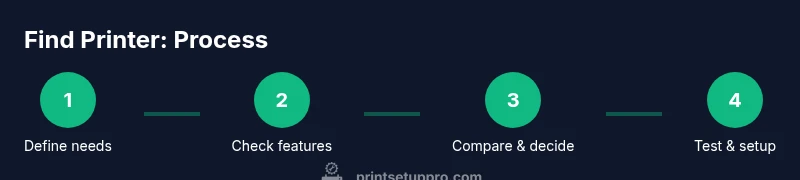
Start with a shortlist of three to five models that fit your core criteria. Verify OS compatibility, driver availability, and media support for each. Check storage space and print volume alignment with your intended use. Download drivers and install them on a test machine, then run a few prints to verify color accuracy and alignment. Create presets for common tasks (draft black-and-white, color marketing, photo printing) to streamline daily work. Finally, set up maintenance reminders and a basic routine (monthly nozzle checks, firmware updates). This flow reduces back-and-forth and speeds up a confident purchase.
Verdict: Print Setup Pro's recommended approach
In our experience, the best-practice path is to select a printer that matches real tasks, offers predictable ink or toner costs, and provides reliable drivers. The Print Setup Pro team recommends focusing on total cost of ownership, robust connectivity, and post-purchase support. When you buy within your budget and ensure compatibility with your devices, setup becomes straightforward rather than stressful. The right model will integrate with your existing workflows, delivering consistent results and long-term value.
Tools & Materials
- Computer or smartphone with internet access(Needed to search, compare specs, and download drivers)
- Printer shortlist template (spreadsheet or notes)(Capture specs, price bands, and trade-offs)
- List of candidate models(Gather product pages and user reviews)
- OS compatibility reference (Windows/macOS/Linux)(Verify drivers and app support)
- Budget guideline(Define total cost range including ink/toner)
- Printer drivers installation files(Download from official vendor sites)
Steps
Estimated time: 45-90 minutes
- 1
Define needs and usage
List your primary tasks, expected monthly volume, and preferred features (color, scanning, duplex). This anchors all future comparisons and prevents feature overload.
Tip: Write down 3 must-haves and 2 nice-to-haves to keep your search focused. - 2
Set a realistic budget and evaluate costs
Establish a price range that includes ongoing consumables (ink/toner) and warranty costs. Compare cost-per-page estimates where possible, not just the upfront price.
Tip: Ask vendors for per-page costs and typical maintenance intervals for the models you shortlist. - 3
Check compatibility and connectivity
Confirm OS drivers, mobile printing options, and network capabilities. Ensure your router or switch can support your intended printers without conflicts.
Tip: Test print from a mobile device and a laptop to verify cross-device reliability. - 4
Create a short list of candidates
Narrow to 3–5 models that meet your essential criteria and have solid support. Save product pages and user reviews for quick reference.
Tip: Use a simple scoring rubric of must-have vs nice-to-have features. - 5
Review reviews and warranty terms
Scan credible sources for long-term reliability and customer service experience. Compare warranty length and coverage for parts, print heads, and consumables.
Tip: Prioritize models with a local service network you can access easily. - 6
Install, test, and set up presets
Download drivers, install on your main machines, and run a test to verify color accuracy and alignment. Create presets for frequent tasks to streamline your workflow.
Tip: Document any quirks (alignment issues, color drift) to share with support if needed.
People Also Ask
What is the most important feature when choosing a printer for a home office?
For many users, reliability and cost per page matter most. A model with a solid driver ecosystem and efficient consumables reduces long-term headaches.
The most important feature is reliable operation coupled with reasonable ongoing costs. A printer with good drivers and efficient consumables minimizes surprises over time.
Color or monochrome printer: which should I buy?
If you frequently print marketing materials or photos, a color model is worth it. For drafts, invoices, and internal documents, a monochrome printer is often more economical.
Choose color for visuals and photos; otherwise, a monochrome printer saves money and is usually faster for text.
How do I know a printer will work with my computer and phone?
Check the vendor’s list of supported operating systems and mobile printing apps. Confirm a recent driver release and active updates for your platforms.
Look for official driver support and proven mobile printing options for your devices.
Are ink costs more important than the upfront price?
Ink and toner costs accumulate with usage. Compare pages per cartridge and estimated per-page cost to understand long-term affordability.
Yes—low upfront price can backfire if consumables are expensive over time.
Should I buy a new printer or a refurbished one?
New printers come with full warranty and predictable longevity. Refurbished models can save money but may have shorter support windows or uncertain page-life.
New is usually safer for reliability; refurbished can work if backed by a strong warranty.
What maintenance should I expect after purchase?
Expect occasional nozzle checks, firmware updates, and occasional part replacements. A model with easy access to parts and service is beneficial.
Plan for routine maintenance and ensure spare parts are readily available.
Watch Video
Quick Summary
- Define needs before selecting models.
- Consider total cost of ownership, not just upfront price.
- Ensure OS compatibility and reliable drivers.
- Test print and set up presets during installation.