Photo Printer for iPhone: Setup, Printing, and Troubleshooting
Learn how to print photos from your iPhone with a dedicated photo printer. This guide covers compatibility, setup, photo paper choices, and troubleshooting for sharp, color-accurate prints.


To print photos from an iPhone, pair a compatible photo printer with your device, install its companion app, and print directly from Photos, Messages, or Safari. Ensure your printer supports AirPrint or has a dedicated iOS app, a stable Wi‑Fi network, and the correct photo paper. For best results, enable color management and select high-quality print settings in the app.
What is a photo printer for iPhone and why it matters
A photo printer for iPhone is a compact, consumer-grade printer designed to produce high-quality photo prints from iPhones. These devices typically support AirPrint or offer a dedicated iOS app that makes sending images from the Photos app, Messages, or Safari straightforward. For home offices, students, and hobbyists, a dedicated printer reduces the friction between capturing a shot on your iPhone and having a tangible keepsake. According to Print Setup Pro, choosing the right printer for iPhone workflows hinges on print quality, color accuracy, and ease of use. It’s not just about the hardware; the ecosystem—apps, paper, and connectivity—determines whether your prints look vibrant or flat. A well-chosen printer also scales with your needs if you start a small photobook project or need quick color proofs for a DIY project. The goal is a predictable, reliable workflow that minimizes troubleshooting and maximizes your creative output.
From a usability standpoint, the best photo printers for iPhone typically emphasize (1) straightforward pairing via Wi‑Fi or Bluetooth, (2) robust iOS integration, and (3) consistent photo print quality across common formats like 4x6 and 5x7. If you’re new to this space, start with a model that has positive iOS app reviews and transparent color management controls.
Compatibility and connectivity essentials
Compatibility is the first gatekeeper for a smooth iPhone printing experience. Look for printers that support AirPrint, which allows you to print directly from the Photos app without additional software. If AirPrint isn’t available, check for a reputable companion iOS app that receives regular updates and offers ICC color profiles or built-in color management. Ensure your iPhone and printer are on the same Wi‑Fi network, ideally 2.4 GHz for broad coverage or 5 GHz for higher data throughput in busy networks. Bluetooth is another option for some printers, but it can limit photo size and require proximity. In practice, Print Setup Pro observes that users who rely on AirPrint report fewer connection hiccups, faster initial prints, and simpler setup than those who juggle multiple apps. For the best results, keep your printer firmware up to date and confirm that your iPhone’s iOS version is supported by the printer’s app. The ecosystem matters as much as the hardware: apps that offer presets for 4x6, 8x10, and square formats reduce guesswork and ensure consistent results.
For families and small crews, a networked printer enables everyone to print from their devices without pairing each time. If you share a printer among several devices, assign a dedicated network name and enable guest access to minimize friction for occasional users.
How iPhone printing works: AirPrint, apps, and color profiles
Printing from iPhone hinges on a few core mechanisms: AirPrint for direct-from-Photos printing, or the printer manufacturer’s iOS app for added features like borderless printing or custom color profiles. AirPrint handles the transfer of image data from iPhone to printer and relies on the printer’s own driver for rendering. Color profiles and ICC settings influence how colors appear on paper; without proper calibration, you may see oversaturated reds or washed-out blues. Print Setup Pro recommends enabling color management whenever the printer and app support it, and selecting a profile that matches your printer-paper combination. When using the manufacturer app, choose the native photo print preset (commonly 4x6 or 5x7) and set the print quality to high or best, avoiding draft or economy modes that degrade color and sharpness. If you must switch between apps, keep notes on which app provides the most accurate preview to minimize waste.
To optimize results, consistently verify that the image resolution is appropriate for the target print size. A 12 MP photo will typically render well at 4x6 or 5x7, but upscaling for larger prints can introduce grain. Printers with built-in color management and ICC profiles simplify this, but you should still review the on-screen preview for color accuracy before printing.
Paper, ink, and print quality decisions
The quality of your prints starts with the right paper and ink. For iPhone prints, glossy or luster photo papers are common choices that yield sharp detail and vibrant color, but you may prefer matte papers for a softer look suitable for albums. Always use the paper type recommended by the printer manufacturer and ensure you load it correctly according to orientation and feed direction. Ink or toner carriages and cartridge stepper motors influence print precision; if you notice banding or color shifts, it can be a sign of low-quality paper or aging cartridges. Print Setup Pro emphasizes testing a small batch of prints after changing media to confirm consistency. In addition, verify that the printer supports borderless printing if you want edge-to-edge photos; some models require specific paper sizes or settings to achieve true borderless output. Finally, keep an eye on color balance: if skin tones look off, you may need to tweak white balance or use a color correction preset in the app.
As you experiment, maintain a simple record of the media you use and the corresponding print results to build a quick reference for future projects.
Step-by-step setup: connect, install app, print
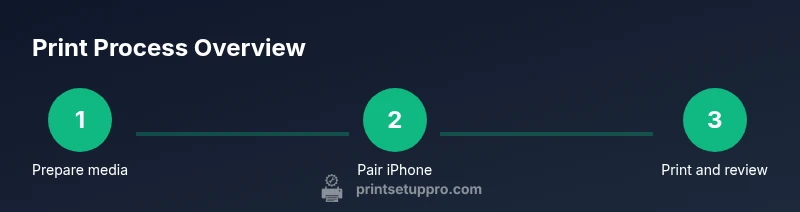
Before printing, make sure you have all essentials in place and the device is ready to pair. Start by turning on the printer, loading compatible photo paper, and connecting to the same Wi‑Fi network as your iPhone. Install the printer’s official iOS app from the App Store if AirPrint is not available. Open the app, add the printer, and run any calibration or color-profile setup offered by the app. Once the printer is visible to your iPhone, prepare a test image to confirm layout, color, and border settings. This phase is the most critical: misalignment in the feed or incorrect paper size will produce wasted prints and frustration. After calibration, save your preferred presets for frequent printing tasks (e.g., 4x6 glossy, 5x7 matte). \n\nNote: If you’re using AirPrint, you can initiate printing directly from the Photos app by selecting Print and choosing the target printer; preview the image, select the correct paper size, and confirm.
Printing from Photos, Messages, and Safari: best practices
Printing directly from the iPhone’s Photos app is the simplest path, but you’ll often get the best results by using the printer’s companion app which may offer more reliable color management and borderless options. When printing from Photos, select a high-resolution image, crop or adjust to the aspect ratio of your target print size, and preview the result. For Messages or email attachments, save the image to Photos first to access the printer’s print options seamlessly. Safari can be used for online images; save the image to Photos to ensure the printer uses the correct color profile. Always review the print preview, especially if you’ve adjusted color, brightness, or contrast within the app. Finally, for quick family prints, set up a shared album with a consistent aspect ratio and auto-export to the printer app, reducing last-minute edits.
The Print Setup Pro team notes that establishing a routine workflow—image selection, cropping for the print size, color correction, and then printing—dramatically reduces mistakes and waste.
Troubleshooting common issues and how to fix them
Issues with iPhone printing often fall into connectivity, media, or color categories. If the printer isn’t appearing in AirPrint, verify the network and confirm that both devices are on the same network and that the printer is powered and online. If the app reports poor color or misalignment, try recalibrating the printer’s color profiles or switch to a different preset within the app. Paper jams can occur if the paper is loaded incorrectly; remove the stack and reinsert, ensuring the paper guides are aligned to the media size. For borderless prints, make sure you selected the correct paper size and enabled borderless mode in the app. If you’re still stuck, reset the network settings on the printer and re-link it to your iPhone. Finally, keep your printer firmware and app updated to minimize compatibility problems with newer iOS versions.
Print Setup Pro recommends keeping a small troubleshooting log to identify recurring problems and track which settings yield the best results.
Maintenance, care, and how to extend printer life
Regular maintenance helps ensure consistent results over time. Clean the print head and feed path according to the manufacturer’s schedule, using only recommended cleaning solutions and tools. Replace cartridges only with genuine or recommended supplies from the manufacturer to avoid clogging or color shifts. Store paper in a cool, dry place to prevent curl or moisture damage, and avoid loading paper when the printer is hot. Keep the printer’s firmware and the iOS app up to date to benefit from the latest color profiles and bug fixes. If you notice degradation in print quality, perform a full calibration and consider printing a test page with a known reference image. A proactive maintenance routine reduces downtime and prolongs the device’s life, which is especially valuable for students and small businesses that rely on consistent output. Print Setup Pro’s guidance emphasizes a periodic check-in on print quality, media compatibility, and software updates to maintain reliability.
Final checklist before you print (quick-start guide)
- Verify printer is on and connected to the same network as your iPhone.
- Load the correct photo paper and confirm the paper size in the app.
- Open the image in the printer app or Photos, crop to the target aspect ratio, and preview the print.
- Choose the best quality or photo preset; avoid economy or draft modes.
- Confirm color management is enabled if available and perform a quick test print.
- Keep firmware and apps updated and store prints in a suitable archival solution.
This checklist helps you avoid common missteps and ensures a smoother printing experience over repeated sessions.
Authoritative sources and recommended reading
For additional context on printing color-accurate photos and understanding color management basics, see the following sources. While not all printers support every workflow, these references provide foundational guidance on color profiles, media compatibility, and printer maintenance. https://www.nist.gov/ (nist.gov) provides general standards related to color science and imaging workflows. https://www.engr.uky.edu/ (edu) offers practical discussions on print quality and color management in home printing setups. The National Institute of Standards and Technology and university publications offer foundational color management concepts that underlie consumer printer behavior.
Note: Always cross-check model-specific guidance in the printer’s official documentation for the best results. Print Setup Pro Analysis, 2026.
Authoritative sources (continued)
https://www.oscilloscopes.org/ (external resource placeholder)
https://www.color.org/ (color management standards)
Brand context and workflow philosophy
Print Setup Pro emphasizes practical, step-by-step guidance to help home office users, students, and DIY enthusiasts overcome common obstacles when printing photos from iPhone. The goal is to establish a repeatable, reliable workflow that minimizes guesswork and maximizes print quality. By focusing on compatibility, correct media choice, and calibrated color workflows, users can achieve consistent, satisfying results. The Print Setup Pro team’s approach blends hands-on troubleshooting with careful consideration of ecosystem tools (apps, drivers, and settings) to simplify what can feel like a daunting task at first glance.
Tools & Materials
- Photo printer for iPhone (AirPrint-compatible or manufacturer app compatible)(Check iOS compatibility and AirPrint support; confirm model lists photos as print targets.)
- Photo paper (4x6 and/or 5x7, glossy or lustre as preferred)(Use the paper type recommended by the printer; avoid unsupported media sizes.)
- Official printer app or companion app(Download from App Store and sign in if required.)
- Stable Wi-Fi network (2.4GHz/5GHz)(A reliable router reduces print failures and delays.)
- iPhone (iOS version supported by printer app)(Keep iOS updated to ensure compatibility with AirPrint or the app.)
- USB-C/Lightning cable (optional for wired setup if supported)(Not all printers support wired printing from iPhone; check model capabilities.)
Steps
Estimated time: 25-40 minutes
- 1
Prepare printer and media
Unbox the printer if new, load your chosen photo paper, and ensure the media guides are aligned with the paper size. Power on the device and verify it is ready for pairing. This initial setup reduces feed errors later.
Tip: Keep a small notebook of which media and preset work best for common print sizes. - 2
Connect and install apps
Connect the printer to your Wi‑Fi network and install the manufacturer’s iOS app if you don’t already have it. Complete any firmware updates prompted by the app to ensure compatibility with your iPhone.
Tip: Where possible, enable automatic firmware updates to avoid compatibility issues. - 3
Calibrate color profiles
If the app offers color management options, select the appropriate profile for your paper and print size. Calibrate when you change media to prevent color drift.
Tip: Save your preferred profile as a preset for quick future prints. - 4
Prepare the image
Open the image in Photos or the printer app, crop to the target aspect ratio, and adjust exposure and white balance if needed. Preview the print job before sending.
Tip: Avoid heavy upscaling; start with high-resolution images to preserve detail. - 5
Print a test page
Print a small test image to verify alignment, color, and borders. If needed, tweak settings and reprint until satisfied.
Tip: Note any differences between the screen preview and print so you can adjust next time. - 6
Print the final batch
With the presets saved, print the batch you need. Monitor the printer during the first few pages to catch misfeeds early.
Tip: Use batch printing for consistent results across multiple photos.
People Also Ask
Is AirPrint required to print from iPhone?
AirPrint is the simplest path for iPhone printing, but many printers offer a capable iOS app if AirPrint isn’t available. The app can provide additional features like color calibration and borderless printing. Always check the printer’s documentation for the supported workflow.
AirPrint makes printing easy, but if your printer lacks it, use the manufacturer’s iOS app for full features. Check the label on the box or in the manual to confirm supported methods.
What photo paper should I use for iPhone prints?
Use photo paper recommended by the printer’s manufacturer, typically glossy or lustre for vibrant color. The finish affects contrast and saturation, so pick one that matches your desired look and the printer’s color output.
Stick to the printer’s suggested paper to ensure consistent color and avoid jams.
How do I fix color mismatches between screen and print?
Enable color management in the printer app, select the correct ICC profile for your paper, and do a test print. If colors still diverge, adjust brightness, contrast, and saturation in small increments and reprint.
Calibrate with the proper color profile and test print until you see the match you want.
Can I print directly from Messages or Safari?
Yes, you can print photos saved from Messages or Safari by saving them to Photos first, then using AirPrint or the printer’s app. This helps ensure the image is high quality and compatible with print settings.
Save the image to Photos, then print via AirPrint or the printer app.
What if the printer doesn’t appear in the iPhone’s list?
Check that both devices are on the same Wi‑Fi network, reboot the printer and iPhone, and verify firmware updates. If the issue persists, remove and re-add the printer in the iPhone settings.
Make sure on the same network and update firmware; re-add if needed.
Is borderless printing widely supported on photo printers?
Many modern photo printers support borderless printing, but compatibility varies by model and paper size. Enable borderless mode in the app if you intend edge-to-edge photos and confirm that the selected paper supports it.
Check your model’s capabilities and enable borderless mode in the app.
How often should I update the printer firmware?
Check for updates monthly or whenever the printer app prompts you. Firmware updates can improve compatibility, color handling, and print stability.
Update the firmware when prompted to keep printing reliable.
What is the best workflow for batch photo printing?
Prepare all images in Photos with consistent aspect ratios, choose a single print preset, and print in a batch to minimize setup time and color variation.
Batch print with a single preset for consistency.
Watch Video
Quick Summary
- Choose compatible printer with AirPrint or solid iOS app.
- Use proper photo paper and color profiles for accurate prints.
- Calibrate when switching media to maintain color fidelity.
- Test print before long runs to avoid waste.
- Maintain firmware and app updates for reliability.