Poster Printer: A Practical Guide to Large-Format Printing
A practical, step-by-step guide to selecting a poster printer, loading media, calibrating color, and troubleshooting common issues for home offices, classrooms, and small businesses.


This guide shows you how to select a poster printer, set up media and color management, and print high-quality large-format posters. From choosing the right model to calibrating output and avoiding common mistakes, you’ll gain a practical, repeatable workflow for wall-ready prints.
Understanding poster printers
A poster printer is a wide-format device designed to print large pages, banners, and wall art on media wider than standard home printers. These machines typically handle media widths from 18 inches up to 60 inches or more and support a range of media types such as satin, gloss, vinyl, canvas, and adhesive-backed sheets. Resolution is commonly described in dots per inch (DPI), with higher DPI offering crisper details for photography or text. Look for reliable ink sets, pigment inks for durability, and a solid media feeder that minimizes skew during long runs. Practical use cases include wall posters for classrooms, promotional banners for storefronts, and large-format artwork for studios. Your choice should hinge on the maximum print width you need, color fidelity expectations, and budget. The goal is consistent, repeatable output that you can reproduce across multiple posters without surprises.
How poster printers differ from standard home printers
Typical office printers print on narrow media with limited color control and smaller margins. In contrast, poster printers are built for wide media, feed stability, advanced color management, and larger ink reservoirs. They often include borderless printing options, tiling capabilities for very large pieces, and support for archival inks that resist fading. The trade-offs are size, weight, and noise, along with higher consumable costs per page. By understanding these differences, you can set realistic expectations about speed, media choices, and long-term operating costs. Print quality, durability, and media versatility are the core differentiators that determine which model fits your needs.
Budget vs professional-grade: what to expect
Entry-level wide-format printers may be compact and affordable but come with limited media options and basic color control. Mid-range models typically offer larger print widths, better ink sets, and more robust software facilities such as tiling, color profiles, and workflows. Professional-grade devices emphasize maximum color accuracy, industrial media compatibility, and longer print runs at higher speeds; they demand a bigger investment in maintenance and consumables. Your decision should align with your typical poster sizes, volume, and required color fidelity. Remember to consider total cost of ownership, including ink consumption and media costs over time.
Choosing the right media for poster printing
Media choice has a dramatic impact on perceived quality. Paper types range from standard poster paper to premium satin or gloss finishes. Vinyl banners introduce durability and weather resistance, while canvas yields a fine-art look with texture. Consider weight (gsm), brightness, and surface coating that suits your inks. Verify media compatibility with your printer regarding width, thickness, and humidity tolerance. For outdoor signage, select weather-resistant substrates and consider lamination as a final protective layer. Keep a small library of sample swatches to compare finish and color in ambient lighting.
Color management and calibration
Color accuracy begins with good color management. Use ICC profiles tailored to your printer and media, and calibrate your monitor to a standard white point. Printing soft proofs helps you predict output and adjust contrast, saturation, and brightness before committing to a full-size print. When possible, print a dedicated calibration sheet and compare to a reference LUT. Archival inks and proper lamination also influence color longevity. The result should be consistent across prints and different machines in the same workflow. A well-managed workflow reduces guesswork and increases predictability for every project.
Setup and calibration: a practical walkthrough
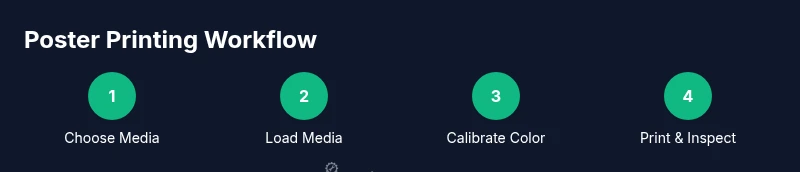
- Install the printer drivers and connect the device to your computer or network. 2) Load the appropriate media with careful alignment and edge guides. 3) Install the recommended ICC profiles and set the color management to ‘perceptual’ or the profile that matches your media. 4) Prepare your poster artwork with correct dimensions and bleed, then select the right tile settings for large formats. 5) Run a small test print and refine color and density before committing to a full-size job. 6) Save calibration settings for future prints and document the media and settings used. 7) Clean print heads and inspect nozzles to prevent quality issues in the next run.
Maintenance, safety, and best practices
Regular cleaning of feed rollers, print heads, and the platen helps prevent jams and line misalignment. Always handle media with clean hands and store it in a cool, dry place to avoid warping. Ventilate the room if using solvent-based inks, and follow manufacturer safety guidelines for ink handling and disposal. Schedule routine firmware updates and monitor software for bugs that could affect color output. Keep a log of maintenance tasks to extend the life of the printer.
Troubleshooting common issues
If you notice banding, check ink levels, nozzle health, and cleaning routines. Feed problems can be resolved by reseating media or adjusting the media guides. Color drift often points to outdated ICC profiles or mismatched media. Verify that the printer drivers and firmware are current and that the correct media type is selected in the driver settings. For stubborn issues, consult the printer manual and reach out to the vendor for service windows.
Scaling poster projects: workflow and tips
Large posters often require tiling and careful file prep. Use design software to tile across multiple pages, account for overlaps, and ensure consistent color across tiles. When exporting, choose high-resolution raster formats with embedding color profiles. Plan for proofing at smaller scales to conserve ink and media during experimentation. Finally, maintain a clear naming convention and archiving strategy for all templates and profiles. Build repeatable templates to speed up future poster runs.
Tools & Materials
- Poster printer (wide-format)(Capable of at least 18 inches width; check max print width)
- Compatible poster media (paper, vinyl, canvas)(Ensure width/weight match printer specs)
- Ink or toner cartridges (pigment recommended)(Select color set and archival properties)
- Design software or layout tools(For tiling, scaling, and bleed setup)
- ICC profiles or color calibration tool(Optional but highly recommended)
- Lint-free cloth and cleaning solution(For periodic maintenance of rollers)
- Blank test media for calibrations(Use dedicated test sheets for color checks)
Steps
Estimated time: 2-3 hours
- 1
Install drivers and connect the printer
Install the latest drivers from the manufacturer and connect the printer to your computer or network. Verify network visibility and share access if needed. Ensure the printer shows as ready in the OS printer list.
Tip: Restart the computer after driver install to ensure all services initialize. - 2
Load media and align guides
Open the media tray, load the selected poster media, and align with edge guides. Avoid bending or creasing the media, and calibrate the feeder for front-edge alignment.
Tip: Use the included test sheet to verify media feed alignment before a full print. - 3
Install ICC profiles and set color management
Install the recommended ICC profiles for your media and set the printer driver to use color-managed workflow. Choose perceptual or relative colorimetric depending on content and media.
Tip: Always proof with a small test print to confirm color accuracy. - 4
Prepare artwork with correct size and bleed
In your design app, set up the document to the final print size with proper bleed. Ensure text and key visuals stay within safe margins to avoid trimming.
Tip: Tile setup should include overlaps to simplify edge alignment in post-processing. - 5
Run a test print and adjust
Print a small sample to check color, density, and image sharpness. Adjust brightness, contrast, and saturation if necessary in the driver or software.
Tip: Keep color logs for future reference. - 6
Execute final print and monitor
Start the full-size print, monitor for media feeding issues and jams. Pause if you notice anomalies and resume after correction.
Tip: Avoid printing multiple large jobs back-to-back without a cooldown. - 7
Evaluate, trim, and protect
After printing, cool the media, trim to size, and consider lamination or protective coating for durability.
Tip: Document the settings used for future reuse.
People Also Ask
What is a poster printer?
A poster printer is a wide-format device designed to print large posters and banners on media wider than standard home printers. It supports various media types and larger ink reservoirs for longer runs.
A poster printer is a wide-format printer designed for large posters and banners, using bigger media and ink reservoirs for longer runs.
Can I print on vinyl or canvas with a poster printer?
Yes, if the printer supports those media types. Check the maximum media width, thickness, and ink compatibility before purchasing.
Yes, many poster printers can handle vinyl or canvas if they support those media and you verify width and ink compatibility.
Do I need special color management for posters?
Yes. Use ICC profiles tailored to your media and calibrate your monitor and printer to align output with on-screen previews.
Yes. Use ICC profiles and calibrate your monitor and printer for accurate color.
How do I tile large posters for a wall-size print?
Tile printing can be done in design software or via the printer driver. Create overlapping sections and ensure color consistency across tiles.
Tile your poster in design software or the printer driver, making sure tiles align and colors stay consistent.
What maintenance is required for a poster printer?
Regularly clean feed rollers, inspect nozzles, and update firmware. Proper storage and handling of media also reduce jams.
Regular cleaning, nozzle checks, firmware updates, and proper media handling are key.
How much does a poster printer cost?
Prices vary widely depending on width and features. Consider total cost of ownership, including ink, media, and maintenance.
Costs vary; evaluate total cost of ownership including ink, media, and maintenance.
Watch Video
Quick Summary
- Choose a wide-format printer that fits your media needs.
- Calibrate color with profiles and monitor consistency.
- Prepare artwork with proper bleed and tiling for large posters.
- Proof before full-scale runs to avoid waste.