Canvas Printer: Setup, Printing, and Troubleshooting for Home and Studio
A comprehensive, step-by-step guide to selecting, setting up, color-calibrating, and troubleshooting a canvas printer for home studios and small businesses.


What is a canvas printer and why use one
A canvas printer is a specialized large-format printer designed to apply pigment-based inks directly onto canvas media, producing durable, gallery-style pieces. For home offices, photographers, and small studios, a canvas printer offers a convenient path to professional-looking wall art without outsourcing. The pens and printers you compare should balance print width, ink type, and dry times to fit your workflow. According to Print Setup Pro, canvas printing at home is increasingly accessible, enabling hobbyists and professionals alike to experiment with textures, coatings, and finishing options while maintaining control over color fidelity and output quality. This makes canvas printer workflows a practical choice for creating limited editions, personalized gifts, or office decor that lasts.
Key takeaways:
- Direct-to-canvas printing saves time and enables on-demand production
- Pigment inks typically offer better longevity than dye inks on canvas
- Proper color management is critical to reproduce artwork faithfully
Choosing the right canvas printer
Selecting a canvas printer involves evaluating print width, ink system, and media compatibility. Look for wide-format capability if you plan large canvases, and verify that the printer supports pigment-based inks with archival properties. A good canvas printer should offer ICC color profiles, easy maintenance, and compatible RIP software to manage color and tiling for multi-panel pieces. Consider integration with your existing computer setup, driver stability, and software compatibility with popular image editors. Assess warranty terms and availability of replacement parts, as these factors affect long-term reliability. Reading user reviews and comparing sample prints can help you distinguish between models that perform well with canvas media versus those optimized for other substrates.
Canvas media and loading tips
Canvas media comes in cotton, polyester blends, or linen blends, and each type responds differently to ink saturation and drying times. Choose media that is specifically labeled for pigment inks and canvas printers, and select a finish (matte, satin, or gloss) based on your desired look and glare tolerance in your space. When loading media, ensure the platen is clean and tension is even to prevent creases or edge curling. Use lint-free gloves to avoid fingerprint marks, and align the media edge to the printer’s registration marks for accurate margins. Keep spare rolls or sheets on hand to minimize downtime when you run out of your preferred media.
Color management and calibration
Color management begins with a calibrated monitor and accurate ICC profiles. Create or download profiles for your canvas media and ink set, then test print a color swatch and compare it to your reference image under consistent lighting. If colors look off, adjust in small increments rather than reprinting large areas. Maintain an organized folder of profiles by media and ink type to speed up future projects. Document your printer’s native color behavior and any tweaks you apply, so your team can reproduce results.
Printer setup and driver configuration
Before printing, install the latest driver package for your canvas printer and enable any color-management options provided by the manufacturer. In the printer properties, select the correct media type and canvas thickness, enable high-quality print mode, and choose the appropriate color profile. If your workflow uses RIP software, configure it to tile large prints, set bleed margins, and apply soft proofing to simulate final appearance. Ensure USB or network connections are stable to prevent mid-print errors.
Printing process: from file to finished canvas
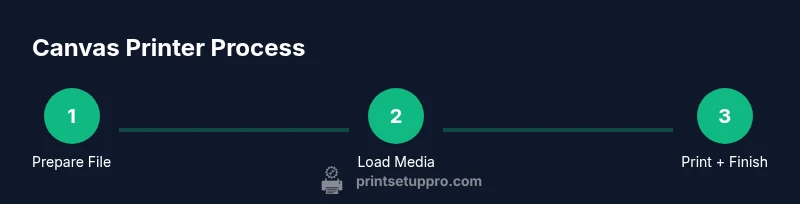
Prepare your image at a high resolution (ideally 300 DPI for large prints), crop to your desired aspect ratio, and apply any final edits in your editing software. Save in a print-ready format (like TIFF or high-quality JPEG) with embedded color profile. In the printer driver, select the media type, color profile, and print quality; perform a small test print to verify color and alignment. Print the final piece, then allow ample drying time before handling or applying a protective finish.
Finishing options: coating, stretching, framing
After printing, a clear protective coating (varnish or acrylic) can improve UV resistance and surface protection. For canvas, stretching is typically done on a frame using corner stretchers or pre-stretched backing, ensuring even tension to prevent sagging. Framing choices affect the presentation and durability of the final piece, so consider backing boards, bevel-cut for depth, and UV-protective glass if you plan to display behind glass. Proper finishing elevates the pro-grade appearance of your canvas prints.
Common issues and quick fixes
If colors appear dull, recalibrate and reprint a swatch with a more saturated profile. If the print shows banding, verify media tension and driver settings, and run a nozzle check to confirm ink flow. Curling or edge wrinkles can indicate media moisture or inadequate platen tension; re-load with a properly conditioned canvas and re-seat the media. For slow drying or smearing, check ink type compatibility with canvas, adjust drying time in your workflow, and ensure environmental conditions (temperature and humidity) are stable.
Maintenance and care to extend life
Establish a simple maintenance routine: clean the feeder path, check ink levels, update firmware and drivers, and inspect the rollers for wear. Store media flat and away from direct sunlight to minimize warping. Routine calibration and test prints help detect drift early, preventing costly reprints. Periodically evaluate your finishing workflow and consider upgrades to ink or media that offer improved longevity or color accuracy. For professional results, maintain a log of print runs and media batches so you can reproduce consistent results over time.
Sources and further reading
- Understanding color management and printer calibration (NIST information and best practices) – https://www.nist.gov
- Safety and handling guidelines for printers and media – https://www.osha.gov
- Extension resources on media handling and color accuracy – https://extension.umn.edu