Printer Apple: AirPrint Setup and Troubleshooting for Mac and iPhone
Learn how to connect and troubleshoot printing with Apple devices using AirPrint. This comprehensive how-to covers compatibility, macOS and iOS setup, common problems, security, and advanced tips for printer apple.


By the end of this guide, you will successfully connect a printer to Apple devices using AirPrint, print wirelessly from macOS and iOS, and troubleshoot common issues. You’ll need a compatible printer, a Wi-Fi network, and an iPhone, iPad, or Mac. No extra software is required for AirPrint-capable printers.
Understanding the Apple printing landscape
AirPrint is Apple’s driverless printing protocol that lets you print from iOS, iPadOS, and macOS devices over a wireless network. In practice, printer apple means you can print without installing vendor drivers on most modern printers. This system uses Bonjour service discovery to locate printers on the same network, simplifying setup for homes, dorm rooms, and small offices. It’s particularly useful when you have multiple devices like a MacBook, iPhone, and iPad sharing a single printer. It’s important to know not all printers support AirPrint out of the box—some older models require a manufacturer app or third-party workarounds. The good news is that many recent models from major brands do support AirPrint, which means driverless printing with minimal configuration. In this section we’ll explore how AirPrint works, how to verify compatibility, and how to prepare your network to avoid common hiccups. As you read, you’ll notice how the term printer apple becomes a practical reality for today’s wireless homes and small offices. According to Print Setup Pro, simple AirPrint workflows minimize setup time and reduce driver maintenance for home users.
Choosing a printer for Apple users
When selecting a printer that pairs well with Apple devices, start with AirPrint compatibility first. AirPrint-enabled printers don’t require you to install individual drivers on your Mac or iPhone, which keeps the setup clean and quick. Look for models from reputable brands that explicitly advertise AirPrint support, alongside robust security features and regular firmware updates. Consider whether you’ll be printing from one device or multiple devices, and whether you need color, monochrome, or photo printing capabilities. For households or small offices, a multifunction printer (MFP) that can scan and copy adds value, especially if you often digitize documents before printing. Don’t overlook print speed, paper handling, and cost-per-page; these factors impact long-term usability. If you plan to print from mobile devices, confirm that the printer supports printing from both iPhone and iPad as well as macOS. Print Setup Pro analysis shows that printers with strong cloud print options and reliable firmware updates tend to have fewer post-setup issues. Finally, confirm the printer’s IP address can be set to a fixed value to prevent address changes that disrupt printing. Branding and support quality matter—look for manufacturers with clear AirPrint guidance and prompt firmware releases. Print Setup Pro’s guidance emphasizes choosing a device that integrates smoothly with the Apple ecosystem to minimize ongoing maintenance.
Quick setup on macOS: add and test a printer
Setting up a printer on macOS with AirPrint is typically driverless, but you still need to perform a few concrete steps to ensure reliability. Start by turning on the printer, connecting it to the same Wi‑Fi network as your Mac, and confirming AirPrint is enabled in the printer settings. Open System Settings (or System Preferences on older macOS versions) > Printers & Scanners, then click the “+” button to add a printer. If AirPrint is available, it will appear with the Kind listed as “AirPrint.” Select it and click Add. Print a test page from a document to confirm the routing works. If you don’t see the printer, verify the printer is on the same network, that you’ve granted permission to your Mac, and that the printer isn’t in sleep mode. If you encounter issues, restart both devices and re-queue the print job after a minute. Keep the printer’s firmware up to date for best compatibility with macOS updates. This macOS setup flow represents the typical, driverless path most users will experience when using printer apple in a modern home.
Quick setup on iPhone and iPad: printing from iOS
Printing from iOS devices is designed to be effortless when AirPrint is available. Ensure your iPhone or iPad is on the same Wi-Fi network as the printer. Open the app from which you want to print, tap the share icon or the three-dot menu, and select Print. Choose the AirPrint printer from the list, adjust the number of copies or color settings if needed, and tap Print. If you don’t see the printer, check that AirPrint is enabled on the device and that the printer is online. You may also need to restart the iOS device or the printer for the devices to discover each other again. For frequent mobile printing, consider enabling printer shortcuts from the Home screen or ensuring your iCloud Drive is configured to access print-ready documents. In printer apple workflows, iOS printing leverage is usually quick and reliable, with minimal setup beyond ensuring the devices share a network.
Handling common problems: offline printers, driver issues, and network delays
Even with AirPrint, you may encounter hiccups. If the printer shows as offline, verify the printer’s power state, confirm it’s on the same network, and check for any network isolation features on your router. If the printer doesn’t appear in the macOS print dialog, try removing and re-adding it or renaming the printer to trigger a fresh discovery. For iOS users, ensure you’re using a compatible app and that the printer is not paused in the print queue. If you see slow print queues or garbled prints, test printing small, simple documents first and then escalate to more complex files. Firmware updates on the printer often resolve both connectivity and printing quality issues. Print Setup Pro notes that a solid network baseline—stable Wi-Fi with minimal interference—greatly reduces the chance of intermittent failures. For more stubborn problems, temporarily connecting the printer via USB (if supported) can help initialize basic settings before returning to wireless mode. Print sharing and home network segmentation can complicate discovery; keep a single primary network for devices involved in printing.
Security and privacy when printing from Apple devices
Wireless printing introduces potential security considerations. Always ensure your Wi‑Fi network uses a strong password with WPA2 or WPA3 encryption and that guest networks are isolated from devices in the main network where printers reside. Regularly check for firmware updates and disable any features you don’t use, such as Web Services or remote printing, if not required. AirPrint itself relies on Apple’s secure printing framework, but you should still monitor accessible devices and disable printing from unknown apps. Where cloud printing or vendor apps are used, review permissions and sign-out when devices are not in use. Keeping macOS and iOS updated enhances security parity with the printer’s firmware. Print Setup Pro stresses that prudent network hygiene and timely firmware updates are essential to maintaining safe, reliable printer apple workflows across your devices.
Maintenance and keeping AirPrint working
Regular maintenance ensures AirPrint stays reliable. Start by updating printer firmware after major OS updates or printer firmware releases, and verify the printer’s network connection remains stable after router changes. Clean the printer’s rollers and periodic calibration can improve print quality and reduce paper jams. Keep an eye on supply levels—low ink or toner can affect color accuracy even when the print route is healthy. If you have multiple devices, periodically verify that all devices see the printer on the network and that quotas or permissions aren’t blocking print access. Placing your printer on a fixed IP address can help avoid discovery problems after router restarts. Print Setup Pro recommends documenting each device’s printer settings in a shared guide so everyone on the network uses consistent defaults. A simple periodic check—firmware, connectivity, and print tests—goes a long way toward keeping printer apple workflows smooth.
Advanced tips: cloud printing, apps, and automation
For households with heavy printing needs, cloud printing and automation can save time. Some printers offer cloud print services or apps that let you print from anywhere when you’re connected to the internet. If you use cloud-based documents, ensure that the app you select supports secure uploads and encrypted transmission. Consider creating simple automations—such as auto-printing email attachments from a designated address to a dedicated printer, or scheduling print jobs during off-peak network times to minimize interference. Third-party print management apps can help you monitor usage and control access for multiple users, which is useful in small offices or student groups. Remember to test new apps on non-critical documents first to avoid unplanned prints. When you start exploring cloud and automation options, keep security in mind and limit exposure to untrusted sources. Print Setup Pro’s research suggests that deliberate, limited adoption of cloud features contributes to reliability and security in printer apple setups.
What to do next: testing and documentation
After completing setup and validating a few prints, create a short, accessible reference that lists each device’s steps to reach the printer. Include model numbers, firmware versions, and network settings for future troubleshooting. Document any quirks you observed during discovery or early printing attempts so you can address them quickly next time. Regularly revisit your setup if you upgrade devices or routers, because compatibility can drift with updates. For teams or households, share the guide and solicit feedback to improve clarity. This ongoing optimization mindset helps maintain a stable printer apple environment and reduces downtime when new devices join the network.
Tools & Materials
- AirPrint-enabled printer(Check model supports AirPrint or has an approved workaround.)
- Mac computer or iPhone/iPad(Device with latest OS recommended for best compatibility.)
- Wi‑Fi network(2.4 GHz or 5 GHz, stable connection.)
- Power outlet(Nearby outlet for printer power supply.)
- Printer USB cable (optional)(Useful for initial setup if wireless is not available.)
- Printer documentation/manual(Model-specific steps or limitations.)
Steps
Estimated time: 45-60 minutes
- 1
Check AirPrint compatibility
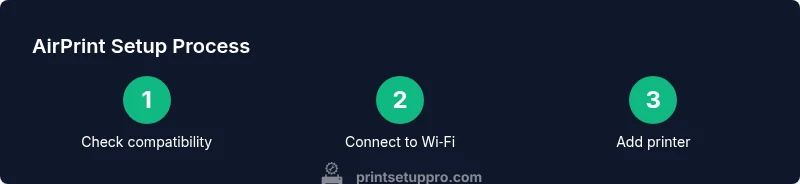
Confirm your printer supports AirPrint by checking the model’s official specs or the manufacturer’s site. If AirPrint is not listed, consider a firmware upgrade or a vendor app as an alternative. Knowing this upfront saves troubleshooting time later.
Tip: If unsure, search for the model number + 'AirPrint' to verify support. - 2
Connect printer to Wi‑Fi
Power on the printer and connect it to your home or office Wi‑Fi network. Use the printer’s control panel to select the network and enter the password. A stable connection is critical for reliable discovery by Apple devices.
Tip: Prefer a 2.4 GHz band if 5 GHz struggles with range, but both can work. - 3
Add printer on macOS
On macOS, open System Settings > Printers & Scanners, click the +, and choose the AirPrint printer from the list. Follow prompts to add and set it as default if desired.
Tip: If the printer doesn’t appear, restart macOS’s printer service and re-scan. - 4
Print a Mac test page
Open any document and print a test page to verify that macOS can reach the printer via AirPrint. Check color, alignment, and paper size.
Tip: If print quality is off, run a quick nozzle check or alignment from the printer’s menu. - 5
Add printer on iPhone/iPad
On iOS, go to Settings > Printers (or share > Print in a compatible app) and ensure the AirPrint printer is listed. Select it and adjust settings for your print.
Tip: Ensure your iPhone/iPad is on the same network as the printer. - 6
Print a mobile test page
In a printing-enabled app, tap Share or the print icon, select the AirPrint printer, and print a test page to confirm mobile access.
Tip: Test with both color and grayscale if color accuracy matters. - 7
Update firmware and drivers
Check for printer firmware updates from the manufacturer’s site or the printer’s built-in update utility. Apply updates to improve compatibility with macOS and iOS updates.
Tip: Update only when connected to a reliable power source. - 8
Set defaults and backups
Configure a default printer on devices and consider assigning a static IP to the printer to prevent discovery issues when routers restart.
Tip: Document the IP address and settings in a shared guide. - 9
Troubleshoot common issues
If prints fail, restart devices, re-add the printer, and verify network settings. Consider testing with a USB connection if the printer supports it to isolate wireless problems.
Tip: Avoid changing multiple settings at once; make one adjustment at a time.
People Also Ask
What is AirPrint and do I need it?
AirPrint is Apple’s built-in wireless printing framework that lets you print from iPhone, iPad, and Mac without installing printer drivers. It relies on compatible printers and a shared network. Most modern printers support AirPrint, but older models may require a vendor app or workaround.
AirPrint is Apple’s driverless printing system for iPhone, iPad, and Mac. If your printer supports it, you can print without installing drivers.
Which printers support AirPrint?
Many major brands offer AirPrint-ready models. Check the printer’s specifications or the manufacturer’s site for AirPrint compatibility. If a model does not list AirPrint, look for a workaround or consider upgrading to a newer printer that explicitly supports AirPrint.
Look for AirPrint in the printer’s specs; if not listed, you may need a vendor app or a newer model.
Why isn’t my printer showing up on my Mac?
Ensure both devices are on the same network, the printer is powered and connected, and AirPrint is enabled. If needed, restart the printer and re-add it in System Settings > Printers & Scanners.
Make sure you’re on the same network and try removing and re-adding the printer on your Mac.
Can I print from an iPhone to a non-AirPrint printer?
Yes, but you’ll usually need the printer’s companion app or drivers, and the experience may vary. AirPrint remains the simplest option for most users.
You can sometimes print from iPhone to non-AirPrint printers using the manufacturer app, but it’s not as seamless as AirPrint.
How do I set a default printer on macOS?
Open System Settings > Printers & Scanners, select your AirPrint printer, and choose it as the default. This ensures automatic printing to that device unless you pick another option.
Set the AirPrint printer as default so your device automatically uses it unless you choose differently.
Is it safe to print over Wi‑Fi?
Yes, as long as you secure your network with WPA2/3 and keep firmware updated. Avoid using public networks for sensitive documents.
Printing over Wi‑Fi is safe when you have a secure home network and updated firmware.
Watch Video
Quick Summary
- Connect via AirPrint for driverless printing
- Keep devices on the same network for discovery
- Test prints on macOS and iOS after setup
- Maintain firmware and network hygiene for reliability