Printer in Office Space: Setup, Use, and Maintenance
A comprehensive, step-by-step guide to choosing, placing, connecting, and maintaining a printer in office space for home offices and small businesses.


According to Print Setup Pro, proper placement and maintenance dramatically cut downtime for a printer in office space. This guide shows you how to choose the right model, position it for easy access, enable reliable network sharing, and establish a simple to maintain routine for smooth daily printing. Follow these steps to keep work moving.
Why a dedicated printer in office space matters
In a busy home office or small business, a printer that is easy to reach, reliable, and simple to maintain can change how smoothly the day flows. A printer in office space should disappear as a friction point rather than create bottlenecks during meetings, deadlines, or group projects. The goal is predictable output, consistent color or mono quality, and minimal downtime due to jams, connectivity hiccups, or driver issues. According to Print Setup Pro, proper placement and a minimal maintenance routine drastically reduce interruptions and keep teams moving. When you treat the printer as a focused system rather than a misplaced gadget, you gain faster print times, clearer scans, and fewer late-night phone calls about why this is not printing, so users are not blocked by avoidable faults. In this section, we’ll explore why choosing the right model and integrating it into your workspace matters for productivity, security, and overall ergonomics.
Choosing the right printer for your office space
The first decision is to pick between laser and inkjet, color and monochrome, or a true multifunction device. A laser printer is typically faster for high-volume prints and more cost-efficient per page, while an inkjet can offer richer color for reports, charts, and marketing materials. For most home offices and small businesses, a color or monochrome multifunction device provides scanning, copying, and sometimes faxing in one unit, saving desk space. Connectivity is essential: USB for local use, Ethernet for wired networks, and Wi-Fi for wireless sharing across laptops, tablets, and smartphones. Consider the published duty cycle, monthly page volume, and the paper-handling options (tray size, auto duplexing). Ensure the model supports your preferred operating systems and that firmware maintenance won’t require a business disruptor. Finally, plan for consumables: toner versus ink costs, replacement parts, and the availability of local service. A well-chosen printer reduces long-term expenses and supports sustainable workflows, not just immediate printouts.
Optimizing placement and workspace layout
Position the printer where it is accessible to all users, yet out of the way of foot traffic and direct sunlight that could affect toner and ink. Leave at least 6–12 inches of clearance on the sides for ventilation and jam clearance. Use labeled power strips and cable raceways to keep cords tidy and reduce tripping hazards. A small workstation corner with a flat surface for scanning and a nearby waste bin for used paper can dramatically improve efficiency. If you share the printer over Wi-Fi, place it near the router or your main switch to minimize latency. A quiet, organized environment also improves focus and reduces the likelihood of accidental paper jams caused by busy hands in a crowded desk area.
Setting up for reliable connectivity and drivers
Install the correct drivers from the manufacturer’s website, and verify that the printer appears under your networked devices. For shared setups, enable printer sharing on the host computer and configure access permissions for team members. Use a wired Ethernet connection if possible for stability, otherwise ensure a strong Wi-Fi signal throughout the office. Keep firmware updated; enable automatic updates if your IT policy allows it. Create a dedicated printer name and note its location in your network description to simplify troubleshooting. Store a quick-reference card with the printer’s IP address, model, and default password in a secure but accessible place.
Everyday maintenance to prevent jams and downtime
Regular cleaning prevents most jams and print quality issues. Dust the exterior weekly, wipe the rollers with a lint-free cloth, and run alignment calibration monthly or after heavy usage periods. Replace cartridges or toner before the color drifts or fades, and always use paper within the recommended weight range. Schedule a quarterly maintenance check to inspect feed paths, seals, and the status of waste ink absorbers (if applicable). Keep a small stock of consumables to avoid mid-project interruptions, and consider a basic maintenance kit if your model supports it.
Security and data privacy considerations
Printers today can hold documents in memory and be accessed over networks. Disable any features you do not use to reduce the attack surface, and ensure strong network authentication for wireless printing. Use unique user accounts or role-based access if your model supports it, and monitor print queues for sensitive documents. Regularly update firmware to patch vulnerabilities, and disable unnecessary cloud sharing features unless your workflow depends on them. If your office handles sensitive data, consider features like encrypted storage and secure print release to protect documents.
Troubleshooting common issues
If you experience frequent paper jams, check the paper tray alignment and ensure you’re using the correct weight paper. For connectivity drops, verify the network configuration, restart the router or printer, and ensure the printer has a valid IP address. When print quality looks off, run a nozzle check (for inkjets) or a calibration (for lasers), and verify the toner or ink level. If a device cannot print, reinstall the driver, remove stale print jobs, and confirm the printer is set as the default for the relevant devices. Keep a log of recurring errors to help your support team or retailer diagnose the problem.
Quick-start checklist for your printer in office space
- Place the printer in a central, accessible location with 6–12 inches of clearance.
- Connect via wired Ethernet if feasible; otherwise ensure strong Wi-Fi coverage.
- Install the latest drivers and enable automatic firmware updates.
- Enable secure print release for sensitive documents.
- Regularly clean and calibrate to prevent jams.
- Maintain a small stock of consumables and a basic maintenance kit.
- Document the printer’s IP, model, and location for easy troubleshooting.
- Schedule quarterly maintenance and annual assessments of network settings.
Tools & Materials
- Printer (office-capable model)(Multi-function is helpful; ensure duplex printing if needed.)
- Power surge protector(Minimum 6-outlet surge strip with 2–3 ft cord.)
- Ethernet cable or stable Wi‑Fi network(Wired preferred for stability; ensure network supports sharing.)
- Microfiber cloth for cleaning(Dust exterior and glass surfaces gently.)
- Isopropyl alcohol wipes or soft cleaning swabs(Use only if deep cleaning rollers is advised by manufacturer.)
- Printer maintenance kit (optional)(Includes rollers and alignment tools if available.)
- Replacement ink or toner and paper stock(Keep compatible consumables on hand.)
Steps
Estimated time: 60-120 minutes
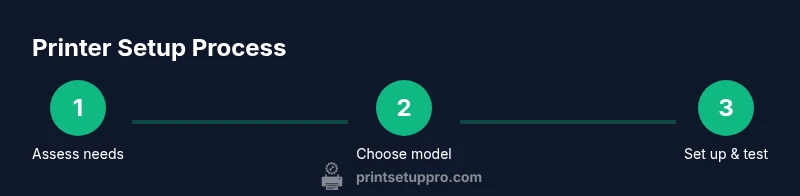
- 1
Assess office needs
Evaluate print volume, color requirements, and required features (duplex, scan, fax). This guides model selection and future costs. Consider the number of users and typical document sizes to estimate monthly page output.
Tip: Create a simple usage profile (color vs. black-and-white) to compare models. - 2
Choose and purchase the printer
Select a model that matches your needs (laser vs inkjet, mono vs color, multifunction). Verify OS compatibility and availability of local service. Plan for consumables and warranty support.
Tip: Pick a model with a proven reliability track record and easy maintenance. - 3
Position the printer for accessibility
Place the printer near power and network access with clear space for paper reloading and jam clearance. Avoid direct sunlight and high humidity areas. Use cable management to reduce tripping hazards.
Tip: Label cables and leave room to open trays and access panels. - 4
Install drivers and connect to the network
Download latest drivers from the manufacturer and install them on all devices. Prefer a wired connection for stability, or ensure robust Wi‑Fi coverage. Test by printing from multiple devices.
Tip: Disable auto-add features if you require tighter control over print queues. - 5
Configure sharing and permissions
Set up printer sharing on the host device and grant access to users who need it. Create a clear naming convention and place the printer on the network where it is easy to locate.
Tip: Document the sharing steps for new hires or guest users. - 6
Run a test print and calibration
Print a test page to verify alignment, color accuracy, and density. Run a calibration routine if your printer supports it, especially after toner/ink changes.
Tip: Keep a log of calibration results to track drift over time. - 7
Establish a maintenance routine
Schedule regular cleaning of rollers, replace consumables before they run dry, and verify firmware is up to date. Yearly service checks can prevent larger failures.
Tip: Set calendar reminders for quarterly checks.
People Also Ask
What is the best printer type for a small office setup?
For small offices, a color or monochrome multifunction printer often provides the best balance of speed, cost, and features. Consider your monthly page volume and color needs.
For small offices, a color or monochrome multifunction printer usually offers the best balance of speed and features.
How can I connect a printer to multiple devices?
Use network sharing over Ethernet or Wi-Fi and install drivers on each device. Give the printer a clear network name and ensure all users have access permissions.
Share the printer over your network and install drivers on each device.
How often should I replace cartridges?
Monitor page counts and color quality; replace cartridges or toner before print quality degrades significantly. Keep spare consumables to avoid downtime during busy periods.
Replace cartridges before quality drops during peak times.
Why does my network printer keep dropping connection?
Check the network path, confirm the printer has a valid IP, and ensure firmware is up to date. A wired connection is less prone to drops than Wi‑Fi.
Check IP assignment and firmware; wired is more stable than Wi‑Fi.
Is color printing worth it for everyday documents?
Color printing is beneficial for charts, marketing materials, and emphasis but may cost more per page. Use color only where it adds value to keep costs down.
Color helps when you need emphasis, otherwise black-and-white is cheaper.
What safety steps are needed when maintaining the printer?
Unplug the device before cleaning and wear minimal protective gear as recommended by the manufacturer. Avoid opening high-voltage components unless trained.
Unplug before cleaning and follow the manual’s safety guidance.
Watch Video
Quick Summary
- Position printer for easy access and clear airflow
- Share and secure the printer across devices
- Keep drivers and firmware up to date
- Schedule regular maintenance to minimize downtime
- Label consumables and stock up on replacements