Ricoh Printer: Setup, Troubleshooting, and Maintenance
A comprehensive, step-by-step guide to setting up, configuring, and troubleshooting Ricoh printer devices for home offices and small businesses.


In this guide, you will learn how to set up a Ricoh printer, connect it via USB or Wi‑Fi, install the correct drivers, and troubleshoot common problems. Before you begin, gather the power cable, a computer with internet access, and a stable network. The goal is reliable, ready‑to‑print operation for a home office or small business.
What makes Ricoh printers trustworthy for home offices and small businesses
Ricoh printers are widely used in home offices, classrooms, and small businesses due to their reliable performance, durable hardware, and strong security features. In this guide, we explore setup and troubleshooting strategies that minimize downtime. According to Print Setup Pro, Ricoh devices excel in document‑intensive environments where consistency and predictable results matter. By focusing on correct network configuration and driver installation, you can maximize uptime and reduce recurring issues.
Key capabilities include robust color accuracy, efficient toners, and long‑lasting components. If you work with sensitive documents, Ricoh’s security features such as secure print and user authentication help protect data on local networks. As you follow these steps, remember that preparation is half the battle; having the right cables, software, and a plan reduces the chance of misconfigurations during the first setup.
This article uses practical steps you can perform on most Ricoh printer models, from compact office printers to multi function devices. The goal is to give you a clear path from unboxing to full operation, with actionable checks at every phase. These steps apply equally well to both Windows and macOS environments and can be adapted for shared printers in small offices. Print Setup Pro reinforces that consistent setup saves time later.
Selecting the right Ricoh printer for your workflow
Choosing the right Ricoh printer depends on your print volume, color needs, and where the device will live. For home offices, compact monochrome models are often sufficient, while color or multifunction devices suit small teams with varied needs. Consider monthly duty cycle, recommended monthly page volume, input tray capacity, and network features like Ethernet or Wi‑Fi. Ricoh offers models with built‑in security, mobile printing support, and cloud integration—beneficial in mixed environments. Print Setup Pro highlights that balance between upfront cost and long‑term maintenance is key. If you anticipate high usage or sensitive documents, invest in a model with robust security and easy firmware updates. Ensure you have a clear placement plan and a network that can handle print traffic without saturating bandwidth. The goal is a device that fits your workflow today and scales for tomorrow. When selecting among Ricoh options, map features to your actual needs, not just marketing claims.
What you need before you start
Before plugging in a Ricoh printer, verify compatibility with your computer’s operating system, network, and drivers. Ensure you have a stable internet connection to download the latest drivers and firmware from Ricoh’s official site. Prepare a power outlet near the printer and decide whether you will connect via USB for direct PC printing or set up a wireless/network connection for shared access. It’s also helpful to have the printer’s user manual or online support handy for model‑specific steps. Print Setup Pro emphasizes performing a quick inventory of cables and accessories and keeping the driver installation package organized in a dedicated folder to avoid version conflicts later. Finally, decide whether you’ll enable features like secure print or user authentication to protect sensitive documents. These prep steps reduce surprises during installation and keep your setup on track.
Step-by-step setup overview
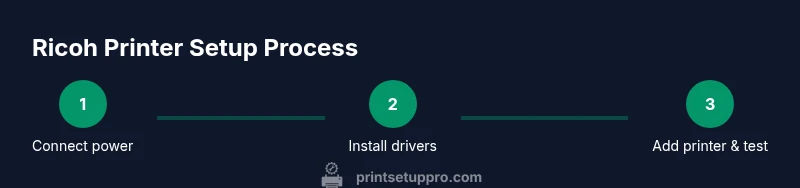
This section provides a high‑level roadmap for Ricoh printer setup. You’ll decide on a connection method, install the correct drivers, add the printer to your OS, and run a test page. Use a method that matches your environment—USB for single‑user setups or network for shared offices. After installation, adjust basic settings such as paper size and print quality. The steps below are designed to be easy to follow and adaptable to most Ricoh models. Print Setup Pro’s guidance stresses starting with the simplest configuration and verifying each stage before moving forward.
Installing drivers for Windows and macOS
Installing Ricoh drivers varies by operating system but follows a similar pattern: download the latest driver package from Ricoh’s official site, run the installer, and follow on‑screen prompts to connect to the printer. For Windows, you may need to select “Add a printer” in Settings and pick the Ricoh device, then complete the driver installation. On macOS, you can often use AirPrint for basic functions, but installing the full Ricoh driver package provides additional features like toner status and maintenance utilities. After installation, print a test page to verify driver‑level communication and ensure color and alignment are correct. Print Setup Pro notes that keeping drivers up to date helps avoid compatibility issues with newer OS updates.
Adding the printer to your OS and printing a test page
Once drivers are installed, add the Ricoh printer to your operating system’s printer list if it isn’t auto‑discovered. On Windows, go to Devices and Printers, choose Add a printer, and select the Ricoh model. On macOS, open System Preferences > Printers & Scanners and click the plus sign to add the Ricoh device. After adding, print a basic test page, then a duplex or color page to confirm capabilities. If the test page fails, verify cable connections, IP address (for network printers), and that the printer isn’t in a paused or offline state. Print Setup Pro recommends keeping a simple test flow to quickly identify where the issue originates.
Finalizing settings and best practices for daily use
With the printer installed, configure defaults such as paper size, print quality, and color settings per project. Enable features like maintenance alerts, secure print, and user authentication if needed. Create a simple naming convention for shared devices and set the printer as the default when appropriate. Regularly check for firmware updates and driver revisions to keep performance consistent. Maintain a quick reference of troubleshooting steps and a test page to run after any configuration change. By following a disciplined setup routine, you reduce downtime and keep printing flowing smoothly. Print Setup Pro’s analysis shows that a well‑documented setup process correlates with fewer calls to support and faster issue resolution.
Tools & Materials
- Ricoh printer(Any Ricoh model; use model-specific instructions in the guide)
- Power cable(AC mains plug; ensure the outlet is near the printer)
- USB cable or Ethernet cable(Use USB for direct PC connection or Ethernet for network setup)
- Computer with internet access(Windows or macOS; used to download drivers and firmware)
- Ricoh printer drivers and software(Download from official Ricoh site; select correct OS version)
- Printer paper and test page(Helpful for calibration and initial prints)
Steps
Estimated time: 45-60 minutes
- 1
Unbox and place the printer
Remove packaging, install any included starter toner, and place the printer on a stable surface with clear access to power and network cables. Check for protective tape and packaging remnants, then power the unit to ensure it boots. If your model has a booklet of setup cards, keep them handy for model‑specific steps.
Tip: Take a photo of the box contents before discarding packaging to confirm all parts are present. - 2
Connect power and power on
Plug the printer into a grounded outlet and press the power button. Wait for the initialization screen and any default setup prompts. If you see an error during boot, note the code and consult the manual.
Tip: Avoid using power strips that could interrupt during firmware updates. - 3
Choose USB or network connection
Decide whether you’ll connect via USB or set up a wireless/network connection. For USB, connect the cable to your computer and the printer. For network, access the printer control panel to configure Wi‑Fi or Ethernet settings and note the IP address.
Tip: If you’re unsure, start with USB to simplify driver installation before moving to network sharing. - 4
Install drivers and software
Download the latest Ricoh driver package from Ricoh’s official site. Run the installer and follow prompts to install the driver and utilities. If prompted, choose the correct OS and connection type.
Tip: Prefer the full driver package over basic print drivers for advanced features. - 5
Add printer to OS and print a test page
Open your OS’s printer settings and add the Ricoh device if it isn’t discovered automatically. Print a test page to verify alignment, color accuracy, and connectivity. If the test page fails, recheck cables, IP address, and that the printer is online.
Tip: Print a color and a grayscale page to confirm color accuracy. - 6
Fine‑tune defaults and features
Set defaults such as paper size and print quality, enable secure print if needed, and configure nightly maintenance reminders. Keep the firmware up to date to reduce compatibility issues with OS updates.
Tip: Document your preferred settings so every user can reproduce the same results.
People Also Ask
How do I connect a Ricoh printer to Wi‑Fi?
Access the printer’s control panel, navigate to Network settings, enable Wireless LAN, select your SSID, and enter the password. Save and test the connection by printing a calibration page.
Go to the printer’s menu, enable Wi‑Fi, choose your network, enter the password, and print a test page to confirm the connection.
How do I install Ricoh printer drivers on Windows?
Download the latest Windows driver package from Ricoh’s official site, run the installer, and follow the prompts to add the printer. Choose USB or network installation as instructed.
Download the Windows driver from Ricoh, run the installer, and follow the prompts to install via USB or network.
My Ricoh printer shows offline status. How can I fix it?
Check the connection type (USB or network), restart the printer and computer, verify that the printer is set as default, and ensure there are no pending print jobs holding the queue. Re‑add the printer if necessary.
Make sure the printer is online, check the cable or network connection, restart devices, and re‑add the printer if needed.
Can I print from mobile devices with a Ricoh printer?
Yes. Ricoh printers typically support mobile printing via AirPrint, Google Cloud Print alternatives, or Ricoh’s own mobile apps. Ensure the printer is on the same network and enable the appropriate mobile printing feature.
Most Ricoh models support mobile printing through AirPrint or Ricoh apps; ensure the device and printer share a network.
How often should I update firmware on a Ricoh printer?
Check for firmware updates during routine maintenance, especially after OS upgrades or security advisories. Install updates following Ricoh’s guidance to improve stability and security.
Check for and install firmware updates as part of regular maintenance to keep the device secure and stable.
Watch Video
Quick Summary
- Verify model and OS compatibility before driver install.
- Connect via USB or network based on your office layout.
- Update firmware and drivers to maintain security and compatibility.
- Document network settings and test prints for quick future fixes.
- Follow a clear, repeatable setup process to minimize downtime.