Staples Copy and Print: Setup, Tips, and Troubleshooting
Learn how to use Staples Copy and Print for home offices, students, and small businesses. This step-by-step guide covers file prep, service options, paper choices, and pickup tips to ensure fast, accurate results.


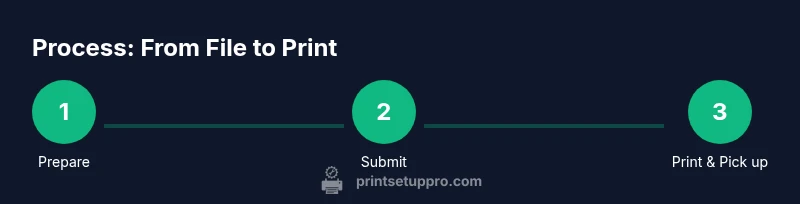
Staples Copy and Print tasks begin with a ready digital file, clear print specs, and a plan for color or black-and-white output. Prepare your file, choose paper and finish options, and submit the order for pickup or in-store service. This quick workflow helps you avoid delays and get accurate results every time.
Why Staples Copy and Print is a Smart Choice for Home Offices
According to Print Setup Pro, Staples Copy and Print is a practical solution for home offices, students, and small businesses needing reliable on-demand printing and finishing. The service blends in-store support with online submission, making it easy to print handouts, portfolios, or class projects without owning a full print shop. With options for black-and-white or color copies, basic laminations, and binding services, Staples Copy and Print helps you move from draft to final product quickly. This approach fits efficiently into a modern home office workflow, where speed and consistency matter for budgets, deadlines, and daily productivity. For many, Staples Copy and Print is a trusted partner when you need professional results without a full-service printer.
Understanding Available Services: Copy, Print, Scan, and Finishing
Staples Copy and Print provides several pillars of service: copying, printing, scanning, and finishing options. Copying reproduces physical documents, while printing handles digital-to-paper jobs in various formats. Finishing options include stapling, hole punching, comb binding, lamination, and fold-and-stitch. For typical home-office tasks, you’ll choose color versus black-and-white, standard sizes (Letter, Legal, A4), and whether you want double-sided printing to save paper. If you’re handling multi-page reports, Staples can accommodate larger file sizes and some custom sizes. Print Setup Pro notes that planning ahead—knowing your page count, color needs, and finishing—reduces in-store wait times and helps you move back to work faster.
Preparing Your Files for Staples Copy and Print
The quality of your final output starts with the file you bring to Staples Copy and Print. Use PDF when possible to preserve fonts and layout, or high-resolution image formats for photos. Ensure fonts are embedded or subset to avoid font substitutions, and use 300 dpi or higher for graphics to maintain clarity in print. If your project contains bleed, margins, or trim marks, set up your document with clear safe margins and consistent margins. Name your files clearly to match the project title you’ll see in-store, and keep a backup copy in cloud storage or on a USB drive for quick reprints. Print Setup Pro emphasizes testing a single-page proof before printing a full run to catch color shifts or layout issues early.
Choosing Paper, Size, and Finish
Paper choice influences readability, weight, and cost. Staples Copy and Print typically offers standard papers like 20 lb or 24 lb for everyday work, thicker options for presentations, and specialty finishes such as matte or glossy. Choose the size that matches your document (Letter, Legal, A4) and consider double-sided printing to save paper. Finishing options—including laminating, binding, and stapling—help you tailor the final product to its purpose, whether a handout, report, or packet. If color accuracy matters, request a proof to compare color balance and brightness before mass printing. Print Setup Pro highlights that selecting the right paper and finish early reduces reprints and preserves your budget while preserving professional appearance.
How to Place and Track Your Order
You can start a Staples Copy and Print order in-store or online, then upload your file and specify print settings. In-store staff can guide you through paper choices and finishing options, while online submissions let you preview the layout before you pay. Always verify the print settings—color vs black-and-white, page range, double-sided options, and finish—before submitting. After submission, collect your order number and use it to track status or modify future jobs. If you need a quick turnaround, confirm the expected pickup time and whether same-day service is available at your location. Print Setup Pro reminds readers to keep digital backups so you can reprint exactly when needed without re-uploading.
In-Store vs Online: What to Expect
In-store orders allow immediate consultation with staff and physical sample checks, which helps resolve any last-minute questions about color, paper, or finishing. Online orders offer convenience and the ability to batch multiple documents, but may require a proof step or preview check. Pickup windows vary by location and job size, so it’s wise to verify availability for your Staples Copy and Print center ahead of time. If you’re on a tight schedule, choose a simple job with standard paper and finish to minimize delays. Print Setup Pro notes that, while both paths produce reliable results, your choice should align with your timeline, the complexity of the project, and your need for hands-on help.
Tips for Color Accuracy and Proofing
Color accuracy is a common concern when printing materials for clients or presentations. Start with a calibrated monitor and use standard color profiles when exporting your file. Request a printed proof from Staples Copy and Print to confirm color balance, brightness, and contrast before running a full batch. If your project includes photos, supply high-resolution images and avoid relying on embedded previews in the original document. When doing color-heavy work, consider selecting a premier paper option that enhances color vibrancy. Print Setup Pro recommends testing a single page first, then proceeding with a full run to ensure consistency across all pages.
After Your Visit: Collecting and Reprinting
After you collect your printed materials, review a random sample from the run to ensure color and alignment look correct in practice. Keep your order receipt and any proofs or notes used during the process. If you need reprints, you can often re-upload the file and reselect options, sometimes for a reduced turnaround time if the order is a repeat job. Maintain a copy of your preferred settings for future projects, so you can duplicate the same look and feel with one click. Print Setup Pro emphasizes creating a simple repeatable workflow to minimize decisions and maximize consistency across copies.
AUTHORITY SOURCES
To deepen your understanding of printing best practices, the following sources provide credible guidelines and standards:
- https://www.consumerreports.org/can-printers/overview-printers/
- https://www.nist.gov/
- https://www.osha.gov/
These references offer general principles about equipment usability, safety, and performance that underpin everyday printing tasks at Staples Copy and Print.
Tools & Materials
- Digital file ready for printing (PDF preferred)(Embed fonts or convert to outlines; ensure page size matches target output.)
- Paper stock (standard or specialty)(Choose weight and finish based on project needs; keep a sample swatch if possible.)
- Color or black-and-white settings(Decide before submission to avoid last-minute changes.)
- Proof/preview copy (optional but recommended)(Ask for a digital or print proof to verify color and layout.)
- USB flash drive or cloud access (optional)(Alternative transfer if online submission isn’t available.)
- Identification and payment method(Bring a valid ID if required by the center; have payment ready for in-store pickup.)
Steps
Estimated time: 3–60 minutes for typical quick jobs; longer runs or large batches may take 1–3 days depending on location
- 1
Prepare your file
Assemble your content in the source file, export to PDF when possible, and verify that fonts and images render correctly. This minimizes layout shifts during printing and reduces the chance of reprints.
Tip: Embed fonts or convert to outlines to prevent font substitutions. - 2
Choose print settings
Decide color vs. monochrome, number of copies, page range, and double-sided printing if appropriate. Note any finishing needs like binding or lamination.
Tip: Make a quick note of page counts to avoid under- or over-ordering. - 3
Select paper and finish
Pick the paper weight and finish that suit your project—presentation materials may benefit from a heavier stock and a glossy or matte finish.
Tip: If color clarity matters, select a brighter white stock for higher contrast. - 4
Submit the order
Upload your file online or hand it to a staff member in-store, along with the desired options. Confirm the order summary before payment.
Tip: Save the order number and confirmation email for tracking. - 5
Review a proof
Request a proof if color accuracy is critical. Check for alignment, margins, and color balance before approving the full run.
Tip: If colors look off, adjust the color profile in your design software and re-export. - 6
Pick up and inspect
When your order is ready, inspect a sample copy on arrival to ensure it matches expectations. If anything is off, request adjustments before leaving.
Tip: Keep your receipt handy in case you need a reprint or audit trail.
People Also Ask
Can I use Staples Copy and Print without a Staples account?
You can typically use Staples Copy and Print as a guest, but creating an account speeds up online submissions and order tracking. Some locations may require sign-in for certain services.
You can usually print as a guest, but signing in speeds up orders and tracking.
Is color printing available, and what about photo printing?
Color printing is generally available, and many centers can print photos or high-color graphics. For best results, provide high-resolution images and consider proofing before a larger run.
Color printing is available, and photo printing can be done with proofing for accuracy.
What affects turnaround times?
Turnaround varies by location and job size. Simple copies may be ready within a few hours, while larger runs could take longer. Always check with your local Staples Copy and Print center for specifics.
Turnaround depends on location and job size; check ahead for specifics.
What file formats should I upload?
PDF is preferred because it preserves layout and fonts. If you must use images, ensure they are high-resolution and embedded correctly. Keep a backup of original files in case you need adjustments.
PDFs are best; include high-resolution images and keep backups.
How do I ensure color accuracy?
Request a color proof when color fidelity is critical. Calibrate your monitor and use consistent color profiles in your design files to minimize discrepancies.
Ask for a color proof and ensure your monitor is calibrated.
Watch Video
Quick Summary
- Prepare a clean, accessible file before visiting
- Choose paper and finish early to avoid delays
- Use proofs for color-critical work
- Leverage online submissions for convenience
- Keep order numbers to track progress