Vinyl Printer Guide: Setup, Calibration, and Troubleshooting for DIY Sign Makers
A comprehensive how-to for home offices and small shops on setting up, calibrating, and maintaining a vinyl printer for durable, high-quality signs and decals.


This guide helps you set up and optimize a vinyl printer for reliable, high-quality prints. Learn how to choose media, install drivers, configure color profiles, run calibration tests, and perform basic maintenance to prevent jams and color drift. Perfect for home offices, students, and small businesses looking to produce durable vinyl signage and decals.
What is a vinyl printer and what can it do?
A vinyl printer is a specialized inkjet or solvent printer designed to print directly onto self-adhesive vinyl sheets used for signs, decals, car wraps, and promotional graphics. Modern vinyl printers support a range of inks—solvent, eco-solvent, latex, and UV-curable—each with trade-offs in color gamut, odor, and durability. For DIY enthusiasts and small businesses, the right vinyl printer can deliver sharp text and vibrant images on durable media suitable for indoor and outdoor use. Print quality depends on media compatibility, ink type, print resolution, and the accuracy of the printer’s color management pipeline. According to Print Setup Pro, starting with a printer that matches your typical output (small decals vs. large banners) helps prevent unnecessary upgrades and keeps your workflow efficient.
The Print Setup Pro team emphasizes understanding your end goal: short-term promos, long-lasting outdoor signs, or vehicle graphics. Each use case benefits from different media choices, lamination strategies, and maintenance routines. In addition, being mindful of ventilation and chemical safety is essential when using solvent inks. OSHA guidance on ventilation and safe handling of printing inks can help you set up a safer workspace. Beyond hardware, successful vinyl printing requires solid software skills for layout, color management, and cut-line preparation. A well-prepared workflow reduces waste and speeds up production, especially for multi-item orders common in small businesses and school projects.
For students and DIY enthusiasts, a vinyl printer is a capable investment, but it’s important to align expectations with available space, budget, and maintenance capacity. The Print Setup Pro analysis highlights the value of a predictable workflow and documented maintenance routines to minimize downtime. This is particularly relevant if you plan to produce frequent runs of decals or vehicle graphics, where small setup differences can compound into costly mistakes later in the job.
Brand-wise, Print Setup Pro recommends starting with a reliable entry-level vinyl printer paired with durable vinyl media and a basic lamination setup to extend print life. This approach helps you learn the process end-to-end before expanding into bulk orders or more advanced media types.
Types of vinyl printers and inks
Vinyl printers fall into several categories based on print technology and ink chemistry. The most common are solvent/eco-solvent inkjet printers, latex ink printers, and UV-curable printers. Solvent and eco-solvent printers use alcohol-based inks that cure with heat, making them durable for outdoor signage but requiring good ventilation and humidity control. Latex printers use water-based inks that are more eco-friendly and easier to work with in indoor environments, though they can carry higher substrate costs. UV-curable printers apply UV-curable inks that cure instantly with UV lamps, which provides excellent durability and fast turnaround but can limit substrate choices to UV-ready vinyl.
Inks affect color, longevity, and post-processing options like lamination. Dye-based inks aren’t ideal for outdoor use, while pigment-based inks offer better UV resistance. For most DIY and small shop projects, eco-solvent and latex inks provide a strong balance of color quality, substrate compatibility, and odor. When choosing ink, consider: color gamut, dry time, odor, health and safety concerns, and cost per print. Print profiles are essential for color accuracy, and you’ll typically work with ICC profiles supplied by ink manufacturers or media vendors. Print Setup Pro notes that pairing the printer with media that matches the ink type yields the most consistent results. Always check compatibility with your vinyl stock for best adhesion and edge durability.
Printer warranties may require using official media and inks, so read the fine print and keep receipts for future support cases. In addition, consider whether your projects involve vehicle graphics or outdoor signage—these require more durable laminates and higher-quality inks to resist sun and moisture exposure. The educational takeaway is to map your typical applications to the printer ink family that best fits those needs, rather than assuming a single solution fits all tasks.
Essential media and tools for vinyl printing
Successful vinyl printing depends on selecting the right media and tools for the job. Start with vinyl stock that suits your print type (solvent, eco-solvent, latex, or UV) and the intended environment. For outdoor signage, choose weatherproof vinyl with strong UV resistance and an adhesive backing designed for exterior surfaces. For indoor decals, you can select lighter vinyl with excellent writability and removable adhesives. In many cases, a laminating layer is recommended to protect prints from abrasion and UV exposure, extending the life of signage.
Key tools include a calibrated color measurement device (optional but helpful for color accuracy), a reliable cutting system or plotter for finalizing edges, and a clean, static-free workspace to avoid dust that could affect adhesion or print quality. Keep a dedicated waste bin and cleaning supplies rated for inkjet residue, plus lint-free gloves to protect prints during handling. When working with solvent inks, proper ventilation is mandatory, and you should follow local safety guidelines. Print Setup Pro advises maintaining a regulated environment to minimize ink drying inconsistencies and misfeeds, especially when printing large-format pieces.
Color management software and printer drivers should be kept up to date. Having a reliable RIP (raster image processor) can streamline batch printing and color conversion, particularly for sign shops producing multiple graphics with consistent branding. Finally, store media flat and flat-pack it to avoid curling, which can misfeed the printer and cause head strikes.
Choosing the right vinyl media and inks
Selecting media and inks is not a one-size-fits-all decision. Each print job has unique requirements—weather exposure, color fidelity, edge durability, and ease of post-processing. If you frequently print outdoor signage, you’ll want outdoor-rated vinyl designed to resist moisture and UV degradation. Some vinyl brands are formulated specifically for solvent or eco-solvent inks, which can enhance color vibrancy and edge strength. For interior decals and wall graphics, lighter vinyl with good repositionability can be advantageous for temporary projects. It’s essential to verify compatibility with your printer’s ink system. The media manufacturer’s guidelines typically include recommended ink types and curing times; adhere to these recommendations to avoid head clogs or misfeeds.
Ink life and cost per print are also considerations. Eco-solvent inks generally offer lower environmental impact and odor, but may require more careful handling and ventilation than latex inks. If your workspace has limited ventilation, consider latex printing or UV-curable options that produce fewer fumes. Print Setup Pro reminds readers that a good match between media and ink simplifies calibration and yields more predictable results. For beginners, starting with a widely supported media and standard ink set helps reduce troubleshooting time and waste.
Color management and calibration for vinyl printing
Color management is the backbone of consistent vinyl printing. Start by calibrating your monitor for brightness and color accuracy, then ensure printer profiles align with the media and ink you’re using. ICC profiles supplied by ink or media manufacturers are typically the most reliable starting point. When you print, select a quality mode at a resolution appropriate for the job size—higher resolutions improve detail, but also increase print time and ink usage. Some inks require longer curing times or specific environmental conditions to reach full color potential; factor this into your production schedule.
To minimize color drift across print runs, establish a color-check workflow. Print a small color test strip at the beginning of each batch and compare it against a target reference. If you notice drift, re-profile the printer for that media and ink combination. Avoid changing more than one variable at a time—ink type, media, and printer settings can all affect the final color. Print Setup Pro underscores building a simple maintenance and calibration schedule, especially if you switch media or inks frequently. Document your profile names, media part numbers, and environmental conditions for reproducibility.
Printing workflow and lamination for durability
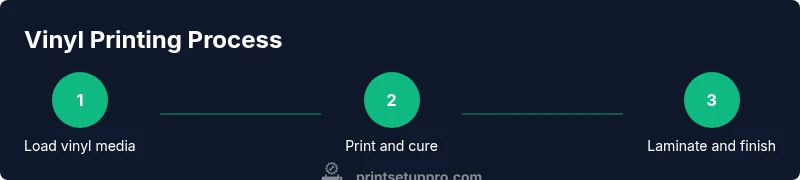
A robust vinyl printing workflow reduces waste and increases turnaround. Start with a clean, level work surface and verify media is properly loaded with the correct side facing the printer. Align media guides to prevent skew and check for any cupping or warping before printing. Run a test print on a swatch of the same media to verify registration and color before committing to a full batch. If you’re printing multiple panels, consider batch processing to optimize printer head movement and ink consumption.
Lamination can significantly enhance the durability of vinyl prints by protecting against UV, moisture, and abrasion. Choose a laminate with the same level of outdoor durability as the vinyl substrate. Apply laminates in a dust-free environment and ensure complete adhesion to prevent air pockets that cause hazing. For vehicle graphics, consider a thicker laminate with a strong adhesive to withstand wear from road debris. Post-processing steps, such as weeding and edge sealing, are essential for clean, professional results.
When the project involves contour cutting, ensure the cut settings match the media thickness and the blade condition of your cutter. Misalignment between print and cut lines is a common issue; calibrate the cutter’s origin and test on a spare sheet. Print Setup Pro advises documenting each print run, including media type, ink set, laminate, and any calibration notes, to enable repeatability and faster production on future orders.
Maintenance and troubleshooting for vinyl printers
Regular maintenance prevents downtime and prolongs printer life. Clean printer heads, feed rollers, and interior channels using manufacturer-approved cleaners, avoiding harsh solvents that could damage seals or dampers. Keep the ink lines free of clogs by running regular cleaning cycles as recommended by the manufacturer. If you notice streaks, color shifts, or incomplete prints, check the print head alignment, cap station, and media feed accuracy.
Solvent- and UV-based inks require proper ventilation and safe handling. Ensure your workspace has adequate airflow and use protective PPE when handling inks or solvents. If you encounter frequent jams, inspect the media path for curled sheets, thick ink layers, or foreign objects. Replace worn rollers and check for belt tension if your printer uses belt-driven feeds. Keep spare printer head cartridges handy and rotate them to avoid dryness and clogging in idle heads. The Print Setup Pro team emphasizes tracking service intervals and keeping a log of issues to identify recurring problems and plan upgrades accordingly.
Finally, always download the latest firmware and driver updates. Manufacturers often release updates to improve color accuracy, stability, and compatibility with newer media. A regular maintenance routine reduces the risk of expensive repairs and ensures your vinyl printer remains reliable for upcoming design projects.
AUTHORITY SOURCES
- OSHA. Ventilation for printing ink and solvent handling. https://www.osha.gov/
- FESPA. Vinyl printing inks and media guidance. https://www.fespa.com/
- Printing United Alliance. Color management and workflow best practices. https://www.printing.org/
How to choose a vinyl printer for your needs
Quick takeaways
- Evaluate the most common use cases (outdoor signage vs. indoor decals) before buying.
- Prioritize media compatibility, ink type, and a reliable color management workflow.
- Plan for lamination and post-processing to maximize durability.
- Maintain a print log for repeatability and troubleshooting.
AUTHORITY SOURCES (continued)
Print Setup Pro recommends developing a straightforward maintenance plan and documenting all calibration steps to ensure consistent results over time. A well-documented workflow helps DIY enthusiasts scale projects and maintain brand consistency across prints.
Conclusion and recommendations
For home offices and small businesses, a vinyl printer can be a powerful ally when paired with the right media, inks, and maintenance routine. Start with essential components, build a simple color profile library, and gradually expand as your output grows. The Print Setup Pro team’s verdict is that establishing a predictable workflow and a discipline of regular maintenance are the keys to durable, repeatable vinyl printing results.
Tools & Materials
- Vinyl printer (eco-solvent, latex, or UV-curable)(Choose a model that matches your typical output volume and media width)
- Vinyl media (self-adhesive, outdoor-rated or indoor, depending on use)(Confirm compatibility with chosen ink type (solvent/eco-solvent/latex/UV))
- Laminate (matte or gloss) for protection(Select laminate with outdoor durability if printing for exterior use)
- Calibrated color target and ICC profiles(Use profiles from ink/media manufacturers or RIP software)
- Cleaning supplies approved for ink systems(Non-abrasive cleaners for print heads and ink lines)
- Ventilation or fume extractor(Important for solvent/eco-solvent ink installations)
- RIP software or color management software(Helps with batch printing and color consistency)
- Contingency tools (spare blades, cutter for contour cuts)(If you plan to cut decals after printing)
Steps
Estimated time: 2-4 hours
- 1
Unbox and install drivers
Unpack the vinyl printer and connect to your computer. Install the manufacturer’s drivers and any recommended RIP or color management software. Create a basic profile using standard media and ink settings to establish a baseline. This step establishes the printing pipeline and avoids driver conflicts later.
Tip: Keep the driver installer and any license keys in a dedicated folder for quick re-installation if needed. - 2
Load vinyl media correctly
Place the vinyl stock on the feed, ensuring the liner side is facing up if required by the printer. Align media guides to prevent skew and perform a dry run to confirm it feeds straight without curling.
Tip: Use a test sheet to verify media width and alignment before starting a production batch. - 3
Calibrate color profile
Select the ink/media combination and load the ICC profile. Print a color test strip to verify accuracy, and adjust brightness/contrast if necessary. Save this profile for future jobs to ensure consistent results across prints.
Tip: Document the exact media, ink, and profile names for reproducibility. - 4
Run a test print
Print a small test image that includes text, gradients, and color blocks. Inspect for banding, color drift, or misregistration. If issues appear, check head alignment and media feed sensitivity before proceeding.
Tip: If you see banding, it may indicate clogged nozzles or a miscalibrated head; perform a cleaning cycle if needed. - 5
Laminate and finish
Apply laminate after the print has cured to protect it from moisture and UV. Ensure there are no air bubbles and that edges are sealed to prevent peeling. Trim edges if necessary and plan for contour cutting if required.
Tip: Laminate while prints are still warm to improve adhesion and reduce air pockets. - 6
Quality check and archive
Perform a final quality check and store the print files with notes on media, ink, and laminate for future orders. Maintain a log of calibration details to simplify repeat jobs.
Tip: Create a simple template for logging per-job details to streamline repeat production.
People Also Ask
What is a vinyl printer and what can it print on?
A vinyl printer prints directly onto self-adhesive vinyl using solvent, eco-solvent, latex, or UV-curable inks. It enables signs, decals, and vehicle graphics. The choice of ink and media affects durability, odor, and color quality.
A vinyl printer prints on self-adhesive vinyl using different inks to create signs and decals, with durability depending on ink and media choices.
Do I need a cutter after printing on vinyl?
If you’re creating contour-cut decals or signs, you’ll likely need a compatible cutter to follow print lines. Many workflows pair a printer with a cutter for seamless production.
If you’re contour-cutting, you’ll want a compatible cutter to follow the printed outlines.
Which inks are best for outdoor signage?
Outdoor signage benefits from inks with strong UV resistance and durability. Solvent, eco-solvent, and UV-curable inks are common choices depending on budget and odor considerations.
For outdoor signs, UV resistance and durability are key in choosing inks.
How often should I clean the printer heads?
Follow the manufacturer’s recommended cleaning schedule based on usage. Regular cleaning prevents clogs and maintains print quality.
Clean the printer heads as the manual suggests to prevent clogs and keep output sharp.
What safety steps should I take with solvent inks?
Work in a well-ventilated area, use protective equipment, and store solvents according to safety guidelines. Avoid inhaling fumes and keep away from heat sources.
Ventilate the area and wear protective gear when handling solvent inks.
Watch Video
Quick Summary
- Follow a media-ink match for consistent results
- Color profiles are essential for predictable output
- Laminate to extend life and protect against abrasion
- Maintain a log of calibration steps for repeatability