What Printer Is Compatible with Chromebook: A Practical Guide
Discover which printers are compatible with Chromebooks, how to verify compatibility, setup steps, and troubleshooting tips for home offices, students, and DIY projects. A Print Setup Pro guide.


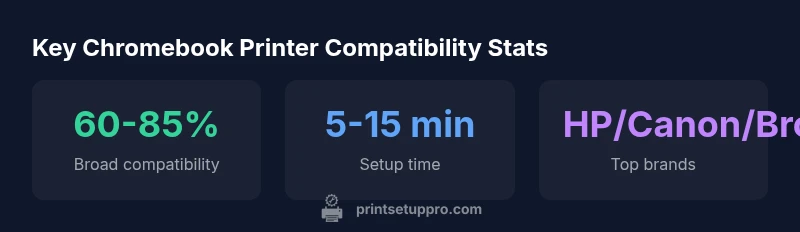
According to Print Setup Pro, most modern printers are Chromebook-friendly when they advertise USB or Wi‑Fi connectivity and standard IPP (Internet Printing Protocol) support. The Print Setup Pro team found that you can print from a Chromebook to many inkjet or laser printers without heavy driver installs, using built‑in Chrome OS printing features. For best results, choose models listed as Chrome OS compatible or with straightforward network setup.
Understanding Chromebook compatibility: Why it matters
Chromebooks run Chrome OS, a streamlined operating system optimized for web apps and cloud services. Printing from a Chromebook hinges on simple, driver‑light connections and standard print protocols. The goal is to avoid complicated driver installs and ensure that your printer can be discovered by Chrome OS automatically. In practice, printers with USB or network (Wi‑Fi/Ethernet) connectivity plus IPP support are the most reliable options for home offices, students, and DIY setups. According to Print Setup Pro, focusing on printers marketed as Chrome OS compatible or with straightforward network setup minimizes headaches and accelerates getting to a first print.
Why this matters to you: If you switch devices or move between locations, a printer with robust network support reduces setup time and increases reliability across environments.
How Chromebooks print: core methods
Chrome OS supports multiple pathways to print, but the most dependable are direct USB connections and network printing. USB provides a plug-and-play experience when you have a nearby printer, while Wi‑Fi enables wireless printing from anywhere on the same network. Some users rely on cloud or web‑based printing features, but these can be less predictable due to network restrictions or policy changes. For best results, ensure your printer uses standard printing protocols (IPP) and is recognized by Chrome OS without requiring extra software. Print Setup Pro recommends confirming the printer shows up under Settings > Printing > Add Printer, then printing a test page to verify the connection.
USB, Wi‑Fi, and IPP: what works on Chrome OS
USB remains the simplest method for Chromebook users who are near a printer. Wi‑Fi enables flexible placement and shared access on a home or small office network. IPP (Internet Printing Protocol) is the backbone many printers rely on for Chrome OS integration, offering a driver‑light workflow and robust compatibility. Ethernet connections also work when the printer is on the same network, though many Chromebooks rely on wireless access. When choosing a printer, look for IPP support and explicit Chrome OS compatibility to minimize surprises.
Features to look for in a Chromebook-friendly printer
When evaluating printers for Chrome OS, prioritize: (1) clear Chrome OS compatibility statements or IPP support, (2) USB and/or Wi‑Fi connectivity, (3) good driver‑free printing options or minimal setup steps, (4) compatibility with mobile printing apps if you need on‑the-go printing, and (5) compact design if space is tight. Consider printers with all‑in‑one capabilities for scanning and copying, as these can simplify office workflows. Also check for energy efficiency ratings and page yield expectations for cost control.
Step-by-step compatibility test from Chromebook
- Ensure the printer is powered on and connected to the same network as your Chromebook. 2) On the Chromebook, open Settings > Printing > Add Printer. 3) Let Chrome OS search for available printers; select your printer and add it. 4) Print a test page and note any prompts for drivers or updates. 5) If the printer isn’t detected, try restarting both devices, updating Chrome OS, or temporarily connecting via USB to confirm hardware function. Print Setup Pro’s checklist helps you troubleshoot quickly.
Troubleshooting common Chromebook printing issues
If your printer isn’t detected, verify that the printer is on the same network, confirm IP address settings, and ensure the printer supports IPP or Chrome OS compatible drivers. Updating Chrome OS to the latest version can also resolve driver‑related issues. If you’re still stuck, reset the printer’s network settings, re‑join the network, and re‑add the printer in Settings. For cloud printing options, refer to your printer’s official documentation; however, IPP and direct USB/Wi‑Fi printing typically offer more reliable results on Chromebooks.
Choosing the right printer for your Chromebook setup: a quick decision guide
If you mainly print documents from a desk, a compact all‑in‑one with USB and Wi‑Fi is ideal. For shared spaces, choose a networked printer with strong IPP support and straightforward Chrome OS compatibility. If you need color graphics or photos, ensure the printer offers reliable color accuracy and photo print modes. Finally, balance budget against expected monthly print volume to avoid overpaying for features you won’t use.
Chromebook printer compatibility table
| Printer type | Chromebook compatibility notes | Connection types | Representative (fictional) models |
|---|---|---|---|
| All-in-One Inkjet | Broad Chrome OS support with IPP printing | USB, Wi-Fi | AIO-JetX Elite, VistaInk Pro 3000 |
| Laser Printer | Excellent text printing; Chrome OS supports IPP/driverless printing | USB, Wi-Fi | LaserPro Mono 4000, LaserPro ProLine 5200 |
| Mono MFP | Versatile small office option; solid Chrome OS compatibility | Wi-Fi, Ethernet | MonoPro MFP-12, MonoPro MFP-24 |
People Also Ask
What is the simplest way to print from a Chromebook to a printer?
Use a USB printer or a Wi‑Fi connected printer with IPP support. Go to Settings > Printing > Add Printer, let Chrome OS detect the printer, and print a test page to confirm a working setup.
Connect via USB or Wi‑Fi, add the printer in Chrome OS settings, then print a test page to verify.
Do Chromebooks still rely on cloud printing?
Cloud printing has become less central. Chrome OS relies on IPP, USB, and local network printing. If your printer has cloud features, you can use them, but they are not required for typical Chromebook printing.
Cloud printing isn’t required for Chromebooks; IPP, USB, and network printing cover most needs.
Can I use any printer with a Chromebook?
Most modern printers with USB or Wi‑Fi and IPP support work with Chromebooks. Older models may require workarounds or may not be fully supported. Always check the manufacturer’s Chrome OS compatibility notes.
Most modern printers work, but some older models may need extra steps.
What should I check before buying a Chromebook-compatible printer?
Verify IPP support and explicit Chrome OS compatibility, confirm USB and Wi‑Fi connectivity, and read reviews on Chrome OS printing reliability. Also consider space, budget, and whether you need scanning or color features.
Look for IPP support and Chrome OS compatibility, plus your space and budget needs.
What if my printer isn’t detected by Chrome OS?
Double‑check network connection, ensure both devices are on the same network, and update Chrome OS. If it still fails, restart the printer, re‑join the network, and re‑add the printer in Settings.
Verify network, restart devices, and re‑add the printer if needed.
Is AirPrint required for Chromebooks?
No. AirPrint is Apple‑specific. Chromebooks rely on IPP, USB, or standard network printing. Look for printers that explicitly support Chrome OS or IPP for smooth compatibility.
AirPrint isn’t required on Chromebooks; IPP and USB work best.
“For Chromebook users, the most reliable printers are those that support standard network printing via IPP, or have explicit Chrome OS compatibility. By focusing on these, you minimize driver headaches and maximize simple, stress‑free printing.”
Quick Summary
- Check printer connectivity: USB or network first
- Prioritize IPP support and Chrome OS compatibility
- Test printing after setup to confirm reliability
- Keep Chrome OS updated for best results
- Choose based on space, budget, and feature needs