What to Do If Your Printer Isn’t Compatible with Chromebook
Dealing with a printer that won’t work on Chromebook? This urgent, actionable guide from Print Setup Pro walks home-office users through fast checks, practical workarounds, and a safe diagnostic flow to restore printing quickly.


If your printer isn’t compatible with Chromebook, start with the simplest routes: use a shared printer from another computer on the same network or switch to a Chromebook‑friendly model. Then proceed with the diagnostic flow and safe workarounds described here. For most home setups, the quickest fix is to enable a compatible print path rather than chasing drivers. This guide from Print Setup Pro helps you decide fast.
what if my printer is not compatible with chromebook
When a printer cannot be used directly with Chrome OS, it usually means there isn’t an official driver, app, or protocol that Chrome OS recognizes out of the box. Print setups on Chromebooks rely on standard printing paths, cloud-enabled workflows, or manufacturer apps that support Chrome OS. The Print Setup Pro team has found that the quickest way to regain printing capability is to create an alternative print path that fits Chrome OS expectations, not to invest heavily in unavailable drivers. Start by clarifying your printing needs (text documents, color photos, labels) and review whether the printer offers a built-in web interface, an Android app that can interact with Chrome OS, or a network printing option like IPP. If you can identify a method that aligns with Chrome OS, you can usually avoid expensive hardware changes. In many cases, the root cause is an assumption about driver availability rather than a hardware limitation. This section will help you map out the most reliable routes and decide when to consider hardware changes.
How to verify compatibility and basic checks
Start with the simplest checks first:
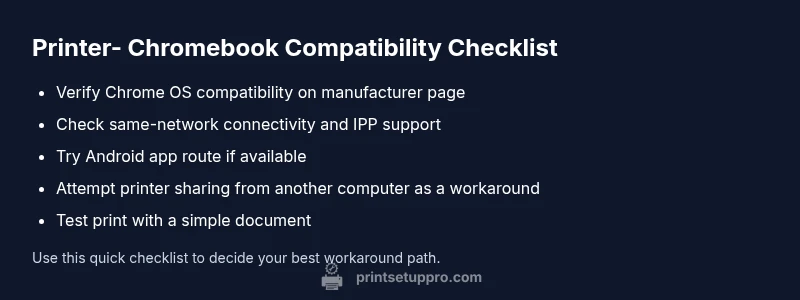
- Confirm the printer’s official Chrome OS compatibility on the manufacturer’s site or support pages. Look for explicit mentions of Chrome OS, IPP printing, or Android app support that works with Chromebooks.
- Check if the printer is on the same network as your Chromebook and verify network stability. A flaky Wi‑Fi connection can masquerade as compatibility issues.
- Ensure your Chromebook is up to date. Chrome OS updates often include broader printing support and bug fixes that resolve hiding compatibility problems.
- If the printer has an Android app, verify that you can use the app to print documents from the Chromebook via the app’s own print function or through Android’s share sheet.
- Try a basic test print from a local file to confirm that you can reach the printer at all. If you can print a test page, focus next on the path rather than the device itself.
If these checks fail, use the diagnostic flow (below) to identify more specific causes and fixes with a safe, staged approach.
Practical workarounds that reduce friction
When direct compatibility isn’t available, practical workarounds can restore printing quickly:
- Use a shared printer on another computer: Share the printer from a Windows or macOS machine on the same network and print from your Chromebook via that computer’s print server.
- Switch to a Chromebook-compatible printer: If you print frequently from your Chromebook, investing in a printer explicitly listed as Chromebook-compatible reduces ongoing friction and driver conflicts.
- Use a printer’s cloud or email printing features: Some printers support cloud printing or email-to-print services; these can provide a bridge when direct Chromebook printing is limited.
- Leverage Android apps on Chromebook: If your Chromebook supports Android apps, install the printer brand’s app and use that app’s print function to send jobs to the printer.
- Connect with a USB, when possible: Some Chromebooks can print via USB if the printer supports USB printing and the Chromebook recognizes the device; this is less common, but worth testing when you have a direct cable option.
These workarounds minimize downtime and keep you productive while you address longer-term compatibility.
Testing and next steps: how to decide your best course
After applying a workaround, perform a focused test: print a representative document (text, images, and color slides) to confirm reliability. If prints are consistent, document the method you used as your standard process. If issues persist, reassess whether a hardware upgrade makes sense: a Chromebook-certified printer offers the most stable long-term solution. Also, schedule regular updates for Chromebooks and printer firmware to guard against future compatibility gaps. Finally, keep an eye on the manufacturer’s support channels for any Chrome OS‑specific fixes or new drivers.
Steps
Estimated time: 45-90 minutes
- 1
Verify Chromebook compatibility
Visit the printer manufacturer’s support page and search for Chrome OS compatibility, IPP support, and Android app availability. Confirm that your exact printer model is listed as compatible with Chrome OS. If not, proceed to explore alternatives rather than forcing an unsupported driver.
Tip: Document the exact model and any chrome os notes for quick reference. - 2
Test basic connectivity
Make sure both devices are on the same network and that the Chromebook recognizes the printer’s presence either via IPP or a shared network path. A simple ping or browser-based printer Web Interface check can reveal basic connectivity issues.
Tip: Restart router and devices if the printer isn’t discoverable. - 3
Try a cloud/Android path
If the printer offers cloud printing or an Android app, set up that path on the Chromebook. Use the app’s print function or the Chromebook’s share option to route print jobs through the app.
Tip: Use a simple document first to confirm the path works. - 4
Set up printer sharing from another computer
On a Windows/macOS machine, enable printer sharing for the printer and add that shared printer on the Chromebook through the networked printer setup. Print a test page to verify the shared route.
Tip: Choose a stable host computer and ensure it stays powered on during printing tasks. - 5
Test via USB if possible
If your Chromebook and printer both support USB printing via direct cable, connect and perform a test print. USB often bypasses network-related compatibility hurdles.
Tip: Use a fresh USB cable and try a plain text document first. - 6
Decide on a long-term path
If the above steps are unreliable, evaluate replacing the printer with a Chromebook-certified model. Consider future-proofing your setup to avoid recurring issues.
Tip: Keep a short list of compatible printers for future purchases.
Diagnosis: Printer won’t print from Chromebook despite being connected
Possible Causes
- highPrinter lacks official Chrome OS driver/app or IPP support
- mediumPrinter and Chromebook are on different networks or misconfigured sharing
- lowChromebook printing service or settings misconfigured
Fixes
- easyCheck printer compatibility on the manufacturer site and update firmware if available
- mediumSet up printer sharing from a PC/Mac on the same network, then print via the shared path from Chromebook
- easyEnable a cloud or Android app-based print path if your printer supports it on Chrome OS
- hardIf needed, consider upgrading to a Chromebook-compatible printer for long-term reliability
People Also Ask
Why won't my printer work with Chromebook even though it's connected?
Chromebook printing relies on Chrome OS compatibility and supported print paths. If the printer lacks driver support, you’ll need to use a workaround such as sharing from another computer or using a cloud/Android route. Always verify model-specific compatibility on the manufacturer site.
Many printers don’t have Chrome OS drivers, so you may need to share from another computer or use a cloud path. Check the model's compatibility first.
Can I print from Chromebook if my printer isn’t listed as Chromebook-compatible?
Yes, via alternative routes like printer sharing from another computer on the same network, using the printer's cloud or Android app if supported, or upgrading to a Chromebook-friendly model for seamless printing.
You can often print by sharing from another computer, or by using a cloud path or compatible app if available.
Is there a list of Chromebook-compatible printers I should buy?
Many manufacturers publish compatibility details, and the Print Setup Pro guide highlights common Chromebooks-friendly models. Always verify Chrome OS support and firmware update availability before purchasing.
Check manufacturer pages and our guide for Chromebook-friendly models.
Should I replace my printer if Chromebook printing is essential?
If you print often from Chromebook, investing in a Chromebook-certified printer minimizes setup time and ongoing issues. If occasional printing suffices, workarounds can keep costs down.
If you print from Chromebook frequently, a Chromebook-certified printer is usually worth it.
What if I can only print via USB on my Chromebook?
USB printing is possible on some Chromebooks with compatible printers. If your printer is not recognized over USB, try alternative routes first and verify USB support in both devices’ documentation.
USB printing can work on some setups; check both devices for USB compatibility.
How long should troubleshooting take before I escalate?
Usually 30–90 minutes covers verification, setting up a workaround, and a test print. If unresolved after that, contact support or consider a hardware upgrade.
If nothing works after an hour, consider contacting support or upgrading printer hardware.
Watch Video
Quick Summary
- Check official Chrome OS compatibility first
- Test simple paths before complex fixes
- Use network sharing or Android/app paths as bridges
- Consider Chromebook-certified printers for longevity