What Software Is Needed for a 3D Printer: A Practical Guide
Explore the essential software stack for 3D printing, from CAD and slicing to host tools and automation. Learn how to choose the right tools for hobbyists, students, and small teams.


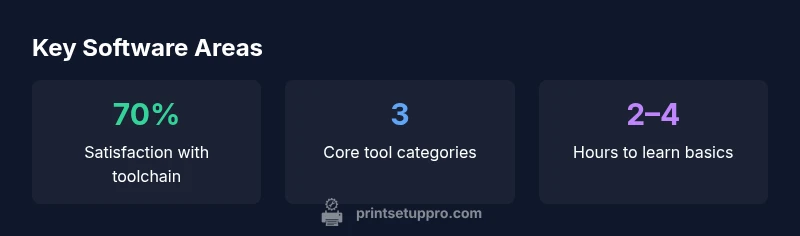
A 3D printer workflow typically requires three software layers: modeling software to create or edit 3D geometry, a slicer to convert the model into printer-ready G-code, and a host/management tool to send the G-code to the printer and monitor progress. Optional utilities like mesh repair, calibration helpers, and automation scripts can speed up iterations and reduce failed prints. This stack keeps you flexible as your needs grow from quick prototypes to polished productions.
Understanding the software stack for a 3D printer
In practice, you don’t just buy a printer and start printing. The software stack is the invisible engine that translates a digital concept into a physical object. At the core, three layers determine success: modeling design software to create geometry, slicer software to convert models into G-code, and host/communication tools to send the G-code to the printer and monitor progress. Optional utilities such as mesh repair, calibration helpers, and automation scripts can cut learning time and reduce failed prints. Print Setup Pro emphasizes building a workflow that fits your goals, whether you’re prototyping parts, producing miniatures, or teaching a class. When selecting software, prioritize compatibility with your printer’s firmware and supported file formats. The goal is a smooth hand-off from design to print, with clear feedback loops for adjustments and reprints.
Desktop CAD and 3D design tools
3D design starts with CAD programs. For beginners, browser-based options like TinkerCAD offer intuitive modeling and quick export to STL. For more serious modeling, Fusion 360 provides parametric design, free options for hobbyists, and robust assemblies. Blender is versatile for sculpting and organic shapes; FreeCAD is open-source and scriptable. SketchUp remains popular for architectural parts, with a free version and paid features. Onshape, a cloud-based CAD, supports collaboration across devices. When choosing CAD software, consider your target printer’s tolerance, export formats (STL, OBJ, 3MF), and whether you value parametric histories or a simple mesh editor. Also factor learning curves and cost—many hobbyists start with free tools and graduate to paid options as parts become more complex. Keep a standard export workflow and verify mesh integrity before slicing to avoid surprises in the print bed.
Mesh editing and repair utilities
Raw models often arrive with defects that can cause failed prints. Mesh repair tools fix holes, non-manifold edges, inverted normals, and self-intersections. For Windows users, MeshLab and Microsoft 3D Builder offer quick checks and repairs at no cost. Blender also provides powerful modifiers for cleaning meshes, while FreeCAD can fix geometric issues in parametric designs. Commercial options like Netfabb provide automated repair routines and predictive analysis, but they are not always necessary for hobbyists. The key is to run a quick mesh check after exporting from your CAD tool and before slicing. This small step dramatically reduces wasted material and helps ensure the printed result matches the design intent. With good mesh hygiene, you’ll spend less time troubleshooting and more time iterating ideas.
Slicing software explained
Slicing software is the bridge between your digital model and the printer’s hardware. It takes a 3D model and converts it into layers and machine instructions, known as G-code. Popular slicers include Cura, PrusaSlicer, and ideaMaker. Cura is versatile and supports a broad range of machines; PrusaSlicer began as a Prusa project but now supports many printers; ideaMaker works well with its maker ecosystem. Each slicer offers profiles for layer height, infill density, supports, adhesion methods, and temperatures. The best practice is to start with a basic profile for your printer and gradually refine, printing test cubes and calibration models to validate settings. Save multiple profiles for different materials such as PLA, PETG, or ABS. Regularly update slicer software to benefit from bug fixes and new features.
Printer management and workflow automation
For daily use, you may want to monitor prints remotely, queue jobs, and manage multiple printers. Host software like OctoPrint (running on a Raspberry Pi) or cloud options such as AstroPrint enable webcam monitoring, plugin extensions, and remote pausing. These tools let you start prints, adjust temperatures, and receive alerts from anywhere. In a school, studio, or small workshop, this kind automation reduces manual handling and improves throughput. Security considerations matter: disable unused ports, keep firmware up to date, and use strong network credentials. If you prefer a simpler workflow, SD card printing still works well for most home printers; just remember to verify the G-code is generated from a reliable slicer profile. The end result is greater consistency and less hands-on fiddling between steps.
Firmware and printer communication considerations
Most consumer printers run firmware such as Marlin or RepRap variants. Slicer-generated G-code is sent to the printer either via a direct USB connection or through a host device when using networked solutions. It’s essential to check that your slicer outputs compatible G-code flavor and unit settings (mm, inches) for your printer. Some printers read G-code differently or require initialization commands before a print. If you upgrade your slicer or switch models, verify that the new profiles still align with your printer’s hardware and firmware capabilities. Regularly updating firmware can fix bugs and improve stepper control, but it can also change command support. In short, keep a stable baseline configuration and document any changes you make to avoid surprises.
File formats and cross-platform compatibility
Input and output formats play a crucial role in interoperability. STL is the most common upload format for many CAD tools, while OBJ and 3MF preserve additional data in some workflows. 3MF is increasingly supported on newer printers and is preferred when you need richer metadata. Be aware that some printers and older slicers may still rely on STL-only workflows; in those cases, verify that the STL exports are manifold and watertight. When sharing models across teammates or students, provide clear versioning and naming conventions to minimize confusion. The software stack should support wide OS compatibility, including Windows, macOS, Linux, and even mobile-oriented workflows for small edits. A robust setup uses the right combination of file formats to maintain fidelity from design to print.
Practical setup workflow: from design to print
- Start in CAD or a modeling tool to create or modify a model. 2) Export to STL or 3MF as your primary input. 3) Open the model in a slicer, adjust layer height, infill, supports, and temperatures. 4) Save to G-code and transfer to the printer via SD card or host. 5) Load the file and run a dry run with a test cube to validate bed leveling and extrusion. 6) Print a calibration model, inspect results, and refine settings. 7) Save the final profile for PLA or PETG and repeat for other materials. 8) Use a host tool to monitor and manage prints across sessions. 9) Maintain your toolchain by updating software and backing up profiles. This practical flow emphasizes repeatability and reduces waste.
Advanced topics: automation, scripting, and customization
For power users, CLI access, automation scripts, and plugin ecosystems unlock efficiency. Cura and PrusaSlicer offer command line interfaces or scripting hooks to batch-process models or apply standardized profiles. OctoPrint’s plugin system enables automation like automatic bed leveling checks and print queue management. Blender’s Python API allows parametric or procedural generation of parts, which can feed into CAD or slicer pipelines. If you’re running a small workshop, consider scripting common tasks, such as regenerating toolpaths for multiple parts, updating firmware, and exporting standardized job sheets. The goal is to reduce repetitive steps and enable rapid iteration. As you experiment, document your macros and share them with your team to accelerate learning and consistency.
Overview of software categories in a typical 3D printing workflow
| Aspect | Software Type | Typical Uses | Common File Formats |
|---|---|---|---|
| CAD design | Desktop CAD | Modeling and design from scratch | STL, OBJ, 3MF |
| Slicing | Slicer | G-code generation for 3D printers | G-code |
| Host/Workflow | Print server/host software | Monitoring and automation of prints | G-code, STL, OBJ |
People Also Ask
What is the minimum software I need for my 3D printer?
At minimum, you need three layers: CAD for design, a slicer to generate G-code, and a host or firmware tool to send the code to the printer. These ensure your model becomes a physical object with reliable motion.
You need three core tools: design, slicing, and a host.
Can I rely entirely on free software for a basic workflow?
Yes. Many free tools cover the essentials like modeling and slicing. As your parts become more complex or you need better support or automation, you may consider paid options for advanced features or professional support.
Free tools can cover the basics, but upgrades help with bigger projects.
Do I need to update firmware to use newer software?
Slicer output is typically compatible with the printer’s firmware. Updating firmware is optional but can improve reliability and feature support. Always back up current profiles before updating.
Firmware updates are optional but useful for new features.
What beginner-friendly software should I start with?
For beginners, start with TinkerCAD for CAD and Cura for slicing. These free tools are approachable and widely documented, making it easy to learn the basics before exploring more advanced options.
Try TinkerCAD and Cura to begin.
Is OctoPrint necessary for networked printing?
Not strictly, but OctoPrint or similar host software greatly enhances remote control, monitoring, and automation. If you print primarily from an SD card, you can skip it.
OctoPrint is convenient for remote management but not mandatory.
What file formats should I know when exporting models?
Common inputs are STL, OBJ, and 3MF. The most compatible output is G-code. Check your slicer and printer documentation to confirm supported inputs and outputs.
STL, OBJ, 3MF are common inputs; G-code is the output.
“Choosing the right software stack is less about one feature and more about a smooth, repeatable workflow from model to print. Start with dependable CAD and a capable slicer, then add automation to reduce retries.”
Quick Summary
- Map your needs to software categories.
- Start with free tools to learn.
- Check compatibility with printer firmware.
- Use automation to reduce iterations.