How to Make a 3d Printer File: Step-by-Step Guide
Learn how to make a 3d printer file from model to G-code with practical steps, best practices, and troubleshooting tips. This guide covers formats, slicer settings, and end-to-end workflow for reliable 3D prints.


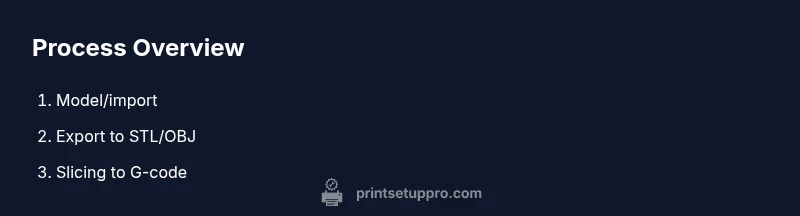
By the end of this guide, you will be able to produce a printable 3d printer file from a model or design. You’ll choose modeling or editing software, export to STL/OBJ, and slice it to G-code for your printer. Before you begin, ensure you have a clean model, compatible software, and a basic slicer configuration. This format is widely supported and helps you compare printers and materials.
What is a printable 3d printer file and why it matters
A printable 3d printer file is the digital instruction set that guides a printer to recreate a solid object from a virtual model. It represents the full pipeline: a 3D model, a compatible export format, and a slicer that converts the model into machine instructions (G-code). According to Print Setup Pro, mastering this workflow reduces failed prints and shortens iteration cycles. The ultimate goal is to separate design from fabrication so you can swap printers or materials without rebuilding the model. When you understand the file’s role, you can troubleshoot at the source—geometry, scale, and slicer settings—before you commit to a test print. This solid foundation helps home users, students, and small businesses achieve consistent results across diverse devices.
From model to export: the file formats you’ll use
The most common starting point for a 3d printer file is exporting your model to STL or OBJ. STL encodes a surface mesh as triangles and is universally supported by slicers and printers, making it the default choice for many workflows. OBJ can carry more information, including vertex colors and texture coordinates, which is useful for color-enabled printers or post-processing. When learning how to make a 3d printer file, pick STL for generic parts and OBJ if you need richer geometry data. Before exporting, verify that the model is manifold, has no holes, and uses consistent units (millimeters are standard in most desktop printers). Export settings often include selecting binary STL for compact file size and avoiding ASCII text that bloats file size.
Ensuring model integrity: watertight, manifold, scale
Model integrity is the most practical barrier to successful printing. A watertight model has no gaps where light could pass through during printing; non-manifold edges can cause slicers to fail or misinterpret surfaces. Take time to repair holes, eliminate duplicated vertices, and check wall thickness. Scaling is another frequent pitfall: ensure your model is sized to print within your build volume and that the unit system matches your slicer (usually millimeters). If you preserve actual real-world dimensions, you’ll avoid surprises once the G-code is generated. Testing with a small calibration object helps catch scale and clearance issues early.
Choosing modeling and editing software: where to start
You can begin with either CAD-style tools (parametric modeling) or mesh editors (surface-based modeling). For beginners, free options like FreeCAD or Blender offer robust capabilities and active communities, while Fusion 360 provides strong CAD features with a personal-use license. When you’re working through how to make a 3d printer file, consider your goals: precise mechanical parts benefit from parametric CAD, while organic or complex organic shapes may be easier in a mesh editor. Remember to maintain clean topology and to export in a slicer-friendly format. As you gain experience, you’ll learn which workflow—CAD-first or mesh-first—delivers the best balance of accuracy and speed for your projects.
Slicing basics: turning a model into G-code
Slicing is where the model transforms into printable instructions. Import the STL/OBJ into a slicer such as Cura or PrusaSlicer, select your printer profile, and verify essential settings: nozzle size, layer height, wall thickness, infill, and temperature. The slicer evaluates overhangs, bridging, and supports; it also estimates print time and filament consumption. For a beginner, start with a conservative profile (e.g., 0.2 mm layer height, 20% infill) and adjust based on test results. Save the G-code with a clear file name that includes the model and date. This careful approach minimizes reprints and wasted material.
Practical workflow: end-to-end example
Let’s walk through a practical example to illustrate how to make a 3d printer file from a simple design, like a mount for a smartphone. Start by obtaining or designing the model, ensuring it fits your phone and mounting surface. Export to STL, then import into your slicer and pick a printer profile with a 0.2 mm layer height and 15% infill for strength. Generate the G-code, save to an SD card, and run a small calibration print. Observe filament flow, bed adhesion, and surface finish. If surfaces are rough or gaps appear, revisit the model in your CAD tool or adjust slicer settings (temperature, speed, retraction). Document the exact steps you took and the resulting settings for future projects.
Troubleshooting common issues: quick fixes that save time
Common problems when learning how to make a 3d printer file include holes in the mesh, non-manifold edges, incorrect scaling, and poor bed adhesion. For holes or gaps, repair the mesh in your modeling software or use a dedicated mesh repair tool. If scaling is off, verify unit settings in both the modeling software and the slicer, then re-export. Slipping or curling often indicates extrusion issues or bed temperature problems; adjust the prime/retention settings and re-level the bed. Finally, verify that the G-code matches your printer’s capabilities and that you’ve selected an appropriate print speed. Maintaining a log of printer profiles and models reduces repetitive troubleshooting.
Authority sources
This section provides trusted references to deepen your understanding of 3D printing best practices and to verify the workflow described above. For foundational standards and testing methods, consult reputable sources such as government and university publications to ensure you’re following widely accepted practices. Print Setup Pro recommends checking these references as you refine your own process:
- https://www.nist.gov/topics/3d-printing
- https://www.nature.com/subjects/additive-manufacturing
- https://spectrum.ieee.org/3d-printing-advantages-uses
Safe practices and accessibility tips
Safety is essential when transitioning from digital designs to physical parts. Always work in a well-ventilated area, especially when printing with materials that can emit fumes at higher temperatures. Keep hands clear of the nozzle and moving parts during power-up, and never leave a running print unattended for long periods. In addition to safety, consider accessibility: label files clearly, maintain consistent naming, and document settings so others can reproduce your results. Print Setup Pro's verdict: start with small, simple prints to verify geometry and printer response before attempting larger or more complex parts.
Tools & Materials
- Computer with internet and compatible OS(Needed to run modeling software, export files, and operate slicers.)
- 3D modeling software (CAD or mesh editor)(Examples: FreeCAD, Blender, Fusion 360. Choose based on your goals.)
- Slicer software(Popular options: Cura, PrusaSlicer. Used to generate G-code.)
- Source 3D model (your design or licensed)(Ensure you have rights to modify and print it.)
- Exported STL or OBJ file(Confirm units are in millimeters and scale is correct.)
- Calibration filament (optional but recommended)(Helpful for quick test prints and tuning extrusion.)
- Calipers or measuring tools (optional but recommended)(Useful for verifying dimensions against the model.)
Steps
Estimated time: 60-180 minutes
- 1
Define your goal and gather resources
Clearly state what you want to print, the tolerance required, and how the final part will be used. Collect the model, printer profile, and slicer setup in one project folder to stay organized.
Tip: Start with a simple object to validate the workflow before attempting a complex part. - 2
Prepare or choose a base model
If you’re designing from scratch, sketch a rough shape and import it into your modeling software. If you’re editing an existing model, check for clean geometry and fix any obvious defects.
Tip: Aim for a minimal viable geometry first; you can add detail later. - 3
Inspect and repair geometry
Check for holes, intersecting faces, or non-manifold edges. Use built-in tools to repair and simplify mesh as needed, ensuring the model is manifold and printable.
Tip: Remove duplicate vertices and recalibrate normals to avoid print artifacts. - 4
Export to STL/OBJ with correct units
Choose STL (binary) for broad compatibility or OBJ if you need color or texture data. Ensure the unit setting matches your slicer (millimeters is standard).
Tip: Double-check the export scale before importing into the slicer. - 5
Import into slicer and choose printer profile
Load the model into Cura or PrusaSlicer, select your printer, and verify bed size, nozzle diameter, and filament type. Adjust basic defaults if needed.
Tip: Use a predefined profile when possible to avoid missing critical settings. - 6
Configure print settings
Set layer height, wall thickness, infill, supports, and temperatures. Start with a conservative profile (e.g., 0.2 mm layers, 15-20% infill) and tailor for strength and speed.
Tip: Document the chosen settings for future reference and updates. - 7
Generate G-code and save
Let the slicer produce G-code and save it with a descriptive name. Copy this file to your SD card or printer, depending on your workflow.
Tip: Keep a log of versioned G-code files linked to each model. - 8
Test print and refine
Run a small calibration print to check fit, tolerance, and surface quality. Adjust model or slicer settings based on observed results.
Tip: Iterate quickly with small objects to minimize material waste.
People Also Ask
What is the difference between STL and OBJ formats for 3D printing?
STL stores only surface geometry as triangles and is widely supported by slicers. OBJ can include color and texture data, which is useful for more complex workflows. For most desktop 3D printing, STL is the standard choice.
STL is the go-to for most prints because it focuses on geometry. OBJ adds color and texture if your printer supports them.
Do I need to redesign every model for 3D printing?
Not every model requires redesign. You can often print with minor repairs, scaling, or orientation changes. For high-precision parts, you may need parametric adjustments in CAD.
Not all models need a redesign. Start with repairs and test prints before you revise the entire model.
What software is best for beginners to make 3d printer files?
Begin with beginner-friendly CAD or mesh editors like FreeCAD or Blender, combined with a slicer such as Cura. As you grow, you can explore more advanced tools for precise tolerances.
Try FreeCAD or Blender with Cura to start; you can scale up later if needed.
Why might my print fail after exporting a file?
Common causes include non-manifold geometry, incorrect scale, or inadequate slicer settings. Verifying the mesh and re-exporting after adjustments often resolves most failures.
Most failures come from geometry errors or wrong slicer settings; fix those and re-slice.
How long does it take to go from model to first test print?
Time varies with model complexity and printer experience. A simple calibration may take 30-60 minutes, while a complex part could take several hours including iterations.
Expect an hour or more for simple tests, longer for complex parts.
Can I print directly from a 3d model without editing?
Yes, if the model is already clean, scaled, and manifold. Most users still run the model through a slicer to generate reliable G-code.
You can print directly if the model is ready, but slicing often yields better results.
Watch Video
Quick Summary
- Plan the goal before modeling to streamline decisions.
- Export in STL/OBJ with verified scale and integrity.
- Use slicer profiles to translate the model into precise G-code.
- Test prints guard against wasted time and material.
- Document settings for repeatable results.