Printing with a 3D Printer: A Complete How-To Guide
Learn how to print with a 3D printer—from setup and filament selection to slicing, calibration, finishing, and safety. This educational guide helps home makers and students produce reliable, quality prints with practical tips.


Printing with a 3D printer enables rapid prototyping and customized parts. This guide covers setup, filament selection, slicing, calibration, printing, and post-processing. According to Print Setup Pro, reliable prints start with good bed adhesion and precise extrusion. Follow the steps to reduce failures and achieve predictable finishes.
Understanding printing with a 3d printer
Printing with a 3d printer, typically an FDM (fused deposition modeling) device, turns digital designs into tangible objects by extruding thermoplastic layer by layer. The workflow begins when you prepare a model in CAD or download an STL/OBJ file, then send it to a slicer to generate toolpaths. The printer follows those paths to deposit material precisely. For beginners, PLA is a forgiving filament that helps you learn mechanics, bed adhesion, and calibration before moving to more demanding materials. When people talk about printing with a 3d printer, they usually refer to the full lifecycle—from model to finished part. In practice, success hinges on understanding material properties, printer hardware, and routine maintenance. Print Setup Pro emphasizes clean bed leveling, stable extrusion, and consistent environmental conditions as foundational habits.
Filament and printer setup: what to choose and how to prepare
Choosing filament and confirming printer readiness are the first critical decisions. Start with a stable, low-wriction filament such as PLA and a printer with a heated bed for reliable first layers. Store spools in a dry place to prevent moisture absorption which can cause bubbling, poor layer adhesion, and brittle prints. Verify that the printer’s nozzle, bed, and extruder are clean, and that the build surface is appropriate for your filament (PEI sheet, glass with glue stick, or painter’s tape). Ensure you have a clear workspace with proper ventilation if you plan to print with materials that emit fumes. Print Setup Pro notes that the combination of material choice and a stable hardware foundation reduces the most common print failures.
Preparing your model for printing: from design to slicer
A successful print starts with the right model preparation. Import the file into a slicer (Cura, PrusaSlicer, or the printer’s native software). Check for non-manifold edges, shrink-wrapped parts, and hollow sections that might collapse. Orient the model to minimize the need for supports and maximize bed contact. Decide on layer height and infill strategy based on the part’s function: mechanical parts benefit from stronger walls and denser infill, while decorative pieces can be lighter. Run a test slice and inspect the generated G-code preview to confirm path planning. All the while, remember that the goal of printing with a 3d printer is to translate a 3D design into a durable, accurate object with consistent extrusion.
Calibration for accuracy: bed leveling, extrusion, and temperature
Calibration is the keystone of repeatable results. Begin with bed leveling to ensure the first layer adheres well and doesn’t warp. Calibrate extrusion width and steps-per-mm to match your filament diameter and nozzle size. Preheat the nozzle and bed to appropriate temperatures for your material, then run a calibration cube or a small benchy to verify dimensional accuracy. If prints curl or lift off the bed, recheck the bed temperature, adhesion method, and Z-offset. The right calibration routine reduces waste and makes subsequent prints more predictable. Print Setup Pro’s method centers on systematic checks rather than guesswork, which minimizes trial-and-error iterations.
Important print settings: layer height, infill, speed, and supports
Layer height determines surface smoothness and print time. Smaller heights yield finer detail but longer prints, while taller layers print faster with rougher surfaces. Infill structure affects strength and weight; denser infill produces tougher parts but uses more material and time. Travel speed and extrusion temperature must be harmonized to prevent under- or over-extrusion. Supports enable overhangs; design parts with minimal overhangs whenever possible and use soluble supports for complex geometries. The art of printing with a 3d printer lies in balancing quality, speed, and material usage. Start with conservative settings and incrementally tune based on observed results.
Post-processing and finishing: from removal to final polish
After printing, allow the part to cool before removal to avoid warping. Remove supports carefully and sand surfaces progressively with increasing grits for a smooth finish. For a glossy look, you can apply filler primer or acetone smoothing depending on the filament. Painting or coating can enhance durability and aesthetics. Proper post-processing also helps with fit, especially for multi-part assemblies. Remember that finishing steps are part of the overall workflow and contribute to perceived quality as much as to dimensional accuracy.
Troubleshooting common issues: from jams to poor adhesion
Common problems include warping, elephant’s foot, stringing, and under-extrusion. Warping often stems from poor bed adhesion or cooling rates; improve adhesion and maintain consistent ambient temperature. Tamp the first layer gently to ensure uniform contact and check bed leveling. Stringing may result from high retraction settings or high nozzle temperature. A quick test print with adjusted retraction can help. If you experience nozzle clogs, pause the print, heat the nozzle, and perform a cold pull after unloading filament. Persistently problems can indicate worn gears, belt tension, or nozzle wear that requires maintenance. Print Setup Pro advises documenting issues and fixes to build a reliable reference library for future prints.
Safety, maintenance, and storage: keeping your setup reliable
Operate your 3D printer in a well-ventilated area and avoid touching moving parts during operation. Regularly inspect belts, bearings, and the lead screws for wear and looseness. Keep the filament dry and clean the spool path to prevent jams. Store tools and solvents away from heat sources and ensure the printer is unplugged during maintenance. A clean, organized workspace reduces accidental damage and improves safety while printing with a 3d printer.
Cost awareness and efficiency: smart planning for ongoing prints
Material costs vary by filament type, and successful prints depend on minimizing failed prints. Track filament usage per project and optimize print orientation to reduce waste. Reuse failed prints for practice pieces, but ensure chemical and material safety for any residue. A disciplined workflow—planning, calibration, slicing, printing, and post-processing—keeps costs predictable and helps you complete projects on schedule.
Tools & Materials
- 3D printer(FDM with heated bed recommended for beginners.)
- Filament (PLA recommended for beginners)(Diameter 1.75 mm; store dry.)
- Spare nozzle(Keeps downtime low during material changes.)
- Calipers or a digital caliper(For accurate dimensional checks.)
- Build surface/adhesion aids(PEI sheet, glue sticks, or painter’s tape.)
- Slicing software(Cura, PrusaSlicer, or vendor software.)
- Post-processing tools(Sandpaper, hobby knife, clippers.)
- Ventilation/Filtration(Adequate airflow for materials with fumes.)
- Digital thermometer or extruder temp gun(Optional for advanced calibration.)
Steps
Estimated time: 2-4 hours
- 1
Prepare workspace and materials
Set up a stable, well-lit workspace with adequate ventilation. Gather filament, tools, and spare parts before starting the print. Checking readiness reduces interruptions during the print.
Tip: Keep a dedicated container for tools to avoid misplacing items. - 2
Level bed and load filament
Power on the printer, level the bed using the printer’s routine or manual method, and load filament. Ensure the filament feeds smoothly without grinding or skipping steps.
Tip: Run a quick test print to verify the first layer quality after leveling. - 3
Slice model and choose settings
Import the model into your slicer, orient it for minimum supports, and set layer height, infill, and supports based on function. Preview the toolpaths to catch obvious issues before printing.
Tip: Start with a conservative layer height and infill for faster tests. - 4
Start the print and monitor first layer
Begin printing and observe the first layer for adhesion and even extrusion. Pause if needed to adjust Z-offset or bed temperature to prevent warping.
Tip: A good first layer is the foundation of a successful print. - 5
Complete the print and remove safely
Allow the print to cool, then carefully detach from the bed. Inspect for defects and remove any supports with pliers or cutters.
Tip: Let the part cool fully before removing to prevent warping. - 6
Post-process and inspect
Lightly sand surfaces, prime or paint if desired, and check fit if parts are intended to assemble. Document any refinements needed for future iterations.
Tip: Keep notes on settings that produced the best results.
People Also Ask
What filament should a beginner start with?
PLA is typically easiest for beginners due to its low warping and forgiving extrusion. As you gain experience, try PETG or ABS with an enclosure and proper ventilation for more durable parts.
For beginners, PLA is the best starting filament because it’s forgiving and easy to print. As you learn, you can explore PETG or ABS with better ventilation for tougher parts.
Is a heated bed necessary for all materials?
A heated bed helps with bed adhesion and reduces warping for many filaments, especially higher-temperature materials. For PLA, a heated bed is optional but beneficial for the first layer.
A heated bed helps with many filaments, especially stronger ones. For PLA, it’s nice to have but not required.
Which slicer should I use?
Cura and PrusaSlicer are popular, actively developed, and work with many printers. Choose one, learn its interface, and use community profiles to accelerate your learning.
Cura or PrusaSlicer are great choices to start with because they have lots of tutorials and profiles.
How do I fix a clogged nozzle?
Heat the nozzle and perform a cold pull with the filament to clear partial clogs. If jams persist, replace the nozzle and clean the hot-end thermistor area.
If the nozzle clogs, heat it, do a cold pull, and if needed, replace the nozzle.
How can I improve first-layer adhesion?
Ensure the bed is level, use an appropriate adhesion method (glue stick, PEI, or painter’s tape), and verify the nozzle is close enough to the bed for a smooth, even first layer.
Make sure the bed is level and clean, and choose a good adhesion method for a solid first layer.
What maintenance should I perform regularly?
Regularly check belts, pulleys, and rods for wear, clean the nozzle, and replace worn parts as needed. Keep the firmware up to date and back up your profiles.
Do routine checks on belts and the nozzle, keep parts clean, and update firmware when available.
Watch Video
Quick Summary
- Prepare and level the bed before every print.
- Choose filament and settings aligned to the part’s function.
- Calibrate extrusion and temperature to ensure dimensional accuracy.
- Use safe post-processing steps to improve finish.
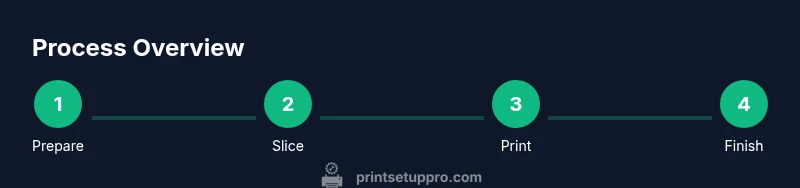
- Document results to build a repeatable workflow.