What to Do With a 3D Printer: A Practical Guide
A comprehensive 2026 guide to getting started with 3D printing, from safety and setup to beginner projects, optimization, and maintenance. Learn what to do with a 3d printer and build a repeatable workflow for home offices, classrooms, and DIY projects.


Definition: This quick answer outlines what to do with a 3D printer and how to approach setup, beginner projects, safe operation, and basic troubleshooting. By following this guide, you’ll gain a practical plan to prototype parts, repair items, and explore creative uses. According to Print Setup Pro, starting with simple calibration prints builds confidence fast and minimizes waste for home offices and student setups.
What a 3D printer can do for you
If you’re optimizing a home office, classroom, or workshop, a 3D printer opens a world of customization. It can produce replacement parts, organization accessories, and entirely new prototypes that would be expensive or slow to outsource. If you’re asking what to do with a 3d printer, the short answer is: start with clear goals and small, testable projects. According to Print Setup Pro, the first wins come from clear objectives: define a goal, assess constraints, and select prints that test one variable at a time. The team found that beginners who map everyday needs to printable solutions—cable clips, wall mounts, and simple mechanical blocks—build confidence while minimizing waste. The broader value comes from practicing iteration: design, print, inspect, revise. Begin with a handful of reliable prints before venturing into complex assemblies. In this section we outline practical uses and a path to move from curiosity to consistent results. You’ll learn how to pick beginner-friendly materials, test fit, and measure progress using repeatable tests. Frame printing as a set of repeatable experiments to accelerate learning and avoid costly mistakes.
Prerequisites: safety, environment, and materials
Before you power up the printer, establish a safe, organized workspace. Place the machine on a stable surface away from flammable clutter, with adequate ventilation if you’re printing ABS or materials that can emit fumes. Ensure your power supply matches the printer’s requirements and that cords are managed to prevent trips. From a materials standpoint, start with one beginner-friendly filament such as PLA and have a couple of spare nozzles and a scraper handy.
Safety basics matter: wear eye protection when removing supports, avoid touching hot components, and never leave a printing process unattended for long sessions. Maintain good housekeeping by keeping filament spools organized, using a tray for small parts, and cleaning the print bed after finishing. Keep a log of what you print, the settings you used, and any adjustments you made. According to Print Setup Pro Analysis, 2026, a well-prepared workspace reduces print failures and speeds up your learning curve.
Getting started: choosing your first project
Your first project should test a single skill while solving a real problem. Start with a simple object you can verify quickly, such as a cable organizer, a phone stand, or a wall-mount hook. Define success criteria before slicing: does the part fit a cable, hold a phone at a readable angle, or align with a mounting screw? When you select a project, insist on small print volume and minimal geometry to reduce troubleshooting time. Gather model files from reputable sources or design something in a beginner-friendly CAD program, export to STL, and prepare to slice.
Once you have your model, print a tiny test version to catch scaling errors and confirm that the printer and slicer understand your unit system. This approach minimizes waste and makes it easier to learn from each result. Keep your expectations modest for the first week and celebrate the small wins you achieve with each test print.
Design and slicing basics
Understanding the bridge between your model and the printed object is essential. Learn what a slicer does: it translates a 3D model into layers and toolpath instructions that the printer can execute. Start with a widely supported format like STL and use a beginner-friendly slicer such as Ultimaker Cura or PrusaSlicer. Set baseline parameters: layer height around 0.2 mm for a balance of speed and detail, infill 10-20% for non-structural parts, and a brim or skirt to improve bed adhesion.
Pay attention to temperature ranges for common filaments; PLA generally prints around 190-210°C with a heated bed of 50-60°C, but confirm your material’s recommendations. Enable retraction to reduce stringing, and consider cooling fan settings for overhangs. Save presets for future projects to speed up iteration, and keep notes on how each change affects fit and finish. The goal is to develop a repeatable workflow rather than chasing a perfect first print.
Practical starter projects you can print in minutes
Getting a few quick wins is the fastest path to confidence. Start with practical accessories you’ll actually use in your workspace. A set of cable clips helps tame cords behind a desk and reduces wear on cables. A simple phone stand improves ergonomics and reduces screen glare. A modular desk tray can hold small parts, tools, and spare hardware. Print a wall hook to organize headphones or keys. If you’d like a project with immediate payoff, print a calibration cube to verify scale and squareness, then move to more ambitious pieces.
Calibration and print quality: tuning settings
Calibration is the ongoing process that separates good prints from great ones. Begin by ensuring a level bed, correct nozzle height, and consistent extrusion. Tweak layer height, temperature, and cooling to optimize the balance between speed and quality for your chosen filament. Use a small test model to verify dimensional accuracy and overhang performance before committing to larger prints. Save successful profiles and annotate them with the filament type and hardware version for easy reference later.
Maintenance and safe operation
Regular maintenance pays off with fewer failures and longer printer life. Clean the nozzle and bed surface, inspect belts for wear, and check that screws remain snug. Replace worn nozzles as needed and lubricate moving components according to the manufacturer’s guidelines. Always power down and unplug the device before performing maintenance, and verify that children or pets are not in the vicinity during operations. Keep a dedicated toolkit and spare parts on hand to reduce downtime.
Budget, materials, and time considerations
Material choice influences print quality, strength, and cost. PLA is forgiving and ideal for beginners, while PETG offers better strength and temperature resistance for functional parts. ABS requires an enclosure due to fumes and warping risks. Consider the total cost of ownership: filament price, power usage, and the time spent learning. Plan projects with realistic timelines and set expectations for finish quality as you improve your process.
Next steps: learning and building a routine
Create a regular practice schedule that includes a small print at least twice a week, plus one longer project monthly to push your skills. Document settings, issues, and fixes in a log you can review later. Join online communities or local maker spaces to share results and receive feedback. Continuously expand your toolset with recommended upgrades, such as a better build surface or a quieter hotend, as your confidence grows.
Troubleshooting quick wins
When a print fails, start with the basics: verify bed level, confirm nozzle temperature, and ensure the filament feeds smoothly. Check for clogs, tangles, or drafts from a nearby window or door. Adjust first-layer height and speed to improve adhesion, then test with a simple model before attempting larger projects.
Tools & Materials
- 3D printer(Ensure power and firmware are up to date; follow manufacturer setup guide.)
- Filament (PLA recommended for beginners)(Store in a dry place; keep spool off the floor to prevent tangles.)
- Calibrated build surface / painter's tape(Use appropriate bed adhesion method for your material.)
- Calipers(For precise measurements of printed parts.)
- Scraper / putty knife(Careful handling to avoid damage to bed or part.)
- Spare nozzle and PTFE tube(Useful for maintenance or upgrades.)
- Rubbing alcohol (isopropyl) and lint-free cloth(Clean bed surfaces and nozzle end.)
- Print log notebook or app(Track settings, results, and changes for repeatable success.)
Steps
Estimated time: 2-3 hours
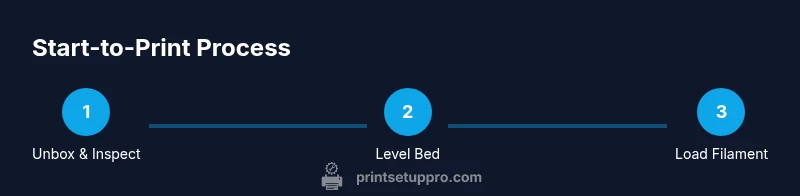
- 1
Unbox and inspect the printer
Remove all packaging, verify all components against the packing list, and inspect for obvious damage. Verify belts move freely and the display powers on with no errors. If anything is missing or damaged, contact support before powering on.
Tip: Take clear photos of the unbox for warranty and future reference. - 2
Level the print bed
Power on the printer and access the bed leveling routine. Use standard printer paper to gauge the gap between the nozzle and bed at each corner and center. Adjust each point until the paper has a consistent slight resistance across the surface.
Tip: Do this with the bed cold, then recheck after the bed has heated for the first print. - 3
Load filament
Preheat the nozzle to the filament’s recommended temperature. Feed the filament through the extruder until you see a clean flow. Trim the tip at a 45-degree angle before starting a print to ensure smooth feeding.
Tip: Cut the filament end fresh each time to avoid feed jams. - 4
Calibrate extruder steps
Run a calibration routine to verify the printer extrudes the correct length. If you notice under- or over-extrusion, adjust the steps per millimeter in firmware and re-test with a short print.
Tip: Perform at least two trials to confirm stable extrusion. - 5
Print a calibration cube
Slice a small cube model to check exact dimensions and squareness. Compare measured dimensions to the intended values and adjust scale or extrusion if needed. This helps catch scale errors early.
Tip: Keep print speed modest to reduce dimensional drift. - 6
Slice a simple model
Choose a beginner-friendly model and apply baseline settings: layer height around 0.2 mm, infill 10-20%, and a brim for bed adhesion. Save this as a profile for repeats.
Tip: Label and save presets for future projects to speed iterations. - 7
Run the first test print
Start the model and observe bed adhesion, extrusion, and overall surface quality. Pause to adjust temperature, bed level, or initial layer height if you see issues.
Tip: Monitor the first 5-10 minutes to catch detachment or under-extrusion early. - 8
Evaluate and refine
Measure the finished part, log deviations, and revise your model or slicer settings accordingly. Iterate on a few cycles to improve fit, strength, and finish.
Tip: Maintain a change log to attribute outcomes to specific adjustments.
People Also Ask
What should I do before powering on a new 3D printer?
Unbox, verify components, read the manual, and perform a basic firmware check before powering up. This prevents avoidable issues and ensures you start from a safe baseline.
Unbox, verify, and read the manual before powering on for a safe start.
Which file formats are best for beginners?
Begin with STL files and use a simple slicer to prepare your model. Save and reuse profiles as you learn, and expand to OBJ or 3MF as you gain experience.
STL with a simple slicer is ideal for beginners; move to other formats as you grow.
Why isn’t my print sticking to the bed?
Check bed level, nozzle distance, and bed surface. Add a brim or raft if needed and confirm the bed is clean and at the right temperature for the filament.
Bed leveling and temperature usually solve adhesion problems.
What filament is good for beginners?
PLA is the most forgiving option for beginners due to low printing temperatures and tolerance for small mistakes. Move to PETG or others as you gain confidence.
PLA is the easiest for beginners; try others later.
How long should calibration prints take?
Calibration prints typically take 10-20 minutes each. If a cube doesn’t match expected dimensions, adjust the scale or extrusion and re-run.
Most calibration prints take a short time; adjust if needed.
Do I need to enclose the printer?
Enclosures improve temperature stability and safety for materials like ABS or PETG. They’re optional for PLA-based projects and beginners, but can be beneficial as you advance.
Enclosures help with some filaments, not required for PLA.
Watch Video
Quick Summary
- Define real goals before printing
- Start with quick, testable projects
- Document settings for repeatability
- Calibrate and test before large prints
- Iterate gradually to improve quality