3d Model Printer: Setup, Printing, and Troubleshooting
A complete guide to choosing, setting up, slicing, printing, and maintaining a 3d model printer for home, classroom, and small business use, with practical tips and troubleshooting.


By following Print Setup Pro's step-by-step approach, you will choose, assemble, and calibrate a 3d model printer to turn digital models into physical objects. You’ll learn essential setup, material handling, and troubleshooting practices to minimize failed prints and waste. This quick guide outlines the key steps and required tools to start printing confidently.
What is a 3d model printer and why it matters
A 3d model printer translates digital models into tangible objects by extruding molten filament in thin, precise layers. While many devices exist, a dedicated 3d model printer emphasizes reliability, repeatability, and safety for everyday projects. For home offices, classrooms, and small businesses, these machines enable rapid prototyping, custom parts, and hands-on learning. According to Print Setup Pro, understanding the core printing workflow—design, slicing, and real-time printing—helps you predict outcomes and minimize waste. A solid foundation starts with the right hardware, sustainable practices, and a plan for maintenance that keeps prints consistent over time.
Beyond the hardware, your expectations shape the printer you choose. If your goal is quick protypes and hobby projects, prioritize usability and material compatibility. If you need durable parts or engineering validation, you’ll want higher resolution, stronger materials, and robust calibration options. The right 3d model printer becomes a flexible tool for creativity and problem solving, rather than a mystery of trial and error.
Common roles for a 3d model printer include rapid prototyping, customized tools, educational demonstrations, and model-making for design reviews. Understanding these use cases helps you tailor features like build volume, nozzle size, and print speed to your typical projects. You’ll also learn how to balance cost with features, ensuring your printer remains a productive asset for months or years.
As with any tool, success is about a repeatable routine. Establish a baseline of maintenance tasks, a simple safety checklist, and a predictable workflow for every job. Print Setup Pro’s guidance emphasizes documenting your settings and results so you can reproduce successful prints and quickly diagnose issues when something goes wrong.
noteFirstParagraphOnlyForIntroCVP
Key features to look for in a 3d model printer
When evaluating a 3d model printer, certain capabilities directly impact ease of use and print quality. A heated build plate allows printing of a wider range of materials, while an enclosed housing can reduce temperature fluctuations and fumes in small spaces. A reliable auto-leveling system saves time and reduces failed first layers. Consider build volume, nozzle diameter options, and compatibility with common filaments like PLA, PETG, and ABS. Connectivity options (USB, SD, or Wi-Fi) matter for different work environments, especially classrooms or shared studios. Look for a printer with open-source firmware or robust customization options, so you can tailor performance to your preferred workflow.
Another important factor is calibration aids. Built-in calibration routines, test prints, and accessible livestream diagnostics empower you to diagnose issues quickly. A well-documented user interface—clear menus, status indicators, and actionable prompts—improves onboarding for new users, students, and DIY enthusiasts. Safety features such as thermal runaway protection, power-loss recovery, and enclosure interlocks reduce risk when working around hot components.
Material handling is also critical. A printer that accepts a variety of filaments, provides consistent bed adhesion, and minimizes stringing makes it easier to explore design iterations. Finally, consider the availability of replacement parts and community support. A widely adopted model with active forums and accessible spare parts reduces downtime and prolongs the printer’s life. Print Setup Pro recommends prioritizing reliability, safety, and support when choosing a printer for long-term use.
noteFirstBodyBlock
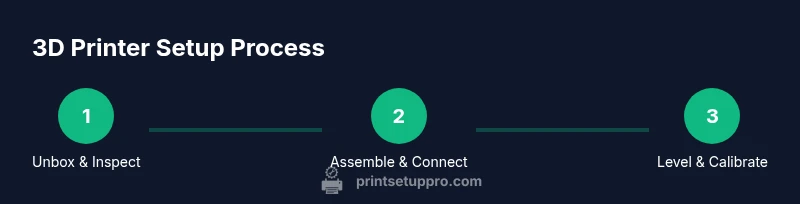
Getting started: unboxing, assembly, bed leveling, and first calibration
Starting your printing journey involves careful setup and a gentle learning curve. Begin with unboxing to confirm all components are present and undamaged. Remove protective films, inspect cables, and verify the bed surface is clean. Assemble any loose components per the user guide, then mount the spool holder and thread the filament. If the printer ships with a removable print bed, install it securely and ensure it sits flat. A thorough visual inspection at this stage saves frustration later.
Next, power on the device and connect it to your computer or network if required. Run any initial firmware updates recommended by the manufacturer to ensure compatibility with current slicer software and filament profiles. Before you begin printing, perform bed leveling. If your model includes auto-leveling, run the routine and confirm the probe calibration; otherwise, perform a manual leveling sequence using feeler gauges or a simple piece of纸. Take your time with this step—precision here dramatically improves first-layer adhesion and overall print quality.
With the bed leveled, preheat the nozzle and bed to the target temperatures for your chosen filament. Load PLA for the first print, since it’s forgiving and beginner-friendly. Prime the extruder by feeding a short length of filament manually to ensure smooth extrusion. Finally, print a simple calibration object, such as a 20×20×5 mm square or a small cube, to test extrusion, bed adhesion, and dimensional accuracy. Record any deviations so you can adjust extrusion multiplier, Z-offset, or bed temperature as needed.
noteFirstSteps
Slicing software and preparing your model
Slicing software converts a 3D model file (usually STL or OBJ) into G-code that your printer understands. Popular options include Cura, PrusaSlicer, and Simplify3D, each offering presets for common materials and printer profiles. Start by selecting a profile that matches your printer’s build volume and filament type. Import your model, then inspect it for issues such as non-manifold geometry, holes, or intersecting faces. Repair these problems in your modeling software or within the slicer if possible.
Adjust print settings to balance speed, strength, and quality. Important parameters include layer height, wall thickness, infill density, print speed, temperature, and cooling. A good starting point for PLA is a 0.2 mm layer height with 20-30% infill, a moderate printing speed, and a nozzle temperature around 200°C. Enable supports if the model has overhangs, and choose a suitable support type (grid, lines, or tree) based on the geometry. Before slicing, orient the model to minimize support material and maximize surface quality on the visible sides. Save the G-code to your preferred transfer medium and load it onto the printer for printing.
noteSlicer
Calibration and test prints for quality
Calibration is an ongoing process, not a one-time event. Start with a simple calibration cube or a small benchy-like model to assess dimensional accuracy, surface finish, and layer alignment. Compare the printed dimensions to the digital model using calipers; if corners or solids deviate, adjust the extrusion multiplier or Z-offset accordingly. Make sure the nozzle is clean and the bed remains level during test prints. If you notice under-extrusion, clean the nozzle, increase the extrusion multiplier slightly, or check filament diameter consistency.
Evaluate first-layer adhesion by inspecting the initial layer for uniform squishing and complete bed contact. If the layer appears too thin or overly raised, adjust the nozzle height or bed temperature. Warping at corners may indicate insufficient enclosure or improper bed adhesion; try a heated bed temperature increase, apply a glue stick or hairspray to the bed surface, and consider a brim for larger parts. With each test print, document the settings and outcomes so you can reproduce successful results consistently.
noteCalibration
Maintenance, troubleshooting, and safety
Regular maintenance extends life and keeps performance consistent. Clean the build surface and nozzle after prints to reduce residue that affects adhesion or extrusion. Periodically replace worn parts, such as nozzles, PTFE tubes, and fans, according to usage and manufacturer recommendations. Keep firmware up to date to benefit from improved stabilization, error handling, and new features.
Common issues include: poor bed adhesion, warping, stringing, and under-extrusion. For adhesion problems, reset bed leveling, clean the surface, and consider a different bed material or adhesive method. Stringing can be reduced by enabling retraction, increasing travel moves, and lowering ambient temperature or print speed. Under-extrusion often points to a clogged nozzle, a partially blocked filament path, or an incorrect filament diameter setting. Safety should be a priority: always turn off and unplug the printer before maintenance, never touch hot components, and ensure good ventilation when printing with materials like ABS. Use a stable work area to minimize vibrations that can affect print quality.
noteMaintenance
Next steps: selecting filaments and expanding capabilities
The filament you choose drives both appearance and mechanical performance. Start with PLA for ease of use, good dimensional stability, and wide availability. As you gain experience, explore PETG for strength and chemical resistance, or ABS for heat tolerance—with proper enclosure and ventilation. Other advanced materials, such as nylon or flexible filaments, require careful tuning and hardware upgrades.
Upgrades open new possibilities: a more capable hotend, a sturdier frame, a larger build volume, or an auto bed-leveling probe can dramatically improve reliability and ease of use. Engage with user communities, share your prints, and study different profiles. Keep a curious mindset and a well-organized record of settings, materials, and results to accelerate your learning curve. Print Setup Pro believes that consistent practice and thoughtful experimentation yield the best long-term outcomes.
noteNextSteps
Tools & Materials
- 3D printer with heated bed(Ensure enclosure if printing materials like ABS; verify wobble-free frame.)
- PLA or PETG filament spool(Begin with PLA for forgiveness and easy results.)
- Spatula or scraper for part removal(Keep a thin, sturdy tool to lift prints without damage.)
- Digital caliper(Useful for verifying critical dimensions.)
- Isopropyl alcohol and lint-free wipes(Bed cleaning and nozzle maintenance.)
- Glue stick or hairspray (for bed adhesion)(Helpful on glass beds or difficult adhesion surfaces.)
- Tweezers or needle-nose pliers(Remove strings and clear small clogs.)
- Spare nozzle and tools kit(Plan for occasional replacements.)
- SD card or USB drive(Transfer G-code if not using direct USB.)
- Safety gear (gloves, glasses)(Protect hands from hot surfaces and fumes.)
Steps
Estimated time: 2-4 hours
- 1
Unbox and inspect
Open the box and verify all parts are present. Check for obvious shipping damage and test-fit parts before assembly. Document any missing items to avoid later delays.
Tip: Take photos of the packaging before opening to speed up claims if something is missing. - 2
Mount spool holder and power connections
Attach the spool holder in the recommended location and route filament path away from moving parts. Connect the power supply and data cables securely, then power on to verify basic LEDs and startup sequence.
Tip: Ensure cables are not twisted and have a clear path to avoid snagging during prints. - 3
Level the build plate
If auto-leveling exists, run the routine and verify the bed surface is within tolerance. For manual leveling, use a sheet of paper to set a slight resistance at each corner and the center.
Tip: Recheck after any bed-temperature change as materials expand with heat. - 4
Load filament and preheat
Feed filament through the extruder and into the hotend. Preheat the nozzle to the recommended temperature for your chosen filament (e.g., ~200°C for PLA) and warm the bed accordingly (e.g., 60°C).
Tip: Always purge a small amount of filament before starting your first actual print to ensure smooth extrusion. - 5
Print a calibration object
Load a simple calibration cube or flat rectangle to verify extrusion, layer alignment, and first-layer adhesion. Use this print to assess dimensional accuracy and surface quality.
Tip: Use a small, easy-to-measure object to quickly gauge accuracy. - 6
Adjust slicer settings
Choose a basic profile matching your material and printer. Confirm layer height, infill, supports, and retraction. Save a copy for future use.
Tip: Start with a standard 0.2 mm layer height and PLA, then tweak per results. - 7
Run a test print
Print the calibration object or a small model. Observe first layers and retractions, check for gaps, and measure critical dimensions.
Tip: Watch the first few layers closely; small deviations compound quickly. - 8
Iterate and optimize
Refine Z-offset, extrusion multiplier, and temperature based on test results. Document your settings for repeatability.
Tip: Create a personal profile library to speed future projects.
People Also Ask
What is a 3d model printer?
A 3d model printer creates physical objects by depositing material layer by layer based on a digital 3D model. It’s well-suited for rapid prototyping, customized parts, and hands-on learning.
A 3D printer builds real objects from digital designs by laying down material in thin layers.
Which filament should I start with?
Begin with PLA for its ease of use and good strength. PETG is a solid upgrade for durability, while ABS requires careful temperature control and ventilation.
Start with PLA; it’s beginner-friendly and forgiving.
How do I level the bed and why does it matter?
Bed leveling ensures the first layer adheres evenly across the build surface. Poor leveling causes warping and failed prints. Follow auto-leveling prompts or manually adjust at each corner.
Leveling makes the first layer stick and print better.
What is a slicer and why do I need one?
A slicer converts your 3D model into G-code that the printer understands. It lets you control layer height, infill, supports, and print speed.
A slicer turns your model into instructions your printer can follow.
What safety steps should I follow?
Always power off the printer when not in use, ensure proper ventilation for certain materials, and avoid touching hot components. Keep liquids away from electronics.
Stay safe by turning off the printer when not printing and ventilating the area as needed.
Can I upgrade or expand my 3d model printer later?
Yes. Many printers support upgrades like a larger build volume, improved extruders, or a better bed leveling system. Check compatibility with your model and firmware before purchasing parts.
Upgrades are common and can extend capabilities with the right compatibility checks.
Watch Video
Quick Summary
- Plan printer features around your primary projects
- Calibrate regularly for best results
- Use quality filament and reliable slicer profiles
- Maintain a safety-first routine for long-term reliability