What to Do If You Don't Have a Printer: Practical Alternatives
Learn practical ways to print when you don’t own a printer, including library options, online services, and smart file prep. Print Setup Pro guides you through steps to choose the fastest, most affordable route and avoid common pitfalls.


What to do if you don't have a printer means choosing among accessible printing options: cloud printing, local print shops, libraries, or shared devices. You’ll also learn how to prepare files for quick turnover and estimate typical costs. By the end, you’ll know the fastest path based on your location, urgency, and file type.
Why you might not have a printer
In many households, owning a dedicated printer isn't necessary or desirable. You might be avoiding extra clutter, saving money, or simply printing only occasionally. The question you face is not whether printing is possible without a personal device, but which option is fastest, most affordable, and most convenient for your specific file and deadline. According to Print Setup Pro, the number one reason people end up printing without a printer is situational need—either a one-off document or a batch of pages requested by a client, professor, or rental agreement. By understanding your constraints—time, distance to a service, and the type of document—you can pick the right path. In this guide, we’ll walk through practical alternatives, how to prepare your file, and tips to avoid surprises when you don’t own a printer. The phrase what to do if you don’t have a printer captures the core decision: leverage nearby resources or digital workflows to achieve the same result with minimal friction.
Quick alternatives to printing at home
When you don't have a printer, you still have reliable options that prevent delays. Local services such as print shops, office supply stores, or libraries offer walk-in or online ordering with same- or next-day pickup. Cloud printing services can send your document to a nearby kiosk or device, sometimes with secure authentication. For most home office needs, you’ll find a balance between cost, speed, and file fidelity. For example, a black-and-white document may cost a few cents per page at a library, while color or glossy photo prints at a commercial shop can run more. By mapping your file type, deadline, and preferred pickup method, you can quickly decide the best route. This section also addresses common file preparation steps to ensure smooth printing without a printer. Remember: you can often combine options (upload from home, pick up in-store) to save time and travel.
Using cloud printing and online services
Cloud printing lets you send a file from your computer or phone to a printer controlled by a service provider. Before you begin, confirm the service supports your document type (PDFs are usually best) and whether you need to log in or create an account. When you send the job, you’ll typically choose color vs black-and-white, number of copies, and whether you want single- or double-sided printing. Many platforms allow you to pay online and pick up at a local location. The advantage is you avoid carrying paper and hardware to a printer; the disadvantage is potential privacy concerns and possible extra fees for rush orders. As a rule, use reputable providers and encrypt sensitive files if supported. This approach is especially useful for quick-turn projects like resumes, school papers, or business forms.
Printing from your local library or community center
Public libraries are a dependable option for those who question what to do if you don’t have a printer. Most libraries offer affordable black-and-white prints and color printing with clear pricing. Some also provide scanning, PDF conversion, and mobile printing through dedicated apps. Hours vary, so check the library's website or call ahead. If you have a complex document with graphics, bring a PDF to minimize layout shifts. Many libraries require you to sign in with a library card and have a limit on the number of pages per day. If you’re traveling to a library, plan a little extra time to accommodate check-in and pickup.
Using a friend's or coworker's printer
Another practical route is to ask a trusted friend or coworker if you can print on their device. This can be the fastest when you’re in a pinch, particularly if you already have a digital version ready to go. Before printing, confirm file format compatibility, color needs, and page count. Be mindful of privacy; log out of accounts and delete sensitive files after printing. If you’re printing a large job, offer to compensate for costs or to reimburse the service provider. This option is often free or very inexpensive, but requires good planning and clear communication.
Preparing your document for printing to minimize costs and avoid reprints
Preparation is the best defense against wasted time and money. Convert documents to print-friendly formats such as PDF, with embedded fonts and fixed layouts. Check page size and margins to match standard paper (A4 or Letter). Normalize color settings and compress images to prevent oversized files. If you’re printing at a library or shop, group multiple pages into a single print run to reduce per-page fees. Save a backup copy and test print a small sample page to catch issues early. Finally, label files clearly so there’s no confusion about which version to print.
How to pick the fastest option based on urgency and file type
First, assess urgency: if you need the document the same day, a local print shop or library is usually fastest; if you have a day or two, online services can work well. Then consider file type: PDFs arranged for print with fonts embedded are most reliable; Word or image formats may render poorly if fonts aren’t installed. Location matters too: if you have to travel far, cloud or online options may be slower than a nearby library. In all cases, prepare the file on your device, select the appropriate color and page settings, and choose pickup or delivery that minimizes wait times.
Safety and data considerations when sharing documents
Printing involves handling potentially sensitive content. When using public printers, avoid printing personal identifiers, passwords, or financial information unless encryption or secure jobs are available. Use strong file names and remove metadata where possible. If printing confidential material at a library or shop, consider using a USB drive or secure cloud link with access controls. After printing, securely log out of any accounts and wipe temporary files from devices that you used. With careful handling, you can protect privacy while still getting your documents printed quickly.
What to do next: setting up a printer at home later
Even if you decide not to own a printer right now, you may want to consider a future setup. Evaluate whether a compact all-in-one machine fits your budget and space, or whether a low-cost monochrome model makes sense for occasional needs. When you’re ready, compare models based on ink cost per page, reliability, and compatibility with your devices. If practicality weighs in, consider a subscription service for pay-per-use printing or a budget device with mobile printing support. By planning ahead, you can easily switch from using external services to a home setup if your printing needs evolve.
Tools & Materials
- Phone, tablet, or computer(Device to access files and services)
- Internet connection(Stable broadband or mobile data)
- Document file (PDF, DOCX, or image)(Ensure final version is print-ready)
- Access to a printing service (library, pay-as-you-go shop, or online service)(Check hours and pricing in advance)
- Payment method(Credit/debit or digital wallet may be required at service locations)
- Print-ready file prep tools(PDF converter or printer-friendly formatting)
Steps
Estimated time: 1-3 hours
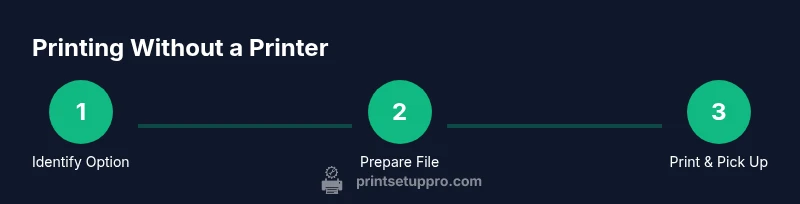
- 1
Identify the best option for your timeline
Assess how soon you need the prints. If same-day delivery or pickup is essential, local print shops or libraries are typically most reliable. If you have a little flexibility, online services can be convenient. Consider travel time, cost, and whether color is required.
Tip: Call ahead to confirm hours, color availability, and pickup options to avoid delays. - 2
Prepare your file for printing
Export or save your document as a print-ready file (preferably PDF) with embedded fonts and correct page size. Verify that margins, gutters, and orientation match your target paper size. Keep a backup copy in an easily accessible location.
Tip: Embed fonts and convert to PDF to preserve layout and reduce font-related issues. - 3
Choose a service and upload or bring your file
If using online service, upload the file from your device and select color, pages, and quantity. If using a library or print shop, bring the file on a USB drive or email it to the location if allowed. Confirm any submission deadlines.
Tip: Use a cloud link with access controls for sensitive documents when uploading. - 4
Review proof and select print options
Double-check page range, color or black-and-white, duplex printing, and paper type. Order a test page if available for critical color accuracy or large layouts. Confirm pickup time and any shipping or processing fees.
Tip: Ask for a proof or test print when color accuracy matters. - 5
Retrieve your documents and verify quality
Inspect the printed pages for alignment, color fidelity, and missing pages. If the quality isn’t right, request adjustments or a reprint before leaving. Keep digital backups of the final version for future prints.
Tip: Check each page quickly to catch issues before leaving the service site. - 6
Consider future setup when printing becomes frequent
Evaluate whether a home printer is worth the cost given your volume, or if a pay-per-use option remains the most economical. If you choose a home setup later, compare ink costs per page, maintenance, and connectivity with your devices.
Tip: Calculate cost-per-page and factor in ink/toner replacement over time.
People Also Ask
What are the fastest options to print if I don't own a printer?
Typically, the fastest options are a nearby library or local print shop with same-day pickup. If you can upload online, cloud printing providers may also offer quick service with in-store pickup. Your file type and urgency will guide the best choice.
Libraries or local print shops are usually fastest; online uploads can be quick if pickup is nearby.
How much does it typically cost to print at a library or print shop?
Library prints are generally inexpensive, especially for black-and-white pages, while color prints or larger projects at commercial shops cost more. Always check current pricing before starting.
Libraries are cheap for black-and-white; color or large jobs at shops cost more.
Can I print securely at public libraries or print shops?
Public printers are suitable for everyday documents. For sensitive materials, use services that offer secure print release or bring a trusted device and avoid leaving sensitive files on public machines.
Public printers are fine for regular documents; for sensitive items, use secure options.
Is it cheaper to buy a printer for occasional use?
For very occasional printing, pay-per-use services are often cheaper than owning a printer. If you print monthly, a low-cost monochrome printer could be economical over time.
Pay-per-use is cheaper if you print rarely; a home printer helps if you print often.
What file formats work best for printing?
PDF is usually the most reliable format for preserving layout and fonts. Use high-resolution PDFs for color prints or documents with graphics to ensure clarity.
PDFs are best for reliable prints; use high-resolution images for color.
What should I bring to a print shop or library?
Bring your file on a USB drive or have a cloud link ready. Know your print settings (color, pages, copies) and bring a payment method. If you have a sensitive file, consider encryption or password protection.
Bring the file, know your settings, and have a payment method handy.
Watch Video
Quick Summary
- Choose the fastest option based on urgency and location.
- Prepare print-ready files (PDF with embedded fonts) to avoid reflow.
- Public options are affordable but review privacy considerations.
- Test prints help prevent costly mistakes in color and layout.
- Plan for future home printing if your needs grow.