What to Do Print: A Practical Step-by-Step Guide
Learn how to plan, prepare, and execute printing tasks with a clear, step-by-step approach. This guide covers setup, media choices, troubleshooting, and best practices for home offices and students.


This guide helps you plan, prepare, and execute printing tasks with confidence. You’ll learn how to define the print goal, gather files, select appropriate media and settings, test prints, and troubleshoot common problems—without wasting materials. A structured approach keeps home offices and students consistently producing professional results. By adopting these steps, you can reduce waste, save time, and improve overall print quality across projects.
Why Planning What to Print Matters
Printing is more than clicking the print button. For many home office users, students, and DIY enthusiasts, forethought saves paper, ink, time, and frustration. If you’re asking what to do print, you’re likely juggling assignments, invoices, or personal documents that must look professional. A clear plan helps you choose the right media, set the correct margins, and avoid reprints. According to Print Setup Pro, most print problems begin with missing fonts, incorrect page size, or mismatched color profiles. The team notes that a simple preflight check can reduce waste and errors by a large margin. In this section we’ll explore the mindset and workflow that keep your prints consistent and predictable. You’ll learn to define success for each job, gather the right files, and confirm you have the materials and access you need before you ever press print. The goal is to build a repeatable routine: verify file readiness, align media, adjust printer settings, preview the result, and only then print. This approach applies to inkjet and laser printers, as well as specialty devices used for labels, photos, or art prints. By framing every job as a small project with a defined outcome, you’ll produce higher quality work with less waste and fewer headaches.
Essential Tools and Materials for Printing
Before you start any job, assemble a minimal toolkit that covers common scenarios. Essentials include a reliable printer (inkjet or laser), the paper or media you intend to use, a computer or mobile device with the necessary software, and the correct cables or network access. If you’re printing photos or proofs, you may want a color-calibrated monitor and a color-managed workflow. Keep a spare set of ink or toner cartridges or replacement drums for the device you own, along with a clean, lint-free cloth for delicate media. Optional but useful items include test pages, a ruler for margin checks, and a small tray for organizing printed sheets. Finally, a simple filing system for your print jobs—names, dates, and destinations—helps you reuse proven settings. Having these items on hand reduces guesswork and accelerates the printing process, especially when you’re handling recurring tasks like weekly newsletters or school reports. For more complex projects, consider color management tools and a calibration target to ensure consistency across devices and lighting conditions.
Step 1: Define Your Print Goal and Gather Files
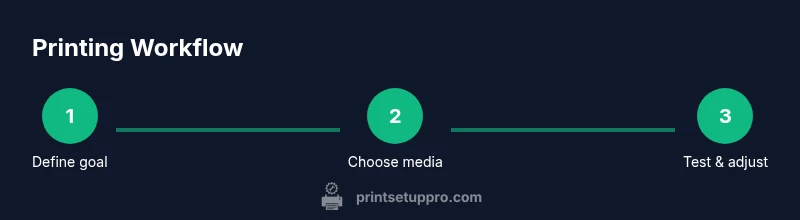
The first step is to define what you want to achieve with the print job. Are you producing a formal report, a marketing flyer, or a classroom handout? Define the final size, orientation, color vs. grayscale, and any finishing needs (folds, binding, or cut lines). Collect the source documents, images, and fonts, and verify you have permission to print embedded materials. If you’re working with multiple files, consolidate them into a single print-ready package (PDF is a common choice) and embed fonts or outline them to avoid font substitutions. Create a clear file naming convention so you can trace this job later. When you’re done, perform a quick content check for typos, image resolution, and color consistency. This upfront clarity prevents last-minute changes that derail schedules and waste materials. Print Setup Pro recommends a preflight checklist to standardize this step across devices and users. If you’re unsure about font compatibility, convert text to outlines or embed fonts to avoid substitutions during printing.
Step 2: Prepare Your Document for Printing
Open the final file in the appropriate application and verify page size, margins, bleed, and printer-specific settings. If you’re exporting to PDF, ensure the document uses the correct page size and embedded fonts, and that color profiles align with your printer’s capabilities. Adjust image resolution to match the target print resolution (typically 300 dpi for most documents). Convert color spaces if necessary, and avoid relying on automatic scaling that can distort layouts. Ensure that any professional elements—such as crop marks or color bars—are included only if required by your workflow. Do one last quick check using a print preview to verify how the content will look on paper. If anything looks off, fix it before sending the file to the printer. For best results, print a small test page on plain stock to confirm alignment, margins, and color balance before committing to a full run. Consider creating a named preset in your printer driver to speed up future jobs with identical needs.
Step 3: Select Media, Printer Settings, and Print Quality
Your media choice drives the entire outcome. Use plain paper for drafts, letterhead for professional documents, glossy photo paper for images, or specialized media for labels. Each media type has different weight, texture, and opacity, which affects ink absorption and drying time. In the printer driver or print dialog, set the correct media type, color mode, resolution, and duplex options. For color documents, select sRGB or AdobeRGB depending on your workflow and calibrate accordingly. If printing on envelopes or unusual shapes, choose custom page size and confirm margin tolerances. Enable any required color management features to maintain consistent results across devices. Always run a quick print test on the actual media to confirm the result looks right before proceeding with a larger batch. If you notice color drift, re-run calibration with your color target and adjust accordingly.
Step 4: Troubleshoot Common Print Problems
Even with careful preparation, issues arise. Common problems include misfeeds, blurry text, faded colors, or incorrect scaling. Start with the simplest checks: verify the paper is loaded correctly, confirm the printer is online, and ensure the correct driver is selected. For blurry text, check the print head alignment (for inkjets) or the toner/laser calibration (for lasers). If colors are off, re-check color profiles and perform a nozzle check or calibration as recommended by the manufacturer. Paper jams usually indicate feeding issues or media incompatibility; clear the path slowly and reload the media according to the user manual. If you’re offline, reconnect the device, restart the printer spooler service, and verify the network settings. Frequent issues often point to outdated drivers or firmware, so check for updates and install them if available. Keep a log of issues and fixes to speed up future troubleshooting. When dealing with stubborn problems, consult the printer’s official support page for model-specific guidance.
Step 5: Advanced Tips for Efficiency and Consistency
To improve efficiency over time, create standardized presets for common job types, including a draft setting for quick reviews and a high-quality setting for final proofs. Maintain a small library of templates with consistent margins, fonts, and color configurations. Calibrate your monitor and printer periodically to ensure color accuracy, especially for photo or marketing prints. Use batch processing for multiple documents that share fonts and layouts to minimize reflow and reflow mistakes. Keep your printer clean and perform routine maintenance according to the manufacturer’s schedule; this reduces downtime and extends the device’s life. Finally, document recurring steps, error messages, and the exact settings used for successful jobs so you can reproduce results with minimal guesswork. When you build a robust workflow, you create a reliable foundation that scales with your projects and deadlines.
Tools & Materials
- Printer(Any supported model with working drivers)
- Paper/media stock(Plain, matte, glossy, label stock as needed)
- Computer or mobile device(With access to required software/files)
- Cables or network access(USB or Wi-Fi/Ethernet depending on setup)
- Ink or toner cartridges(Have spares if possible)
- Test pages and a clean workspace(Useful for calibration)
Steps
Estimated time: 60-90 minutes
- 1
Prepare Your File
Define the print goal, collect sources, consolidate into a single package, and run a quick content check.
Tip: Use a PDF as your print-ready package and embed fonts. - 2
Connect Your Printer
Establish a reliable connection (USB or network) and ensure the device is visible to your computer.
Tip: Install or update drivers before printing. - 3
Set Printing Preferences
Choose media type, color mode, quality, and duplex options in the driver dialog.
Tip: Avoid auto-scaling; use exact page size. - 4
Preview and Test Print
Use print preview, then print a single page on plain stock to verify alignment.
Tip: Check margins and color balance on real media. - 5
Print Final Batch
Print the full job with the verified settings and monitor for issues.
Tip: Queue the job or batch to maintain consistency. - 6
Post-Print Checks
Inspect the output for alignment, color, and paper handling; adjust as needed for future jobs.
Tip: Document successful settings in a shared guide.
People Also Ask
What should I do first when starting a print project?
Define the print goal, collect all sources, and choose the final format. Confirm page size, margins, and color expectations before printing.
Start by defining the goal and gathering all sources, then verify page size and margins before printing.
How do I choose the right printer settings for different media?
Select the correct media type in the printer driver, adjust color mode, and disable auto-scaling to preserve layout. Test on the actual media if possible.
Choose the media type, color mode, and avoid auto-scaling; test on the final media.
Why is my print blurry or faded?
Check print head alignment or laser calibration, verify color profiles, and confirm resolution matches the media. Run a nozzle check if available.
Blurry or faded results often mean alignment or color calibration needs updating.
How can I save ink and toner without sacrificing quality?
Use draft presets for non-final proofs, print in grayscale when color isn’t required, and print at the lowest acceptable resolution.
Use draft modes and grayscale for proofs to save ink.
What steps should I take if the printer goes offline?
Check physical connections, ensure the device is on the same network, restart the print spooler, and reselect the printer in your app.
Reestablish connection and restart print services to bring the printer back online.
Watch Video
Quick Summary
- Plan before you print to save resources.
- Prepare files and media before sending to the printer.
- Use test pages to verify settings.
- Document successful configurations for consistency.
- Update drivers and firmware regularly.