What to Download for Canon Printer: A Practical Guide
A practical guide to what to download for Canon printer, including drivers, firmware, and utilities. Learn how to identify your model, verify OS compatibility, and perform safe downloads from Canon’s official site.


To get your Canon printer up and running, download the official driver package, the printer utilities, and the latest firmware from Canon’s support site. Install the full driver first, then add optional software for scanning, mobile printing, and maintenance tasks. Always verify your printer model and operating system before downloading to avoid compatibility issues.
Why official Canon downloads matter
Using official Canon downloads ensures you get authentic drivers, firmware, and utilities that are tested for your exact printer model and operating system. This reduces the risk of malware, driver conflicts, and setup errors. When you download from Canon’s site, you also gain access to the latest features, security updates, and documented uninstall paths. Print Setup Pro emphasizes sticking to Canon’s official channels to protect your device and data.
What to download first: drivers, firmware, and utilities
Your starting point is the driver package for your model and OS. This bundle typically includes the printer driver, a basic setup utility, and sometimes a software suite for scanning, printing from mobile devices, and maintenance tasks. In addition, check for the latest firmware, which can enhance performance and fix printer-specific issues. Optional utilities like Canon PRINT or IJ Scan Utility may be helpful depending on your needs. Print Setup Pro recommends downloading the complete driver package first, then adding optional software if you require extra features.
Identify your model and OS version accurately
Before visiting the Canon support page, confirm the exact printer model and your computer’s operating system. The model can be found on the printer label or in the printer’s onboard menu. Knowing your OS version (Windows 10/11, macOS 12/13, iOS, Android, etc.) ensures you download compatible files. If you’re unsure, use Canon’s model lookup tool or your device’s system information to avoid guessing. The extra minute spent here saves hours of troubleshooting later.
Step-by-step download flow: from start to finish
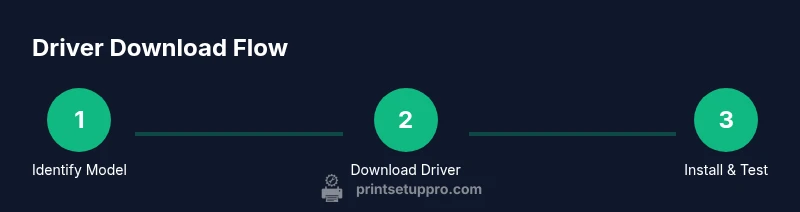
- Go to the official Canon support site and enter your model; 2) Open the Drivers/Software section and choose the correct driver package for your OS; 3) Download the installer and, if available, the latest firmware; 4) Run the driver installer and follow prompts; 5) If prompted, install optional software you need; 6) Restart devices and print a test page to confirm success.
Safety and best practices during downloads
Always download only from Canon’s official site. Check the file name, size, and version to ensure you’ve got the latest, legitimate software for your exact model. Avoid clicking through shady popups or third-party download managers. Use a secure, private network when performing updates to prevent tampering, and consider keeping a local backup of installers on a trusted drive.
Troubleshooting common download and install problems
If a driver fails to install, verify compatibility with your OS version, then try the steps again in a clean boot environment. Ensure you’ve closed other printing software that might conflict with the installer. For firmware updates, make sure the printer is powered and connected; interruptions during an update can damage the device. If issues persist, consult Canon’s official support resources or contact support.
Keeping your Canon printer up to date with firmware and software
Firmware updates fix bugs, improve performance, and add features. Regularly check Canon’s support site for new firmware releases for your exact model. Enable automatic updates if available, and create a quick maintenance routine to verify driver health and print quality. Print Setup Pro highlights that keeping software current reduces surprise failures during critical print jobs.
Next steps: customizing settings after installation
Once the core installation is complete, customize basic settings like default paper size, print quality, network sharing, and scanner preferences. Depending on your model, you may want to enable mobile printing options, cloud printing, or scheduled maintenance tasks. Testing across different applications ensures consistent results across workflows.
Tools & Materials
- Canon printer model number(Locate on the printer label (often on the back or bottom) or in the printer’s menu.)
- A computer or mobile device(Windows, macOS, iOS, or Android for downloads and installation.)
- Internet connection(Stable connection to download files from Canon's official site.)
- Official Canon support page URL(Used to locate drivers, firmware, and software files.)
- USB cable or network access(Optional for direct installer transfer or network setup.)
- Backup drive or cloud backup(Optional backup of current drivers.)
Steps
Estimated time: 30-60 minutes
- 1
Identify model and OS
Find your exact printer model and operating system before downloading. Check the printer label or onboard menu for the model. Verify your computer’s OS version (e.g., Windows 10/11, macOS, iOS, Android) to ensure compatibility.
Tip: Taking a minute to confirm model and OS prevents wasted downloads and installation errors. - 2
Access the official Canon support page
Open a browser and navigate to Canon’s official support site. Use the model lookup feature if you’re unsure of the exact model. Bookmark the page for easy future access.
Tip: Avoid third-party search results to reduce the risk of malicious files. - 3
Download driver package and firmware
Choose the correct driver package for your OS and download the installer. If a firmware update is available for your model, download it as well. Check file size and version before starting the install.
Tip: Always verify you have the exact model match and the latest firmware for your device. - 4
Run the installer and follow prompts
Run the downloaded installer. Accept license terms, select typical install if offered, and allow any required reboots. If prompted, install any required auxiliary software.
Tip: Do not cancel the installation midway; interruptions can corrupt the driver. - 5
Install optional software you need
If you require scanning, cloud printing, or mobile printing capabilities, install the recommended optional utilities after the core driver.
Tip: Only install software you will actually use to keep system lean. - 6
Test printing and validation
Print a test page from multiple applications to confirm output quality and driver functionality. Check scan utilities if applicable and adjust settings as needed.
Tip: If printing is poor, reseat drivers or reinstall the package.
People Also Ask
Do I need to uninstall old drivers before installing the new one?
Yes. Uninstall the old driver to prevent conflicts. Use the operating system’s built-in uninstaller or Canon’s recommended removal steps.
Yes, it’s best to remove the old driver before installing a new one to avoid conflicts.
Can I download Canon printer software from third-party sites?
Only download from Canon’s official site. Third-party sources may bundle malware or incompatible software.
Stick to Canon’s official site to stay safe and ensure compatibility.
Is an internet connection required during installation?
You need internet to download the files initially; once you have the installer, you can install offline.
Yes, you’ll need internet to download, but after you have the installer you can install without an active connection.
How do I update firmware safely?
Go to Canon’s support page, download the latest firmware for your model, and follow on-screen prompts. Ensure power remains connected during the update.
Firmware updates should be done from Canon’s official site and with power uninterrupted to avoid bricking the printer.
Do Mac and Windows installations differ?
Yes. Use the OS-specific installer; Mac users may rely on built-in printing options or Canon software tailored for macOS.
There are OS-specific steps; check your computer’s OS and follow the corresponding installer.
Watch Video
Quick Summary
- Verify model and OS before downloading
- Always use Canon's official site for downloads
- Follow installer prompts for a clean setup
- Restart devices after installation
- Regularly check for firmware updates on Canon's site