What to Download for Epson Printer: A Practical Guide
Learn exactly what to download for Epson printers—drivers, firmware, utilities, and apps. Step-by-step checks, OS-specific advice, and best practices from Print Setup Pro.


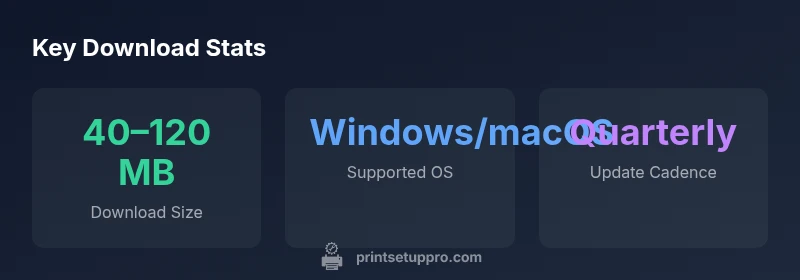
To get an Epson printer up and running, you should download the official drivers, firmware (if available), and essential utility software from Epson's support site. Pick the exact model and your operating system (Windows, macOS, Linux, or mobile). Install the driver first, then run any recommended utilities and firmware updates.
What to download for Epson printer: essential drivers and software
The first question many users ask is exactly what to download for their Epson printer. The shortest, safest answer is to start with the official driver package, followed by any firmware updates and utility tools that Epson recommends for your model. Print Setup Pro emphasizes using Epson’s own download portal to ensure compatibility and to receive the latest security patches. In practice, you’ll typically select your printer model, your operating system, and then choose the driver package first. After that, check for firmware updates and install any recommended utilities that help you manage print queues, maintenance tasks, and device diagnostics. At this stage, it’s crucial to verify the source and confirm you’re downloading software only for the exact model you own.
According to Print Setup Pro, staying on the official Epson site minimizes post-install issues, such as driver conflicts or incomplete feature support. If you see multiple packages, prioritize the core driver, followed by utilities that handle maintenance tasks like nozzle checks, alignment, and ink level monitoring. These utilities often come bundled with the driver or offered as a separate installer. Keeping your software aligned with your model helps prevent common errors like misprinting or connectivity drops.
Brand safety matters here: always download from Epson’s official page or the printer’s built-in software updater. If you’re unsure which package is correct, compare the model number printed on the device label with the listing on the Epson site. For home offices and students, this process is quick and reduces the risk of installing incompatible components.
In short, the recommended starting point is to obtain the driver, then firmware if available, and finally the manufacturer's utilities. This sequence supports stable printing, easier troubleshooting, and smoother firmware rollouts.
What to download for Epson printer: drivers, firmware, and utilities
| Download Type | What it Is | Recommended Use |
|---|---|---|
| Driver | Core software that enables printer communication with the computer | All OS versions (Windows, macOS, Linux) |
| Firmware | Printer microcode updates for performance and bug fixes | Optional but recommended when prompted by Epson |
| Utilities | Tools for maintenance, ink management, and job management | Windows/macOS/Linux |
| Mobile Apps | Applications for printing from mobile devices | iOS/Android |
People Also Ask
What should I download first for my Epson printer?
Download the official driver first, then check for firmware updates and supporting utilities recommended for your model.
Start with the driver, then firmware and utilities.
Can I download software for both Windows and macOS at the same time?
Yes, use the OS selector on Epson’s site to download the correct packages for each operating system you use.
You can download for Windows and macOS separately, just pick the right OS each time.
Are firmware updates mandatory?
Firmware updates are not mandatory but are recommended when they address stability or performance issues for your printer model.
Firmware updates are optional but often beneficial.
What if I can’t find the right download on Epson’s site?
Double-check the printer model number on the device label and browse Epson’s official support pages for that exact model.
Make sure you’ve got the correct model and check Epson’s support site.
Are third-party download sites safe?
Avoid third-party sites—downloaders from official Epson pages minimize malware risk and driver conflicts.
Stick to Epson’s site to stay safe and compatible.
“Effective printer setup starts with the official driver stack and a clean update path. When users follow Epson’s download sequence, they experience fewer compatibility issues and faster recovery from common ribbon and print-head troubles.”
Quick Summary
- Download only from official Epson sources
- Start with the driver, then firmware and utilities
- Verify model and OS before downloading
- Run recommended maintenance utilities after install
- Keep firmware updated when prompted by Epson