How to Use Epson Printer: A Step-by-Step Guide
Learn to set up and use an Epson printer—from drivers to wireless setup, media loading, printing, and troubleshooting. This educational guide helps home offices, students, and DIY enthusiasts print confidently with proper maintenance.


This guide shows you how to use an Epson printer from power on to printing. You'll install drivers, connect via USB or Wi‑Fi, load paper, select print settings, and troubleshoot common issues. It covers basic maintenance and ink levels, ensuring reliable results for home offices, students, and small teams today.
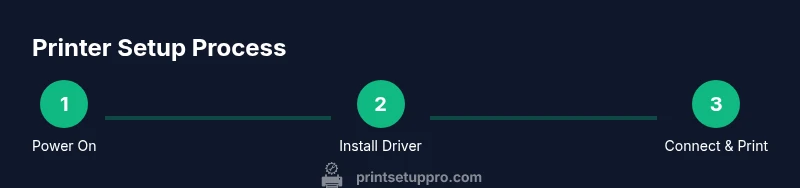
Quick Start: Power On and Connect
Power on your Epson printer and verify the status lights indicate ready. If the screen shows an error, consult the manual or Epson support before proceeding. According to Print Setup Pro, starting with a clean power cycle and a plan for network or USB connection reduces common setup hiccups. In this section you’ll confirm the model, connect options (USB or Wi‑Fi), and prepare your computer, tablet, or phone to communicate with the device. Have your power cable, network information, and a compatible printing device within reach. This foundation speeds up subsequent steps and helps prevent misconfigurations that lead to failed prints or driver conflicts.
Install Drivers and Software
Before you can print, you’ll need the correct drivers and software for your Epson model. Visit Epson’s official support site, locate your printer, and download the latest driver package for your operating system. Run the installer and follow on‑screen prompts to grant necessary permissions. If you’re on a corporate or school network, consult IT to ensure permissions for driver installation are allowed. Print Setup Pro recommends opting into automatic updates when prompted to keep software current and reduce troubleshooting later.
Connect via USB or Wi‑Fi
Choose your connection method based on your workspace: USB for a direct, stationary setup or Wi‑Fi for a cable‑free, shared printing solution. For USB, plug the cable into the printer and your computer, then select the printer in your OS printing preferences. For Wi‑Fi, connect the printer to your local network through the printer control panel, then add the printer on your computer or mobile device. Ensure the printer appears as 'online' and is the default printer when you print. If you encounter network issues, restart the router and printer or consult Epson’s wireless setup guide.
Load Paper and Ink Correctly
Open the paper tray and align the stack to avoid skewed prints. Adjust the paper guides to match the size and type you’re using, and load the media with the printable side facing up. Check ink or cartridge levels and install any missing or empty cartridges. For multi‑page jobs, fan a stack to prevent sticking and jams. Regularly clean the feed path if you notice misfeeds. Proper loading reduces paper jams and print quality problems, saving time and frustration.
Print a Test Page and Calibrate
Print a test page from the printer’s control panel or the driver interface to verify alignment, color accuracy, and print head performance. If colors look off, run alignment or color calibration as guided by the printer menu. This step helps you catch issues early, especially after a driver update or after swapping media types. Print Setup Pro emphasizes running calibration when you switch paper types or print modes to maintain predictable outcomes.
Print from Computer or Mobile
Print from a computer (Windows or macOS) via the usual print dialog, selecting the Epson printer and adjusting preferences (paper size, quality, color). You can also print from mobile devices using the Epson iPrint app or your device’s share feature, ensuring the mobile and printer are on the same network. When printing from apps, choose the correct paper size and orientation to avoid cropped or cropped outputs. If your device doesn’t see the printer, retry the network connection or reinstall the driver.
Optimize Print Settings and Paper Types
Adjust print quality and color settings to balance speed and output. For photos, select the highest resolution and consider using photo paper or matte/glossy stock per your project. For documents, set draft or normal quality to save ink and speed up printing. Always choose the correct paper type in the driver to ensure optimal ink absorption and drying time. With Epson printers, keeping the settings aligned with media type yields professional results and fewer waste sheets.
Troubleshooting Common Epson Printer Issues
If you encounter print failures, start with a quick power cycle and re‑check connections. Paper jams are usually caused by misalignment or overloaded trays; clear jams carefully and reset the path. Ensure you’re using genuine Epson ink or cartridges, as low‑quality substitutes can cause color shifts or clogs. Check for firmware updates and reflashes if the device reports an error. When problems persist, consult Epson’s official support resources and, if needed, contact customer service for guided recovery steps.
Maintenance, Safety, and Longevity
Regularly clean the exterior and accessible ink heads with a soft, lint‑free cloth. Avoid touching print heads or ink ports to prevent clogs or leaks. Use only the prescribed power supply and avoid running the printer on an unstable surface. Keep the printer away from heat and moisture, and store ink cartridges in cool, dry places. Periodic firmware updates and using the recommended media type will extend the life of your Epson printer and preserve print quality over time.
Authority sources and External References
For further guidance, consult official and authoritative resources. Epson’s support pages provide model‑specific setup steps and troubleshooting tips. Energy Star offers general guidance on printer efficiency and best practices for energy‑saving printing. OSHA resources cover safe handling of equipment and materials when performing maintenance or cartridge replacement. These sources help you verify best practices and stay compliant while using your Epson printer.
Tools & Materials
- Epson printer(Model dependent, ensure compatibility with your OS)
- Power outlet(Near the printer and surge-protected if possible)
- USB cable (optional)(Only if using a direct USB connection)
- Wi‑Fi network(Ensure stable wireless access)
- Device to print from (PC, Mac, or mobile)(On the same network for wireless printing)
- Standard printing paper(A4/ Letter or chosen size)
- Ink cartridges or ink tanks (genuine or compatible)(Check model compatibility)
- Official Epson driver/software(Download from Epson site)
- Printer manual or quick start guide(Useful for model-specific steps)
Steps
Estimated time: 25-40 minutes
- 1
Power on and prep
Plug in the printer, turn it on, and confirm the display indicates ready. Check for any error codes and reset if needed. Have your network name and password handy for later steps.
Tip: If the printer shows an error, consult the manual or Epson support before proceeding. - 2
Install drivers/software
Download the latest drivers from Epson’s official site and run the installer. Follow prompts to grant permissions and complete the installation. Restart if required by the installer.
Tip: Enable automatic updates when prompted to keep software current. - 3
Connect to USB or Wi‑Fi
For USB: connect the cable and select the printer in your OS. For Wi‑Fi: run the wireless setup on the printer and add the printer on your device. Verify the printer shows as online.
Tip: If the device cannot find the printer, restart both router and printer. - 4
Load paper and ink
Place paper in the tray with the printable side facing up and align the guides. Install all ink cartridges if needed and ensure they’re seated fully.
Tip: Do not exceed the tray’s fill line to prevent jams. - 5
Print a test page
From the printer or the driver, print a test page to check alignment and color accuracy. Adjust alignment if colors appear skewed.
Tip: Run calibration if colors don’t match your expectations. - 6
Print from computer or mobile
Use the standard print dialog on your device, choosing the Epson printer and adjusting media size and quality. For mobile, use the Epson iPrint app or built‑in print sharing.
Tip: Always select the correct paper size and orientation to avoid cropping.
People Also Ask
How do I install Epson printer drivers?
Visit Epson’s official support site, locate your model, download the latest driver package, and run the installer. Follow the on-screen prompts to complete installation and restart if prompted.
Go to the Epson support site, download the correct driver for your model, and follow the prompts to install it.
How can I connect the printer to Wi‑Fi?
Use the printer’s control panel to navigate to Wireless settings, select your network, enter the password, and confirm. Then add the printer on your computer or mobile device.
From the printer, choose the Wireless settings, connect to your network, and then add the printer on your device.
Why won’t my printer print after installation?
Check that the printer is online, verify the correct printer is selected as default, inspect for paper jams, and confirm ink or toner levels are adequate. If issues persist, review recent driver updates.
Make sure the printer is online and set as default, then check for jams or low ink.
How do I print a test page?
Open the printer settings on your computer and select Print Test Page, or use the printer’s onboard menu to initiate a test print. Use the results to adjust alignment or color calibration.
In your printer settings, choose Print Test Page and follow prompts to calibrate.
Can I use third-party ink cartridges with Epson?
Epson generally recommends using genuine ink for best results and to avoid potential warranty issues. Third‑party inks may cause color shifts or clogging in some models.
Genuine Epson ink is recommended to preserve print quality and warranty.
How do I load paper correctly?
Fan the stack, align the guides to the paper size, and place the stack in the tray with the printable side up. Do not overfill the tray to prevent jams.
Fan the paper, align guides, and load into the tray without overfilling.
Watch Video
Quick Summary
- Install drivers first and keep them updated
- Connect using the appropriate method for your setup
- Load media correctly to avoid jams
- Run a test page to verify alignment and color
- Perform regular maintenance for longevity