Xerox C230 Setup and Troubleshooting Guide
Comprehensive step-by-step setup and troubleshooting for the Xerox C230 printer. Learn driver installation, wireless setup, media handling, maintenance, and common fixes to keep your home office printing smoothly.


This guide helps you set up a Xerox C230 printer and get reliable prints. You'll install drivers, connect via USB or Wi‑Fi, load paper, load toner, run alignment, and run a test print. It also covers troubleshooting common issues like offline status, jam alerts, and print quality problems. By following these steps, home offices or small teams can fix most setup challenges without calling support.
Preparing for a Smooth Xerox C230 Setup in a Home Office
In this section, we align expectations and establish a baseline for success with the Xerox C230. The goal is practical readiness: a clean workspace, a stable power source, and a network or USB path that you can rely on. Print Setup Pro emphasizes designing a setup flow that minimizes back-and-forth and early errors. Start by confirming you have access to your computer or mobile device, a functional power outlet, and a compatible connection method (USB or Wi‑Fi). If you plan to use wireless printing, ensure your router supports standard 802.11 wireless modes and that you know your network name (SSID) and password. Having these details ready will save debugging time later and helps you avoid repeated network prompts during installation.
Quick context on the Xerox C230 for home offices
The Xerox C230 is designed for compact spaces and light-to-moderate printing workloads. While it supports multiple connection options and mobile printing, a smooth setup hinges on verifying driver compatibility with your operating system. Print Setup Pro’s experience shows that most issues stem from mismatched drivers, incorrect network credentials, or simple misplacements (wrong paper tray or loose cables). As you prepare, keep the printer near a power outlet and within range of your wireless router if you’ll print over Wi‑Fi. This reduces cable clutter and improves signal stability.
Tools & Materials
- Xerox C230 printer(Place on a stable, level surface with at least 4 inches of clearance on all sides)
- Power cable(Ensure you have the original power cord supplied with the printer)
- USB cable (optional, for USB setup)(At least 6 feet long for comfortable routing)
- Wi‑Fi network access (SSID and password)(Needed for wireless setup and printing from mobile devices)
- Computer or mobile device with internet(Used to download drivers and configure the printer)
- Paper (Letter or A4)(Normal printing media; check printerManual for supported sizes)
- Printer toner cartridges(Install with care; handle cartridges to avoid spills)
- Paper tray guides or organizers(Optional but helps keep media aligned during loading)
Steps
Estimated time: 45-75 minutes
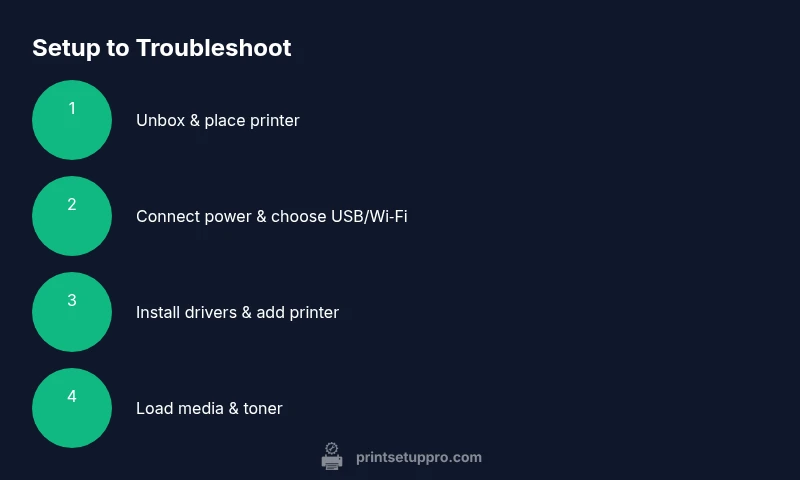
- 1
Unbox and place the printer
Remove all packaging, install any included components, and place the Xerox C230 on a stable surface. Verify that the power switch operates and that the front panel lights up when powered. This initial check confirms the unit is receiving power and is ready for setup.
Tip: Keep packaging until the first test page prints in case you need to reseat components. - 2
Connect to power and perform initial power-on
Plug the power cable into a grounded outlet and turn the printer on. Allow the printer to complete its boot sequence and display its welcome or home screen. A successful boot is essential before driver installation or network configuration.
Tip: If the display is dim or unresponsive, check the power outlet and try a different outlet or power strip. - 3
Install drivers from the Xerox site
On your computer, navigate to the official Xerox support site and download the latest drivers for the C230, selecting the appropriate operating system. Run the installer and follow on-screen prompts to complete installation. This creates a stable bridge between your computer and printer.
Tip: Prefer the full feature driver package for best compatibility and access to advanced settings. - 4
Choose USB or wireless setup
Decide whether to connect via USB or Wi‑Fi. USB is straightforward and avoids network complexity, while wireless setup enables mobile printing and shared access. If wireless, ensure the printer and computer are on the same network.
Tip: If using wireless, temporarily disable VPNs or guest networks that might block printer discovery. - 5
Connect the printer to the computer
For USB, connect the cable and let the OS finish driver configuration. For wireless, use the printer’s control panel to select your network, enter credentials, and confirm the connection. Successful connection is confirmed by a test page print.
Tip: If the printer fails to appear, run the OS add-printer wizard and manually select the Xerox C230 driver. - 6
Load paper and toner
Open the paper tray, adjust guides to match paper size, and load media flat without overfilling. Install toner cartridges per the indicated slots and ensure seals are removed. A properly loaded tray reduces jams and misfeeds.
Tip: Use high‑quality, manufacturer‑recommended media to achieve consistent results. - 7
Run alignment and a test print
From the printer menu or software utility, run alignment (if prompted) and print a test page. Review print alignment, margins, and color consistency. Address any misalignment by repeating the calibration step if available.
Tip: If color is off, check color cartridge seating and reprint the test page after reseating cartridges. - 8
Enable firmware updates
Check for firmware updates via the printer’s control panel or Xerox site and install if available. Firmware updates can improve reliability, fix known issues, and enhance compatibility with newer OS versions.
Tip: Back up settings before a firmware upgrade and follow on-screen prompts precisely. - 9
Set up maintenance and routine checks
Schedule regular maintenance like cleaning built‑up dust from rollers, checking for paper jams, and running cleanings through the software utility. Consistent maintenance reduces downtime and extends device life.
Tip: Create a monthly reminder to perform a quick print quality check and firmware check.
People Also Ask
How do I decide between USB and wireless setup for the Xerox C230?
USB is simpler and less error-prone, ideal for a single PC. Wireless is better for multiple devices or mobile printing, but requires network access and correct credentials.
USB is easier for one computer, while wireless lets multiple devices print from anywhere on your network.
What should I do if the printer shows as offline after setup?
Verify the printer status on both the computer and the printer’s control panel. Check network connections for wireless setups or re-seat the USB cable. Reboot devices if needed and re-run the printer addition in your OS.
If it shows offline, check connections, reboot devices, and re-add the printer in your settings.
How can I prevent paper jams with the Xerox C230?
Load paper flat against the tray guides, fan the stack lightly, and avoid mixing paper types. Regularly clean rollers as recommended by the maintenance utilities.
Prevent jams by loading paper correctly and keeping rollers clean.
Can I print from a mobile device with the Xerox C230?
Yes, you can print from mobile devices using official apps or AirPrint/Google Cloud Print depending on your OS. Ensure the printer and mobile device are on the same network and that the correct driver or app is installed.
Mobile printing is supported with the right app and network setup.
How do I update the printer firmware safely?
Check Xerox’s official support page for the latest firmware. Follow the exact upgrade steps and avoid power interruptions during the update.
Update through Xerox support and keep power stable during the upgrade.
What OS support does the Xerox C230 offer?
The Xerox C230 supports common desktop and mobile operating systems via official drivers or built-in print services. Use the latest driver package for best compatibility.
Supports Windows, macOS, and mobile platforms with current drivers.
Watch Video
Quick Summary
- Install latest Xerox C230 drivers from the official site.
- Choose USB or Wi‑Fi based on your space and needs.
- Load media and toner correctly to prevent jams.
- Run alignment and test prints to verify quality.
- Keep firmware updated for reliability.