How to Print from Canva: Step-by-Step Guide
Learn how to print from Canva with practical export options, Canva Print decisions, and color/margin tips. This educational, actionable guide covers desktop and mobile printing, plus troubleshooting and alternatives.


Yes. You can print from Canva by exporting your design as a PDF, PNG, or JPG, or by using Canva Print for professional finishes. After exporting, print locally or send to a professional printer, adjusting page size, bleed, and color as needed. Follow steps below for reliable, print-ready results every time.
Can you print from Canva? A practical overview
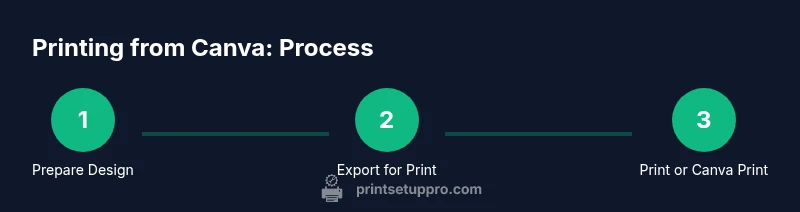
Yes, you can print from Canva, but you must know how Canva handles printing differently: you either export a print-ready file and use your own printer, or you use Canva Print for professional results. According to Print Setup Pro, the most reliable printing path is to export a PDF Print with bleed if your design goes edge-to-edge, then print from a desktop or office printer. If you want quick, simple prints like flyers, posters, or worksheets, you can also export as PNG or JPG and print at home. This guide explains both paths and what to expect.
Key considerations include choosing the right format, confirming your printer’s capabilities (bleed vs. no bleed), and understanding color management for accurate results. By planning ahead and testing a single sheet, you reduce waste and frustration. Print Setup Pro's guidance focuses on practical, actionable steps you can take today to produce print-ready Canva projects.
Export options: PDF, PNG, JPG, and Canva Print
Canva provides several export formats for printing. For most text and layout-heavy designs (flyers, handouts, newsletters), PDFs offer the most consistent results, especially you choose PDF Print with bleed. If your design is image-rich, exporting as PNG or JPG can be convenient for quick prints, but you may lose vector sharpness for text. Canva Print is a service you can use to order finished prints directly from Canva; this can save time and ensures color accuracy for standard products like flyers and business cards. Important considerations: the color profile (CMYK-like output is ideal for printing), margins, and bleed. Always review export settings in Canva before downloading, then test print a single page to confirm results.
Canva Print vs DIY printing: a practical comparison
Choosing between Canva Print and DIY printing boils down to convenience, cost, and control. Canva Print delivers a polished, consistent finish with managed color and professional paper options, typically with a faster turnaround for bulk jobs. DIY printing gives you direct control over paper type, ink, and timing, which can save money for small runs and allow for quick adjustments. Print Setup Pro notes that the best choice depends on project scope, printer capabilities, and how exact you need color and finish to be. For most home office projects, exporting a print-ready PDF and printing locally balances quality with control.
Step-by-step: Prepare your Canva design for printing
Before exporting, ensure your design is print-ready. Set the correct document size, align critical elements away from the trim area, and verify that any embedded fonts will render correctly. Check image resolution to avoid pixelation, and ensure there is sufficient contrast for readability. If your design uses bleeds or edge-to-edge content, enable bleed settings in Canva (if available) and include crop marks if your printer requires them. Finally, preview the layout at the intended print size in Canva and on your device to catch layout shifts.
Step-by-step: Exporting and printing
Start by selecting the appropriate export format in Canva: PDF Print with bleed for edge-to-edge designs, or PNG/JPG for image-heavy visuals. Download the file and open it in a PDF viewer to inspect margins and color. Prepare your printer by loading the correct paper size and type, and set print options such as orientation, scaling, and color handling. Do a test print on a scrap sheet, compare with the screen, and adjust settings if needed. When satisfied, print the final batch with your chosen settings.
Troubleshooting common printing issues from Canva
Color mismatch is common when moving from screen to print due to RGB vs CMYK workflows. If colors look dull or oversaturated, try exporting in PDF Print with the printer’s recommended color profile and print a test page. Margins can shift if page size or scaling isn’t correctly set; always verify the page size matches your paper. Bleed problems occur if your design edges extend too close to trim lines—ensure safe margins inside Canva and use crop marks if your printer requires them. Fonts may appear different if embedded improperly; ensure fonts are embedded or converted to outlines if needed.
Color management and paper selection
Selecting the right paper stock and finish is crucial for the final look. For text-heavy documents, standard office paper is usually sufficient; for posters or flyers, a heavier stock with a gloss or satin finish can improve color vibrancy. If color accuracy matters, calibrate your monitor and choose a printer profile that matches your paper. Keep in mind that some printers reproduce colors differently; always run a small test print to fine-tune the color balance before committing to a large run.
Final checklist before printing
- Confirm export format and bleed settings match your design
- Do a test print and compare against the on-screen design
- Verify margins, alignment, and crop marks (if used)
- Ensure paper type and printer settings suit the project
- Consider Canva Print for a professional finish on bulk orders
This concise checklist helps prevent common print mistakes and saves time in the long run.
Alternatives and extras: Canva Print vs home printing and beyond
Canva Print offers a streamlined option for professional-looking results, often with better paper choices and color consistency for pre-defined products. DIY printing remains valuable when you need quick, small runs, custom sizes, or immediate proofing. For multi-page documents, consider alternating between Canva Print for the cover and a DIY print for internal pages to balance cost and quality. Always compare samples and confirm color fidelity before investing in a large batch.
Tools & Materials
- Printer(Any standard inkjet or laser printer suitable for home/office printing)
- Paper stock(Choose paper type appropriate for your design (e.g., standard office paper or heavier cardstock for flyers))
- Device with Canva access(Computer or mobile device logged into Canva)
- PDF viewer / print software(Software to review PDFs and adjust print settings (e.g., Adobe Reader, Preview))
- Optional crop/bleed aids(Ruler or crop marks if your printer requires precise trimming)
Steps
Estimated time: 30-45 minutes
- 1
Choose export format
Open your Canva project and determine the best export format for print. For most layouts, PDF Print with bleed provides the most reliable results. If your design relies on photographic imagery, PNG or JPG can be practical, but may compromise text sharpness.
Tip: If you plan to trim, enable bleed in Canva’s export settings and include crop marks if your printer requires them. - 2
Enable print options
In the export dialog, set bleed and crop marks if needed, and select the color profile closest to your printer or project. Review the page size to ensure it matches your final print size.
Tip: Always preview the document at the intended print scale to catch layout issues early. - 3
Export and download
Click export and save the file to a known location. For multi-page designs, export all pages as a single PDF when possible to simplify printing.
Tip: Keep a copy of the source Canva file in case you need to make edits later. - 4
Open and review the file
Open the downloaded file with a PDF viewer to inspect margins, bleed, and image resolution. Zoom in to verify text remains crisp and colors appear as expected.
Tip: If colors look off, try exporting again with a different color profile or adjust printer color settings. - 5
Prepare your printer
Load the correct paper size and type, and set orientation to match the document. Ensure the printer is configured for the highest quality print mode available.
Tip: Do not rush; allow the printer to warm up if it has a dedicated color mode. - 6
Print a test page
Print a single page on scrap or test paper to verify alignment, margins, and color. Compare with the screen and adjust settings if discrepancies are found.
Tip: If the test page shows alignment shifts, recalibrate margins or reduce scale slightly. - 7
Print final copies
Print the full run using the validated settings. If printing in bulk, consider a proof run and batch processing to manage waste and cost.
Tip: Store printed files safely and label each batch for easy retrieval.
People Also Ask
Can I print directly from Canva without exporting files first?
No. Canva does not send print jobs directly to a printer; you export a print-ready file (PDF or image) or use Canva Print, then print via your computer or have Canva Print handle the job.
No, Canva requires an export or Canva Print; direct printing from Canva isn’t supported.
What file format is best for Canva prints?
PDF Print with bleed is usually best for most designs. PNG or JPG can be useful for photo-heavy designs but may reduce text sharpness and scalability.
PDF Print with bleed is typically best for Canva prints; PNG or JPG work for photos but might sacrifice text clarity.
Does Canva Print support bleed and crop marks?
Yes, Canva Print supports bleed and crop marks for products that require trimming. Ensure you configure bleed in your design if you plan to print professionally or trim post-print.
Yes, Canva Print supports bleed and crop marks; set bleed in your design before printing or ordering.
How do I print Canva designs on mobile?
In the Canva mobile app, export your design as a PDF or image, then print from your phone using a printer-compatible app or share to a connected printer.
Use the Canva app to export as PDF or image, then print via your phone’s printer app.
Why might colors look different when printed?
Printers use CMYK ink while Canva uses RGB on screen. This color space difference can cause shifts; calibrate your printer and use a proof print to adjust.
Color differences come from RGB on screen vs CMYK in print; do a proof print to adjust.
Watch Video
Quick Summary
- Choose the right export format for print
- Check bleed, margins, and color before printing
- Print a test page to catch issues early
- Canva Print offers a professional finish for bulk orders
- Balance DIY printing and Canva Print based on project needs