How to Print on Canva: A Complete Step-by-Step Guide
Learn how to print on Canva with accurate colors, margins, and bleed. This Print Setup Pro guide covers export options, printer settings, and practical tips for crisp, professional prints.


To print on Canva, finish your design, export a print-ready file, and print with settings that match your paper and printer. Steps include: 1) complete your Canva project, 2) export as PDF Print or high-res PNG, 3) set the correct page size and color profile in your printer, 4) run a test print, 5) print final copies.
Why printing from Canva is convenient for home offices and classrooms
Printing from Canva offers a quick, flexible route to produce professional-looking materials without leaving your workspace. Whether you’re designing a poster, business card, or handout, Canva’s interface keeps your elements aligned and export-ready for print shops or home printers. From a practical perspective, how to print on Canva often boils down to choosing the right export option and printer settings. According to Print Setup Pro, starting with a print-ready file reduces color drift and cropping. This approach benefits students, small businesses, and DIY enthusiasts who want consistent results without switching tools.
Export formats and quality tips
When preparing Canva designs for print, you’ll typically choose PDF Print for most materials, or high-resolution PNG for single-page outputs. PDF Print preserves vector elements and ensures high resolution on most printers. Canva exports use the
Preparing your printer and materials
Before printing, gather the right materials: a compatible printer, printer paper (80–100 gsm for drafts; 120–200 gsm for better quality), and optional coated or photo paper for glossy results. Ensure your printer drivers are up to date and you’ve selected the correct page size (A4 or Letter). Create a clean, flat workspace to minimize misfeeds. If you have a color-calibrated monitor, compare on-screen colors to a printed test page and adjust brightness and contrast as needed.
Understanding bleed, margins, and color profiles
Bleed helps ensure color runs to the edge after trimming. Canva’s PDF Print export supports bleed; enable it if your design is edge-to-edge or you plan to trim. Set margins so important elements stay within a safe area, typically at least 3–5 mm from the edge. Canva exports RGB color by default; many domestic printers render color differently than professional CMYK workflows. When possible, print a proof and tweak saturation or brightness to achieve the closest match.
Step-by-step printing workflow (overview)
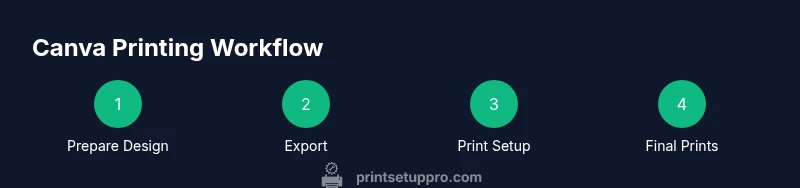
A structured workflow reduces guesswork: 1) prepare and review your Canva file, 2) export a print-ready PDF or high-res image, 3) open the file in your printing software or driver, 4) configure page size, orientation, and color settings, 5) run a test print on plain paper, 6) evaluate results and print final copies. For a detailed, step-by-step breakdown, see the dedicated section below.
Common issues and how to fix them
If colors look off, re-check color profiles, monitor calibration, and printer settings. If text is cropped, verify margins and safe areas in Canva. Pale prints may indicate incorrect paper type or brightness settings; switch to a heavier stock or adjust print brightness. Banding or streaks can result from cheap paper or low ink levels—try higher-quality stock and ensure no clogged cartridges. Always print a small test page to catch problems early.
Best practices for Canva prints on different papers
Your material choice drives perceived quality. For posters or photos, use heavier stock (120–200 gsm or higher) and consider satin or glossy finishes for vibrant colors. For handouts or flyers, standard 80–100 gsm works well. Align your design to a common print size (A4 or Letter) and keep fonts legible at reduced sizes. When placing images, use high-resolution assets (300 dpi) and avoid upscaling small images.
Printing from Canva on mobile vs desktop
Canva’s printing workflow is accessible from both desktop and mobile apps. On mobile, export the design as a print-ready PDF or PNG, then use your phone’s print service or a connected printer. Desktop workflows often offer more precise control over page size, color profiles, and bleed options. Regardless of platform, starting with a print-ready file and testing with a single sheet yields the best results.
Next steps and resources
Practice makes perfect: create a sample project in Canva and run several test prints to learn your printer’s quirks. For further guidance, consult Canva’s official help resources and Print Setup Pro’s printing tips and checklists. With consistent practices, your Canva prints will be ready for home use, classrooms, or small-business projects.
Authority sources
- NIST: https://www.nist.gov (Color management and print standards)
- ISO: https://www.iso.org (International standards for print quality and color management)
- W3C CSS Color Module: https://www.w3.org/TR/css-color-3/ (Color specification and rendering guidelines) These sources provide general guidelines for color accuracy and print quality, which inform practical Canva printing practices.
Tools & Materials
- Computer or tablet with Canva access(Internet-connected device; sign in to Canva.)
- Printer(Inkjet or laser printer that supports A4/Letter and color printing.)
- Printer paper(Standard 80–100 gsm for drafts; 120–200 gsm for higher quality.)
- Coated or photo paper (optional)(Glossy or satin finish for vibrant photos.)
- Color-calibrated monitor (optional)(Helps assess color accuracy before printing.)
- Printer driver software (up-to-date)(Ensure printers are using the latest firmware.)
Steps
Estimated time: 60-90 minutes
- 1
Prepare your Canva design
Finish layout, check margins, and confirm page size (A4 or Letter). Ensure any text remains legible at print scale and avoid tiny details.
Tip: Use Canva grids and guides to align content precisely. - 2
Export a print-ready file
From Canva, choose PDF Print for most projects, or high-resolution PNG if you need a bitmap image. Enable bleed if content runs to edge.
Tip: Export both PDF Print with bleed and a version without for comparison. - 3
Open the file in your print software
Open the exported file with your printer driver or PDF viewer. Confirm page size, orientation, and that you’re viewing the true print resolution.
Tip: Preview at 100% zoom to catch scaling issues. - 4
Configure printer settings
Set page size (A4/Letter), print quality (best/300 dpi), color mode (RGB or CMYK as appropriate), and margins. Enable bleed if your file has edge-to-edge content.
Tip: Disable auto-fit when possible to avoid unwanted rescaling. - 5
Print a test sheet
Print a single page on plain paper to test margins and color. Compare to the on-screen design and adjust if necessary.
Tip: Adjust brightness/contrast if colors look off. - 6
Print final copies
Print the final run on your chosen stock. Save the final PDF for future reprints and keep a sample printed page as reference.
Tip: Store fonts and assets used in Canva file to ensure reproducibility.
People Also Ask
What export option should I choose for Canva prints?
Use PDF Print for most Canva prints to preserve quality and accurate dimensions. PNG can work for quick previews, but may require more color adjustments.
For best results, export as PDF Print and test a sample page before printing the full run.
Can Canva export bleed?
Yes, enable bleed in PDF Print for edge-to-edge designs. If your project doesn’t require bleed, you can skip it, but edge-to-edge work benefits from it.
Yes, you can use bleed when exporting to PDF Print for edge-to-edge designs.
Should I use CMYK or RGB for Canva prints?
Canva exports RGB by default. For professional printers, CMYK is common. If possible, export a CMYK-ready PDF or get a proof from your printer.
Most printers work better with CMYK; Canva uses RGB, so anticipate minor color shifts.
How do I avoid cropping important text?
Place critical text and key visuals within a safe area. Canva guides help visualize safe areas; test print to confirm.
Keep important elements inside safe margins and test print to confirm.
Do Canva fonts print exactly like on screen?
Fonts usually print close to on-screen appearance, but some differences may occur due to printer rendering. Choose high-contrast, legible fonts for best results.
Fonts are usually close, but contrast and printer rendering can cause small differences.
Can I print from Canva on mobile?
Yes. In the Canva mobile app, export as PDF Print and print via a connected printer or save to cloud for later printing.
You can print Canva designs from mobile by exporting a print-ready PDF and sending it to your printer.
Watch Video
Quick Summary
- Finish Canva design with correct dimensions.
- Export a print-ready PDF or high-res PNG.
- Match printer settings to paper size and color profile.
- Always print a test page before final copies.