Picture Printer Phone: Print Photos Directly from Mobile
Learn to print pictures from your phone to a compatible printer using AirPrint, Mopria, or cloud printing. Includes setup, apps, and troubleshooting tips for home offices, students, and DIY enthusiasts.


You will print a photo directly from your phone to a nearby printer. This guide covers compatible connections (AirPrint, Mopria, or cloud printing), how to prepare devices, and the exact steps to produce crisp photos with minimal waste. Use this mobile-to-printer workflow for fast, reliable picture printing at home or on the go.
What does the phrase "picture printer phone" mean?
In everyday use, the phrase picture printer phone describes a workflow where a photo stored on a smartphone is sent to a printer to produce a physical copy. This can involve wireless connections like AirPrint (iOS), Mopria (Android), or cloud-based printing where the photo is stored in a cloud service and sent to the printer from the cloud app. For home offices and students, understanding this workflow helps you pick compatible devices and apps, and it reduces friction when you need a quick physical print of a favorite image. Print Setup Pro emphasizes starting with a clearly compatible ecosystem: ensure your phone supports the chosen printing method and the printer has the necessary drivers or apps to receive jobs from mobile devices.
Quick recap of the core options for mobile printing
- AirPrint: Built into most iOS devices and many printers, enabling direct wireless printing without extra software.
- Mopria: A universal standard for Android and some printers; simplifies printing from most Android apps.
- Cloud printing: Uses cloud services (e.g., cloud photo storage) to send print jobs, useful when devices aren be on the same network. The Print Setup Pro team notes that cloud methods work well when your phone or printer is on different networks but still needs to reach the printer.
Real-world scenario: photo-ready results with minimal steps
Imagine you just snapped a great photo on your phone. With a compatible printer and the right app, you can open the photo, tap Print, choose the printer, adjust the size and paper type, and print. The goal is to keep steps minimal while preserving quality. We’ll walk through each part of this flow and point out where questions commonly arise, such as paper type, color accuracy, and how to avoid common printing pitfalls when using a mobile device. Throughout, Print Setup Pro highlights practical heuristics—like aligning photo aspect ratio to the paper size—to help you achieve professional-looking prints without extra trips to the store.
Tools & Materials
- Smartphone with Wi-Fi or cellular data(iOS or Android; ensure it’s updated)
- Printer with mobile printing support(AirPrint, Mopria, or supported app)
- Photo paper (4x6 or 5x7) and compatible ink(Check printer-included paper type guidance)
- Printer manufacturer app or system print service(Install from App Store/Play Store)
- Stable network connection (Wi-Fi or Bluetooth)(Keep devices on same network when using Wi‑Fi printing)
- Cloud storage access (optional)(Useful for cloud-based print jobs)
Steps
Estimated time: 15-25 minutes
- 1
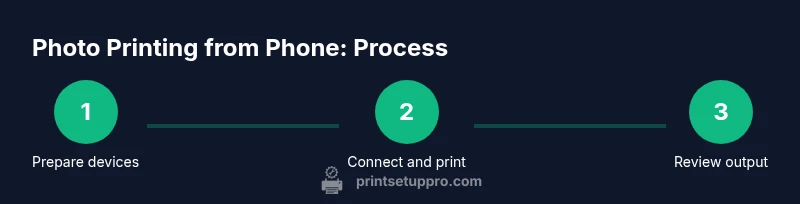
Prepare devices and network
Turn on the phone and printer. Connect both devices to the same reliable network, or ensure the printer is discoverable via Bluetooth if using that method. This alignment prevents a common failure mode where the printer remains hidden from the phone in the app list.
Tip: Verify you can see the printer in the device’s print dialog before proceeding. - 2
Open the photo you want to print
Navigate to the photo in your gallery or Photos app. The share or print option should be visible from the photo’s context menu. If you use a cloud-based printer flow, confirm the photo is accessible from the cloud service on your phone.
Tip: For best results, choose the photo that matches the paper aspect ratio you plan to print. - 3
Select Print and printer
Tap Print, select the target printer, and review the available options. Confirm the paper size, print quality, and color settings align with your goal—e.g., reduced size for a wallet photo or full-page 4x6 print for a frame.
Tip: If the printer doesn’t appear, refresh the network or reopen the app. - 4
Adjust print settings
Choose paper type (glossy/matte), size (4x6, 5x7), and color options (color vs grayscale). Enable any photo-smoothing or border settings if your app offers them. Preview the image to ensure it isn’t cropped awkwardly.
Tip: Keep brightness and contrast balanced to match on-screen appearance with the printed result. - 5
Print a test page
If available, print a small test page first to verify alignment, color, and sharpness before committing to a full-size print. This step helps catch issues early and saves ink and media.
Tip: Fine-tune settings after reviewing the test print. - 6
Complete the print job and assess
Collect the printed photo and inspect it in good lighting. Note any color drift, edge blur, or grain; adjust future prints by selecting different paper, resolution, or printer settings as needed.
Tip: Keep a log of settings that yielded good results for common photo types.
People Also Ask
Can I print from an iPhone without AirPrint?
Yes. You can use the printer manufacturer’s app or a cloud printing option to send photos from your iPhone. Many brands offer iOS-compatible apps that perform the same task as AirPrint.
Yes. If AirPrint isn’t available, use the printer’s app or a cloud printing option to print photos from your iPhone.
What paper size is best for photo printing from a phone?
4x6 and 5x7 are common sizes that balance size and cost for most photos. Match the paper size to your frame or display intention, and adjust the photo aspect ratio in the printing settings if needed.
Typically 4x6 or 5x7 are ideal for photos; align size to your frame and adjust aspect ratio if needed.
Why is my print blurry or washed out from my phone?
Possible causes include low image resolution, printer misalignment, or incorrect color management. Start with a test print on higher-quality paper and verify settings like DPI, brightness, and color mode in your printing app.
Low image resolution, misalignment, or color settings can cause blurriness. Try a higher DPI and test print with good paper.
Do I need internet to print from my phone?
Not always. Direct wireless (AirPrint, Mopria) can work over a local network without internet access. Cloud printing or remote prints may require internet connectivity.
Often you don’t need internet for direct wireless printing, but cloud-based or remote prints usually require internet.
How can I save ink and avoid waste when printing photos?
Print at the appropriate size, use draft or photo-quality mode only when needed, and preview crops to avoid unnecessary pages. Consider printing a few photos at a time to reduce waste.
Print only what you need at the correct size and preview crops to prevent waste.
Is mobile printing secure over Wi-Fi?
Printing over a secure home network is generally safe. Use encrypted connections when possible and keep firmware updated to protect against vulnerabilities.
Printing over a secure network is usually safe, but keep devices updated and use encrypted connections when possible.
Watch Video
Quick Summary
- Print photos directly from mobile devices using common wireless methods.
- Choose compatible apps and maintain up-to-date firmware for reliability.
- Always preview and test print to minimize waste and errors.
- Print quality depends on paper type, printer settings, and color management.