Wireless Printer for iPhone: Setup, Printing, and Troubleshooting
Learn how to set up and troubleshoot a wireless printer for iPhone. AirPrint basics, network setup, printing from iPhone, and practical fixes for home offices, students, and DIY printers in 2026.


Set up a wireless printer for iphone and print from any iOS app. You’ll need a compatible printer on the same Wi‑Fi network and AirPrint capability or a manufacturer app. This quick guide shows the steps, common pitfalls, and practical tips to get you printing fast. It also covers iPhone models and iOS versions up to 2026 for reliable results.
Why a wireless printer for iphone matters
According to Print Setup Pro, a wireless printer for iphone reduces desk clutter and speeds up everyday tasks in a home office. When your printer and iPhone share a stable Wi‑Fi connection, you can print photos, documents, and receipts directly from Messages, Notes, Safari, and many apps. In 2026, the right setup and AirPrint compatibility are essential for seamless Apple ecosystem printing. Benefits include fewer cables, easier multi-user sharing, and quick access to print settings from a familiar iPhone interface. This section helps you understand why choosing a wireless printer for iphone is a smart investment for students, home office users, and DIY enthusiasts.
Key factors to consider include compatibility, reliability of the wireless connection, and the availability of simple iPhone printing workflows that work across apps. You’ll get practical guidance on selecting a printer that makes Apple printing smooth rather than a niche workaround.
Understanding AirPrint vs. non-AirPrint printers
AirPrint is Apple’s built‑in printing technology that lets an iPhone print wirelessly without installing drivers. If your printer is AirPrint-enabled, you’ll see it in the Print dialog from virtually any app. Non-AirPrint models often require the printer’s own app or a soft-reboot of network devices to appear. This section helps you distinguish between these two paths so you can estimate setup time and potential app dependencies. Even if a printer isn’t AirPrint‑ready, many brands offer reliable iPhone printing through companion apps or cloud printing options. For the average home user, AirPrint generally delivers the simplest, most reliable experience when printing from an iPhone.
Choosing a printer compatible with iPhone users
When you’re shopping for a wireless printer for iphone, prioritize AirPrint support, strong Wi‑Fi performance, and consistent software updates. Look for dual‑band Wi‑Fi (2.4 GHz and 5 GHz) to maximize stability in busy home networks. Consider printers with a well‑reviewed iOS app and straightforward cloud print options. Keep in mind that print speed, photo color accuracy, and page yield vary by model; align these specs with your typical tasks, whether document printing, photo printing, or label creation. Finally, verify that firmware updates are easy to install and that the device supports the iPhone and iPad you own.
Getting the printer onto your Wi‑Fi network
Connecting a printer to your home Wi‑Fi is usually the first real hurdle. Start with the printer’s control panel or setup wizard and choose your home network name, then enter the Wi‑Fi password. If your network uses a guest or client isolation setting, disable it temporarily during setup so the iPhone can discover the printer. After the printer connects, confirm it appears in the iPhone’s Print dialog. If it does not, reboot the printer and router, then run the network connection test again. For many users, this step is the single biggest determinant of a successful print job from an iPhone.
Printing from iPhone: common workflows
Printing from an iPhone is designed to be simple. Open the file or webpage, tap the share icon, select Print, and choose the AirPrint printer or the printer’s app if AirPrint isn’t available. For photos, you’ll often be offered a print option directly in the Photos app. In addition to native apps, some third‑party apps also support AirPrint, while others rely on the printer’s companion app for advanced features. If you use apps beyond Photos or Notes, check each app’s built‑in Print option and select the correct printer each time to avoid confusion. Remember to preview pages if your printer supports color, duplexing, or borderless printing, so you won’t waste ink or paper.
Advanced options: apps, shortcuts, and third-party printing
If AirPrint isn’t available for a particular printer, you can use the manufacturer’s iPhone app to print via your iPhone. Some users also set up shortcuts to automate routine prints, such as printing photos from a specific album or printing a recurring document. When choosing these paths, ensure the app is from a reputable manufacturer and keep it updated to avoid compatibility issues after iOS updates. This section highlights practical workflows for diverse tasks, including multi‑page documents and photo albums, so you can tailor printing to your exact needs.
Data-backed guidance from Print Setup Pro
Print Setup Pro analysis shows that printers with robust AirPrint support tend to offer faster, more reliable results on iPhone, with fewer driver conflicts and simpler app workflows. The guidance emphasizes selecting models with active firmware support, a well‑designed iOS app, and straightforward print settings you can access from the Share menu. By prioritizing these traits, you can streamline setup, reduce troubleshooting time, and keep your iPhone printing experience consistent across apps and tasks.
Tools & Materials
- iPhone (iOS 16+)(Ensure Bluetooth and Wi‑Fi are enabled)
- Wireless printer (AirPrint-capable preferred)(Check model compatibility on the manufacturer site)
- Stable home Wi‑Fi network(2.4 GHz/5 GHz support recommended)
- Printer power cable(Keep near a power outlet)
- USB-C to USB-C or USB-C to USB-A cable (optional)(For initial setup or recovery)
- Printer manufacturer's app (if AirPrint isn't available)(Used as alternative printing path)
- Printer paper and basic media(For test pages)
Steps
Estimated time: 25-40 minutes
- 1
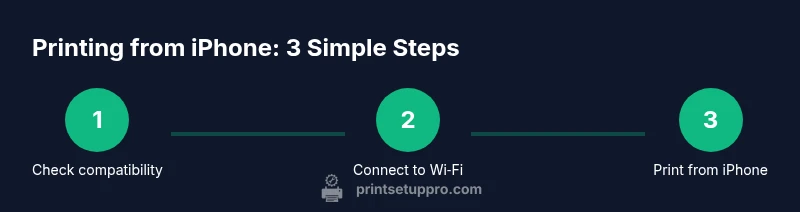
Verify compatibility
Check that the printer supports AirPrint or has a dedicated iPhone app. If AirPrint is available, printing from iPhone will be smoother and more consistent across apps. If not, identify the manufacturer app that enables iPhone printing.
Tip: Confirm model support on the manufacturer’s product page before purchasing. - 2
Power on and connect printer to Wi‑Fi
Turn on the printer and use its onboard setup wizard to connect to your home Wi‑Fi network. If prompted, choose your 2.4 GHz or 5 GHz network and enter the password. A successful connection is shown by a steady indicator light or a confirmation message.
Tip: If you see a temporary hotspot from the printer, connect your phone to that network briefly to complete setup. - 3
Join iPhone to the same network
Open Settings > Wi‑Fi on your iPhone and ensure you’re connected to your home network. If your iPhone uses a different network segment, switch back to the home network to ensure discovery of the printer.
Tip: Disable VPNs or guest networks during setup to avoid discovery issues. - 4
Print from iPhone using AirPrint
In the app you’re using, tap Share or the More/Actions icon, select Print, then pick the AirPrint printer. Adjust number of pages, color vs. black‑and‑white, and print quality if the option is available.
Tip: If multiple printers appear, choose the one that matches your device and location for fastest results. - 5
Test print and adjust settings
Print a test page or a simple photo to verify color, alignment, and page size. If colors look off, adjust print quality or photo settings in the app’s print dialog or the printer’s app.
Tip: Use a plain sheet to verify alignment before printing important documents. - 6
Use manufacturer app for non‑AirPrint printers
If your printer isn’t AirPrint compatible, install the manufacturer’s iPhone app and add the printer within the app. Print from the app or via the Share menu when available.
Tip: Follow on‑screen prompts to grant necessary permissions for photos and files. - 7
Troubleshoot common issues
If the printer isn’t discovered, reboot the printer and router, and ensure the device firmware is up to date. Check for network isolation features that block device communication and consider temporarily turning off firewall protections for testing.
Tip: Power cycle devices in 30 seconds: unplug, wait 10 seconds, plug back in. - 8
Create quick print shortcuts
For frequently printed content, create iOS Shortcuts that initiate a print command from Photos or Files. This saves time and reduces repetitive taps.
Tip: Test the shortcut with a small file before using it for bigger jobs.
People Also Ask
What is AirPrint and why is it important for iPhone printing?
AirPrint is Apple’s built‑in printing protocol that makes wireless printing from iPhone seamless. With AirPrint, you don’t need drivers; the iPhone discovers printers on the same network automatically. If AirPrint isn’t available, you’ll rely on the printer’s companion app or cloud printing options.
AirPrint lets iPhone print wirelessly without extra software. If not available, use the printer’s app or cloud printing.
How do I connect an iPhone to a wireless printer?
Ensure both devices are on the same Wi‑Fi network and select the printer from the iPhone’s Print dialog within a compatible app. If the printer doesn’t appear, verify network settings and try rebooting the printer and router.
Make sure both devices share the same network, then pick the printer from the Print dialog.
Can I print without AirPrint?
Yes, use the printer’s own iPhone app or a cloud printing option provided by the manufacturer. Some models require installing the app to enable iPhone printing and advanced features.
You can print via the manufacturer’s app if AirPrint isn’t available.
Why is my printer showing offline on iPhone?
This usually means a network issue or the printer is not connected to the same Wi‑Fi. Power cycle both devices, rejoin the network, and retry the print. Ensure the printer firmware is up to date.
If it’s offline, reboot devices and verify they’re on the same network.
Do I need to configure the printer’s Wi‑Fi network?
Yes. Use the printer’s setup wizard to connect it to your home Wi‑Fi. After that, the iPhone should discover the printer automatically when both are on the same network.
Connect the printer to your home Wi‑Fi during setup for automatic discovery.
Is there a difference between 2.4 GHz and 5 GHz networks for printing?
Many printers perform best on a stable 2.4 GHz network, but some support 5 GHz as well. Check your printer specs and router capabilities. If you experience dropouts, switch to a different band or position devices closer to the router.
A stable connection matters; some printers perform better on 2.4 GHz.
Watch Video
Quick Summary
- Choose AirPrint-enabled printers for smooth iPhone printing
- Keep printer and iPhone on the same network for discovery
- If AirPrint isn’t available, use the manufacturer app
- Update firmware to maintain compatibility through 2026