3D Metal Printer: Setup, Maintenance, and Troubleshooting
A practical, step-by-step guide to setup, safety, and maintenance for a 3D metal printer. Learn material choices, calibration, post-processing, and troubleshooting for reliable, high-quality metal prints.


This guide shows you how to set up and troubleshoot a 3d metal printer, covering safety, calibration, material selection, chamber ventilation, and routine maintenance. You’ll learn practical steps for a home office or small workshop, plus tips to avoid common setup mistakes and achieve consistent, high-quality metal prints. Follow these steps in order for best results.
What is a 3D Metal Printer and Why It Matters
A 3D metal printer builds metal parts additively, layer by layer, using processes like powder bed fusion or directed energy deposition. This approach unlocks complex geometries and material combinations that are difficult or impossible with traditional subtractive methods. For home offices, makerspaces, and small shops, a 3d metal printer can accelerate prototyping, tooling, and end-use parts. According to Print Setup Pro, understanding the core differences between metal and polymer printers helps you set realistic expectations for part strength, surface finish, and process safety. You’ll evaluate alloys (stainless steel, aluminum, titanium), powder handling considerations, and the need for post-processing to achieve the final specifications. In this section we lay the groundwork so you can make informed material and process choices as you begin printing.
Safety First: PPE, Ventilation, and Handling Powder
Metal printing introduces unique hazards, including fine metal powders, strong fumes, and high-energy equipment. Always designate a safe workspace with proper ventilation and a dedicated fume extractor. Wear approved PPE: fitted respirator or P100 mask, safety goggles, chemical-resistant gloves, and a lab coat or coveralls. Store powders according to the manufacturer’s SDS and keep containers closed when not in use. Gentle handling of powders reduces the risk of airborne dust; never overfill bins and always sweep spills instead of blowing dust away. A well-aired enclosure helps maintain a safer ambient environment and protects nearby electronics and surfaces.
Materials and Applications: Metals, Alloys, and Finishes
Metal printers support a range of alloys, including stainless steel, aluminum, titanium, and nickel-based superalloys. The choice of powder particle size, flowability, and oxide layer affects layer adhesion and final properties. Consider the intended application when selecting an alloy: strength for tooling, corrosion resistance for components, or thermal properties for heat exchangers. Surface finishes can range from as-printed rough to highly polished; post-processing like bead blasting, heat treatment, or HIP (hot isostatic pressing) can significantly alter density and mechanical performance. Print Setup Pro’s guidance helps you align material selection with your performance goals while managing cost and material waste.
The Setup Journey: From Unboxing to Initial Calibration
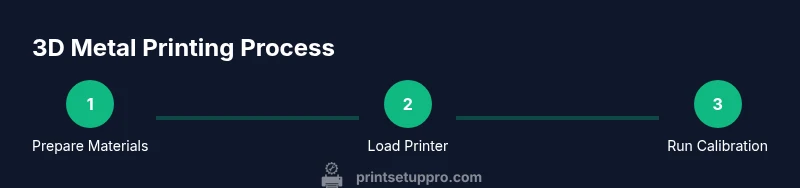
Unbox the printer in a clean, dust-free area and verify that all components are present. Install the printing chamber shielding and confirm the power and data connections. Power on and run the manufacturer’s initial calibration, then perform a secondary, independent check using calipers on a known reference part. Configure safety interlocks, door sensors, and ventilation alerts before loading any material. Finally, load a small test coupon to verify the build platform and powder bed boundaries are correctly positioned. This careful setup minimizes wasted material and reduces the likelihood of failed builds.
Slicing, Toolpaths, and Parameters for Metal Printing
Metal prints require specialized slicers or software that translate 3D models into machine-specific toolpaths. Set layer height for a balance of resolution and build time; finer layers yield smoother surfaces but take longer. Define laser or electron beam power, scan strategy, hatch distance, and exposure time per layer, always staying within the material’s recommended thermal window. Include support structures only where required, and plan for post-removal operations. Use consistent bed leveling and preheat where applicable to improve layer adhesion and reduce residual stress. Start with manufacturer-recommended presets and adjust gradually based on test results. This discipline helps you avoid costly failures and ensures repeatability.
Post-Processing: Cleaning, Finishing, and Quality Checks
Post-processing is essential for meeting spec and surface quality. Remove supports and excess powder in a controlled environment, then perform a thorough cleaning using approved solvents and tools. Heat treatment can relieve residual stresses, improve ductility, and harmonize mechanical properties to your target specifications. Inspect the part with calipers and a micrometer, checking critical dimensions against the CAD model. Document process parameters for future builds and consider nondestructive testing for critical components. Proper post-processing is a major factor in producing reliable, production-grade parts. Print Setup Pro emphasizes building a feedback loop from post-processing results back to material choice and printing parameters.
Troubleshooting Common Issues
When a print fails to meet expectations, systematically review powder quality, chamber cleanliness, and parameter settings. Common culprits include inconsistent powder flow, poor bed adhesion, and insufficient laser exposure. If warping occurs, verify build plate temperature and thermal gradients, then adjust hatch distance or exposure time. Layer delamination often points to insufficient energy input or powder clumps; sieve and dry powders to improve flow. Keep a detailed log of every failed print, noting alloy, particle size, moisture exposure, and ambient conditions. Print Setup Pro analysis shows that disciplined testing and parameter documentation reduce repeat failures over time.
Maintenance and Long-Term Care
Create a maintenance calendar that includes daily checks (filters cleared, enclosure seals intact), weekly cleaning (lint-free wiping of surfaces), and monthly calibration (alignment checks, door sensors, and chamber temperature validation). Replace worn seals, nozzles, and fans according to the manufacturer’s recommendations. Maintain an inventory of spare parts and ensure your software is up to date to prevent compatibility issues. Regular maintenance extends equipment life, keeps print quality steady, and minimizes unexpected downtime. The Print Setup Pro team recommends documenting maintenance cycles and keeping a visible checklist in your shop.
Authority Sources and Further Reading
- NIST on additive manufacturing and metal printing: https://www.nist.gov/topics/additive-manufacturing
- MIT overview of metal 3D printing and materials science: https://mit.edu
- Nature article series on advances in metal additive manufacturing: https://www.nature.com
Tools & Materials
- 3D metal printer(Ensure model supports your target metal alloys and has a sealed chamber.)
- Powder handling PPE kit(NIOSH-rated respirator, safety goggles, disposable coveralls.)
- Ventilation/ fume extractor(Industrial-grade unit with HEPA filtration recommended.)
- Metal powders (stainless steel, titanium, aluminum alloys)(Purchase from reputable suppliers; store per SDS.)
- Inert gas supply (argon/helium)(Useful for reducing oxidation in some processes.)
- Build platform and powder bed surface(Follow manufacturer specs for surface preparation.)
- Calipers and measurement tools(Precision to 0.01 mm where possible.)
- Slicing software or license(Compatibility with printer is essential.)
- Cleaning tools (brush, approved wipes)(For safe removal of residual powder.)
- Spare parts (nozzles, seals, seals)(Keep as backups to reduce downtime.)
Steps
Estimated time: 2-6 hours
- 1
Power on and initialize
Power on the printer and run the initial setup wizard. Confirm enclosure, sensors, and safety interlocks are active. Initialize the build plate position and verify software recognizes the machine.
Tip: Record the initial readings and any deviations from the expected values. - 2
Install safety gear and ventilation
Set up the fume extractor, ensure airflow is steady, and verify filtration is functioning. Put on PPE before interacting with any powders or hot components.
Tip: Test the airflow with a smoke test to confirm capture is effective. - 3
Load metal powder and pre-check handling
Pour the appropriate powder into a clean, labeled container. Confirm moisture content is within spec and pre-dry if required by the material.
Tip: Always handle powders in small amounts to minimize exposure. - 4
Calibrate axes and bed
Run the printer’s auto-calibration. Check bed level and ensure the build platform is clean and free of residues.
Tip: Use a calibration coupon or test part to verify alignment. - 5
Configure printing parameters
Set layer height, energy input (laser/E-beam), hatch pattern, and scan strategy according to the alloy guide.
Tip: Start with manufacturer-recommended presets and adjust in small increments. - 6
Run a test print
Print a small coupon or tower to verify parameter settings and adhesion. Observe the process for anomalies.
Tip: Watch for powder flow irregularities or unexpected vibrations. - 7
Inspect, post-process, and document
Carefully remove supports, clean the part, and perform any required heat treatment or finishing. Record outcomes and parameter adjustments.
Tip: Update your build notebook with alloy, layer height, and outcomes. - 8
Quality check and pass/fail criteria
Measure critical dimensions against CAD, assess surface finish, and run a quick non-destructive check if available.
Tip: If out of tolerance, adjust a single parameter and rerun a small test. - 9
Routine maintenance and safety review
Schedule regular maintenance and re-check safety systems. Review procedures with team members to keep safety top priority.
Tip: Create a simple weekly checklist to ensure consistency.
People Also Ask
What is a 3D metal printer and how does it differ from plastic 3D printers?
A 3D metal printer uses metal powders or wires and a high-energy source to fuse material, producing metal parts with greater strength and thermal properties. Plastic printers melt and fuse polymers at lower temperatures, typically offering faster but less durable parts.
A metal printer uses energy to fuse metal, giving you strong, heat-resistant parts—unlike plastic printers which work with softer polymers.
Can I run a metal 3D printer in a home workshop?
Yes, with appropriate safety measures: a dedicated well-ventilated space, proper PPE, and adherence to local regulations for metal powders and fumes.
Yes, but only with a dedicated, ventilated space and proper safety gear.
What materials are common for metal printing, and how do I choose?
Common alloys include stainless steel, titanium, and aluminum. Choose based on strength, weight, corrosion resistance, and post-processing feasibility for your application.
Choose stainless steel for strength, titanium for high performance, or aluminum for light weight, depending on what you need.
Is inert gas required for all metal printing processes?
Not for all setups, but many processes benefit from inert atmospheres or controlled gas flows to prevent oxidation or ignition of powders.
Some setups use inert gas to prevent oxidation, but not every metal printing process requires it.
What maintenance is essential to keep a metal printer reliable?
Regularly clean the chamber, replace worn seals, verify calibration, and update firmware/software. Keep spare parts on hand to minimize downtime.
Keep the printer clean, check calibrations often, and have spare parts ready to avoid long downtimes.
How long does a typical metal print take?
Print times vary with part size, layer height, and process; plan for several hours to days depending on the build.
It depends on size and settings; expect longer times than plastic prints for similar parts.
Watch Video
Quick Summary
- Plan material and process ahead to minimize waste
- Calibrate and test before production builds
- Maintain ventilation and PPE at all times
- Post-process parts for required performance and finish
- Document every parameter change for reproducibility