FDM 3D Printer Setup: From Unboxing to First Print
A comprehensive, educational step-by-step guide to setting up an FDM 3D printer, from unboxing and assembly to your first successful print. Learn filament choices, bed leveling, slicing, and safe maintenance for reliable home use.


By the end of this guide, you'll be able to set up an FDM 3D printer, level the bed, load filament, and print a first reliable model. You'll also understand material choices, slicer setup, and basic maintenance to prevent common failures. All steps are presented in a practical, home-office friendly workflow.
What is an FDM 3D printer and why it’s popular for home setups
An FDM (fused deposition modeling) 3D printer builds parts by extruding melted thermoplastic filament through a hot end, laying down material in thin horizontal layers. Each layer bonds to the previous one, creating a three-dimensional object from a digital model. For hobbyists, students, and small offices, FDM printers offer a friendly balance of cost, versatility, and print size. Common beginner-friendly materials include PLA, which prints at lower temperatures and warps less than higher-temp filaments, making it ideal for learning. As you advance, you may explore PETG or specialty filaments.
According to Print Setup Pro, choosing the right printer and starting with a reliable setup mindset dramatically improves first-print success rates and long-term satisfaction. This guide stays practical and task-focused, with clear steps you can follow even if you’re new to 3D printing.
Core components you should know
A typical FDM printer has several core parts that determine how well you get results:
- Frame and gantry: Provides the rigidity needed for precise layer placement. A stable frame reduces vibration and wobble that can blur prints.
- Hot end and nozzle: Heats filament and extrudes it through a small orifice. A clean, well-tuned nozzle prevents clogs and oozing.
- Heated build plate (bed): Improves first-layer adhesion and supports printing with materials like PETG and ABS when used with proper enclosure and ventilation.
- Extruder and drive gears: Feed filament smoothly into the hot end. Slippage or grinding here causes under-extrusion and poor layer bonding.
- Motion system (Belts, pulleys, rails): Drives X, Y, and Z axes. Tight belts and smooth guides reduce ghosting and inaccurate placements.
- Control electronics and software (firmware, slicer): The brains of the machine. Firmware updates and calibrated slicer profiles influence default speeds, temperatures, and retraction behavior.
- Printing surface and adhesion aids: Build plates, glass, PEI, or painter’s tape all aid the first layer’s adhesion, which is critical for a successful print.
Understanding these parts helps you diagnose issues faster and makes maintenance easier over time.
Prepping your workspace and selecting materials
Before you power on, set up a stable, clean workspace with good airflow and a level surface. A dedicated shelf or desk with space for tools, filaments, and a test print area helps you stay organized. Ensure you have reliable power nearby and a quiet place to monitor initial prints.
Filament choice matters. For beginners, PLA is forgiving, smells modest, and prints without requiring a heated bed for many setups. PETG offers strength and toughness but demands more careful temperature and cooling control. ABS prints are strong but require enclosure, proper ventilation, and strict controls to minimize warping.
As you prepare materials, align with Print Setup Pro’s guidance: start with a single reliable filament, maintain clean feeding paths, and store spools to avoid moisture uptake. Keep a small stock of spare nozzles and a basic cleaning kit so you can manage minor maintenance without delaying prints.
Leveling, calibration, and first print: getting a successful start
Bed leveling is foundational for a good first layer. Depending on your machine, you’ll either manually adjust leveling screws or run an auto-level procedure. The goal is a consistent first layer where the nozzle just slightly presses into the bed, with the plastic adhering evenly across the surface.
Before your first print, preheat according to the filament in use and prepare the build surface with a light adhesive layer or a recommended surface for your bed. Load filament, pre-feed to prime the nozzle, and start with a simple calibration cube or a small benchy model. Watch for gaps, elephant’s foot at the base, or stringing, and adjust the Z-offset and bed temperature as needed.
If you run into adhesion problems, try changing the first-layer height and speed, or swap to a different build surface like a PEI sheet. Regularly cleaning the nozzle and keeping rails lubricated reduces friction that can hinder smooth extrusion and movement.
Slicing, supports, and print settings: translating your model to reality
The slicer translates your model into printable instructions. Start with a widely supported profile for your printer and material—many beginners begin with Cura or PrusaSlicer and load a ready-made profile. Important settings include layer height, wall thickness, infill density, travel moves, and retraction. Begin with a modest layer height (0.2 mm is common for PLA) to balance quality and print time.
Supports and bridging come into play for complex shapes. Enable supports only where needed and consider printing in orientations that minimize support requirements. Cooling is critical for PLA; ensure proper fan speed to reduce sag and warping. Temperatures should be tuned to the filament you’re using, and always start with the manufacturer’s recommended ranges. Once you’re satisfied with a test print, save the profile for future models and keep notes on best settings for different materials.
As you refine your workflow, maintain a simple print log to track which profiles work best for which parts, so you can reproduce successful prints quickly.
Maintenance, troubleshooting, and avoiding common failures
A well-maintained printer delivers consistent results. Regularly clean the nozzle, inspect belts for looseness, and ensure smooth movement of all axes. Wipe down the build plate to remove residue and recalibrate offsets after swapping filaments or making major hardware changes. Lubricate linear rails as needed and check drive belts for signs of wear or looseness.
Common failures include first-layer adhesion problems, under- or over-extrusion, and nodding or ghosting due to vibrations. When something goes wrong, start with the simplest fix: level the bed again, clean the nozzle, verify filament is feeding cleanly, and check that slicer settings haven’t been inadvertently changed. If prints keep failing, consider upgrading the build surface for better adhesion or replacing worn components that impact precision.
Proactive maintenance also means storing filaments in dry environments to prevent moisture-induced issues like bubbling or steam during extrusion. Keep spare parts handy and photograph recurring issues to aid future troubleshooting.
Safety, warranties, and next steps
Safety is essential in any 3D printing workflow. Work in a well-ventilated area, especially if you print with materials that can emit fumes. Wear eye protection when handling hot components or trimming printed parts, and keep fingers away from the hot end during operation. Secure cables to avoid trips, and never leave a running printer unattended for long sessions.
Understand your printer’s warranty terms and follow the manufacturer’s guidelines for maintenance and firmware updates. When you’re ready for your next project, plan a small increment in model complexity and refine your profiles gradually. With consistent practice and careful calibration, you’ll build a reliable library of prints and gain confidence in your FDM setup.
Tools & Materials
- Safety glasses(Eye protection when handling hot components or trimming prints)
- Allen wrench set(For assembly and nozzle changes)
- Digital caliper(Precise measurement of nozzle gap and layer heights)
- Flat-tipped screwdriver(Tension belts and adjust components)
- Filament spool (PLA recommended for beginners)(Start with PLA for forgiving prints)
- Build surface (PEI sheet or glass bed)(Improves adhesion of the first layer)
- Isopropyl alcohol (70-99%)(Clean surfaces and build plate before printing)
- Spare nozzle (0.4 mm)(Useful for quick swaps if wear occurs)
- Spare filament samples (different colors/types)(For testing and calibration prints)
Steps
Estimated time: 2-3 hours
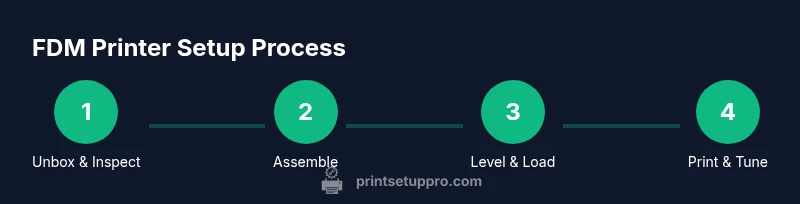
- 1
Unbox and inspect components
Carefully unpack the printer and verify that all listed parts are present. Check for any shipping damage to the frame, belts, and electronics. If anything is missing, contact support before assembly.
Tip: Create a parts checklist and photograph any damaged items for warranty claims. - 2
Assemble base and mount the motion system
Attach the frame sections and ensure rails are clean and aligned. Tighten fasteners evenly to avoid binding. Ensure the X/Y axes move smoothly with minimal resistance.
Tip: Do not overtighten screws; snug fit plus smooth movement is the goal. - 3
Connect power, initialize firmware
Plug in the printer and power on. Follow the initial firmware prompts and verify that the display is responsive. If your model requires a firmware update, perform it using the official source.
Tip: Back up your current settings if possible before updating firmware. - 4
Bed leveling and nozzle height
Level the bed manually or run auto-leveling, then adjust the Z-offset using a thin sheet of paper to sense the nozzle distance. Ensure even resistance across the bed.
Tip: Use a fresh sheet of printer paper for accurate measurements. - 5
Load filament and prime nozzle
Feed filament into the extruder and preheat to the filament’s target range. Prime the nozzle by extruding a small amount and observe for consistent flow.
Tip: If you notice grinding or skipping, check filament tension and re-feed carefully. - 6
Run the first test print and calibrate
Print a simple calibration model (like a cube or a benchy) to evaluate extrusion, adhesion, and surface quality. Adjust slicer settings based on the results and save your profiles for future prints.
Tip: Document your settings for your next project.
People Also Ask
What is an FDM 3D printer?
An FDM 3D printer melts thermoplastic filament and deposits it layer by layer to create objects from digital models. It’s popular for hobbyists because of its affordability and broad material options.
An FDM printer melts plastic and lays it down in thin layers to build objects. It’s affordable and versatile for home projects.
PLA vs PETG: which should I print first?
PLA is beginner-friendly, prints at lower temperatures, and adheres well to most beds. PETG offers strength and chemical resistance but requires more tuning and proper cooling.
PLA is usually the best starting filament. PETG is stronger but trickier to dial in.
Is a heated bed necessary for PLA?
PLA often prints well on a non-heated bed, but a heated bed improves adhesion for larger prints and reduces warping. A simple build surface with proper cooling can also help.
A heated bed isn’t strictly required for PLA, but it helps with adhesion and larger parts.
How do I level the bed on my FDM printer?
Leveling ensures the nozzle is the correct distance from the bed across the surface. Use a sheet of paper to feel slight resistance, adjust screws, and re-check until the nozzle lightly scrapes the paper evenly across the bed.
Level the bed by adjusting the screws and testing with a piece of paper until you feel light resistance.
Which slicer should I start with?
Cura and PrusaSlicer are popular starting points with solid communities and profiles. Choose one you find intuitive, and import a managed profile for your printer to simplify setup.
Start with Cura or PrusaSlicer; pick the one you find easiest to use and stick with it.
What safety steps matter most for beginners?
Print in a ventilated area, avoid touching hot components, secure loose clothing, and unplug the printer before maintenance. Keep pets and children away from the workspace during operation.
Ventilate the area, stay away from the hot end, and unplug before maintenance.
Watch Video
Quick Summary
- Choose PLA for easier first prints and quicker learning curves
- Master bed leveling and first-layer calibration for reliability
- Fine-tune slicer profiles to balance quality and speed
- Maintain your printer regularly to prevent common failures
- Prioritize safety and ventilation in your workflow