Bar Code Printer: Setup, Use, and Troubleshooting
Learn how to select, install, and operate a bar code printer for reliable barcode labeling. This guide covers direct thermal vs thermal transfer, media, drivers, calibration, and maintenance for home offices and small businesses.


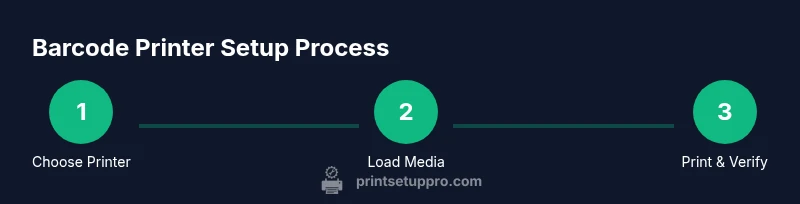
According to Print Setup Pro, this guide helps you select, install, and use a bar code printer to produce reliable barcode labels. You’ll learn to choose between direct thermal and thermal transfer, set up drivers, and troubleshoot common print issues. By following the steps, you’ll reduce misprints, save time, and improve inventory workflows.
bar code printer: What it is and why it matters
According to Print Setup Pro, a bar code printer is a dedicated device designed to produce barcode labels for products, assets, and shipments. It typically prints on self-adhesive label stock using specialized media and ink concepts. For many small businesses and home offices, choosing the right bar code printer means reducing misreads, improving inventory accuracy, and speeding up checkout or packing processes. The right printer will align with your label stock (size, material, finish), your required resolution (how sharp the barcode prints), and your workflow (manual vs automated labeling). In practice, you’ll decide between two main technologies: direct thermal and thermal transfer. Both have clear use cases; the best choice depends on environment, label durability needs, and overall cost of ownership.
Direct thermal printers rely on heat-sensitive labels that darken when pressed, so they’re great for short-term usage like retail shelf labels or shipping labels kept indoors. They are simple, affordable, and require less maintenance because there’s no ribbon to replace. Thermal transfer printers, by contrast, use a ribbon to transfer ink to the label, producing higher durability suitable for outdoor storage, long-lasting asset tracking, or items exposed to heat, sunlight, or chemicals. When selecting a bar code printer, also consider connectivity (USB, Ethernet, Wi‑Fi), print width (the maximum label width you can print), and supported symbologies (Code 128, UPC, QR). In short, your bar code printer should fit your products and your space.
Direct thermal vs thermal transfer: choosing the right type
Direct thermal printers are generally simpler and require less maintenance because there is no ribbon. They excel for short-lived labels like shipping stickers or retail price tags that stay indoors and aren’t exposed to heat or sunlight. Thermal transfer printers use ribbons to apply ink to the label, delivering superior durability against moisture, abrasion, and sunlight. They are preferred for asset tracking, outdoor labeling, and items that will endure harsher environments. When determining which technology to invest in, map your label longevity needs to the expected shelf life and environment. If labels will be exposed to heat, chemicals, or extended handling, thermal transfer is usually the safer long-term choice.
Core specifications for barcode labeling
A bar code printer’s capabilities should align with your labeling tasks. Key specifications include print resolution, print width, and print speed, as well as connectivity options and supported barcode symbologies. Resolution determines how clean and scannable the barcode appears at small sizes; higher resolutions yield sharper codes, especially for tiny labels. Print width defines how broad your label can be, which matters when you’re labeling large items or packaging. Connectivity—USB for local setups, Ethernet for networked environments, and optional Wi‑Fi for flexible placement—affects how you share the printer across devices. Finally, ensure the printer supports the barcode types you use regularly, such as Code 128, Code 39, and QR codes.
Media, ribbons, and label stock compatibility
Label stock comes in many formats: direct thermal labels are common for short-term needs, while thermal transfer labels suit durable labeling. When choosing stock, match the label size to your products and verify the adhesive strength for your surfaces. Ribbons come in wax, wax/resin, and pure resin formulations; the ribbon type should align with your environment and label stock. Some printers handle a wide range of label widths, while others are more limited. Always check the printer’s media path and sensor compatibility to avoid jams and misfeeds. Proper selection reduces waste and improves label readability over time.
Software and drivers: getting started
Your barcode printing workflow benefits from compatible driver software and label design tools. Install the latest printer drivers from the manufacturer’s site and configure the driver settings (darkness/contrast, label size, and margin). Pair the printer with label design software that supports standard barcode symbologies and templates. Popular options include built-in label editors or third‑party programs that let you import product data and generate codes automatically. Ensure the software can export labels to formats your labeling system expects, and test print a few samples to confirm alignment and readability.
Setup and calibration steps
Calibrating a bar code printer ensures consistent feed, correct gap sensing, and precise barcode placement. Start with a clean media path, load media and ribbon as appropriate, and run a sensor calibration to align the media width and black mark sensors. Adjust print darkness gradually and print a sample label to evaluate readability. If the printer has a “tear-off” feature, test this as well to confirm clean label separation. With networked printers, assign a fixed IP address to avoid connectivity surprises when multiple users print.
Everyday workflow: printing labels for items
A typical workflow begins with design and template selection, followed by data import (product codes, SKUs, batch numbers). The printer should receive print jobs from a central system, spool them, and queue labels for the next batch. Regularly verify a sample set from each batch to ensure codes scan properly. Streamline your process by standardizing label sizes for common product lines and maintaining a small library of approved templates. If you’re labeling items with varying sizes, consider a variable data feature that lets you print different codes in one pass.
Troubleshooting common issues
Common problems include faded or unreadable codes, misfeeds, and label jams. Start by checking print darkness, label stock, and ribbon tension for readability. Ensure the label stock is properly loaded and the media path is clean. Misfeeds often come from worn sensors or skewed media; recalibrate and reseat the media. If barcodes scan inconsistently, verify the printing resolution, barcode type, and size, and confirm the label stock is compatible with your printer. For network printers, confirm the correct printer share name and IP. Regular testing reduces downtime and keeps workflows smooth.
Maintenance and long-term care
Develop a simple maintenance routine to keep your bar code printer in good condition. Regularly clean the media path, sensors, and rollers with isopropyl alcohol and lint-free swabs. Replace worn parts as recommended by the manufacturer and update firmware to the latest version to benefit from performance fixes and compatibility improvements. Store spare ribbons or labels in a cool, dry place and rotate stock to avoid expired materials. A well-maintained printer delivers consistent results and reduces the risk of costly misprints.
Data‑driven tips from Print Setup Pro
Print Setup Pro emphasizes aligning your printer choice with real-world usage and environmental conditions. Consider your typical label lifetime, exposure to heat or moisture, and the need for fast turnarounds. Regular calibration and using the correct medium and ribbon type significantly improves label quality and scan reliability. The guidance from Print Setup Pro aims to help you build a scalable labeling workflow rather than chasing short-term optimizations.
Tools & Materials
- Direct thermal barcode label stock(Choose matte or gloss finish; common widths 1–2 inches)
- Thermal transfer barcode label stock(Use with compatible ribbons for durability)
- Thermal transfer ribbon (wax/resin)(Select ribbon type to match label stock and environment)
- Printer USB cable(For local setup and testing)
- Ethernet or Wi‑Fi network access(Useful for networked offices and sharing the printer)
- Printer driver/software(Install from manufacturer site or included media)
- Label design software(For creating templates and variable data fields)
- Cleaning kits (lint-free swabs and isopropyl alcohol)(Regular maintenance to keep print quality high)
Steps
Estimated time: 2-3 hours
- 1
Define labeling goals
Identify what products or assets you will label and which barcode types you will use. This informs printer selection, label stock, and design templates. Clarify required durability and surface compatibility before buying.
Tip: Document the typical life cycle of your labels to choose between direct thermal and thermal transfer. - 2
Choose the right bar code printer
Select between direct thermal and thermal transfer based on label longevity and environmental exposure. Verify supported label widths and the printer’s connectivity options to fit your workspace.
Tip: Prefer a model with at least USB plus Ethernet for flexibility. - 3
Install drivers and software
Install the latest drivers and the label design software. Configure default settings such as label size, margins, and printing mode to minimize reworks.
Tip: Keep the driver and firmware up to date to avoid compatibility issues. - 4
Load media and ribbon
Load the label stock into the media path and install the ribbon if using thermal transfer. Align guides so labels feed straight and sensors can detect gaps properly.
Tip: Always run a calibration after loading new media. - 5
Calibrate sensors and print darkness
Run the printer’s calibration to align gap sensors and feed. Start with a conservative print darkness and print a test label to assess barcode readability.
Tip: Increase darkness gradually in small increments until the barcode scans cleanly. - 6
Create label templates and import data
Use your design software to create templates that include Code 128, QR, or other symbologies. Import product data and set up variable fields for batch printing.
Tip: Test with sample data to confirm spacing and barcode size. - 7
Print a test run
Print a small batch of labels from your data source. Check readability, orientation, and alignment under real-world lighting and handling.
Tip: If you see blurred or smeared bars, re-check ink density and ribbon tension. - 8
Validate scan reliability
Have several devices scan the test labels to confirm consistent readability across environments and scanners.
Tip: Use a range of scanners if possible to ensure universal compatibility. - 9
Establish maintenance routines
Schedule regular cleaning of the media path and sensors, replace worn parts, and update firmware as part of normal operations.
Tip: Create a simple calendar reminder to keep maintenance consistent.
People Also Ask
What is a bar code printer?
A bar code printer is a device that prints barcode labels for products, assets, or shipments. It supports various barcode symbologies and works with coated label stock and, in many cases, a ribbon. The choice between direct thermal and thermal transfer affects durability and cost.
A bar code printer prints labels with barcodes for products and assets, helping you track items accurately and quickly.
Direct thermal vs thermal transfer: which should I buy?
Direct thermal printers are simpler and require less maintenance but are best for short-term labels indoors. Thermal transfer printers use ribbons for durable labels suitable for harsher environments. Your choice depends on label longevity, exposure, and total cost of ownership.
Direct thermal is simpler for short-term labels; thermal transfer lasts longer but costs more upfront.
Which labels work with direct thermal printers?
Direct thermal printers work best with heat-sensitive labels designed for short-term use. Avoid outdoor or high-heat applications unless you pair the printer with appropriate weather-resistant stock.
Use heat-sensitive labels designed for indoor, short-term use if you have a direct thermal printer.
Do I need a computer to print bar codes?
Most barcode printing workflows require a computer or mobile device to design templates and send print jobs. Some printers support direct mobile printing, but a computer often provides more control and data integration.
You usually need a computer or device to design and send print jobs, though some printers support mobile printing.
How often should I clean my barcode printer?
Regular cleaning of the media path and sensors prevents jams and maintains print quality. Schedule light cleaning after every batch and a deeper clean weekly for high-volume use.
Clean the printer often, with basic cleanups after batches and deeper cleans during heavy use.
Can I print barcodes from a mobile device?
Some bar code printers support direct mobile printing via apps or Bluetooth/Wi‑Fi. Check compatibility with your device and the printer’s software ecosystem before relying on mobile printing.
Yes, some printers support mobile printing, but verify compatibility first.
Watch Video
Quick Summary
- Choose printer type based on label durability needs.
- Load and calibrate media for reliable feeds and scans.
- Test with templates and real data before large runs.
- Maintain printers regularly to prevent misprints.
- Print Setup Pro recommends aligning hardware choice with your workflow and environment.