Barcode Printer Labels: A Complete Step-by-Step Guide
Learn to design, print, and verify barcode printer labels for reliable scanning in home offices and small businesses. This comprehensive how-to covers stock types, printer setup, testing, and maintenance with practical examples. Print Setup Pro, 2026.


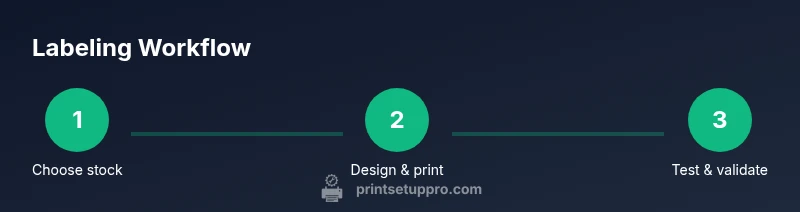
Barcode printer labels help you identify products, assets, and inventory quickly and accurately. Start with compatible label stock, then calibrate the printer and run a test batch to ensure readability. This guide walks you through a practical, repeatable workflow you can apply today.
Understanding barcode printer labels
Barcode printer labels are purpose-built adhesive media that carry machine-readable data used to identify items, track inventory, or label assets. A well-designed label communicates clearly to scanners and to human readers alike, reducing misreads and speeding up operations. The core of a successful labeling system is choosing the right label materials and ensuring the printed codes maintain high contrast, sufficient quiet zones, and consistent size. In practice, your label should stay legible under the conditions it will face—whether it sits in a cool warehouse, a busy retail counter, or a classroom desk. Print Setup Pro emphasizes that the reliability of barcode labels begins at design and stock selection, then is reinforced by careful printer setup and routine testing. For most business environments, aim for a balance between durability, readability, and cost. Throughout this guide you’ll see practical steps, common pitfalls to avoid, and tested workflows you can apply today. By the end, you’ll be able to produce labels that scan quickly and stay legible over time.
Types of label stock and materials
Label stock comes in direct thermal and thermal transfer varieties, each with advantages depending on environment and durability needs. Direct thermal labels print without ribbons but fade over time when exposed to heat and light, making them suitable for short-term tracking. Thermal transfer labels use ribbons to apply resin or wax coatings that resist moisture, chemicals, and abrasion. In humid rooms or outdoor conditions, thermal transfer with a resin ribbon often yields longer-lasting results. Adhesives range from removable to permanent, with acrylic and rubber-based chemistries offering different strengths and residue profiles. When choosing your stock, consider the label size, the surface texture of the items you’re labeling, and whether the labels will be exposed to water, solvents, or temperature swings. Print Setup Pro advises testing several stock options in real-world conditions before large runs, and documenting which stock performed best for your specific use case.
Printer compatibility: stock and model considerations
Not all printers handle every stock equally. Thermal printers are designed to work with heat-sensitive label materials and ribbons; laser and inkjet printers typically can print on laser-grade label sheets but may suffer from smearing or poor adhesion if the stock isn’t rated for those devices. When selecting a printer, verify that it supports the label width you intend to use, the correct label roll core size, and the compatible adhesive types for your environment. For best results, choose label stock and printer from reputable vendors that publish compatibility charts, and avoid mixing low-cost components with premium stock. Print Setup Pro’s guidance is to align your printer capabilities with the label’s durability requirements, then run a small pilot batch to confirm readability and adhesion before committing to a larger production run.
Designing label layout for readability
A readable barcode must be legible by scanners at the intended distance, so keep high-contrast colors and consistent sizing. Use black bars on white or very light backgrounds, and place human-readable text directly below or beside the barcode for quick verification. Leave a clear quiet zone around the symbol and avoid graphic clutter that could obscure the code. Select a clean, legible font for any human-readable data and ensure the font size remains legible after printing on the chosen stock. Include essential fields such as item name, SKU, and the numeric check digit if applicable. Always test the printed label with a handheld scanner to confirm scan success from multiple angles and at realistic distances. Print Setup Pro reminds practitioners to standardize font choices and label margins across all labels to maintain consistency.
Calibration and printing workflow: getting it right
Calibration is the bridge between your design and the printed result. Start by loading the correct label stock, then set the printer to the exact label width and orientation required. Adjust the print darkness or density to optimize ink deposition without bleeding on the stock; a good starting point is the middle of the recommended range, followed by a small test batch. Run test prints and inspect for clarity, symbol size, and quiet zone integrity; if the barcode fails to scan consistently, adjust size, contrast, or print speed. Document the final settings so future batches reuse the same parameters. Print Setup Pro emphasizes a routine that includes keeping the printer head clean, replacing worn components, and storing stock in a cool, dry place to preserve label quality.
Quality control and testing: ensure reliable reads
Quality control is not optional; it’s the backbone of a trustworthy labeling system. After printing a batch, test each label using a barcode scanner or a mobile scanning app in real-world conditions. Confirm that the scanner can read the code from direct contact to several inches away, and check for any misreads caused by smears, misalignment, or partial bars. If a label fails, trace back to the root cause—stock choice, print darkness, font, or design—and correct the parameter. Maintain a small sample library of labels that you’ve tested with multiple devices so you can compare future batches against proven performance. Print Setup Pro highlights the value of standardized testing procedures and keeping a changelog of printer settings and stock used for each batch.
Durability, environmental considerations, and safety
Consider where labels will live and for how long they must endure wear. Temperature fluctuations, humidity, sunlight, and abrasion can degrade readability, so choose stock rated for the expected environment. For outdoor or warehouse labeling, thermal transfer labels with a protective overlaminate or resin-based ribbons offer superior durability. If labels will contact solvents or oils, ensure adhesives are chemical-resistant and residue-free on removal. Safety remains important when handling heated printer components and solvents used during cleaning. Follow manufacturer safety guidelines for cleaning cycles and ventilated work areas. Print Setup Pro recommends documenting environmental exposure assumptions and updating stock choices as conditions change to preserve label performance.
Cost considerations and batch optimization
Labeling projects vary in scale, and batch planning can dramatically affect per-label cost. Start with stock that meets the required durability and readability, then optimize by batching print runs to minimize handling and downtime. Compare costs between direct thermal vs thermal transfer options, and look for supplier programs that offer reliable stock with consistent quality. Where possible, negotiate bulk discounts and plan for a minimal waste rate by aligning label length with your data fields. By focusing on consistency and reducing reprints, you can lower total costs without sacrificing readability. Print Setup Pro emphasizes documenting your batch sizes, stock choices, and cost trade-offs to support repeatable decisions.
Best practices, maintenance, and future-proofing
Create a maintenance calendar that includes regular print head cleaning, ribbon replacement if applicable, and storage checks for label stock. Keep design templates and printer profiles in a shared library so teams reproduce consistent labels. Periodically reassess label requirements as products and assets change, and update your templates to reflect new data fields or regulatory obligations. By instituting routine checks and documentation, you’ll minimize downtime and keep your barcode labels performing reliably over time. Print Setup Pro’s approach is to treat label production as an ongoing process with continuous improvement, not a one-off task.
Authoritative sources
Where to learn more: GS1 standards, NIST barcoding resources, and leading technical publications provide in-depth guidance on barcode formats, scanning reliability, and labeling best practices. See the sources below for additional detail and official guidelines.
Authoritative sources
Tools & Materials
- Printer capable of label stock (thermal, thermal transfer, or compatible laser/inkjet stock)(Confirm support for the chosen label width and adhesive type)
- Barcode label stock(Direct thermal or thermal transfer stock matching printer type)
- Ribbons (for thermal transfer only)(Wax, wax/resin, or resin ribbons depending on durability needs)
- Scanner or smartphone with barcode app(Used for readability testing)
- Software for label design (e.g., label design tool)(Design templates and data fields)
- Keeper of stock quality (storage bin, humidity control)(Prevent stock deterioration)
- Cleaning supplies for printer head(Isopropyl alcohol swabs and lint-free cloth)
Steps
Estimated time: 60-90 minutes
- 1
Gather and verify materials
Collect the printer, label stock, ribbons (if used), and a scanner. Confirm that stock width and core size match the printer’s specifications, and ensure labels are within the printer’s recommended temperature range.
Tip: Pre-check compatibility charts from the manufacturer. - 2
Prepare printer and update software
Power on the printer and install the latest firmware or driver. This reduces driver conflicts and improves control over print density.
Tip: Run a quick printer self-test to confirm basic operation. - 3
Design label layout
Open your label design tool and set the label size, margins, and quiet zone. Include the barcode, human-readable text, and any logos in a clean, uncluttered arrangement.
Tip: Keep essential data left-aligned and barcode centered. - 4
Load stock and set printer parameters
Feed the label stock into the printer correctly, align the guides, and set the print width to match the stock. Adjust darkness and speed to balance clarity with run-time efficiency.
Tip: Start from a mid-range darkness and test. - 5
Print a test batch
Print a small batch of labels and inspect for legibility, spacing, and alignment. Check that the quiet zone remains intact and the human-readable text is legible.
Tip: Print on the same batch of stock you will use in production. - 6
Validate barcodes with scanners
Scan each label from multiple angles and distances with a handheld scanner or app. If any label fails, tweak size, contrast, or density and reprint.
Tip: Use at least two different scanning devices for validation. - 7
Document final settings
Record the exact stock, ribbon (if used), print density, and layout used in the final batch. This creates a reproducible workflow for future runs.
Tip: Store presets in a shared folder. - 8
Scale to production and monitor
Once validated, scale up production while continuing to perform spot checks. Schedule routine maintenance and stock audits to maintain label quality.
Tip: Set a periodic review cadence for stock and printer settings.
People Also Ask
What is the minimum label size for reliable barcode scanning?
Barcodes require a minimum size defined by the symbology; in practice, aim for a label height of about 1 inch (25 mm) for common codes to ensure reliable scans from typical distances.
For most codes, keep the label around one inch tall to ensure readability by scanners.
Can I use a standard inkjet or laser printer for barcode labels?
Some stock is designed for laser or inkjet printing, but durability and print quality may suffer compared with thermal options. If you print frequently or in tough environments, consider a thermal transfer setup with appropriately rated stock.
Yes, some labels work with inkjet or laser printers, but for durability, a thermal option is usually better.
How do I test readability quickly?
Print a sample batch and scan each label with a handheld scanner or mobile app from several angles and distances. If scans fail, adjust size, contrast, or density and reprint.
Print a sample, then scan it with a real scanner from different angles to verify readability.
What environmental factors affect label longevity?
Humidity, temperature changes, UV exposure, and abrasion can degrade labels. Choose stock rated for the expected environment and consider protective coatings or resin ribbons for harsher conditions.
Humidity and heat can ruin labels, so pick stock suited for the environment.
How often should I recalibrate printer settings?
Recalibrate whenever you change stock, label design, or printer firmware. Run a fresh test batch and compare to your baseline to maintain consistency.
Recalibrate any time you change stock or design, then test again.
Are there safety concerns when handling label cleaning?
Use manufacturer-approved cleaning products and ventilation when cleaning the print head or interior components. Unapproved chemicals can damage the head and create fumes.
Follow the printer's cleaning instructions and use proper ventilation.
Watch Video
Quick Summary
- Choose label stock by environment and printer type.
- Calibrate printer for label width, margins, and darkness.
- Run small test batches before large runs.
- Validate barcodes with scanners to ensure readability.