Portable Label Printer: A Complete How-To Guide for 2026
Learn how to choose, setup, and use a portable label printer for home offices, classrooms, and small businesses. This step-by-step guide covers features, stock options, connectivity, and troubleshooting to keep your labeling workflow smooth.


A portable label printer lets you print labels on demand from almost any location—desk, cart, or on the go—without a full-sized device. You can create custom labels for storage, inventory, and organization wherever you work, using battery power or USB. This guide walks you through setup, connectivity options, label stock choices, and practical labeling workflows.
What is a portable label printer?
A portable label printer is a compact, battery-powered or USB-powered device designed to print adhesive labels from a small footprint. Unlike desktop label printers, these models are designed to travel with you and typically connect via Bluetooth or USB-C to smartphones, tablets, or laptops. For home offices, classrooms, and small businesses, a portable label printer enables on-demand labeling for inventory, cables, folders, and storage bins. The key benefit is speed and convenience: you can print a label exactly when and where you need it, reducing mislabeling and lost items. When evaluating options, consider print width, print resolution, label stock compatibility, and battery life to ensure the device fits your typical workflow and label sizes.
Why portability matters for labeling
Portability matters because many labeling tasks occur outside a fixed workstation. For example, warehouse staff may label pallets on a loading dock, teachers might label classroom supplies, and DIY enthusiasts may organize craft supplies in a workshop. A portable printer reduces trips to a centralized equipment rack and minimizes the risk of labeling mistakes when items are moved between spaces. The ability to share a single device across teams is another practical advantage in a small business setting. In all cases, battery life, reliability, and ease of connection are the deciding factors.
Core features that matter for portability
When shopping for a portable label printer, focus on features that directly impact mobile use:
- Battery life and charging options: Look for models that last through a full labeling session and offer USB-C charging or swappable batteries.
- Weight and size: Lighter devices with a compact footprint are easier to carry in a bag or tote.
- Connectivity: Bluetooth is essential for mobile devices; USB-C is useful for direct laptop connections.
- Print width and speed: A wider print width supports larger labels; faster print speeds reduce wait times for batches.
- Label stock compatibility: Ensure the printer supports the label types and sizes you use most (direct thermal vs thermal transfer).
- Durability: A rugged outer shell and protective cases help when labeling in busy environments.
- Software and templates: Easy-to-use apps and templates speed up label design and reduce errors.
Balancing these factors against your typical tasks helps you select a device that feels natural in daily use and minimizes downtime between labels.
Label stock options: choosing the right labels for portable printing
Label stock matters as much as the printer itself. Direct thermal labels are common in portable printers because they don’t require ink or ribbons, which simplifies maintenance in field conditions. If you need longer-lasting labels or needs that require color or non-thermal materials, consider thermal transfer labels with a compatible ribbon. Common sizes range from 1
to 2
depending on the model. Adhesives vary by surface: remnant materials, fabrics, metal, and rough plastics each require different bonding strengths. Always verify printer compatibility with your preferred stock in terms of width, thickness, and core size. Keeping a small stock of multiple sizes can be invaluable for last-minute labeling tasks.
Setting up your portable label printer: unboxing, charging, and account setup
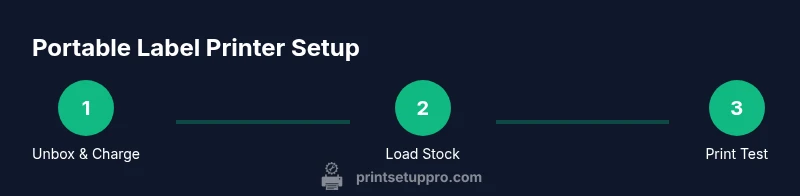
Unboxing should start with a quick inspection of accessories: included labels, charging cable, and documentation. Fully charge the device before heavy use to calibrate the battery indicator. Install the manufacturer’s or developer’s app on your mobile device or computer, then pair the printer via Bluetooth or connect via USB-C. Some printers require a firmware update; if prompted, perform the update to ensure compatibility with latest label templates and fonts. Sign in or create an account to sync templates and settings across devices, which saves time across multiple labeling tasks.
Printing templates and label design: getting the layout right
Most portable label printers support templates, fonts, barcodes, and simple images. Start with a few core templates for common tasks (inventory tags, file labels, cables, and bins). Use high-contrast text and simple fonts to improve scannability. When adding barcodes or QR codes, verify the density and quiet zones to prevent scanning errors. Keep margins tight but avoid label edge bleed. If your workflow includes color labels, ensure your model supports color printing or uses color-coded icons within the template. Save frequently used layouts for quick access during busy labeling sessions.
Maintenance and care: keeping your portable printer reliable
Regular maintenance extends print head life and maintains print quality. Clean the print head and rollers with approved cleaning swabs after several hours of use or if print quality dips. Store labels in a cool, dry place and avoid exposing the device to extreme temperatures. If you plan to store the device for an extended period, ensure the battery is not fully drained and perform a top-up charge before storage. Periodically check for firmware updates and app compatibility to prevent unexpected glitches during peak labeling times.
Troubleshooting common issues: quick fixes for smooth printing
Common issues include faded prints, misalignment, or connection drops. For faded labels, verify label stock compatibility and clean the print head. Misalignment can be caused by a faulty feed or calibration error; re-calibrate by feeding a test label through the print path. If Bluetooth pairing fails, forget the device in the app and re-pair, ensuring both devices are on compatible versions. If the device won’t print, check that the internal battery isn’t exhausted and that the label stock is loaded correctly with the correct orientation. When in doubt, run a factory reset and reconfigure from scratch to clear software glitches.
Real-world use cases: practical scenarios that showcase portable printing in action
In a home office, a portable label printer can organize cables, shelves, and files without a bulky printer. In classrooms, teachers label student materials and equipment before activities, reducing misplacement and loss. Small businesses can label products on the shop floor or at a counter, improving inventory accuracy and customer service. Across all scenarios, the key is to map your tasks to label formats, stock choices, and connectivity options, then standardize templates to speed up recurrent labeling jobs.
Tools & Materials
- Portable label printer(Choose model with Bluetooth and USB-C, 1)
- Label stock (direct thermal compatible)(Assure width matches printer's max (e.g., 1)
- Label stock, compatible clear label tapes(Keep extra stock for rapid labeling; check adhesive and surface compatibility)
- Rechargeable battery or USB-C charger(Ensure you have a spare or high-capacity battery for longer sessions)
- Smartphone, tablet, or laptop(Used for design and sending print jobs via the printer app)
- USB-C cable(Useful for wired setup or charging from a power bank)
- Cleaning supplies (soft cloth, alcohol wipes)(For routine maintenance and print head cleaning)
Steps
Estimated time: 45-60 minutes
- 1
Unbox and charge
Remove the printer and accessories from the box. Connect the charger and let the battery reach a healthy charge before first use. This ensures accurate calibration and reliable prints from the start.
Tip: Use the official charger or a compatible USB-C power source to avoid reduced battery performance. - 2
Load label stock
Open the feed and load the correct label stock. Align the edge with the feed roller and ensure labels feed smoothly without wrinkles. Close the feed and run a blank test label to confirm alignment.
Tip: Avoid overstacking; use a single roll with the same label width to prevent feed jams. - 3
Install and open the app
Install the printer’s companion app on your mobile device or computer. Sign in if required and pair the device via Bluetooth or USB-C. Check for a firmware update and apply it if prompted.
Tip: Enable auto-updates for templates and fonts to keep your workflows current. - 4
Create your first template
Use the app to create a basic label template with your most-used elements (text, a barcode, and a simple logo). Save it as a reusable layout for quick tasks.
Tip: Keep fonts large and high-contrast for legibility in varied lighting. - 5
Print a test label
Send a test label to verify print quality, alignment, and adhesive compatibility. Adjust margins or density if needed and re-test until satisfied.
Tip: Test on the intended surface; some stocks may need a slightly different density. - 6
Design a real label task
Create a label for a real item (e.g., a storage bin or file folder) using your template. Include essential details such as item name, date, and any codes.
Tip: Limit the amount of text to fit legibly on the label width. - 7
Print, apply, and review
Print the required quantity, apply the labels, and inspect for alignment and adhesion. If necessary, reprint with minor adjustments to ensure consistency.
Tip: Keep a small reference sheet with your most-used templates for faster workflows. - 8
Maintenance and storage
After printing, power down, wipe the print head if needed, and store the device in a protective case. Charge the battery when not in use to prolong life.
Tip: Document any recurring issues and consult support resources if problems persist.
People Also Ask
What is a portable label printer and when should I use one?
A portable label printer is a compact device designed to print adhesive labels outside a traditional desk setup. It’s ideal for on-site organization, inventory labeling, and quick repairs where space is limited or mobility is required.
A portable label printer is a small, travel-friendly device for printing labels anywhere. It’s great for on-site organizing or quick inventory tasks.
How long does the battery typically last on a portable label printer?
Battery life varies by model and usage, but you can expect several label-printing sessions per charge under normal office tasks. Carry a charger or spare battery for longer labeling sessions.
Battery life depends on model and usage, but you’ll typically get multiple labeling sessions per charge. Bring a charger for long days.
What label stock should I choose for direct thermal printers?
Direct thermal printers work best with heat-sensitive, no-ribbon labels. Choose stock that matches width, thickness, and adhesive for your surface, and verify compatibility with your printer’s specifications.
Direct thermal needs heat-sensitive labels. Pick the right width and adhesive for your surface and ensure the stock works with your printer.
Can I print from a mobile device to a portable label printer?
Yes. Most portable printers connect via Bluetooth or a USB-C adapter to smartphones or tablets, enabling label creation directly from mobile apps.
Absolutely. Use Bluetooth or USB-C to print from your phone or tablet with the vendor app.
What maintenance tasks are essential for reliability?
Regularly clean the print head and feed rollers, update firmware, and store labels in a cool place. Inspect connections if you notice print quality drops.
Clean the print head and rollers, keep firmware updated, and store labels properly to stay reliable.
Are there any safety considerations when using portable printers?
Avoid operating near liquids or in high humidity. Use approved chargers and avoid disassembly of internal components to prevent electrical hazards.
Keep the device away from liquids, use approved chargers, and don’t open the device unless you’re trained.
Watch Video
Quick Summary
- Choose portability first: weight, size, and battery life.
- Match label stock to your printer’s compatibility.
- Use templates to speed up recurring labeling tasks.
- Maintain the device to extend life and reliability.