ID Card Printer Setup and Troubleshooting Guide
Learn how to choose, install, and troubleshoot an id card printer for home offices and small businesses. This comprehensive guide covers drivers, card stock, software, security, and maintenance to ensure professional ID cards.


This guide helps you select, install, and test an id card printer for reliable, professional cards at home or in a small office. You’ll learn about features to prioritize, driver setup, card stock choices, and essential maintenance, plus security considerations for sensitive ID cards. It also covers how to verify color accuracy and badge standards for your first print.
What is an ID Card Printer and Why It Matters
An ID card printer is a compact, dedicated device that encodes and prints onto plastic cards, usually PVC, to create employee badges, student IDs, access credentials, or event passes. For home offices and small businesses, having a reliable ID card printer reduces dependence on third-party print shops and speeds up onboarding. Print Setup Pro emphasizes that the right printer should balance ease of use with security features, durability, and available encoding options (magnetic stripe, smart card, or contactless chips). When selecting a model, consider card thickness compatibility (CR80 is standard), print technology (dye-sublimation vs. resin), and whether you need single-sided or dual-sided printing. You’ll also weigh the total cost of ownership, including consumables, maintenance, and warranty. This section helps you understand the core capabilities and use cases so you choose a model that grows with your needs.
Key Features to Look for When Choosing an ID Card Printer
Choosing the right ID card printer involves matching features to your everyday workflow. Look for reliable color and monochrome printing options, and decide whether you need single-sided, dual-sided, or both. Encoding options (magnetic stripe, smart card, or contactless) expand what your badges can do, from access control to loyalty tracking. Print speed is important for larger batches, but initial setup and calibration are equally critical. Check the software ecosystem: templates, driver compatibility with your computer or network, and whether the designer tools integrate with your existing HR or security systems. Finally, assess maintenance requirements: cleaning cycles, consumable availability, warranty terms, and optional lamination or overlay modules that extend card durability. Print Setup Pro recommends prioritizing models with a clear maintenance schedule and responsive support, especially for critical ID programs.
Card Stock, Ribbons, and Consumables: Choosing the Right Materials
Your print quality starts with the right materials. Standard CR80 cards in 30 mil thickness are the most common, but some projects benefit from thicker or thinner stock. Ribbons must match your printer’s technology: YMCKO ribbons for full color, resin monochrome ribbons for crisp text and barcodes, or specialty ribbons for holographic overlays. If you plan encoding, ensure compatibility with magnetic stripes or smart chips. Stock up on clean room swabs and a dedicated cleaning kit to maintain optimal print quality. Keep a small inventory of spare cleaning cards and replacement nozzles if your model uses them. Store consumables away from heat and direct sunlight to preserve color accuracy and adhesion quality. A thoughtful materials plan helps reduce misprints and batch waste.
Software, Drivers, and Connectivity: Getting Your Setup Right
A smooth start hinges on software and drivers that align with your operating system. Install the printer driver first, then the vendor’s design and encoding software, if applicable. Confirm network settings if you’ll print from multiple computers or share the printer via Ethernet or Wi‑Fi; modern printers often support cloud or local network queues. Design templates within your preferred program, ensuring font compatibility and proper card dimensions (CR80). Calibrate alignment and color during the first prints, using test cards to avoid wasting inventory. Finally, enable security features such as password protection for the printer UI and restricted access to the design templates. This foundation keeps production steady and your data safe.
Quick-Start Print Workflow and Quality Checks
This section walks you through a practical, end-to-end workflow from template to final card. Start by creating or importing a template with the correct card dimensions, then place your blank cards and ribbons in the printer’s feed tray. Run a small batch of test prints, checking color balance, alignment, and text legibility. If colors are off, adjust the print profile or brightness, and re-run a test until the result matches your expectations. For encoded cards, verify that data encodes correctly and reads back accurately. Finally, inspect edges, laminate quality (if used), and durability after gentle bending or wear. A careful review at this stage prevents costly reprints and ensures consistent results for big runs.
Maintenance, Cleaning, and Preventive Care
Regular maintenance extends the life of your ID card printer and preserves print quality. Schedule routine cleaning after every batch or at least weekly for high-volume use. Use the manufacturer’s cleaning cards and swabs to remove dust and ink buildup from the print head and rollers. Keep the ribbon path clear and check for ribbon breaks or wrinkles. Update firmware and software when prompted to access bug fixes and new features. Set up a calendar reminder for quarterly maintenance checks, including cleaning, feed alignment, and supply stock levels. By treating the printer as a small business asset, you minimize downtime and unexpected repairs.
Security, Privacy, and Compliance Considerations
Badges often contain sensitive data. Store templates and design assets securely, restrict access to encoding options, and implement user authentication for the printer UI. If you handle personally identifiable information (PII), comply with local data protection regulations and dispose of unused blank cards safely. Document who prints which cards and establish a basic audit trail for compliance. Consider physical security for the device itself, such as locking its cabinet or restricting network access to trusted devices. A thoughtful security posture reduces the risk of badge fraud and data leaks.
Tools & Materials
- ID card printer(Choose model compatible with your card needs (CR80, encoding options))
- Blank PVC cards (CR80, 30 mil)(Ensure thickness compatibility with printer)
- Color dye-sublimation or resin ribbon(Match printer technology (YMCKO for color, resin for monochrome))
- Magnetic stripe or smart card encoding kit (optional)(Needed only if encoding is required)
- Printer driver and design software(Vendor-provided or compatible third-party tools)
- Computer or workstation(PC or Mac with adequate specs)
- USB cable and/or network access(For setup and updates)
- Printer cleaning kit (swabs, cards)(Maintain print head cleanliness)
- Lamination module or overlay (optional)(If your model supports lamination)
- Card holder/tray guides(Helpful for batch printing)
- Storage for consumables(Cool, dry place to preserve accuracy)
Steps
Estimated time: 1 hour 50 minutes
- 1
Define badge requirements
Clarify what data goes on the badge (name, photo, department, ID number) and which encoding is needed. This ensures you select features like color printing, encoding, and security controls that actually support your use case.
Tip: Create a requirements checklist before choosing a model. - 2
Choose and verify printer model
Match your needs to a printer’s capabilities: single vs dual-sided, color vs monochrome, and encoding options. Check vendor support, warranty, and availability of replacement parts.
Tip: Compare models using a side-by-side spec sheet. - 3
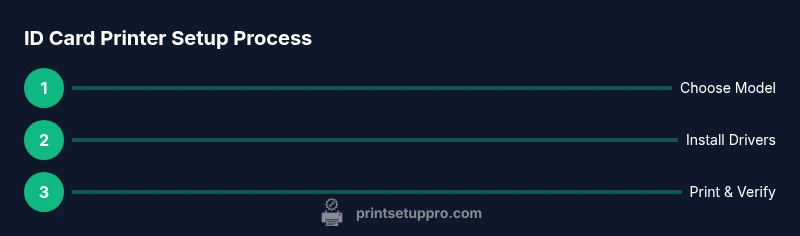
Install drivers and software
Install the official driver first, then the design/encoding software. Reboot if prompted and ensure the computer recognizes the printer on the network or via USB.
Tip: Always download drivers from the manufacturer’s site. - 4
Prepare blank cards and ribbons
Unload blanks and ribbon in a clean area; avoid touching printable surfaces. Confirm ribbon and card stock match the printer’s requirements to prevent jams.
Tip: Handle cards by edges to avoid fingerprints. - 5
Load media and perform initial calibration
Feed cards and ribbon according to the printer’s guide. Run the calibration routine to align color and card edges.
Tip: Run an initial calibration with a test card. - 6
Design or import an ID card template
Use templates or import your existing design. Ensure the correct card dimensions, safe zones for text, and legible fonts.
Tip: Test print with a simple template before adding photos. - 7
Print a test card and verify
Print a small batch and check color accuracy, alignment, and readability of text. Adjust brightness and color profile if needed.
Tip: Aim for a clean, sharp edge and accurate color before full run. - 8
Encode data if applicable
If you require mag stripes or smart chips, run encoding tests and verify reads. Confirm alignment with data fields.
Tip: Validate encoding by reading back several cards. - 9
Run a small batch and evaluate quality
Batch print a dozen cards to check consistency. Document any variations and refine templates or printer settings.
Tip: Keep a log of settings used for repeatability. - 10
Set maintenance reminders and secure storage
Schedule regular cleaning and restock ribbons. Store blank cards in a cool, dry place and lock down access to templates.
Tip: Create a recurring calendar reminder for quarterly maintenance.
People Also Ask
Do I really need a dedicated ID card printer for small office tasks?
A dedicated ID card printer ensures consistent badge quality, data privacy, and quick production. It’s generally more cost-effective and reproducible than outsourcing for frequent badge printing.
A dedicated ID card printer gives you consistent badges and keeps sensitive card data secure, especially if you print often.
Which encoding options should I consider for ID cards?
Choose encoding (magnetic stripe, smart card, or contactless) based on your access control needs. Not all printers support every option, so match encoding to your use case.
Pick the encoding that fits your access control or data needs, and verify the printer supports it before buying.
Can I print ID cards on standard office printers?
Most standard office printers are not designed for durable ID cards or encoding. A dedicated ID card printer offers proper card handling, color management, and security features.
A regular office printer isn’t ideal for durable ID cards; a dedicated ID card printer handles cards properly and securely.
How often should I clean the printer?
Clean after batches or at least weekly for high-volume use. Regular cleaning prevents ink buildup and maintains print quality.
Clean regularly, especially if you print often, to keep colors sharp and avoid jams.
What is the typical cost per card and how can I reduce it?
Cost varies by ribbon type and card stock. Plan for color vs monochrome needs, and buy consumables in bulk to lower per-card costs.
Costs depend on ribbons and cards; buying in bulk and choosing the right ribbon helps keep per-card costs down.
Watch Video
Quick Summary
- Define badge requirements before purchase
- Choose features aligned to encoding needs
- Maintain calibration and clean regularly
- Test prints thoroughly before mass production
- Securely manage templates and printer access