ID Card Printer Guide
A comprehensive, step-by-step guide to choosing, setting up, and maintaining an id printer card for secure, professional ID badges. Includes tips, workflows, and troubleshooting for home offices and small businesses.


This guide shows you how to set up an id printer card, design your badge, load supplies, and print a test batch. You’ll need a CR80 PVC card printer, blank cards, a color ribbon, and badge-design software. Follow the step-by-step process to produce professional ID cards quickly and reliably.
What is an id printer card and when to use it
An id printer card is a compact badge production solution that prints plastic credentials from blank CR80 cards. This setup is ideal for offices, schools, events, and DIY projects where secure identification or controlled access matters. An id printer card system typically combines a printer head, a supply of blank cards, a color ribbon, and software to design and manage data. The goal is a professional badge that is durable, legible, and difficult to tamper with. According to Print Setup Pro, the most reliable results come from pairing a sturdy printer with quality blanks and a compatible design program. The term id printer card is sometimes used interchangeably with “badge printer,” but true ID systems also offer data management, encoding options for smart cards, and security features to reduce fraud. For beginners, starting with standard CR80 cards and a basic color ribbon is a practical way to learn before upgrading to higher-volume workflows.
Key features to look for in an ID card printer
When evaluating an ID card printer, prioritize features that affect reliability, security, and ease of use. Look for technology that matches your color needs, such as color dye-sublimation for vibrant photos or resin transfer for sharp text on dark backgrounds. Confirm card size compatibility (CR80 is the most common) and ensure the hopper can handle your typical batch. Connectivity matters too—USB is standard, while network-enabled printers simplify sharing in a small office. Security features like locked consumables, password-protected software, and optional encoding for magnetic stripe or smart cards can protect your badges from tampering. Print resolution and calibration controls influence readability and color consistency across batches. Finally, consider maintenance accessibility; removable print heads, simple cleaning kits, and easy ribbon changes minimize downtime. Print Setup Pro analysis shows that choosing the right technology and proper calibration leads to more consistent color and fewer reprints.
Supplies and compatibility
Your ID card printing success depends on matching supplies to your printer and workflow. Start with blank PVC cards of the standard CR80 size and a compatible color ribbon for your printer model. If you plan to encode data or use security features, choose ribbons and smart-card options that support those functions. A cleaning kit, cleaning cards, and lint-free swabs are essential for routine maintenance and preventing jams. Ensure your design software can export in industry-standard formats (PNG, SVG, or PDF) and that data import from spreadsheets or databases is straightforward. Confirm driver compatibility with your computer’s operating system and network setup. Regularly check for firmware updates from the printer manufacturer to improve stability and security. By keeping supplies tidy and software up-to-date, you minimize downtime and maximize badge quality.
Designing badges for clarity and privacy
Badge design should balance branding with legibility and privacy. Start with a simple layout: a photo, name, role, department, and an optional access level field. Use high-contrast text colors and a clean font to ensure readability at arm’s length. Keep data fields to what’s necessary and avoid exposing sensitive information on the badge. Use a consistent color scheme that reflects your brand and helps identify different groups (e.g., staff vs. visitors). If you manage many badges, plan a data template that imports from a CSV or database, reducing manual entry errors. When including photos, use proper resolution and consistent lighting to avoid pixelation. Print tests can reveal alignment issues; always verify photo crop, name legibility, and barcodes or magnetic stripes if used. Transparency and security considerations should guide your design decisions, especially for organizations handling restricted information.
Printing workflow and quality control
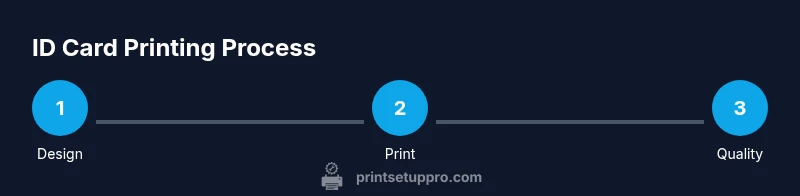
A smooth printing workflow starts with a calibration card or test sheet to establish baseline color, density, and image sharpness. Design and export your badge quickly, then queue it in the printer software. Run a single test card before a full batch to catch issues with alignment, colors, or text size. If the badge includes photos, verify accurate color rendering under your lighting conditions. Set your printer’s color profile to match the ribbon and card stock, and adjust brightness or saturation if needed. For text-heavy badges, verify font legibility after printing and consider bolding critical elements. Maintain a consistent print environment—free of dust and humidity—to minimize defects. After production, perform quick QC checks on a random sample of cards for alignment, color balance, and readability. Keeping a log of print runs can help track wear on ribbons and throughputs over time, guiding reinvestment decisions.
Maintenance and troubleshooting
Regular maintenance is the best defense against print defects and unexpected downtime. Clean the printer daily or after every few hundred cards, using the supplier’s cleaning kit and lint-free swabs. Replace worn blank cards or ribbons promptly to avoid smear or misfeeds. If the printer shows errors, consult the on-screen codes and verify that ribbons, cards, and feed paths are correctly seated. Keep spare consumables on hand to prevent delays during a batch run. Store cartridges and ribbons in a cool, dry place away from direct sunlight. If you encounter persistent misalignment or color issues, recalibrate the printer and re-clean the feed path. Finally, schedule periodic professional maintenance if your device is used at scale, especially in high-volume environments. Following a regular hygiene routine for the printer and proper handling of badges will extend its life and ensure consistent badge quality.
Getting professional results on a budget
You don't need the most expensive printer to produce professional ID cards—the key is balance between quality, reliability, and cost. Start with a dependable entry-level printer and grow as your badge program expands. When selecting consumables, prefer mid-range ribbons that deliver consistent color without frequent changes. Standard CR80 cards with a protective overlay can dramatically improve longevity while keeping costs reasonable. Design software with templating features helps enforce brand consistency and reduces waste. If you anticipate fluctuations in volume, choose a printer with a swappable ribbon system and easy maintenance. Finally, leverage community templates and vendor-provided design assets to speed up production. With careful planning and sensible upgrades, you can produce secure, professional badges without breaking the budget.
Tools & Materials
- ID card printer(Main device; ensure compatibility with CR80 cards and ribbon options)
- Blank CR80 PVC ID cards(Standard badge size, consider thickness 30 mil)
- Color dye-sublimation or resin ribbon(Choose model-compatible ribbon (color for dye-sublimation or resin for high durability))
- Computer or laptop with design software(Software for badge design and data import)
- USB/network cable(Connect printer to computer or network)
- Printer cleaning kit (swabs, cleaning cards)(For routine maintenance and jam prevention)
- Spare consumables (ribbon & cards)(Stock for quick replacements)
- Lanyards and badge holders(Optional for badge distribution)
Steps
Estimated time: 30-60 minutes
- 1
Choose badge design
Select a template that fits your badge size, includes essential fields (name, role, photo), and aligns with your brand. Ensure accessibility with high contrast text and legible fonts. Finalize the layout before printing any cards.
Tip: Start with a simple layout to minimize reprints and refine later. - 2
Load blank cards
Fill the card hopper with clean CR80 PVC cards, fan them to prevent multi-feeds, and align the stack to the feeder.
Tip: Avoid dusty or bent cards to prevent feed jams. - 3
Install printer drivers
Install the printer drivers and software, then connect the printer via USB or network and confirm it’s detected by the computer.
Tip: Run the installation as administrator for best results. - 4
Load ribbon and cleaning supplies
Insert the correct color ribbon for your printer model and prepare cleaning tools for routine maintenance.
Tip: Never touch the print head; handle ribbons by edges only. - 5
Print a test card
Print a single test card to verify alignment, color, and legibility before mass production.
Tip: Use a calibration card if available to set baseline color and density. - 6
Adjust color and density settings
Tweak color profile, brightness, and contrast to match ribbon and card stock. Reprint the test card if needed.
Tip: Document your settings for future batches. - 7
Queue and print your batch
Load the design data, queue the batch in the software, and monitor progress to catch jams early.
Tip: Start with a small batch to validate workflow before scaling.
People Also Ask
What is an id printer card?
An id printer card is a badge printing setup that uses a dedicated printer and blank PVC cards to produce identification badges for security and identification needs.
An ID badge printer is a device that creates plastic IDs from blank cards for security.
Do I need an overlaminate for ID cards?
Overlaminate or overlays aren’t always required but can improve durability and tamper resistance for high-traffic environments.
Laminate isn’t required for every setup, but it helps durability in busy areas.
Can I print photos on ID cards?
Yes, most color printers support photo-quality imaging; use high-resolution photos and proper ribbon for best results.
Yes, you can print photos if your printer supports color images.
What maintenance does an ID printer require?
Regular cleaning, replacing worn cards and ribbons, and periodic firmware updates keep prints consistent and prevent jams.
Keep the printer clean, replace consumables, and update firmware regularly.
How long does it take to print a batch?
Print time depends on batch size and printer speed; plan for calibration and potential test cards before mass production.
Batch time varies with printer and size; expect some time for setup and tests.
What security features should I enable?
Enable secure encoding options, access controls for software, and logging to monitor badge issuance.
Use secure encoding, access controls, and activity logs for security.
Watch Video
Quick Summary
- Choose the right printer for your badge program
- Design badges with readability and privacy in mind
- Maintain clean supplies to prevent jams
- Test prints before large batches
- Document settings and workflows for consistency