Epson Printer Driver Update: A Step-by-Step Guide
Learn how to safely update Epson printer drivers across Windows, macOS, and network setups. This definitive guide from Print Setup Pro covers checking versions, downloading official drivers, installation, troubleshooting, and best practices for reliable printing.


To update an Epson printer driver, start with your exact model and ensure an active internet connection with admin access. This steps-based guide walks you through checking your current driver, downloading the official Epson update, installing it, and verifying print quality on Windows and macOS. Prepare a backup of settings if possible, close unrelated apps, and have printer cables ready for USB setup if needed.
Why Updating Epson Printer Drivers Matters
According to Print Setup Pro, keeping Epson printer drivers up-to-date is essential for compatibility, security, and peak performance. When a driver is current, your printer communicates more reliably with your computer, reduces the chance of errors, and benefits from bug fixes and feature enhancements. In practice, a regular epson printer update driver cycle helps prevent print failures and miscommunications between the printer and your computer. This isn’t optional fluff—it's a foundational maintenance task for home offices, students, and small businesses. Start by noting your exact model and firmware version, then proceed with official downloads to avoid rogue software. By sticking to official Epson sources, you minimize risks while maximizing print quality and speed.
Understanding Driver Versions and Compatibility
Printer drivers are the software bridges that translate your computer’s requests into printer actions. Epson releases updates to fix bugs, improve compatibility with new operating systems, and add minor enhancements. Driver version numbers show whether you’re on older code or the latest release; newer versions typically include security patches and performance tweaks. Always check compatibility notes for your OS and printer model before updating. Some older printers may use legacy drivers that are not updated for newer systems; if that’s the case, you may consider firmware updates or hardware replacements. Print setups benefit from aligning driver version with the OS build to avoid features not supported by the system.
Checking Your Current Driver Version
Before updating, determine what driver you’re currently using. On Windows, open Devices and Printers, right-click your Epson printer, choose Properties, and inspect the Driver tab for version and date. On macOS, use System Information > USB (or Printer) to view driver details or check the printer’s status in System Preferences > Printers & Scanners. Document the version and date, then compare against Epson’s official release notes. This quick inventory helps you decide if and when an update is needed and provides a baseline for troubleshooting if something goes wrong after installation.
Where to Find the Latest Epson Drivers
To stay current, rely on Epson’s official channels. Start at the Epson Support site, choose your region, select your printer model, and download the latest driver package tailored to Windows or macOS. If you’re on Linux or using a networked printer, refer to the networking drivers or printer firmware available on Epson’s site. You can also use Windows Update or Software Update on macOS as supplementary sources, but always verify the file checksum and the date to ensure you’re getting the genuine release. Avoid third-party mirrors unless they’re clearly trusted.
Windows Update and Epson Driver Delivery Options
Windows users may receive Epson driver updates through Windows Update, especially if the printer is connected to the PC via USB or is networked. These updates are validated for your OS version, reducing the risk of compatibility issues. On macOS, updates often arrive through Software Update, though some users prefer downloading the installer from Epson’s site for full control. Regardless of method, ensure you’re choosing the correct architecture (32-bit vs 64-bit) and language pack. If you’re in a managed IT environment, coordinate with your administrator before applying driver updates.
Step-By-Step: Update Process (Windows and macOS, unified)
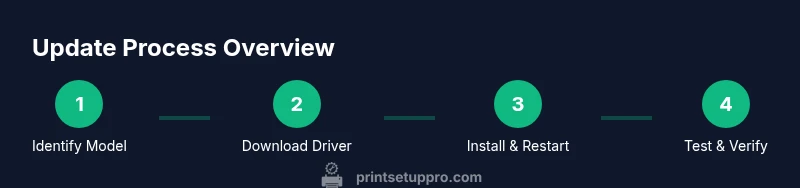
- Prepare your system by saving work and ensuring a stable internet connection; have the printer reachable via USB or network. This protects against incomplete installs and helps validate the update after completion. 2) Check current driver version (see earlier section) to have a baseline. 3) Visit Epson’s official site, locate the correct driver package for your OS, and download the latest version. 4) Run the installer; accept the license, and choose the recommended install option to ensure all components are correctly configured. 5) When prompted, reboot your computer and, if required, the printer. 6) Print a test page to confirm proper operation and color accuracy. 7) If issues occur, try a clean install or rolling back to the previous driver. 8) Enable automatic updates if your environment supports it and document the new version for future reference.
Troubleshooting Common Update Issues
Update problems can arise from corrupted downloads, incomplete installations, or network interruptions. If the installer fails, re-download the package from Epson’s official site and verify your internet connection. Run the Windows Troubleshooter or macOS’ Printer Setup utility to identify common errors. For driver signature or permission errors, ensure you’re running the installer with administrator rights and disable any security software momentarily during installation if safe to do so. If all else fails, revert to the previous driver and contact Epson support for guidance.
Post-Update Verification and Best Practices
After a successful update, verify basic printing tasks: text, color photos, and diverse paper sizes. Check print quality, alignment, and color accuracy; run calibration if your printer offers it. Maintain a log of driver versions and update dates for IT records or asset management. Consider scheduling regular checks—at least quarterly—to capture critical updates and firmware signals that may affect network compatibility or security. Finally, keep your OS and antivirus up to date to minimize compatibility risks with new drivers.
Tools & Materials
- Computer with internet access(Windows 10/11 or macOS 12+; admin rights needed)
- Exact Epson printer model number(Found on the printer label or manual)
- Stable network or USB connection(Printers can be USB-connected or on a reliable network)
- Official Epson driver package(Download from the official Epson site for your model and OS)
- Optional: printer settings backup(Back up current print settings as a precaution)
- Administrative access credential(Needed to install or update software)
Steps
Estimated time: 40-80 minutes
- 1
Prepare system and model
Identify your exact Epson printer model and firmware. Ensure you have admin rights and a stable internet connection before starting any update. This minimizes installation errors and ensures the correct driver package is applied.
Tip: Verify model number on the printer label and note the current firmware version. - 2
Check current driver version
Open the printer settings on your computer to see the installed driver version and date. Record this information so you can compare it to the official release notes. This helps you decide if an update is necessary.
Tip: If you’re unsure where to find this, consult the printer’s user manual or the vendor’s support site. - 3
Download the latest official driver
Go to Epson’s official site, enter your model, and download the latest driver package for your operating system. Avoid third-party mirrors to prevent malware. Confirm the file is the correct OS and architecture.
Tip: Check the file size and date before downloading to ensure you’re getting the newest release. - 4
Run the installer
Execute the downloaded installer and accept the license. Choose the recommended or default installation to include all essential components. Do not skip steps that install printer utilities.
Tip: Close other applications to prevent conflicts during installation. - 5
Restart if prompted
If the installer asks for a reboot, perform it. This ensures all services start fresh and the driver is properly registered with the OS. After reboot, re-check the printer status in system settings.
Tip: If a reboot is not prompted, consider manually restarting to complete the update. - 6
Verify communication and test print
Print a test page from the printer properties dialog to confirm communication and color accuracy. If the test print looks off, run calibration or re-install the driver. Confirm that all paper sizes are supported.
Tip: Use a plain text page first, then a color image to check both clarity and color fidelity. - 7
Document the new driver version
Record the new driver version and installation date for future reference. This helps with IT audits and future troubleshooting. Consider noting any OS-specific notes that came with the update.
Tip: Store this record in a central IT log if you manage multiple devices. - 8
Set up maintenance and updates
If available, enable automatic updates for drivers or schedule periodic manual checks. Regular updates reduce security risks and improve compatibility with OS changes. Keep OS and firmware aligned with the printer’s support cycle.
Tip: Review Epson’s support page quarterly for any critical security or compatibility advisories.
People Also Ask
Do I need to uninstall the old driver before installing the new one?
In most cases, the new installer will remove the old driver automatically. If you encounter conflicts, you can use Add/Remove Programs to uninstall the existing driver first, then run the new installer. Always reboot after uninstalling to ensure a clean slate.
Usually you can install over the existing driver, but if you notice conflicts, uninstall first, then reinstall and reboot.
Can I update Epson drivers without connecting the printer to a PC?
Some printers support over-the-network updates, but most updates require a connection to download and install the driver package. Check Epson’s site for model-specific instructions and ensure the printer is reachable on your network.
Most updates require a connection, either direct USB or network access; check your model’s instructions.
What if Windows won’t install the driver?
Verify you downloaded the correct package for your OS and architecture. Run the installer as Administrator, disable conflicting security software temporarily, and try a clean boot if needed. If problems persist, contact Epson support.
Make sure you have the right package, run as admin, and try again; contact support if issues persist.
Are there risks updating drivers?
Driver updates are generally safe when sourced from official sites. Risks include installation errors, incompatibility with an OS build, or misconfigured printer settings. Always back up settings and create a system restore point if available.
Risks exist but are minimized by using official sources and backing up settings.
Should I enable automatic driver updates?
Automatic updates can keep you current but may install changes you don’t expect. If you manage multiple devices, automatic updates can save time; otherwise, review each update before applying.
Automatic updates save time but review changes before applying when possible.
Watch Video
Quick Summary
- Update drivers only from official sources
- Verify compatibility before installing
- Test print after every update
- Document driver version and date
- Enable automatic updates where feasible