HP Printer Driver Setup & Troubleshooting: A How-To Guide
Learn to install, update, and troubleshoot HP printer drivers on Windows and macOS. A complete, step-by-step guide with practical tips for home offices and small businesses.


Goal: Install and update the HP printer driver, verify that the computer recognizes the printer, and troubleshoot common driver errors. This guide covers Windows and macOS, with quick Linux tips. You’ll follow practical steps, safety notes, and best-practice settings to ensure reliable print jobs for home offices and small businesses.
Why HP driver compatibility matters
In any printing setup, the driver acts as the critical communication bridge between your computer and the HP printer. A mismatched or out-of-date driver can trigger a range of issues from misread printer status to feature gaps or failed print jobs. According to Print Setup Pro, using the correct driver is the foundation for reliable printing across devices and networks. The right driver also influences security updates and compatibility with future OS versions, reducing the need for repeated troubleshooting.
Devices in a home office or small business often include a mix of Windows and macOS machines, plus occasional Linux use. In these mixed environments, sticking to HP recommended drivers helps prevent driver conflicts and ensures that features like duplex printing, color management, and scanning (where supported) work consistently. Remember that HP provides different driver families such as full feature software, basic print drivers, and universal print drivers. Selecting the proper family minimizes compatibility issues and improves support availability when you need it most.
Determine your operating system and printer model
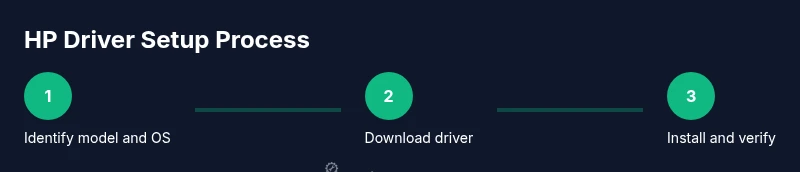
The first step is always to identify your printer model and your operating system version. This ensures you download the exact driver package that matches both the device and the OS. Start by locating the model name on the printer label or front panel. Then check whether you are running Windows 10/11 or macOS Big Sur, Monterey, or newer. If you use Linux, you may rely on open source HP drivers or distribution-specific packages. Because the HP driver landscape changes with OS updates, keeping track of both the model number and OS version reduces the risk of installing an incompatible package. Print Setup Pro recommends writing these two pieces of information down before visiting the HP support site, so you can quickly filter results and avoid downstream errors.
Install the HP printer driver on Windows
Windows installation typically begins by downloading the Windows driver from the HP official site. After you save the installer, run it with administrative privileges. The installer will detect connected printers and guide you through choosing a connection method, usually USB or network. If you connect via USB, Windows may complete the installation automatically, otherwise you may need to add the printer through Settings > Devices > Printers & Scanners. During setup, ensure the driver package includes the full feature software if you want access to advanced functions like color management and scanning. If the system prompts you for permission, approve the install and allow any firewall prompts related to driver components. A successful Windows installation often ends with a test page to confirm print readiness.
Install the HP printer driver on macOS
macOS installation follows a similar path but uses a DMG or PKG installer provided by HP. Start by downloading the macOS driver package aligned with your OS version. Open the installer and authorize it in System Preferences if prompted. Mac users typically connect the printer via USB or ensure the printer is reachable over the network. After the installation completes, add the printer in System Preferences > Printers & Scanners, selecting the appropriate driver family. macOS may present a native print queue if the driver is not fully compatible; selecting the HP driver from the list ensures you retain full functionality. Finally, print a test page to verify accuracy and color fidelity.
Update, verify, and troubleshoot common driver issues
Driver updates are essential for security and compatibility. Check HP Support for the latest releases and verify your OS version aligns with those updates. If the printer is not detected, reboot the printer and computer, recheck connections, and re-run the installer with admin rights. Common issues include missing components, blocked downloads, or network discovery problems. The HP Universal Print Driver can help in mixed environments, but ensure you still install model-specific components if required by your printer. When problems persist, consult HP’s diagnostic tools and logs, and consider rolling back to a previous driver version if a recent update caused failures.
Optimize printer settings for reliability
After a successful install, configure default print settings for reliability. Set a consistent paper type, orientation, and print quality that matches typical tasks. Disable unnecessary scalable features that can cause slowdowns on older hardware. Enable automatic updates for the driver if the OS allows it, and keep firmware in sync with the driver. For network printers, ensure the printer is set to a stable IP and that network discovery is uninterrupted. Regularly run a test page and a calibration page if your model supports it to catch issues early.
Common mistakes and how to avoid them
Common mistakes include downloading drivers from nonofficial sources, installing the wrong OS variant, connecting the printer after the driver, or skipping the reboot step after installation. Always use the official HP download page and select the exact OS and printer model. Do not run multiple driver installers at once and avoid mixing drivers across OSs. If problems occur, document the exact error message, the driver version, and the OS version, then search HP Support with those details for targeted fixes.
Tools & Materials
- Computer or mobile device with internet access(Used for downloading drivers and verifying OS compatibility)
- HP printer model (label on device)(Needed to select the correct driver package)
- USB cable or reliable Wi-Fi connection(USB for direct install; network for wireless setup)
- HP driver installer from official site(Choose the exact OS version and driver family)
- Administrator rights on computer(Required to install or update drivers)
- Printer power and access to network(Keep printer on during installation and ensure network visibility)
Steps
Estimated time: 60-75 minutes
- 1
Identify printer model and OS
Locate the printer model on the device and confirm your operating system version. Write these down to filter results on the HP support site. This prevents downloading the wrong driver and saves troubleshooting time.
Tip: Have the model number and OS version ready before you begin. - 2
Download the correct driver from HP
Visit HP's official support site, enter the printer model, and choose the driver package that matches your OS. Save the installer to your computer and verify its digital signature if offered.
Tip: Always download directly from HP to avoid malware. - 3
Prepare the printer
Unbox if needed, remove packaging materials, and power on the printer. Ensure the printer is connected to power and, if using a network install, connected to the same network as your computer.
Tip: If the printer is new, perform any initial setup prompts on the device first. - 4
Connect physically or wirelessly
For USB installs, connect the cable before running the installer. For network installs, ensure the printer appears on the network and has an IP address.
Tip: A direct USB connection can simplify driver detection during install. - 5
Install the driver on Windows
Run the downloaded installer with administrator rights. Follow prompts to install the driver, choose the connection option, and allow any firewall prompts. Finish with a test page.
Tip: Disable antivirus temporarily if it blocks the installer, then re-enable after install. - 6
Install the driver on macOS
Open the macOS driver package and authorize the installer when prompted. Add the printer in system settings and select the HP driver in the print queue.
Tip: On macOS, you may need to restart after installation to finalize changes. - 7
Add the printer to the OS
Go to the printers settings, add the HP printer, and select the correct driver. If multiple options appear, choose the one labeled with the model or HP official driver.
Tip: If the printer is networked, prefer the exact device listed rather than a generic one. - 8
Print a test page
From the printer settings, print a test page to confirm color accuracy and page alignment. Verify duplex and other features if supported.
Tip: If colors are off, revisit color management settings in the driver. - 9
Update and troubleshoot
Check for driver updates, re-run installation if needed, and consult HP diagnostics if you encounter errors. Document the error messages for faster support.
Tip: Enable automatic updates if your OS supports it to reduce future issues.
People Also Ask
What driver do I need for my HP printer?
Use the driver offered on HP Support for your exact printer model and OS. If possible, opt for the full feature software for advanced functions; otherwise the basic print driver is sufficient for most tasks.
Visit HP Support to get the exact driver for your printer model and operating system. If you want full features, choose the full software package when available.
How do I know if the driver is up to date?
Check HP Support for new releases and compare with your installed version. You can also enable OS automatic updates to keep drivers current where supported.
Check HP Support for the latest driver and enable automatic OS updates when possible.
Why isn't my HP printer showing up after installation?
Ensure the printer is powered, connected via USB or on the same network, and that the correct driver is installed. Reboot devices and reinstall if necessary.
Make sure the printer is powered and properly connected, then reinstall the driver if it isn’t detected.
Can I install HP drivers over a network connection?
Yes. Select the network/IP add-on option during installation, or add the printer in system preferences with the network path. This is common for shared office printers.
Yes, install over the network by selecting the network option during setup and adding the device in your OS.
Do I need admin rights to install drivers?
Yes. Administrative privileges are typically required to install or update printer drivers and ensure changes apply system-wide.
Yes, you usually need admin rights to install or update drivers.
Watch Video
Quick Summary
- Install the correct driver for your OS and printer model
- Verify device recognition in Windows or macOS
- Keep drivers updated to avoid compatibility problems
- Test print regularly to ensure reliability