Canon Printer Fix: Step-by-Step Troubleshooting
Learn how to diagnose and fix common Canon printer issues with our comprehensive, home-office friendly guide. From offline status to print quality, follow Print Setup Pro's expert steps to restore reliable printing.


By following this guide, you will diagnose and fix common Canon printer issues, including offline status, print quality problems, and paper jams. Before you start, ensure your printer is plugged in, connected to the same network as your computer, and has fresh ink or toner. This process emphasizes safe, methodical steps you can perform at home or in a small office.
Understanding Canon Printer Health
Canon printers, like most consumer devices, fail for a handful of predictable reasons: power issues, connectivity problems, clogged print heads, jammed paper, outdated drivers, and firmware mismatches. Understanding the health signals helps you triage quickly. According to Print Setup Pro, the quickest way to approach a Canon printer fix is to confirm the symptom, rule out simple causes, and test a controlled set of actions. In this section, we explore the typical failure modes and how they manifest across common Canon models, including inkjet and multi-function devices.
- Offline status: The printer shows as offline in the computer or mobile app while the rest of the network is healthy.
- Print quality degradation: Faint stripes, color misalignment, or blurred text.
- Paper jams and misfeeds: Odd noises, skips, or pages that don’t feed correctly.
- Error codes: LCD or on-device codes vary by model. The exact digits aren’t as important as recognizing a pattern (no paper pickup, head cleaning needed, or firmware update required).
Common Canon Printer Fixes by Model Type
Canon’s ecosystem covers consumer inkjet, multifunction devices, and specialty photo printers. While many fixes overlap, the recommended steps shift by model type. For most home offices and students, a reliable canon printer fix starts with basic maintenance (cleaning, alignment, and cartridge checks) and progresses to driver and firmware updates if printing remains inconsistent. In contrast, business-oriented Canon models might rely more on firmware stability and network configuration. The core rule is to isolate the symptom first, then apply targeted actions that match the model class. These guidelines help you decide whether to attempt a simple cleaning, a driver update, or a firmware refresh.
- Inkjet all-in-one: Focus on print head cleaning, nozzle checks, and cartridge integrity.
- Photo printers: Prioritize color calibration and media settings alongside head cleaning.
- Laser printers (less common for Canon): Check toner status, fuser, and drum assembly; many fixes map to standard printer maintenance principles.
Troubleshooting Flowchart for Canon Printers
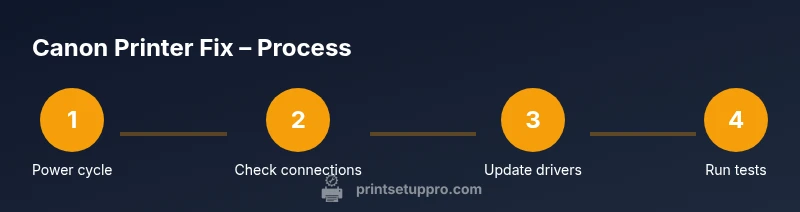
A clear flowchart helps you stay organized during a canon printer fix. Start with a power cycle, then verify status indicators, network connectivity, and driver health. If a fault persists after basic checks, progress to firmware checks and a factory reset only as a last resort. Document each step and error message to avoid repeating actions. The flow below mirrors how a technician would approach a fix and can be followed without specialized tools.
- Step 1: Power off, unplug, and wait 30 seconds. Reconnect and power on.
- Step 2: Check status on computer and device display; determine if the issue is offline, jam, or print-quality related.
- Step 3: Verify cables, network connection, and wireless printer settings; try a direct USB connection if possible.
- Step 4: Update or reinstall drivers; ensure firmware is current.
- Step 5: Run calibration and head-clean cycles; print a test page.
- Step 6: If problems persist, consider a factory reset (after backing up settings) or professional service.
Fixing Print Quality Issues
Print quality problems are among the most frustrating Canon printer fix scenarios. Begin with simple checks: ensure greeting cartridges are seated correctly, perform a nozzle check, and run the printer’s cleaning cycle. If stripes or color misalignment persist, try an alignment pass and select color correction options in the printer driver. For photos and graphics, verify the media type and print quality settings. Regular maintenance, including cleaning the rollers and the print head cradle, helps prevent recurring defects. In many cases, swapping a low-ink cartridge or refilling with high-quality ink yields noticeable improvements. The key is to separate print head symptoms from cartridge supply issues and address each path methodically.
Connectivity and Network Fixes
Offline status is often caused by network conflicts or incorrect printer settings. Start by confirming the printer is on the same network as your computer, then check the printer’s IP address or hostname. If you use Wi‑Fi, ensure the signal is stable and there are no IP conflicts with other devices. Reconnecting to the network, re-adding the printer, or using a USB connection as a temporary workaround can help you finish critical work while you fix the wireless path. Frequently, simply renewing the router lease or re-enrolling the printer in the network resolves transient connectivity problems.
- Reconnect to Wi‑Fi or switch to a wired connection for stability.
- Verify that the correct printer is selected as default in the OS and any mobile apps.
- Consider printing a network configuration page to confirm settings.
Firmware and Driver Updates: When to Fix
Firmware and driver updates fix known bugs, improve compatibility, and enhance security. If you’re seeing unexplained errors, driver mismatches, or features not functioning, check Canon’s official support site for your model and compare current firmware and driver versions with the latest release. Don’t skip the prerequisites: ensure the printer is connected, power is stable, and you have administrative rights on the computer you’re updating from. In some environments, updates require temporarily disabling antivirus software or firewall rules to complete installation. Always back up settings before a major upgrade to avoid loss of custom configurations.
Maintenance Practices to Prevent Recurrence
Preventive maintenance reduces the frequency and severity of canon printer fix scenarios. Set a routine that includes dust removal from vents, regular cleaning of rollers, protection from pets and kids, and periodic nozzle checks. Use high-quality media to avoid jams and ensure correct settings for the paper type. Replace consumables like cartridges only when necessary, and store spare media in a cool, dry place. Schedule a quarterly diagnostic print to catch drift in alignment or color accuracy early. A proactive approach saves time and prolongs the life of your Canon printer.
Handling Paper Jams Smoothly
Paper jams are common but manageable with calm, deliberate actions. Before removing jammed paper, turn off and unplug the printer. Gently pull the paper along the feed path in the direction of normal paper movement to avoid tearing. Avoid forcing the paper through or pulling at the rollers, which can cause damage. Use a flashlight to inspect for small torn pieces stuck in the rollers and remove them with tweezers if needed. After clearing the path, resume with a test page to verify feeding accuracy. Regular cleaning of the paper path reduces repeat jams.
Advanced Fixes: When to Seek Repair
If you’ve exhausted basic troubleshooting and the issue persists, a professional Canon printer fix may be necessary. Document all symptoms, error codes, and steps you’ve taken; this helps a technician diagnose quickly and accurately. Consider warranty status and service options (on-site or mail-in). For business-critical printers, a formal service contract may be cost-effective. In many cases, issues like persistent misfeeds, persistent head clogs, or unusual noises indicate internal hardware wear that requires specialized tools and calibration.
Tools & Materials
- Phillips head screwdriver (#2)(Small screws in printer covers)
- Lint-free microfiber cloth(For cleaning rollers and glass surfaces)
- Isopropyl alcohol (70%)(For surface cleaning; avoid contact with sensitive components)
- Compressed air canister(Use with caution to blow dust from vents)
- Canon printer maintenance kit (optional)(Contains cleaning swabs and belts)
Steps
Estimated time: 60-90 minutes
- 1
Power down and inspect
Unplug the printer and wait 60 seconds to discharge capacitors. Visualize the exterior for obvious damage and check status lights. This initial check helps determine whether the issue is power-related or more advanced.
Tip: Always unplug before opening any covers to avoid shock or short circuits. - 2
Check connections
Verify all cables are firmly connected, including USB, Ethernet, and power cords. If the printer is wireless, confirm it’s connected to the same network as your computer. Loose connections are a common source of both offline status and intermittent print failures.
Tip: If possible, test with a direct USB connection to rule out network issues. - 3
Power cycle network equipment
Restart your router and modem, then rejoin the printer to the network. A fresh network lease often clears misrouting and IP conflicts that cause offline symptoms.
Tip: Wait 1–2 minutes after restarting devices to ensure a stable handshake. - 4
Update drivers and firmware
Visit Canon’s official support site, download the latest driver and firmware for your model, and install them following the on-screen prompts. Firmware updates can fix stability issues that drivers alone cannot address.
Tip: Disable antivirus temporarily if the installer is blocked and re-enable after the install. - 5
Run print head cleaning
From the printer menu or driver utility, run the nozzles cleaning cycle followed by a nozzle check page. If lines or gaps appear, repeat 1–2 times and then perform a full alignment.
Tip: Avoid excessive cleaning cycles; they consume ink and can clog the print head if overused. - 6
Check media and alignment
Ensure the paper type and size match the settings in the printer software. Run the alignment routine to correct any offset that affects print quality.
Tip: Use the recommended Canon media for best results; mismatched media can cause feed issues. - 7
Clear jams safely
If a jam is present, power down, open access panels, and carefully remove jammed sheets along the feed path. Check for torn pieces and clear debris with a low-lint cloth.
Tip: Pull paper slowly in the direction of feed to avoid tearing. - 8
Test print and reset if needed
Print a test page and compare results. If issues persist, consider restoring default settings or performing a factory reset as a last resort.
Tip: Back up custom settings before a reset to restore preferences quickly. - 9
Evaluate for service
If problems remain after all steps, contact Canon support or an authorized service provider. Collect error codes and a summary of attempted fixes to speed diagnosis.
Tip: Check warranty coverage before paying for service.
People Also Ask
Why does my Canon printer show offline even when connected to Wi-Fi?
Offline status often results from network conflicts, incorrect printer settings, or outdated drivers. Start by confirming the printer is on the same network as the device, then re-add the printer in your operating system. If needed, update drivers and reset the network connection.
Offline usually means a network or driver issue. Reconnect the printer to the network and update drivers, then re-add the printer in your device settings.
How can I reset the Canon printer network settings?
Access the printer’s menu or web interface and locate the network settings. Choose 'Reset' or 'Network reset' to restore defaults, then reconfigure your Wi-Fi or Ethernet connection. This clears stale IPs and misconfigurations that can cause connectivity problems.
Go to the printer’s network settings, choose reset, then reconnect to your network.
How often should I update Canon printer firmware?
Update firmware when Canon releases a new version that addresses stability or compatibility issues for your model. Check regularly through Canon’s official support site and install updates following the provided instructions.
Check Canon’s site for firmware updates and install them when available.
My Canon printer still won’t print after fixes—what should I do?
Review the most recent steps to confirm nothing was missed, and try a fresh test page using a direct USB connection if possible. If issues persist, collect error codes and contact Canon support or an authorized service provider.
If it still won’t print, retrace steps and contact support with error codes.
Should I repair or replace a Canon printer?
If the device is under warranty or the repair cost is a significant fraction of a new unit, replacement may be more cost-effective. For critical work, weigh downtime against repair cost and consider service options from Canon or authorized providers.
Compare repair cost and downtime with replacement cost and warranty terms.
Can cleaning the printer cause damage?
Cleaning with proper materials and power off is safe. Avoid using liquids on electronics or touching internal gears with bare hands. Follow the manufacturer’s cleaning guidance to minimize risk.
Clean only with approved materials and with the printer powered down.
Watch Video
Quick Summary
- Identify the symptom, then apply targeted fixes
- Update drivers and firmware to close gaps
- Clean, align, and test in a controlled sequence
- If issues persist, seek professional repair