How to Get Rid of a Printer That Doesn T Work: A Safe Disposal Guide
Learn how to get rid of a printer that doesn t work responsibly with data wipe, recycling, donation, or bulk trash options. Step-by-step guidance and tips from Print Setup Pro to minimize waste and protect privacy.


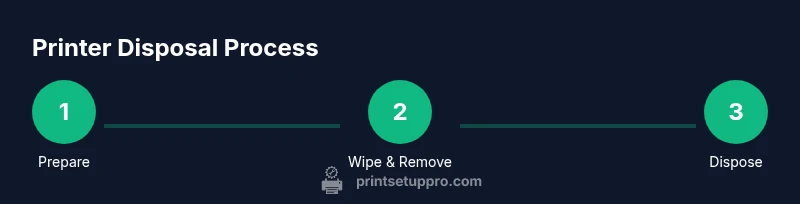
To responsibly remove a non-working printer, start by wiping data and removing any personal info, then choose a disposal path. The steps below cover data erasure, donation, recycling, or bulk trash options, with tips on timing and local rules. According to Print Setup Pro, following a structured disposal plan minimizes waste and protects privacy.
Why disposing a non-working printer properly matters
If you are wondering how to get rid of a printer that doesn t work, the first step is to recognize the bigger picture. Printers are sophisticated devices that combine plastics, electronics, and ink or toner systems. When disposed of improperly, they contribute to electronic waste (e-waste) and can release hazardous substances into soil and water. Local regulations may require e-waste separation, and many communities offer collection events or certified recycling programs. By choosing the right path, you reduce environmental impact, protect privacy, and support responsible manufacturing reuse. Print Setup Pro emphasizes that responsible disposal is a simple, essential routine for any home office or small business.
Disposing correctly also aligns with consumer expectations for sustainable practices and helps avoid penalties or delays at the curbside. Partner programs and reputable recyclers typically process printers by disassembling components for plastics, metals, and hazardous materials. When you choose a proper channel, the device is reclaimed, not wasted. The result is less landfill, better resource recovery, and a clearer sense of social responsibility for your workspace or classroom.
Data privacy: what to wipe before disposal
The privacy angle is often overlooked but crucial. Printers, especially networked models, can retain print jobs, address books, or scanned documents in non-volatile memory. Before handing a printer to a recycler or charity, you should wipe memory and reset settings when possible. This step protects sensitive information and reduces the chance that someone could retrieve data from the device. Start with a factory reset or built-in data wipe option if your model supports it. If there is no explicit wipe option, refer to the manual for a full reset sequence and remove any removable storage if applicable. Print Setup Pro notes that you should verify the data is erased by rechecking the settings after the reset and performing a quick test to ensure nothing remains in memory.
Understanding data storage in printers
Some printers store legacy data on internal memory, while others rely on cartridge-level storage that stores scanning or job data temporarily. Modern color printers may include a small hard drive or flash memory for job storage and network configuration. Privacy-conscious users should assume there could be remnants even after a power cycle. Your plan should account for these possibilities by checking the user manual or vendor support site for data retention details. In scenarios where memory cannot be erased via a menu, you may need to physically remove storage components and dispose of them through a certified electronics recycler. Print Setup Pro Analysis, 2026 emphasizes that a clear understanding of data storage reduces the risk of privacy breach when disposing of equipment.
Data erasure methods: built-in resets, factory defaults
Begin with the simplest method: a factory reset. If the printer offers a dedicated data reset option, use it. For devices with hidden menus or enterprise firmware, consult the official support page to locate the reset sequence. After performing a reset, power cycle the device to confirm settings return to factory defaults. If the device includes a hard drive or persistent memory, a professional service may be necessary to securely erase or physically remove storage. Document the steps and keep a note of the model number and serial number in case you need to reference disposal partners.
Disposal options: donate, recycle, sell for parts, or bulk trash
- Donate or give away: Some charities or community repair groups accept non-working printers for parts or refurbishment. They may salvage components or refurbish for education or donation programs. Check local guidelines and confirm that the organization accepts devices in your region.
- Recycle: Certified electronics recyclers separate plastics, metals, and hazardous components. This path is environmentally ideal and commonly supported by municipalities.
- Sell for parts: If a printer has salvageable components, you can sometimes recover a small value by selling to hobbyist buyers or repair shops.
- Bulk trash: If no recycling option is available, verify curbside bulk-trash rules and arrange a suitable pickup window. Always label the device and prep it by removing cartridges and cords.
Print Setup Pro analysis suggests that recycling and donation options significantly reduce environmental impact compared to landfill disposal. When possible, pair disposal with a local e-waste event or a certified recycler to ensure proper treatment of hazardous materials and compliance with regulations.
How to prepare the printer for disposal
Preparing the device reduces risk and streamlines the process. Start by unplugging the printer and detaching all power and data cables. Remove power cords and USB connections, and disconnect any wired network cables. Remove all ink or toner cartridges and seal them separately for recycling. If your printer has a memory module or hard drive, follow the reset or specialized removal procedure documented in the user manual. Take photos of the device and its serial number for your records and for the disposal partner. Package the printer securely to prevent damage during transport. Keep the original accessories, such as power bricks and user manuals, in a labeled box for the recipient of the device.
What to do with consumables and accessories
Cartridges, ink, and other consumables should be recycled through the manufacturer program or your local hazardous waste facility. Even empty cartridges can be picked up by many recycling partners, as the plastic and metal components are valuable for reuse. Keep cables, power adapters, and any documentation together in a labeled bag to avoid misplacement. If the printer uses a special tool for cartridge removal, store that tool with the device. By organizing consumables and accessories, you facilitate a smoother donation or recycling process and keep your workspace tidy for the next project.
Local resources and best practices
Identify certified e-waste recyclers in your area by using government or university directories. If you have access to a community recycling event, bring the printer there with its accessories and any required proof of residency. Always verify that the facility handles printers specifically and accepts the type of model you own. For home offices or classrooms, maintain a small disposal kit with a label that clearly marks the item as e-waste and includes the model, serial number, and a brief description of its state. This approach makes it easier for volunteers and staff to guide you through the process efficiently.
Common mistakes to avoid
- Do not ignore local regulations about e-waste. Failing to comply can lead to penalties.
- Do not leave memory or internal storage in the device; failing to wipe data invites privacy risk.
- Do not assume all printers are recyclable in the same way; different models require specific disassembly steps.
- Do not throw hazardous components into regular trash; cartridges, batteries, and certain components require special handling.
Final checklist before disposal
- Unplug and power down the printer; disconnect all cables.
- Remove and seal cartridges; recycle separately.
- Perform a data wipe or factory reset; verify the memory is clear.
- Identify a certified recycler or donation program and confirm acceptance.
- Gather required documentation (model/serial numbers) and transport safely.
- Keep disposal receipts or acknowledgments for your records.
Tools & Materials
- Phillips head screwdriver(For removing screws to access components if needed)
- Flat-head screwdriver(Optional for prying cases; use with care)
- Soft cloth and isopropyl alcohol(For cleaning surfaces before recycling)
- Data erasure software or built-in printer reset capability(Use to wipe non-volatile memory if supported)
- Laptop/PC with internet access(Needed to perform data wipe and locate disposal options)
- Protective gloves(Protection while handling parts)
- Certified e-waste recycling info (facility map/address)(Locate a certified recycler)
- Cardboard box or sturdy bag(Store or transport components safely)
Steps
Estimated time: 60-90 minutes
- 1
Prepare workspace and gather tools
Clear a desktop area or table. Gather all tools and identify the printer model. Make sure you have access to the manual and disposal partner contacts. This step reduces the chance of losing parts or missing steps later.
Tip: Having a printed manual or digital copy handy speeds up the process. - 2
Wipe data and perform a reset
Power off the printer, unplug, and perform a factory reset or built-in data wipe. Verify settings are reset by checking the display and re-entering basic setup prompts. If the device stores memory, ensure the wipe is complete before moving forward.
Tip: Refer to the manufacturer’s official reset instructions for model-specific steps. - 3
Remove consumables and inaccessible components
Take out ink/toner cartridges and seal them for recycling. Disconnect removable cords, networks, and accessories. If the device has a hard drive, follow instructions to erase or remove it safely.
Tip: Keep cartridges in a sealed bag to prevent spills. - 4
Decide on disposal path
Choose between donation, recycling, selling for parts, or bulk trash based on local options and device condition. Contact the recycler or charity to confirm acceptance and scheduling.
Tip: If unsure, start with a local e-waste recycling program. - 5
Transport and hand over
Package the device securely in a box or bag. Label it as e-waste if required by your locality. Bring along serial/model information and any disposal receipts.
Tip: Call ahead to confirm drop-off times and requirements. - 6
Document the disposal
Keep a disposal receipt or certificate from the recycler. Take photos of the device before drop-off for your records. Update your inventory or asset log to reflect the disposal.
Tip: Store digital copies in a secure folder alongside the device’s information.
People Also Ask
Is it safe to throw away a broken printer with regular trash?
No. Printers contain materials that can be hazardous and require e-waste disposal through certified programs or municipal collection. Always check local guidelines before discarding.
No, it isn t safe to throw away a broken printer with regular trash; use an e-waste option instead.
What should I do with printer cartridges?
Remove cartridges and recycle through manufacturer programs or local recycling centers. Many programs accept empty or even partially used cartridges.
Remove cartridges and recycle them through a designated program or local center.
Can I donate a non-working printer?
Some charities or schools accept printers for parts or refurbishment. Confirm acceptance with the organization and any required conditions (e.g., removing data).
Some places may accept non-working printers for parts or refurbishing.
How do I wipe data from a printer?
Use the printer’s factory reset or built-in data wipe if available. If not, consult the manufacturer’s support site for exact steps or seek professional help.
Use factory reset or supported data wipe steps to clear memory.
Are there free disposal options in my area?
Many municipalities host e-waste collection days or partner with recyclers at no charge. Check your city’s official waste management site for schedules.
Check local government e-waste collection days for free disposal options.
Watch Video
Quick Summary
- Plan disposal ahead to avoid last-minute trips
- Wipe data and remove consumables to protect privacy and reduce waste
- Choose recycling or donation whenever possible to minimize landfill
- Keep receipts and records for compliance and proof of disposal