Is Your Printer Cartridge Empty? A Practical Check Guide
Discover practical, step-by-step methods to tell if your printer cartridge is empty, including status checks, nozzle tests, and safe replacement tips for reliable printing.


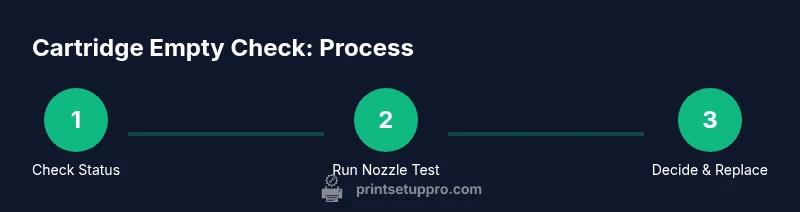
You will confirm whether a printer cartridge is empty by checking printer status, running a test page, and inspecting the cartridge itself. Essential steps include verifying ink or toner levels in the printer menu, analyzing a nozzle check, and printing a diagnostic page to gauge print quality. This guide from Print Setup Pro outlines safe, practical checks you can do at home.
What does it mean for a printer cartridge to be empty?
In everyday printing, 'empty' can refer to the cartridge's actual ink or toner residue, the cartridge’s ability to deliver consistent color, or a depleted sensor/flag inside the printer that tracks usage. According to Print Setup Pro, many printers now report ink levels through on-screen dashboards, drive counters, or cartridge chips. It’s important to distinguish between a true empty cartridge and a warning that a cartridge is near empty or needs replacement soon. This section clarifies the different states you might encounter and why they matter for print quality and maintenance. By understanding these states, you can avoid unnecessary replacements or misinterpretations when the printer is behaving oddly.
Key takeaways:
- Modern printers use multiple indicators to signal low ink or toner.
- An apparent warning may trigger before ink is completely gone.
- A test print or calibration page can reveal whether color channels still print correctly.
How printers report ink levels: sensors, gauges, and warnings
Printer manufacturers implement a mix of hardware sensors and software indicators to signal cartridge status. Some devices read a chip on the cartridge that tracks color usage, while others rely on printhead activity and duration of use. Display dashboards on the printer itself or in the driver software (on your computer or mobile app) often show an approximate percentage or bar graph. When a cartridge is near empty, you may see a low-ink warning, a color channel graying out, or a request to replace the cartridge before continuing. Regardless of the method, the practical effect is the same: reduced print quality or halted tasks if you ignore the alert. Print Setup Pro recommends cross-checking both the on-printer status and the software indicator to avoid relying on a single signal.
Visual cues: windows, seals, labels, and color accuracy
Not all cartridges have transparent windows, but when present, you can observe the liquid level through the window. Even with windows, the measurement is not always precise due to angle, lighting, and cartridge design. Check the cartridge labels for color codes and model numbers, which helps you verify you’re using the correct cartridge in the right slot. Cracks, leaks, or residue around the seals can indicate damage or overuse. If colors appear skewed (for example, reds printing as orange), it can signal a clogged nozzle or an exhausted color. Remember, a visually full cartridge does not always guarantee full performance. Regular calibration helps maintain accuracy over time.
Run a nozzle check and a calibration page to assess print quality
A nozzle check prints a test pattern that reveals gaps or misaligned nozzles. If stripes or missing lines appear, it’s an indicator of potential clogging or low ink in specific channels. A calibration page helps synchronize printhead alignment with cartridge data, improving quality. If the nozzle check shows consistent issues across all colors, the cartridge may be near the end of life, or the printhead could require cleaning. If only one color is affected, focus on that cartridge first. Print Setup Pro emphasizes performing these tests with fresh paper and at a stable ambient temperature to avoid false results.
Interpreting status pages and cartridge data in software
Access the printer status from your computer or mobile device to view ink levels, page counts, and recent diagnostics. Some software can export a log showing color usage over time, which helps determine whether you’re consistently using a cartridge near the end of its life. If you repeatedly see a warning despite adequate ink, there may be a sensor fault or miscalibration. In such cases, consult the printer’s manual or the manufacturer’s support site for sensor reset procedures or recommended servicing intervals. Print Setup Pro reminds users to document any persistent issues before purchasing new cartridges to avoid unnecessary expenses.
Common myths: refilling vs replacement, and the cost reality
Some users attempt refilling cartridges, which can work for certain models but may cause leaks, clogged nozzles, or warranty concerns. Refilled cartridges often exhibit inconsistent color accuracy and shorter lifespans. In contrast, replacing with a new cartridge ensures reliable pigment behavior and consistent print quality. The decision often depends on cartridge type (reusable vs. non-reusable), the printer model, and the projected demand for prints. If you print infrequently, a remanufactured cartridge can be a budget-friendly option, but always verify compatibility with your specific device. Print Setup Pro recommends evaluating total cost of ownership, including potential reprints caused by poor print quality.
What to do when you’re unsure: safe next steps
If you’re unsure whether the cartridge is truly empty, start with the simplest steps first: print a test page, run a nozzle check, and inspect the cartridge window. If results are inconclusive, perform a cleaning cycle only as recommended by the printer’s manual—over-cleaning can degrade printhead life. Keep spare cartridges on hand for essential tasks, especially in small offices or student setups. When in doubt, rely on manufacturer guidance and avoid forcing a cartridge beyond its stated limits, as this can cause more damage or warranty concerns. Print Setup Pro’s guidance promotes cautious, data-driven decisions rather than guessing.
A practical decision framework for cartridge management
Create a small routine to monitor cartridges:
- Check status dashboards weekly.
- Run monthly nozzle checks, especially for color work.
- Maintain a short replacement checklist aligned with your typical print volume.
- Recycle spent cartridges per local guidelines.
This framework helps you minimize downtime and printer issues while keeping costs predictable. Print Setup Pro advocates establishing a predictable process that reduces surprises and protects your workflows.
Before you replace: a quick pre-check checklist
Before buying a new cartridge, confirm the following: the cartridge is in the correct slot, sealing caps are removed (if applicable), and the printer has completed any self-cleaning cycles. Ensure balanced color is visible in test prints and that no obvious leaks or damage are present. If you used compatible third-party cartridges, verify firmware compatibility and potential reset requirements. Keeping a simple log of replacement events will help you forecast future needs and budget accordingly.
Tools & Materials
- Printer manual or model-specific guide(Keep a copy handy for sensor reset or calibration steps)
- Current cartridge(s) under test(Have the exact color codes ready)
- Plain white printer paper for test pages(Use fresh sheets for reliable results)
- Lint-free cloth or swab(For light cleaning around the cartridge window)
- Bright light or flashlight(Better visibility through any cartridge window)
- Small screwdriver (if required by model)(Only use if the manual advises disassembly)
Steps
Estimated time: 30-60 minutes
- 1
Prepare and inspect the printer
Power on the printer and ensure it is idle. Open the paper tray and access the cartridge area. Confirm you have the model number and color codes for the cartridge in question and review the manual for any device-specific cautions.
Tip: Keep the printer off when inspecting loose parts to avoid accidental movements or damage. - 2
Check the printer status and ink/toner levels
Navigate to the printer status screen or the driver software on your computer or mobile device. Note any warning icons, the approximate ink percentage, and the color channels that are flagged. Record these readings for comparison with the test results.
Tip: If multiple colors show low status, plan for a full cartridge replacement instead of piecemeal changes. - 3
Print a nozzle check or diagnostic page
Print the nozzle check page to visualize alignment and nozzle integrity. Look for gaps or broken patterns in each color band. If any color shows gaps across multiple lines, that channel may be clogged or near depletion.
Tip: Use a clean test page on fresh paper and avoid high-humidity conditions during printing. - 4
Run a calibration page if suggested
If your printer provides a calibration option after nozzle checks, run it to optimize printhead alignment with the current cartridge. This can improve quality even if the cartridge isn’t fully spent.
Tip: Calibration may realign cartridges and reduce minor color drift. - 5
Visually inspect cartridge windows and seals
If your cartridge has a transparent window, check for visible ink or toner level. Inspect seals for cracks or leaks and verify the chip status if accessible. Any signs of leakage or damage indicate replacement is necessary or professional service.
Tip: Do not force or squeeze cartridges; damage from pressure can cause leaks. - 6
Decide on replacement or cleaning
If test prints show consistent quality issues and status indicates low levels, plan for replacement. If only minor issues appear, perform the recommended cleaning cycle and re-run tests before deciding.
Tip: Avoid excessive cleaning cycles, which can shorten printhead life. - 7
Document the outcome and next steps
Record the test results, the date of replacement, and any calibration steps performed. Update your cartridge inventory to reflect the next update cycle and budget accordingly.
Tip: A simple log helps prevent unexpected downtime.
People Also Ask
Can a cartridge be truly empty if the printer still prints fine?
Yes. In some cases, printheads can print at reduced efficiency for a short time even as the cartridge approaches its end. However, performance and color fidelity may deteriorate, and the printer may issue warnings or stop printing. It’s best to replace cartridges before complete depletion to avoid quality loss.
Yes. A cartridge can be near empty and still produce some prints, but quality will decline and warnings will increase. Replace when needed to maintain reliability.
What if I get conflicting readings between the printer display and the test page?
Conflicting readings can happen due to sensor calibration or software lag. Follow up with a nozzle check and a calibration page. If results remain inconsistent, contact support or replace the cartridge to restore consistency.
If readings conflict, run a nozzle check and calibration, then decide whether to replace the cartridge to restore reliability.
Is it safe to print with a near-empty cartridge?
Printing with a near-empty cartridge is possible but may cause streaks and poor color. It’s safer to replace the cartridge and run a test page to confirm printing quality resumes.
Printing with a near-empty cartridge can cause streaks. Replace to restore quality and avoid damage.
Should I refill cartridges or replace them?
Refilling can work for some models but often reduces reliability and can affect warranties. Replacing with a new cartridge generally provides stable color and printhead performance. Evaluate cost, potential waste, and printer compatibility before choosing.
Refilling can save money for some printers, but new cartridges are typically more reliable and safer for ongoing use.
How can I avoid unnecessary cartridge replacements?
Keep a small testing routine: check status, run nozzle checks, and calibrate when needed. Track usage and plan replacements ahead of deadlines to avoid last-minute outages.
Monitor usage and run regular tests to plan replacements before you run out.
What should I do with spent cartridges?
Recycle spent cartridges where possible. Many manufacturers offer take-back programs or recycling options. Check local guidelines and retailer programs to dispose of cartridges responsibly.
Recycle spent cartridges through manufacturer programs or local recycling options.
Watch Video
Quick Summary
- Check both printer status and software indicators for a clear signal.
- Use nozzle tests to confirm printhead performance across colors.
- Replace cartridges promptly if tests show persistent issues.
- Keep a simple cartridge inventory to manage replacements efficiently.