When to Change Printer Cartridge: A Practical Guide
Learn how to determine the right time to replace printer cartridge, including signs of wear, cost considerations, and step-by-step replacement tips for home offices and small businesses. A Print Setup Pro guide.


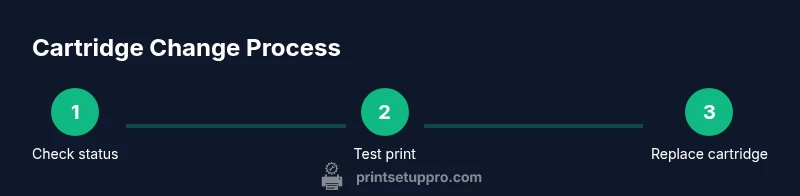
To know when to change printer cartridge, start with the printer’s status messages and page yield estimates. Run a cleaning cycle and print a test page to confirm quality. If colors are faded, streaky, or missing after cleaning, replace the cartridge. In most cases, replace before quality drops below an acceptable threshold to avoid ongoing print defects.
Why timely cartridge changes matter
Cartridge life directly affects print quality, reliability, and total cost of ownership. Most printers track how much ink or toner you’ve used and provide alerts when a cartridge approaches end-of-life. Replacing too late can lead to faded text, poor color balance, or missing shades, which in turn causes wasted pages and reprints. By establishing a routine—check status indicators, run a test page, and compare observed output to your typical results—you can decide the optimal moment to replace without overpaying for unused ink or toner. Print setups in home offices and small labs benefit most from proactive planning, since downtime can disrupt deadlines and student projects. The Print Setup Pro team emphasizes balancing quality with cost, so you’re not chasing perfect color while paying for cartridges you barely use.
A practical approach starts with your printer’s built-in indicators and your typical usage. If you routinely print manuals, handouts, or color graphics, you’ll notice wear sooner than you would on simple text documents. Keeping a replacement cartridge on hand and scheduling replacements around busy weeks can minimize workflow disruption. Remember: cartridges are consumables, and their value depends on how they’re used and stored. By treating cartridge changes as a routine maintenance task, you maintain dependable results and slow the accumulation of wasted materials.
Signs your cartridge is nearing end-of-life
End-of-life symptoms aren’t always obvious, but there are clear indicators you should watch for. Common signs include fading colors, color imbalance (one color noticeably weaker than others), streaks or bands of missing lines, and increased noise or longer warm-up times. If test prints show color drift or banding, the cartridge is often the culprit. You may also notice more frequent cleaning cycles between prints, which is sometimes an attempt to compensate for dwindling print quality. Be mindful of the difference between a clogged nozzle and a truly depleted cartridge; the latter will not recover with cleaning. Tracking these signals over several print jobs helps you distinguish temporary issues from genuine depletion. For color printers, minor color shifts can escalate quickly if the cartridge nears its limit. A proactive replacement helps you avoid sudden outages during important tasks.
Understanding page yield and cartridge life
Page yield is the estimated amount of pages a cartridge can print before it’s considered depleted. It depends on the printer model, the type of documents you print, and your print quality settings. Higher-quality or color-intensive pages consume ink or toner faster, reducing effective yield. Because yields are estimates, you should treat them as guidelines rather than exact guarantees. Factors like frequent color printing, printing on non-standard paper, and using premium settings can shorten cartridge life. Conversely, enabling draft or grayscale modes for draft documents can extend life. By tracking your own printing habits and comparing actual results to the stated yield, you gain a practical sense of when to plan a replacement. Print Setup Pro recommends budgeting for cartridges based on your typical monthly page count rather than a purely per-cartridge price.
How to assess cartridge status with a few quick tests
Regularly evaluate cartridge health with a simple, repeatable routine. Start by printing a basic test page that includes color blocks, grayscale ramps, and fine lines. If you notice color banding, color leakage, or faint text, inspect the cartridge for signs of damage or residue. Check that the cartridge is seated correctly in its slot; misalignment can mimic depletion symptoms. Clean the cartridge contacts and the printer’s cartridge cradle with a lint-free cloth lightly dampened with 70% isopropyl alcohol. If the issue persists, swap to a known-good cartridge to confirm whether the original is failing. Always run a second test print to verify improvements before continuing with regular work.
Maintenance routines like printing periodically with mixed content can help keep nozzles from drying out. Keep your printer firmware up to date, as some updates optimize ink usage and cartridge communication. If you rely on color accuracy for presentations or client work, consider calibrating your printer and using the same media for consistent results. Documenting your test outcomes can help you decide whether to replace now or plan for a future purchase.
Replacement strategies: ink vs toner, refills vs full cartridges
There isn’t a one-size-fits-all rule for replacement strategy. For most home and small-office printers, using genuine or manufacturer-approved cartridges yields better reliability and fewer compatibility issues than third-party refills. Refilling some cartridge types is possible, but it can introduce air bubbles, clogs, or inconsistent color performance. If you replace a cartridge, align, print an alignment page, and verify color accuracy with a test print. Some printers have microchips that track usage; replacing with a cartridge that’s not properly recognized can trigger error messages. In monochrome printers, consider cost-per-page when choosing between legacy black-and-white cartridges and newer options that may deliver longer life. Print Setup Pro’s guidance emphasizes evaluating total cost per page and the impact on productivity rather than chasing the lowest upfront price.
If your workflow requires frequent print runs, maintaining a modest stock of spare cartridges can reduce downtime. For high-volume environments, consider managed print services or standardizing on a single cartridge family to simplify inventory and reduce waste. Remember to store unused cartridges in a cool, dry place, away from direct sunlight, to preserve quality until use.
Practical replacement checklist for common printer types
Before replacing, confirm you have the right cartridge type for your printer model and the correct color configuration. For inkjets, install the cartridge firmly until you hear a click and run a nozzle check to ensure proper alignment. For laser printers, replace the toner cartridge and run a calibration page to settle the imaging drum. Don’t forget to update any printer drivers if the cartridge change modifies the print system. If you have a color printer, replace all color cartridges that appear depleted to avoid color imbalance. Keep the old cartridge until you’ve confirmed the new one prints correctly, in case you need to retest.
Different brands may label cartridges differently, so consult the user manual or manufacturer support site for exact steps. After installation, run several test pages at your chosen quality setting to confirm stability across text, graphics, and photos. If your printer has a waste-ink pad, ensure it’s not saturated, which can cause errors and service calls. Finally, log the replacement date and remaining shelf life in a notebook or inventory spreadsheet to simplify future planning.
Maintenance habits to maximize cartridge life
A few preventative habits can extend cartridge life and stabilize print quality. Print a mixed page layout weekly to prevent nozzle or contact surface corrosion that can occur with extended idle periods. Use the printer’s maintenance tools, such as cleaning cycles and alignment pages, on a regular schedule rather than waiting for problems. Store cartridges upright in their sealed packaging away from heat and humidity. When possible, adjust print settings to the lowest acceptable quality for drafts, which reduces ink consumption. If you print infrequently, set your printer to sleep or power-saving modes to minimize ink bleeding or drying in the nozzles. Finally, follow a routine where you check status LEDs, test prints, and inventory levels every month.
Scenario-based guidance: home office, students, small business
Home office users should plan replacements around monthly workloads and critical deadlines, maintaining at least one spare cartridge per printer. Students often print assignments in bursts; keeping a spare cartridge or two helps avoid late-night cartridge hunts. Small businesses with shared printers should implement a replacement calendar tied to monthly usage metrics and service windows to minimize downtime. In all cases, consider environmental impact: recycle spent cartridges through manufacturer programs and avoid unnecessary refills that can compromise print quality. A consistent replacement policy improves reliability, reduces stress, and supports professional output across all users.
Tools & Materials
- Replacement ink or toner cartridge (matching printer model)(Check model number on printer label or cartridge packaging)
- Lint-free cloth(For cleaning contacts and surfaces)
- Isopropyl alcohol (70%)(Wipe printer contacts and residue gently)
- Gloves (optional)(Minimize contact with ink/toner dust)
- Microfiber pad or swab(For delicate cleaning of contacts)
- Replacement waste cartridge (if applicable)(Some printers track waste ink/toner; ensure container is not full)
Steps
Estimated time: Total estimated time: 20-40 minutes
- 1
Power down and prep the workspace
Turn off the printer and unplug it. Open the access cover and remove any loaded paper to prevent jams during replacement. Have your replacement cartridge ready and a clean work area.
Tip: Disconnect power to avoid electrical shock and allow components to cool before touching. - 2
Locate the cartridge and confirm type
Identify which cartridge needs replacement by rotating the print head or opening the cartridge bay. Verify color or black cartridge designation and match it to the replacement to avoid errors.
Tip: If uncertain, consult the printer’s manual or the manufacturer’s online guide. - 3
Remove the old cartridge
Gently release any locking mechanism and lift the cartridge straight out. Avoid touching gold contacts or the nozzle area to prevent damage.
Tip: Place the used cartridge on a clean surface to prevent ink transfer. - 4
Inspect and prepare the new cartridge
Unpack the new cartridge, remove protective tabs, and gently shake if recommended by the manufacturer. Check for any packaging damage and ensure the cartridge is not refilled from a previous refilled unit.
Tip: Avoid touching the nozzles; this could cause clogs or misreads. - 5
Install the new cartridge
Insert the cartridge firmly into its slot until it clicks into place. Ensure it is seated evenly and aligned with the guides. Close the bay cover if applicable.
Tip: If the printer indicates misalignment, run the built-in alignment routine. - 6
Run a cleaning or alignment cycle
Use the printer’s maintenance menu to run a cleaning cycle, followed by an alignment. This helps distribute ink and ensure even nozzle flow.
Tip: Run the cycle at least once and print a test page to verify improvements. - 7
Print a test page
Print the included test page or a custom test page with color blocks and lines. Check for banding, color accuracy, and text sharpness.
Tip: If issues persist, re-check cartridge seating and clean contacts again. - 8
Calibrate if needed
Some printers require calibration after cartridge changes to optimize alignment and color balance. Follow the on-screen prompts or manual instructions.
Tip: Calibration can improve output consistency across batches. - 9
Store or dispose of the old cartridge safely
Place the old cartridge in its original packaging if planning to reuse, or follow local guidelines for recycling. Do not throw away mixed ink containers with regular trash.
Tip: Recycle through manufacturer programs when possible. - 10
Document the replacement
Log the replacement date, cartridge type, and observed print quality. This helps plan future replacements and budget accordingly.
Tip: Keep a simple inventory sheet updated monthly.
People Also Ask
Is it safe to replace a cartridge when the printer is under warranty?
Yes, you can replace cartridges with genuine or manufacturer-approved supplies without voiding most warranties. Using non-authorized refills can sometimes affect warranty terms depending on the brand. Always check the printer’s warranty policy and follow manufacturer guidance.
Yes—use manufacturer-approved cartridges. Check your warranty terms if you plan to use third-party refills.
How do I know whether to refill or replace a cartridge?
Refilling can be economical for some cartridge types, but it may risk clogging and inconsistent quality. Replacing with a new cartridge is generally more reliable, especially for color or high-use printers. Compare costs per page and consider warranty implications.
Refill can save money but may affect quality; replacement is usually more reliable, especially for color printing.
What should I do if the test print still looks bad after replacement?
If issues persist after a cartridge change, re-check seating, clean contacts, and run the printer’s calibration and alignment routines. Consider trying a different cartridge from the same brand to rule out a defective unit. If problems continue, consult the printer’s support resources.
If the test print is still bad, revisit seating and alignment, then consider a second cartridge.
Can I use third-party cartridges safely?
Third-party cartridges exist, but they can lead to driver compatibility issues or printer malfunctions in some models. Use reputable brands and verify compatibility with your exact printer model. If in doubt, stick to the original manufacturer’s supplies.
Third-party cartridges can work, but verify compatibility and consider potential warranty implications.
How long should a cartridge last under typical usage?
Cartridge lifespan varies with usage, print density, and settings. Treat page yield as an estimate and monitor actual print volumes to plan replacements. Keeping a monthly log helps forecast future needs.
It depends on usage; track your prints to forecast when to replace.
Do color cartridges wear out at the same rate as black cartridges?
Color cartridges often wear faster if you print many color graphics or photos. Black cartridges may last longer for text-heavy documents, but total cost and efficiency depend on your print profile. Review usage patterns to adjust replacement timing.
Color cartridges can wear faster with graphics; black may last longer for text, but it depends on usage.
Watch Video
Quick Summary
- Recognize signs that indicate cartridge replacement is necessary.
- Understand page yield and usage patterns to plan replacements.
- Follow proper steps for safe cartridge installation and testing.
- Keep maintenance steps routine to maximize cartridge life.