Printer Cartridge Replacements: Step-by-Step Guide
Learn how to replace printer cartridges safely and correctly. This educational guide covers cartridge types, compatibility, preparation, step-by-step replacement, troubleshooting, and cost-saving tips for home offices, students, and small businesses.


This guide helps you perform printer cartridge replacements with confidence, covering cartridge types, compatibility checks, and safe handling. You’ll learn how to select the right cartridge, prepare your workspace, execute the replacement, and verify print quality—minimizing downtime and waste for home offices, schools, and small businesses. According to Print Setup Pro, a deliberate replacement workflow reduces misprints and extends cartridge life.
Why printer cartridge replacements matter
Printer cartridge replacements are a routine part of keeping a printer productive and delivering consistent print quality. When you replace a cartridge promptly, you avoid droopy colors, streaks, and gaps that frustrate work, school assignments, or client-facing documents. The Print Setup Pro team emphasizes that a regular, well-documented replacement process reduces downtime and helps you budget more accurately for supplies in 2026. In the long run, careful replacements cut waste and extend the life of your printer by preventing clogs and nozzle damage. This section explores the why behind cartridge replacements and how small decisions—like choosing genuine cartridges and storing spares properly—pay off in reliability and cost control. By understanding the replacement cycle, you’ll keep photos, documents, and drafts crisp and professional.
Cartridges explained: OEM, compatible, and remanufactured
Cartridge options fall into several categories, each with pros and cons. Original Equipment Manufacturer (OEM) cartridges guarantee compatibility with your exact model and often deliver the best color accuracy and page yields. Compatible cartridges are produced by third parties and can be cost-effective but may vary in consistency. Remanufactured cartridges reuse spent cartridges after refilling and refurbishing; these can be a greener option and sometimes offer savings, though print consistency can vary. When selecting cartridges, verify model compatibility, avoid unknown brands, and consider your typical print volume. Remember that ink or toner formulation, drip-free seals, and chip compatibility influence reliability. Print Setup Pro recommends prioritizing cartridges from reputable vendors and checking return policies for peace of mind in 2026. Also consider environmental impact and end-of-life recycling options to complete a responsible cartridge cycle.
How to identify compatibility: model numbers, chips, and compatibility lists
Compatibility isn’t just about model numbers; it also involves the cartridge’s electronic chip, color mapping, and page yield. Start by checking your printer’s user manual or the manufacturer’s official website for a current list of compatible cartridges. Compare the cartridge part numbers, color mapping, and cartridge type (pigment vs dye in color inks, or toner composition for laser printers). If your printer supports a cartridge reset or re-education step, record that process in your maintenance log. Be cautious of third-party claims that a cartridge fits “many models”—always verify against the exact model and firmware revision. Keeping a labeled inventory helps you avoid last-minute scrambles for the right cartridge, especially during busy periods in 2026.
Preparing your workspace and safety basics
Preparation is a big part of a smooth cartridge replacement. Clear a clean, dry workspace, gather all required tools, and ensure the printer is off and unplugged. Wear disposable gloves if you want to avoid ink or toner stains, and keep soft, lint-free wipes handy for cleaning any accidental spills. Lay out cartridges in their packaging to prevent dust contamination and to remind yourself which color goes where. If you’re replacing multiple colors, work in a sequence that minimizes cross-contamination and makes it easier to track color placement. By organizing beforehand and following the manufacturer’s guidelines, you reduce the risk of cartridge damage and avoid unnecessary downtime in busy weeks of 2026.
The step-by-step replacement overview: a high-level workflow
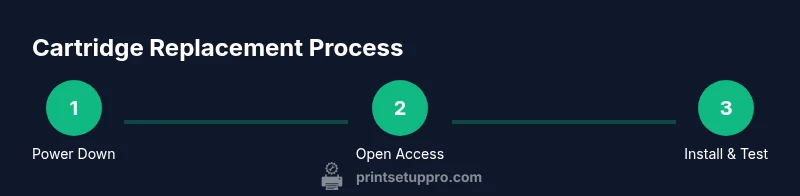
This section provides a high-level outline of the replacement workflow you’ll perform in the dedicated STEP-BY-STEP section. Start by powering down the printer and removing the access panel as specified in your manual. Remove the spent cartridge carefully, noting its orientation and position. Gently insert the new cartridge until it clicks or locks in place, then close the access panel. Run a print alignment page or a test page to verify color consistency and alignment. Finally, calibrate if your printer requires it and store any unused cartridges properly for future use. This overview helps you mentally prepare for the hands-on steps that follow in the guide.
Common pitfalls and how to avoid them
Issue-prone moments include forcing cartridges into place, touching contact chips, or exposing cartridges to heat and direct sunlight. Avoid shaking cartridges aggressively, which can cause leaks; instead, handle them with steady hands and store them upright. If a cartridge leaks or prints poorly, replace it promptly and inspect the printer for debris or damaged seals. Remember to clean any residue around the cartridge slot with a lint-free wipe and never reuse damaged seals. By anticipating these pitfalls, you’ll complete replacements with more confidence and less waste.
Post-installation calibration and validation
After installing cartridges, run a test page to check alignment and color balance. If you notice misalignment, use the printer’s alignment or calibration utilities to correct it. Check for streaks, color gaps, or inconsistent saturation across multiple pages. If the issue persists after a calibration run, re-check cartridge seating and ensure the access panel is securely closed. Document the results in your maintenance log to track improvements over time and to identify patterns that suggest when a replacement may be overdue.
Cost-saving strategies and long-term maintenance
Smart cartridge management saves money and reduces environmental impact. Keep spare cartridges in a cool, dry place to maximize shelf life, and buy in bulk or during manufacturer promotions to secure favorable prices. Consider using compatible or remanufactured options from reputable vendors if your print volume supports it, but test a small batch first to ensure consistency. Regularly review print quality and adjust settings (such as print density) to extend cartridge life. Finally, participate in recycling programs for spent cartridges to minimize waste and promote sustainability in 2026.
Brand and safety guidance for responsible replacements
Always follow the printer manufacturer’s safety guidelines and use genuine cartridges when possible for critical documents or color work. If you opt for third-party cartridges, verify the vendor’s certifications and warranty terms. Print Setup Pro recommends logging each cartridge replacement in a maintenance journal, including date, model, color, and any calibration steps performed. This practice supports accountability and helps with inventory management, especially in shared workspaces or classrooms in 2026.
Tools & Materials
- New printer cartridge (correct model/color)(Keep the cartridge sealed until use; handle by edges, avoid touching gold contacts)
- Lint-free wipes(For quick cleaning around cartridge slots and spills)
- Gloves (optional)(Protect hands from ink/toner; disposal after use)
- Isopropyl alcohol (70% or less)(Use only if there’s stubborn residue; apply to wipe, not cartridge)
- Soft brush or compressed air (optional)(Gently remove dust from the cartridge area)
- Printer manual or model-specific guide(Refer to exact steps and warnings for your device)
Steps
Estimated time: 25-45 minutes
- 1
Power down and open access
Turn off the printer and unplug it to prevent electrical issues. Open the cartridge access door or lid as described in your manual. This initial step reduces the risk of accidental ink/toner discharge and ensures a clean replacement environment.
Tip: Keep the printer unplugged until you are certain the area is clear and safe. - 2
Remove old cartridge
Gently release the old cartridge from its slot by following the release mechanism. Note the cartridge orientation and color mapping to ensure correct installation of the new one. If a color chip is present, avoid touching it.
Tip: Place the old cartridge on a clean surface to prevent spills. - 3
Prepare the new cartridge
Gently shake the cartridge if required by the manufacturer, then remove it from packaging. Remove protective tapes or seals without touching the ink or toner outlets. Check for any signs of damage before proceeding.
Tip: Handle cartridges by the edges and keep them upright to prevent leaks. - 4
Install new cartridge
Insert the cartridge into the correct slot until it seats firmly and clicks. Ensure color alignment matches the printer’s color-coded label. Close the access panel only after all cartridges are seated correctly.
Tip: If a cartridge does not seat, remove it and reinsert, verifying orientation and color mapping. - 5
Reset and align
Restart the printer and perform any required calibration or alignment steps as prompted by the printer software. This ensures the printhead engages correctly with the new cartridge.
Tip: Run a test page to verify color balance and alignment first before printing important documents. - 6
Test print and tune
Print a basic test page and look for color consistency, density, and sharpness. If issues appear, re-run alignment or consult the manual for advanced calibration settings. Replace any faulty cartridges if problems persist.
Tip: Document test results for future reference and inventory tracking. - 7
Store remaining cartridges
Seal and store unused cartridges in a cool, dry place away from direct light to maximize shelf life. Update your cartridge inventory in your maintenance log for quick checks later.
Tip: Keep a simple stock list to avoid last-minute scrambles for replacements.
People Also Ask
How do I know which cartridge to buy for my printer model?
Check your printer’s manual or the manufacturer’s official compatibility list for exact cartridge numbers and color mapping. Avoid vague claims and verify model numbers, color codes, and firmware requirements before purchasing. If in doubt, contact customer support or use an authorized retailer.
Check the manual or official site for exact cartridge numbers and colors before buying. If unsure, contact support or this retailer.
Is it better to use OEM cartridges or compatible cartridges?
OEM cartridges offer reliable performance and color accuracy but at a higher price. Compatible cartridges can save money but vary in quality; choose reputable brands with good return policies and test a small batch first in 2026.
OEMs are reliable but pricier; reputable compatibles can save money—test a small batch first.
What should I do if the printer reports a cartridge error after installation?
Power cycle the printer, reseat the cartridge, and ensure the seal is fully removed. If the error persists, verify compatibility and run the printer’s diagnostic or calibration tools. If problems continue, consult the manufacturer’s support resources.
Power cycle, reseat, and run diagnostics. If it lasts, check compatibility and contact support.
Can I replace only one color cartridge at a time?
Yes, you can replace one cartridge at a time if the printer allows partial replacements. After installing, run a test page to ensure color balance and alignment across all colors.
Yes, you can replace a single color if supported; test for color balance afterward.
How often should I replace cartridges under heavy use?
Replacement frequency depends on usage and print volume. Monitor print quality and page yield estimates from cartridge packaging, and replace when you notice fading or color gaps.
Monitor quality and replace when you notice fading or gaps.
Watch Video
Quick Summary
- Identify compatible cartridges before purchase
- Prepare a clean workspace and follow safety steps
- Seat cartridges firmly and run calibration
- Test print for quality and adjust as needed
- Log replacements for inventory and maintenance