Replace HP Printer Ink: A Complete Step-by-Step Guide
Learn how to replace HP printer ink cartridges safely and efficiently. This Print Setup Pro guide covers compatibility, tools, installation steps, print quality tips, and troubleshooting for home offices and busy workspaces.


According to Print Setup Pro, replacing HP printer ink is a straightforward task that saves time and keeps prints sharp. In this guide, you’ll learn how to identify the right cartridge, prepare the printer, install the new ink, and perform quick alignment checks to prevent common issues. No-fuss steps, safe handling, and troubleshooting tips included.
replace hp printer ink: Choosing cartridges
When you initiate the process to replace hp printer ink, the very first decision is choosing the right cartridge family and color. The HP ecosystem is diverse, and cartridges are not interchangeable across lines or generations. Before you buy, check your printer model, color needs, and whether you prefer standard or high-yield cartridges. Print Setup Pro recommends confirming compatibility with your exact model to avoid wasted ink and frustrated troubleshooting. In most cases, you will identify color codes on the printer lid or in the user manual, then cross-check those codes with the consumables section of the official guide. Additionally, consider whether you need dye-based inks for vibrant photos or pigment-based inks for sharp, long-lasting text. By planning ahead, you can avoid common errors and ensure you get the most value from each cartridge. Finally, remember that proper storage of unused cartridges can extend their shelf life and prevent clogs or leaks when you eventually replace hp printer ink.
Tools and materials you’ll need
Before you begin, gather the essential items so you don’t interrupt the replacement process. A compatible ink cartridge in the correct color, a lint-free microfiber cloth to wipe surfaces, and a clean working area are non-negotiables. Optional but helpful items include nitrile gloves to keep your hands ink-free, isopropyl alcohol or distilled water for quick surface cleaning, a soft brush to remove dust, and a copy of your printer’s manual for model-specific steps. Keeping a small trash bag or disposable sheet nearby helps manage any drips. Having everything in one place reduces the risk of leaving tools scattered around the printer and speeds up the installation.
Preparing your printer for ink replacement
Safety and cleanliness matter when replacing ink cartridges. Start by turning off the printer and unplugging it from the power source. Open the access panel and allow any residual heat or ink to settle. If your model has a print-head cleaning option, it’s wise to run a quick cycle before removing cartridges so you can observe baseline behavior. Remove the old cartridge carefully, avoiding contact with copper contacts or nozzles. Place the spent cartridge upright in a protective container to minimize ink spills. Wipe the cartridge slot with a dry microfiber cloth to remove any stray ink or dust. This preparation reduces the chance of air pockets or misfeeds that could compromise print quality.
Step-by-step installation overview
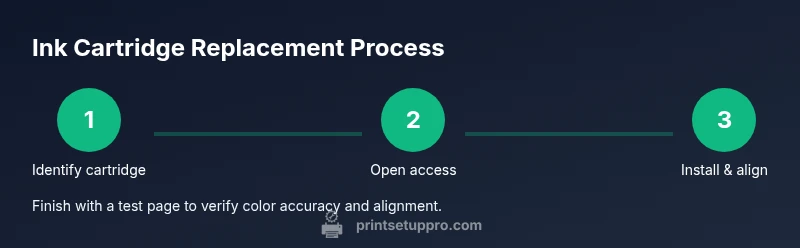
This section provides a concise overview of the installation process. Start by removing all protective packaging from the new cartridge, then align it with the corresponding color-coded slot in the printer. Install until you hear an audible click and the cartridge sits securely. Reinsert any components that were moved, reseal the access panel, and close the printer lid. Finally, perform a printer alignment and run a test page to verify alignment and color accuracy. By understanding the sequence, you minimize misloads and ink leaks, and you set the stage for consistent print output.
Achieving optimal print quality after installation
After installing the new ink, run a calibration or alignment routine if your printer offers it. Use a high-quality paper and select the appropriate print quality settings to suit the document type. For color photos, allow the printer to perform a color balance check, then print a small color test page to verify uniform saturation and contrast. If you notice banding or color shifts, run a manual cleaning cycle and reprint the test page. Keep in mind that new cartridges may require a few pages to prime, so run an initial batch of test prints to identify any residual issues. Print Setup Pro recommends storing a spare cartridge in a cool, dry place and avoiding exposure to air, which can degrade ink performance over time.
Common issues and quick fixes
Ink not detected or misalignment are common early issues after replacement. If the printer does not recognize the cartridge, reseat it firmly and power cycle the printer. Check for protective tape or plastic seals that may still be in place and remove them. In case of streaks or faded color, run a print head cleaning cycle and a test page. If the issue persists, verify that the installed cartridge color matches the printer’s color map and consider replacing the cartridge if it’s out of spec. For persistent problems, consult the printer’s on-screen troubleshooting guide or HP support for model-specific steps. Regular maintenance, including occasional head cleaning and alignment, helps prevent recurring color issues.
Maintaining cartridges to extend life
Proper storage and usage habits extend cartridge life. Store unused cartridges upright in their original packaging or a sealed container in a cool, dry place away from direct sunlight. Avoid shaking cartridges aggressively; a gentle roll can help settle any pigment, but excessive motion can damage the seal. Use the printer regularly, even for small tasks, to keep ink flowing and prevent nozzle blockages. When approaching the end of a cartridge’s life, replace it promptly to prevent drudging lines and poor saturation. Finally, recycle empty cartridges where possible to reduce waste and support responsible printing practices. Print Setup Pro highlights that proactive maintenance lowers long-term costs and improves overall print quality.
AUTHORITY SOURCES
This guide aligns with best practices published by HP official support resources and industry-standard maintenance guidelines. Print Setup Pro Analysis, 2026, synthesizes practical experience from home office and small business environments and echoes the importance of model-specific compatibility and regular alignment checks. For further reading, consult the printer’s user manual and official HP cartridge guides.
Tools & Materials
- HP-compatible ink cartridge (color matched to your printer)(Ensure color and finish match your model; do not mix dye and pigment cartridges.)
- Lint-free microfiber cloth(For wiping residue and cleaning the cartridge area.)
- Gloves (nitrile)(To keep hands clean and avoid ink staining.)
- Isopropyl alcohol 70% or distilled water(Use for quick surface cleaning around the cartridge slot; avoid soaking electronics.)
- Soft-bristled brush(Dust removal around the cartridge area and vents.)
- Printer manual or model guide(Keep for model-specific steps and safety guidelines.)
- Protective sheet or newspaper(Protect surfaces from accidental ink spills.)
Steps
Estimated time: Total time: 15-25 minutes
- 1
Power down and unplug
Turn off the printer and unplug the power cord. This reduces the risk of electrical shock and keeps the printer safe while you access the ink area. Allow any residual heat to dissipate before proceeding.
Tip: Wait 60 seconds after unplugging to ensure internal components reset. - 2
Open the access panel
Gently lift the printer lid or access panel to expose the cartridges. Do not force hinges if they resist; use the manual release if available. Keep the area stable to prevent ink drips.
Tip: Have a cloth ready to catch any minor spills. - 3
Remove the old cartridge
Gently push the cartridge release mechanism and pull the cartridge straight out. Avoid touching copper contacts or the nozzle area. Place the cartridge upright on a protected surface.
Tip: Do not twist or rock the cartridge—this can damage seals. - 4
Prepare the new cartridge
Remove protective tape or seals from the new cartridge as directed by the manual. Do not touch the ink nozzles or copper contacts. If provided, remove any plastic protective caps while keeping the cartridge upright.
Tip: Handle cartridges by edges to minimize oil from fingers. - 5
Install the new cartridge
Align the cartridge with its color-coded slot and insert firmly until it clicks into place. Make sure all cartridges are seated evenly. Reinsert any components that were moved during replacement.
Tip: If the cartridge doesn’t click, remove and reseat it a second time before proceeding. - 6
Align and test
Close the access panel and power the printer back on. Run the alignment or cleaning cycle as recommended by the printer’s menu. Print a test page to verify color balance and alignment.
Tip: Keep a few print samples to compare before and after replacement.
People Also Ask
How do I know which cartridge to buy for my HP printer?
Check your printer model on the device or in its manual, then match the color and cartridge family recommended by HP for that model. Avoid mixing cartridge types from different generations. If in doubt, use HP’s official compatibility tool to confirm.
Look up your printer model and match the HP cartridge family it recommends. If you’re unsure, use HP’s official compatibility tool to double-check.
What should I do if the printer doesn’t recognize the new cartridge?
Power cycle the printer after reseating the cartridge to reset memory. Check that protective tapes are removed and that the cartridge is in the correct slot. If it remains unrecognized, consult the printer’s manual for model-specific steps or contact HP support.
Try reseating and rebooting the printer, and confirm there aren’t any tape seals left. If it still doesn’t read the cartridge, check the manual or contact HP support.
Can I reuse old cartridges or mix brands?
Reusing old cartridges is not recommended because dried ink or damaged seals can affect print quality and cause leaks. Mixing brands is generally discouraged due to compatibility issues and warranty considerations. Use genuine or HP-approved cartridges for best results.
Avoid reusing old cartridges or mixing brands to prevent quality and compatibility problems. Stick with HP-approved cartridges.
How often should I replace ink cartridges?
Replace cartridges when you notice fading, streaks, or color gaps in prints. High-yield cartridges may last longer but cost more upfront. Keeping track of page yield estimates helps you budget replacements.
Replace when prints fade or streak. Consider page yields to plan replacements efficiently.
Is it safe to use third-party cartridges?
Third-party cartridges can be cheaper but may void warranties or cause performance issues. If you choose them, buy from reputable suppliers and run calibration tests after installation. Always keep a buffer cartridge from a trusted source in case of compatibility problems.
They can be cheaper, but they might affect warranty and performance. If you use them, test the printer after installation.
What should I do with empty cartridges?
Recycle empty HP cartridges through HP’s recycling program or local recycling centers. Many retailers offer cartridge take-back schemes. Recycling helps reduce waste and supports sustainable printing practices.
Recycle used cartridges through HP’s program or local centers to reduce waste.
Watch Video
Quick Summary
- Verify cartridge compatibility before purchase.
- Follow the installation order for reliable results.
- Run alignment and test prints to confirm quality.
- Store and recycle cartridges responsibly to reduce waste.