Printer Printing Symbols: Quick Troubleshooting Guide
Urgent guide to fix printer printing symbols where text becomes glyphs. Learn causes, diagnostic flow, and safe steps to restore normal output for home offices, students, and small businesses.


Understanding printer printing symbols and what it means for your workflow
When the phrase printer printing symbols appears, it usually signals a mismatch between the data you send to the printer and the printer's ability to render that data as legible characters. This issue can pop up on Windows, macOS, or Linux, and it can affect inkjet, laser, and all-in-one devices. In many cases, the root cause is not a physical jam but a mismatch in fonts, encoding, or driver language. For home office users and students relying on clean documents, resolving this quickly is essential to keep your productivity intact and your deadlines on track. Throughout this guide, we’ll refer to the core problem as symbol output and outline a practical path to restoration using the printer printing symbols scenario as the anchor.
Print Setup Pro emphasizes that a structured approach—start simple, verify settings, and escalate—reduces downtime. By following this flow, you’ll be able to separate data issues from hardware faults and recover printing with confidence, while keeping your setup aligned with best practices for encoding and font handling. The key is to isolate whether the issue is document-specific or device-wide, so you can apply a targeted fix and avoid unnecessary steps.
If you operate a small office setup, you may encounter this problem after a software update or when sharing a printer across multiple devices. In such cases, centralizing driver versions and standardizing encoding options can prevent future symbol-related surprises. The Print Setup Pro team recommends keeping a short playbook of checks so you can act fast when symbol output resurfaces.
Common causes of symbol output and how to recognize them
A reliable way to diagnose printer printing symbols is to map symptoms to likely causes. Through experience, four frequent culprits emerge, each with distinct signs and fixes:
- Driver or firmware encoding issues (high likelihood): The most common cause when symbols replace letters. Drivers control how the printer interprets a page’s fonts and encoding; a mismatch can force the printer to render symbols instead of characters.
- Language or font encoding mismatch (medium): If the data stream uses a font or encoding the printer doesn’t understand, characters may be substituted with symbols or boxes. This often happens after choosing a different language or switching between PCL and PostScript modes.
- Firmware or memory corruption (medium): The printer’s internal firmware handles rendering instructions. If memory is corrupted, symbols can appear. Firmware faults are rarer but can affect multiple jobs across devices.
- Data path issues (low): A loose cable, a flaky USB/ethernet connection, or data corruption en route to the printer can manifest as garbled output, sometimes symbol-like shapes, especially with large or complex print jobs.
Recognize the patterns:
- If symbol output occurs with all documents, driver or firmware is suspect.
- If only certain files show symbols, encoding, fonts, or application-level printing commands are at fault.
- If symbols appear intermittently, inspect cables and network stability first.
Print Setup Pro notes that addressing these causes in a systematic fashion minimizes downtime and stops recurring symbol-printing problems. A disciplined approach to encoder settings, driver versions, and print paths pays off when you need to keep a steady flow of documents.
Diagnostic flow: symptom → diagnosis → solutions (a practical workflow)
Starting from the symptom of printer printing symbols, follow this concrete flow to reach a diagnosis and apply fixes in a predictable order. This flow helps ensure you don’t skip simple steps that resolve most issues, then escalate only when needed. First, confirm the symptom on a fresh test page from the same application. Then partition potential causes into driver/encoding, firmware, and data-path categories. Finally, apply targeted fixes in the recommended order and re-test after each step. If the problem remains unresolved after these checks, consider professional support or a firmware reflashing option from the manufacturer.
- Symptom check: Print a test page from the printer’s own control panel and from two different applications. If all show symbols, focus on device-level settings; if only one app shows symbols, address the app’s encoding or font substitution.
- Cause ruling: Update or reinstall the printer driver; verify language and encoding settings in both the OS and the printer panel; check firmware version.
- Remedy sequence: Reset printer language to a standard (PCL or PostScript as appropriate), replace faulty data cables, and run a factory reset only after backing up settings.
- Re-test: Print several pages of plain text, then try a graphical document. If symbols persist, escalate to a firmware reflashing or vendor diagnostic tool.
- Prevention: Create a baseline configuration and keep driver versions synchronized across devices; document encoding choices for common file types.
If this doesn’t work, try the next steps: perform a firmware update (or reflash if supported), test with alternative print paths (USB vs network), and consult the manufacturer’s guidance to avoid voiding warranties.
Step-by-step fixes for the most common cause (driver/encoding mismatch)
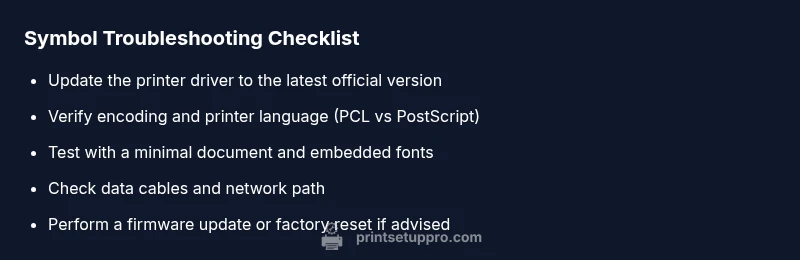
This section provides a concrete, ordered fix plan focused on the most frequent root cause: driver and encoding mismatches. Follow the steps in order and test printing after each action. The steps assume a typical desktop setup with a Windows or macOS environment, but the same principles apply across operating systems. By adhering to a step-by-step protocol, you’ll quickly narrow down the problem and restore normal text rendering.
-
Update or reinstall the printer driver
- Ensure you download the latest driver from the official manufacturer site for your exact printer model. Uninstall any existing drivers first, then perform a clean install. Reboot the computer and print a plain text test page.
- Tip: Use a clean user profile or a different computer to rule out profile-based corruption.
-
Check language and encoding settings in the print pipeline
- In the application, choose a standard encoding (Unicode/UTF-8 where available) and select the printer’s language (PCL or PostScript) that matches the printer model. Update the printer’s own settings for language if needed.
- Tip: Prefer PostScript for complex graphics on many printers while ensuring the file uses standard fonts.
-
Test with a minimal document
- Create a simple document with basic fonts (Arial, Times New Roman) and no advanced graphics. Print this file to see if the symbols persist. If resolved, reintroduce the original fonts gradually to identify the specific font substitution issue.
- Tip: Use a PDF created with embedded fonts to minimize substitution problems.
-
Inspect and refresh the data path
- Check USB cables, Ethernet cables, and network switches for looseness or faults. Try a different port or a known-good cable. If the printer is wireless, verify the connection stability.
- Tip: Avoid using long cables that introduce signal degradation; keep cables short and secure.
-
Firmware update or reset
- If the driver and encoding checks are clean but symbols persist, consider a firmware update from the manufacturer. If allowed, perform a factory reset after backing up essential settings.
- Tip: Save the current printer configuration before a reset; this simplifies reconfiguration after the reset.
-
Engage vendor support when needed
- If symbols remain after all steps, collect print samples (before/after), driver versions, firmware revision, OS version, and a description of the problem to share with support.
- Tip: Document the exact file type and viewer used for reproducibility; provide a sample file if allowed.
Estimated total time: about 30–45 minutes for initial fixes; firmware reflashes or vendor diagnostics may take longer.
Tips & warnings to avoid common pitfalls
  - Safety first: unplug the printer before opening access panels or reseating cables.
  - Don’t mix driver versions between macOS and Windows in a shared environment; maintain consistency.
  - Avoid flashing firmware from unofficial sources; use only the official manufacturer’s tool and image.
  - Back up settings before resets to prevent losing network, queue, or color profiles.
  - When in doubt, test with a known-good, simple document before testing more complex files.
  - If the printer remains under warranty, contact the manufacturer to avoid voiding coverage.
KEY SAFETY NOTES AND PRECAUTIONS
- Always power down and unplug before handling internal components.
- Use anti-static precautions when handling internal modules or memory cards (if applicable).
- Ensure you have proper ventilation and avoid contact with toner or ink when opening cartridges.
- If you’re uncomfortable with firmware or hardware resets, seek professional service.
- Regular maintenance, like cleaning printheads and ensuring no paper jams, can prevent symbol-related issues from appearing unexpectedly.