Printer White Lines Troubleshooting Guide
Learn fast, proven steps to remove printer white lines. From nozzle checks and cleaning to alignment and driver updates, Print Setup Pro guides you through safe, effective fixes.


Most likely the issue is a clogged or misaligned print head, especially in color channels. Start with a nozzle check and cleaning cycle, then run a basic alignment. If lines persist, verify ink or toner levels, paper type, and driver settings. Print Setup Pro guides you through a methodical, safe fix.
Understanding printer white lines
According to Print Setup Pro, printer white lines are a common print-quality symptom where gaps or bands appear in areas that should be solid ink. This happens when ink or toner fails to deposit evenly across the page, often illustrating itself as vertical or horizontal streaks. In color printing, one or more color channels may not deposit consistently, creating noticeable gaps. The path from digital data to printed pixels is complex: the printer must move ink through nozzles, align color channels, and feed paper cleanly. When any step falters, white lines emerge. Print Setup Pro analysis shows that the most frequent culprits are a clogged print head, dried ink, or misalignment, though paper quality, media type, or ambient humidity can contribute. Understanding how the system should work helps you target the right fix quickly and safely.
If you’re seeing printer white lines, approach the problem like a scalpel: precise, ordered, and evidence-based. Start with the simplest checks and escalate only as needed. By validating a few core variables—nozzle health, alignment, ink levels, and media type—you can often recover print quality without expensive service. This guide will walk you through a structured, safe workflow designed for home offices, students, and small businesses working with common inkjet and laser printers alike.
positionOnPageIsIntroNoteToReaderHashTagComment: false
Steps
Estimated time: 30-45 minutes
- 1
Run nozzle check
Begin with the basic nozzle check to see which color channels are clogged. Print the nozzle test page and examine the results for gaps or missing lines across color bars. If gaps appear in one color, focus on that channel during cleaning.
Tip: Document which colors show gaps; it helps target the right cleaning sequence. - 2
Perform a print head cleaning
If the nozzle test shows gaps, run the printer’s cleaning cycle. This process uses small, controlled bursts of ink to loosen dried residue. Do not overdo cleanings—multiple cycles can waste ink.
Tip: Wait a few minutes after cleaning before testing again to allow ink to settle. - 3
Run print head alignment
After cleaning, run the alignment utility and print an alignment page. Alignment adjusts nozzle positions to line up color layers correctly, reducing lines or misregistered colors.
Tip: If you have many nozzles, run a full alignment rather than a quick alignment option. - 4
Check ink/toner levels and replace if needed
Low ink levels or clogged cartridges can cause uneven deposition. Replace or refill cartridges with genuine or manufacturer-approved options to ensure proper flow and color balance.
Tip: Keep one spare cartridge per color tier to minimize downtime. - 5
Test with different paper/media
Certain papers can cause feed irregularities that appear as lines. Try a manufacturer-recommended paper type and a fresh pack to rule out media issues.
Tip: Avoid recycled or very cheap papers for critical color work. - 6
Update drivers and firmware
Software mismatches can create print artifacts. Check the printer manufacturer's site for the latest driver and firmware updates, and install them if available.
Tip: Restart the computer and printer after updates to ensure changes take effect.
Diagnosis: Visible white lines across printed pages
Possible Causes
- highClogged or dried print head / blocked color channels
- mediumPrint head misalignment or calibration drift
- mediumLow or depleted ink/toner, especially in color cartridges
- lowPoor quality or incompatible paper causing feeding marks
Fixes
- easyRun a nozzle check from the printer control panel, then perform a cleaning cycle
- easyRun the print head alignment utility and print an alignment test page
- easyReplace or refill ink/toner to full levels
- easyUpdate or reinstall printer drivers to rule out software issues
- easyInspect paper type and switch to manufacturer-recommended media
- hardIf issues persist, contact support or a service center for hardware inspection
People Also Ask
What causes printer white lines?
White lines are typically caused by clogged or dry print heads, misalignment, or low ink/toner. Paper quality and media type can also contribute. Running a nozzle check and alignment often resolves the issue.
White lines usually come from clogged heads, misalignment, or low ink. Start with nozzle checks and alignment, then check ink levels and media.
Do I need to replace cartridges to fix white lines?
Not always, but low or dried cartridges can create deposition gaps. Replacing or refilling cartridges often resolves color-related lines.
Sometimes replacing or refilling cartridges fixes the lines, especially if colors run low.
Can updating drivers fix print lines?
Yes, outdated drivers can cause rendering issues. Updating drivers can fix software-related print artifacts.
Updating the driver can fix issues caused by old software.
Is cleaning the print head safe?
Yes. Use the printer’s built-in cleaning function and avoid manual cleaning beyond those tools.
Yes—use the built-in cleaning function to avoid damaging the head.
When should I seek professional help?
If white lines persist after the above steps, or you notice hardware symptoms like unusual noises or ink leaks, contact support or a service center.
If it keeps happening after trying the steps, get professional help.
Watch Video
Quick Summary
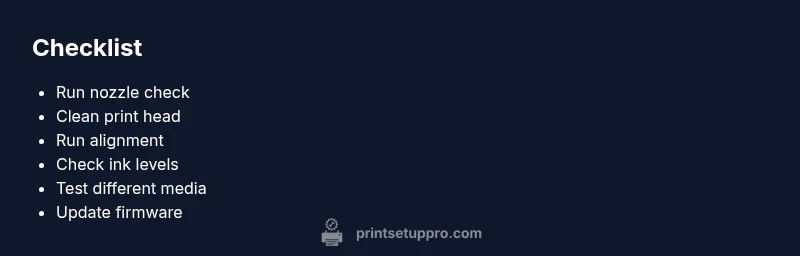
- Run a nozzle check and clean first
- Check ink/toner levels and paper type
- Run alignment and test pages
- Consult a pro if lines persist